
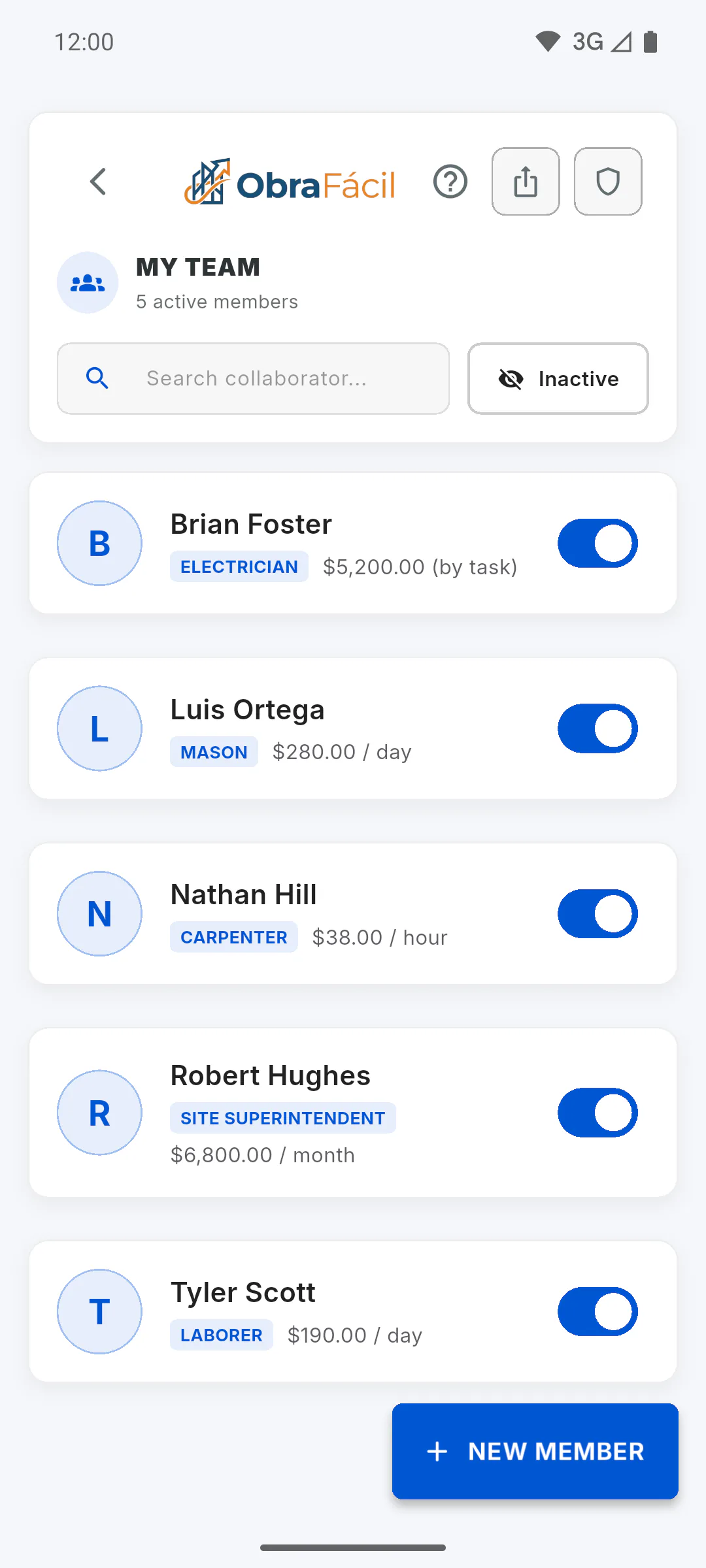
Step 1: Open your team
In the side menu, tap My Team. If the list is empty, tap Register Now. After the first one, use the New Member button.
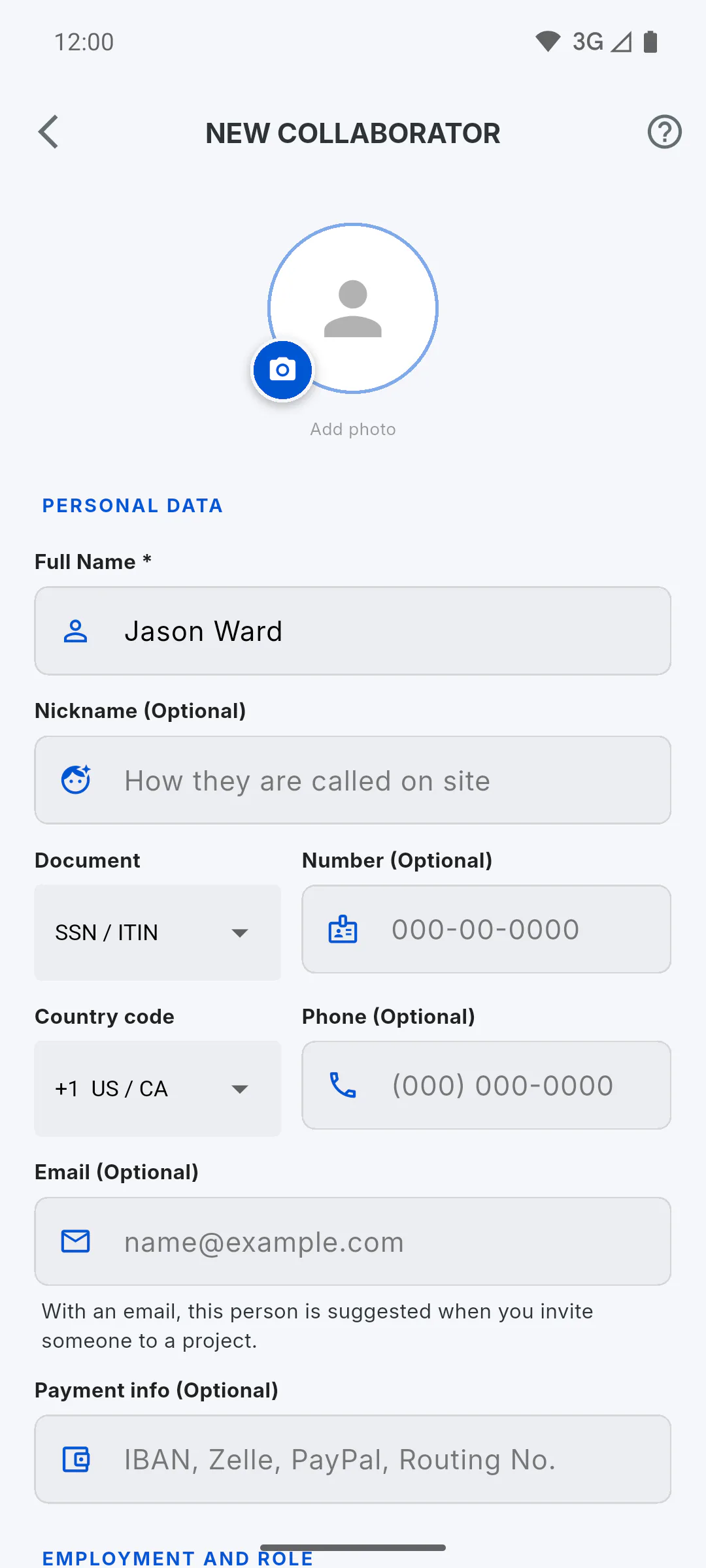
Step 2: Personal details
Under Personal Data, only Full Name is required. ID document, phone number, email and payment info are optional. With Email (Optional) filled in, the person shows up as a suggestion when you invite someone to a project: How to invite someone to your project (email and WhatsApp). The document, email and payment info are stored separately: only you and the people you allow to manage your team can see them.
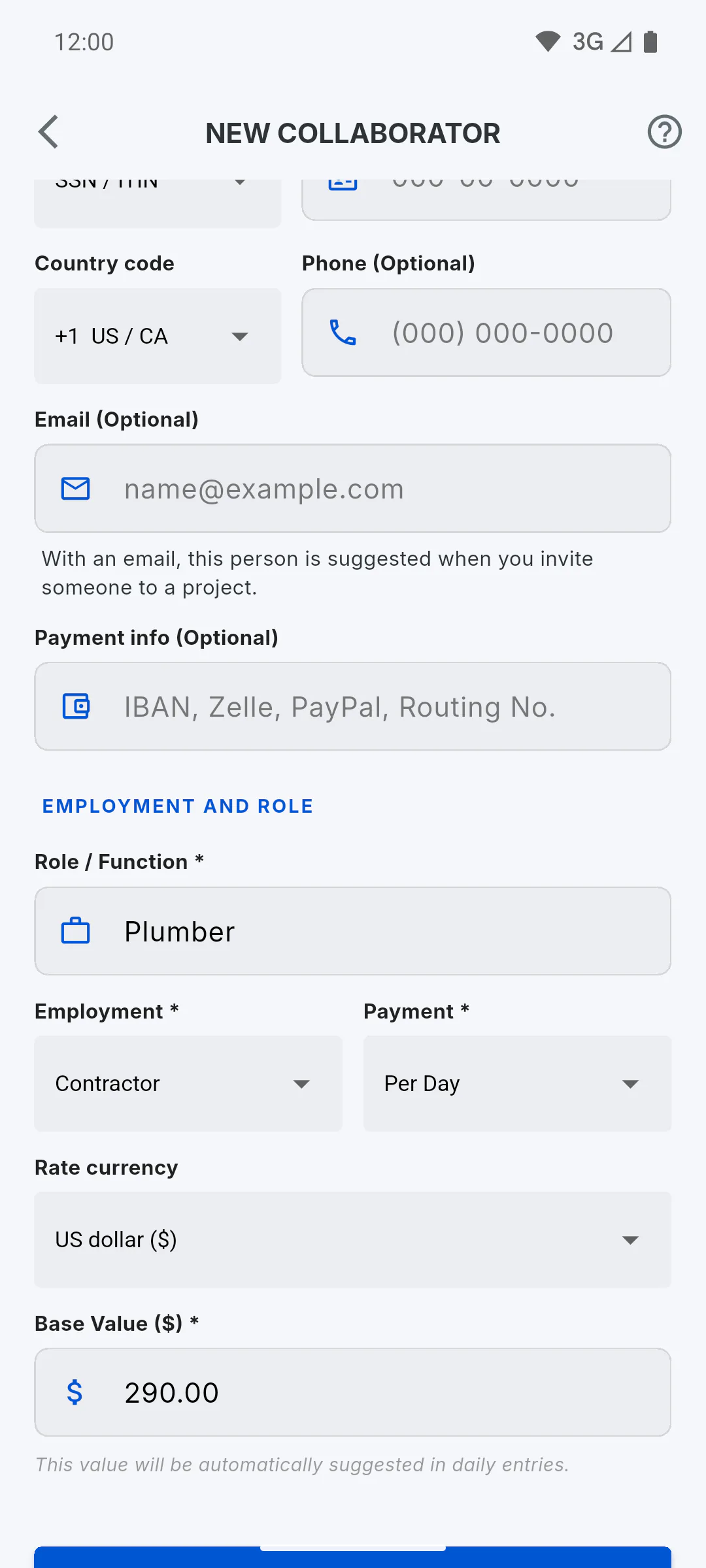
Step 3: Employment, role and pay
Under Employment and Role, enter the Role / Function, the Employment type and how the person is paid:
- Per Day, Monthly, By Task or Per Hour
- pick the Rate currency and type the Base Value: it's the basis for the payroll calculation
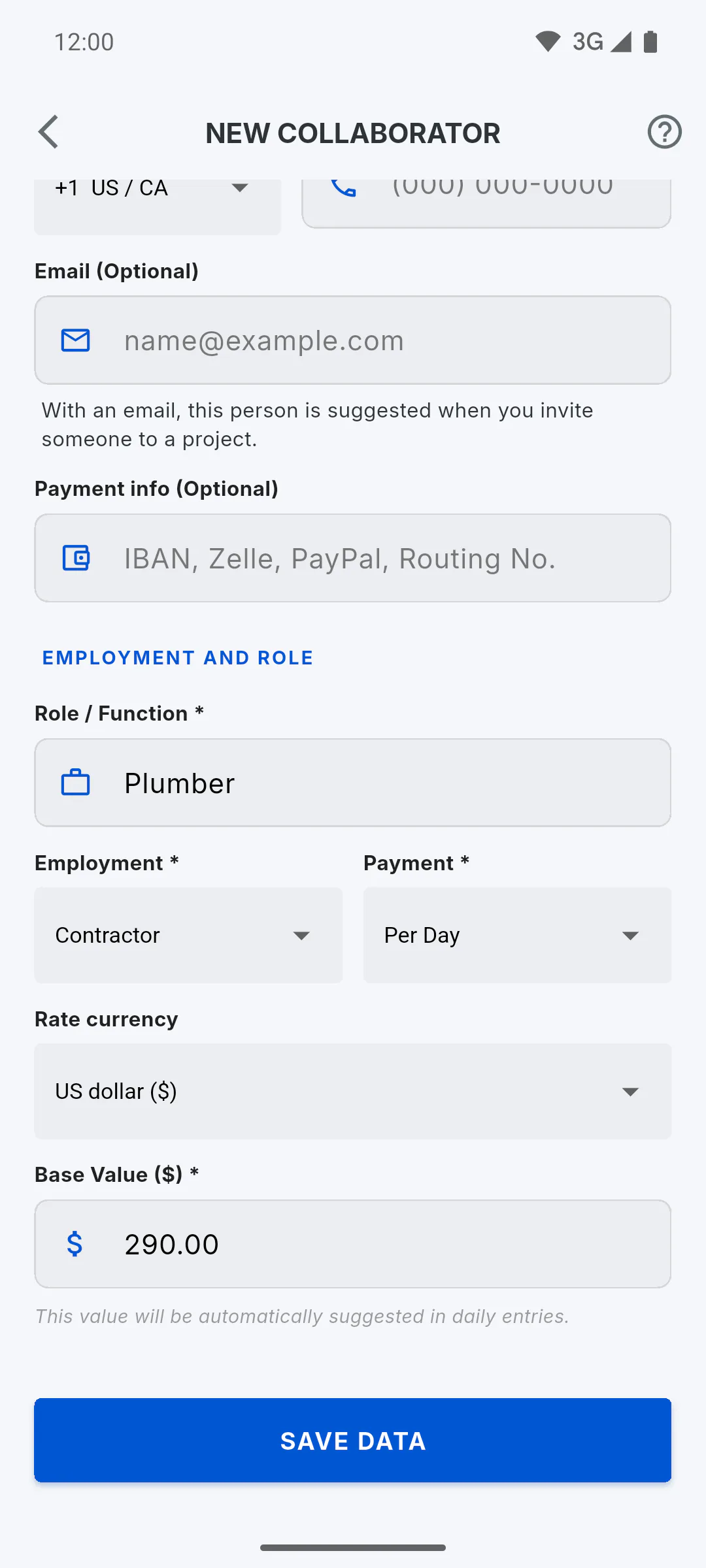
Step 4: Save and use it in reports
Tap Save Data. Active team members show up in the daily report under Project Team, so you can mark attendance: How to create a daily report. Offline, the details are saved but a new photo is skipped; add the photo later once you're back online.
How to add a member to your team
Add the people who work with you once and use them on every project: attendance in daily reports, payroll and advances.
For managers4 steps
Didn't find what you were looking for?
Chat with support on WhatsApp or open a ticket right in the app.