
Step 1: Open the calculator
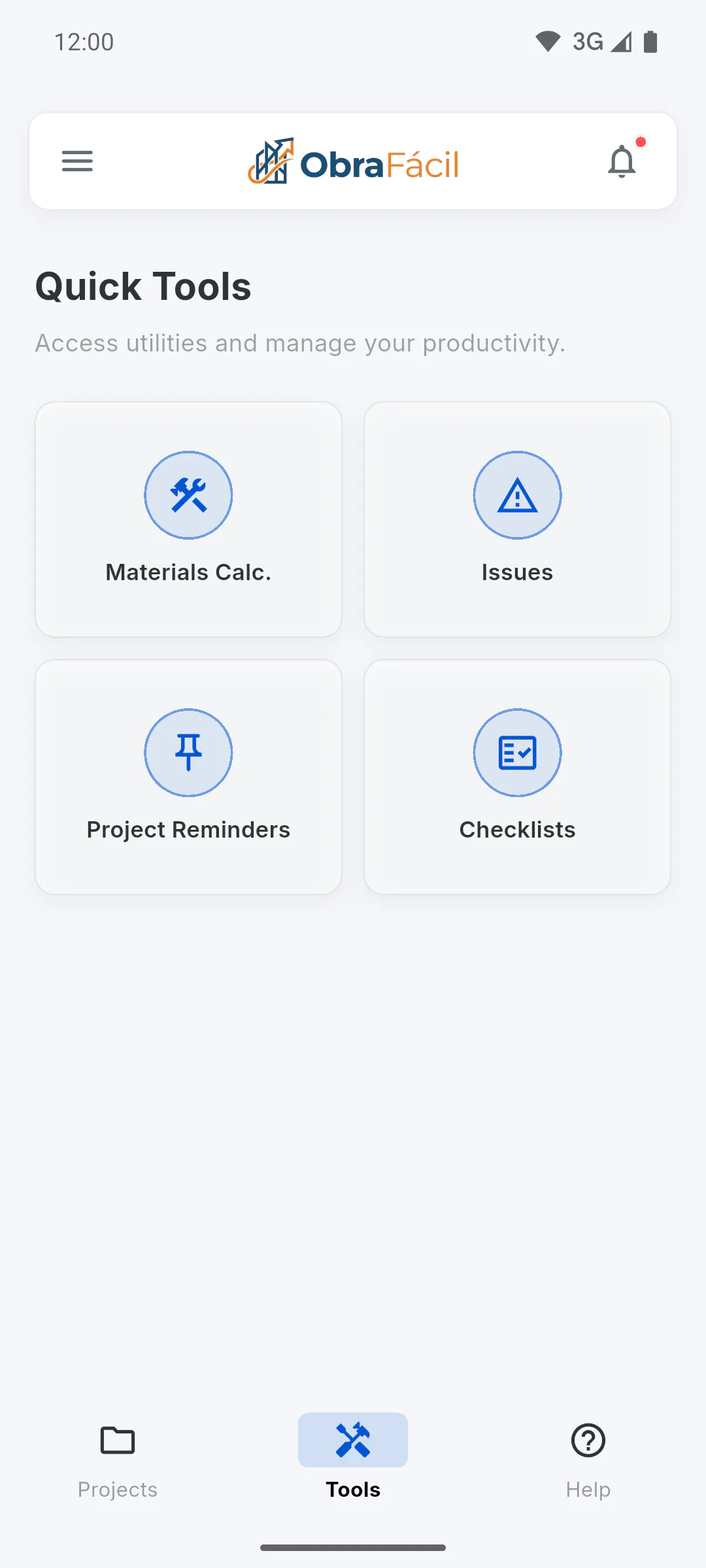
On the dashboard, under Quick Tools, tap Materials Calc.. On a phone, Quick Tools are in the Tools tab of the bottom bar; on larger screens, below the project list. You don't need to open a project.
Step 2: Accept the notice
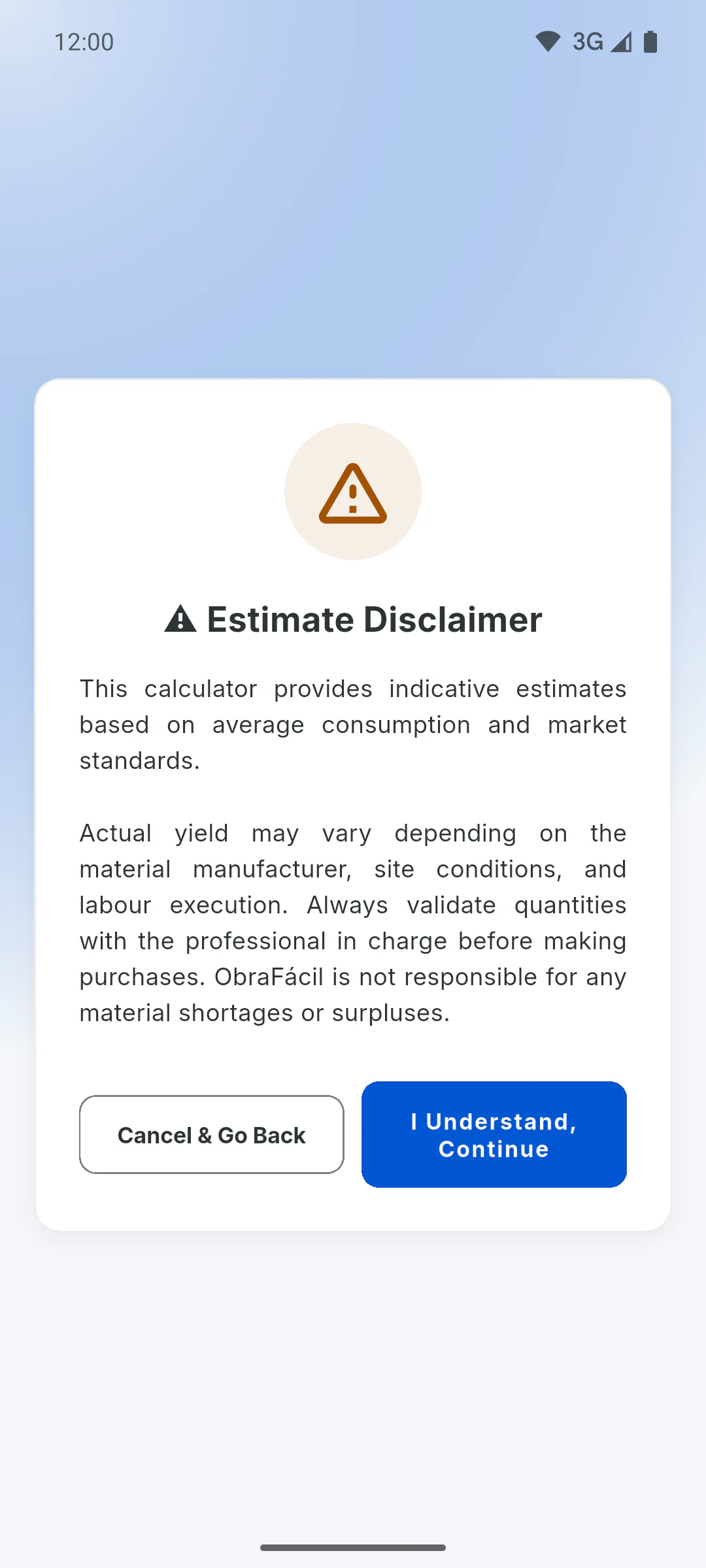
Every time the calculator opens, the Estimate Disclaimer appears: quantities are market averages and should be checked with the person in charge of the project before buying. Tap I Understand, Continue.
Step 3: Choose the measurement system
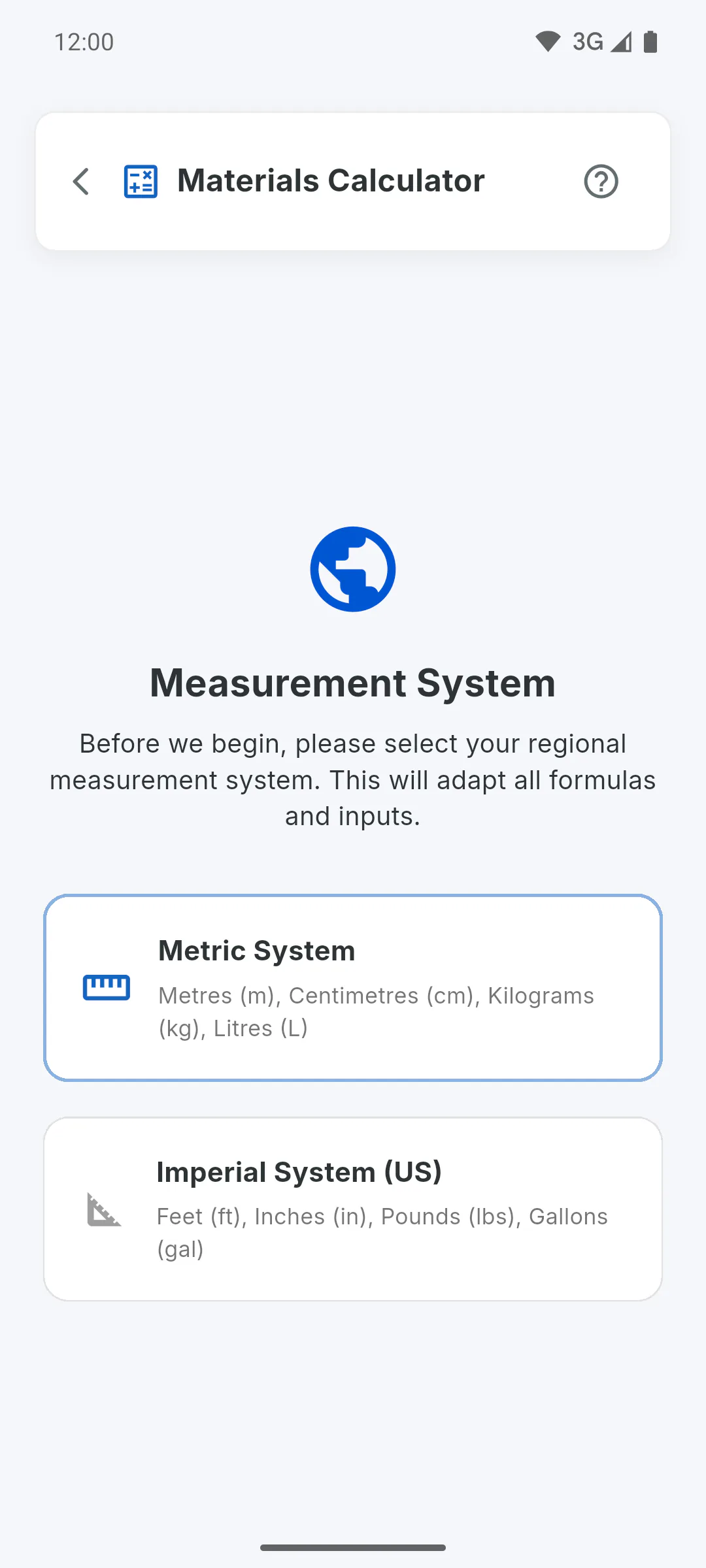
The first time, under Measurement System, choose Metric System (metres, centimetres, kilograms, litres) or Imperial System (US) (feet, inches, pounds, US gallons). The system for the country in your profile comes first and is highlighted: imperial only for accounts in the United States. In the Imperial System, fields and results use square feet (sq ft), cubic yards (yd³) and inches (in). Your choice is saved on the device and the calculator won't ask again; to switch, tap the Measurement System button at the top of the screen.
Step 4: Pick the stage and the material
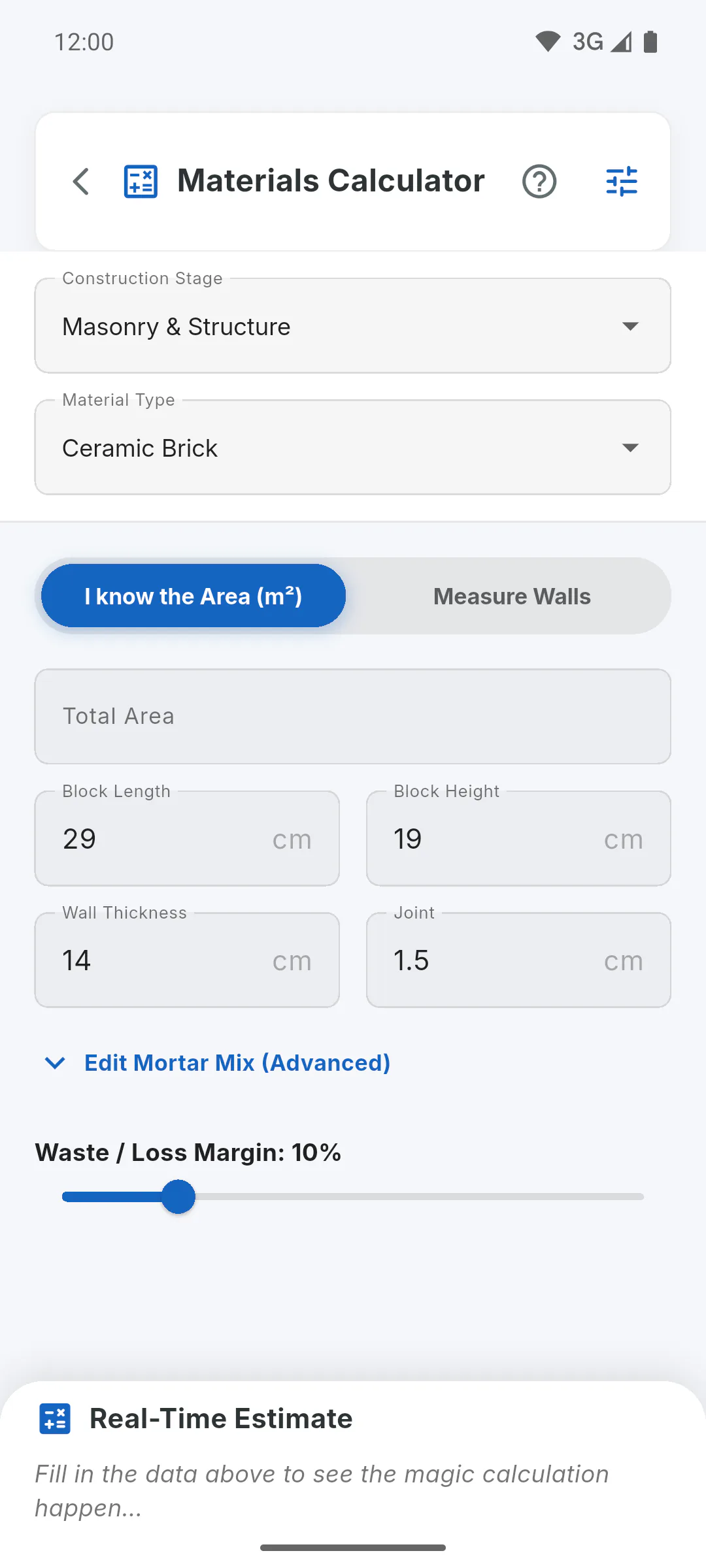
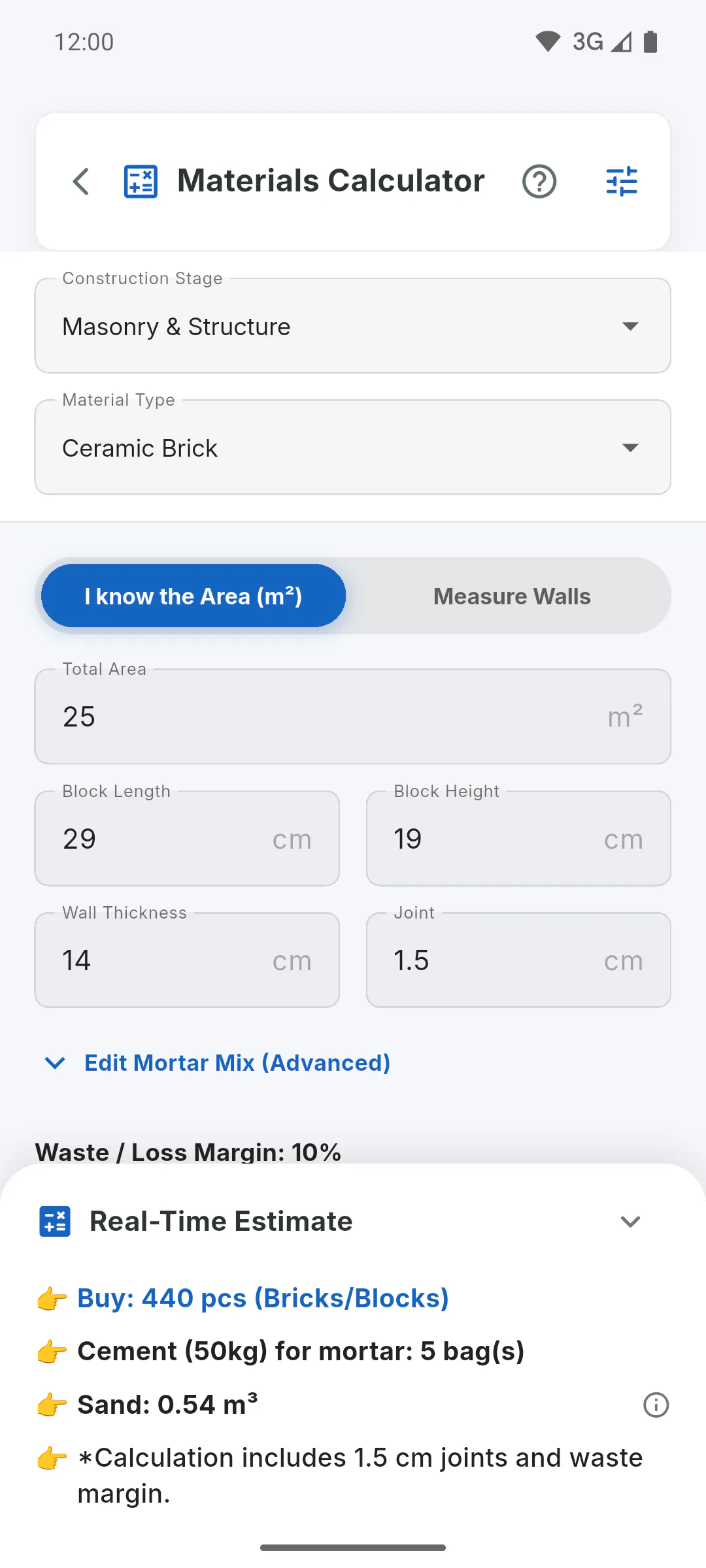
Under Construction Stage, pick the group and, under Material Type, the item (the first one is already selected). See what each one calculates: Which materials the calculator estimates
Step 5: Enter the measurements
Tap I know the Area (m²) (in the Imperial System, I know the Area (sq ft)) to type in the area directly, or Measure Walls to enter the measurements and let the app work out the area. Check the item or product sizes, which start with common values, and adjust the Waste / Loss Margin from 0 to 50%.
Step 6: Read the result
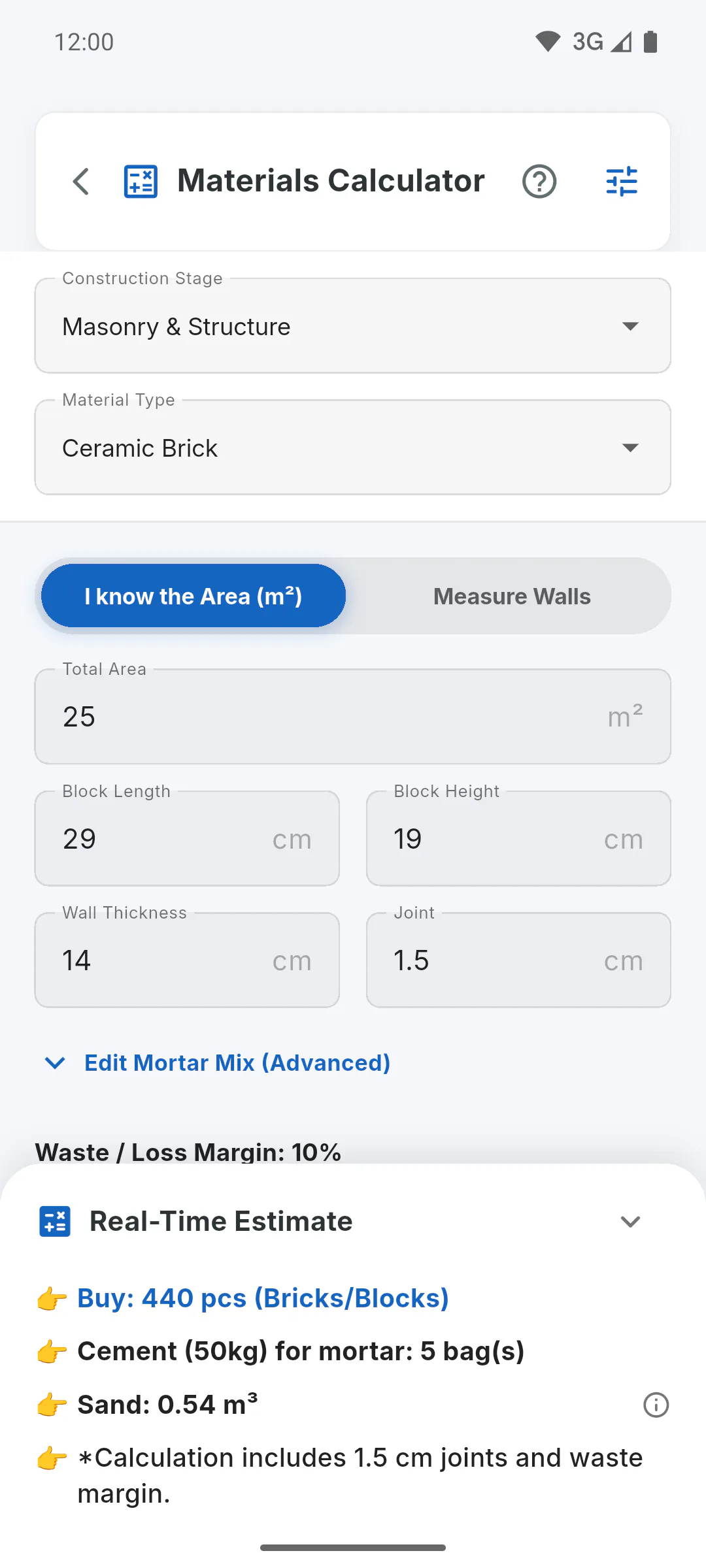
The result shows at the bottom, under Real-Time Estimate, and updates as you type. Tap the info icon next to a line to see the tip; the arrow collapses the panel. Nothing is saved or added to a project: note the result down before you leave.
How to use the Materials Calculator
Estimate how many bricks and how much cement, sand, concrete, paint, tile and drywall to buy from your project's measurements, with a waste margin.
For managers and team members6 steps
Didn't find what you were looking for?
Chat with support on WhatsApp or raise a ticket in the app.