
Step 1: Open the Schedule
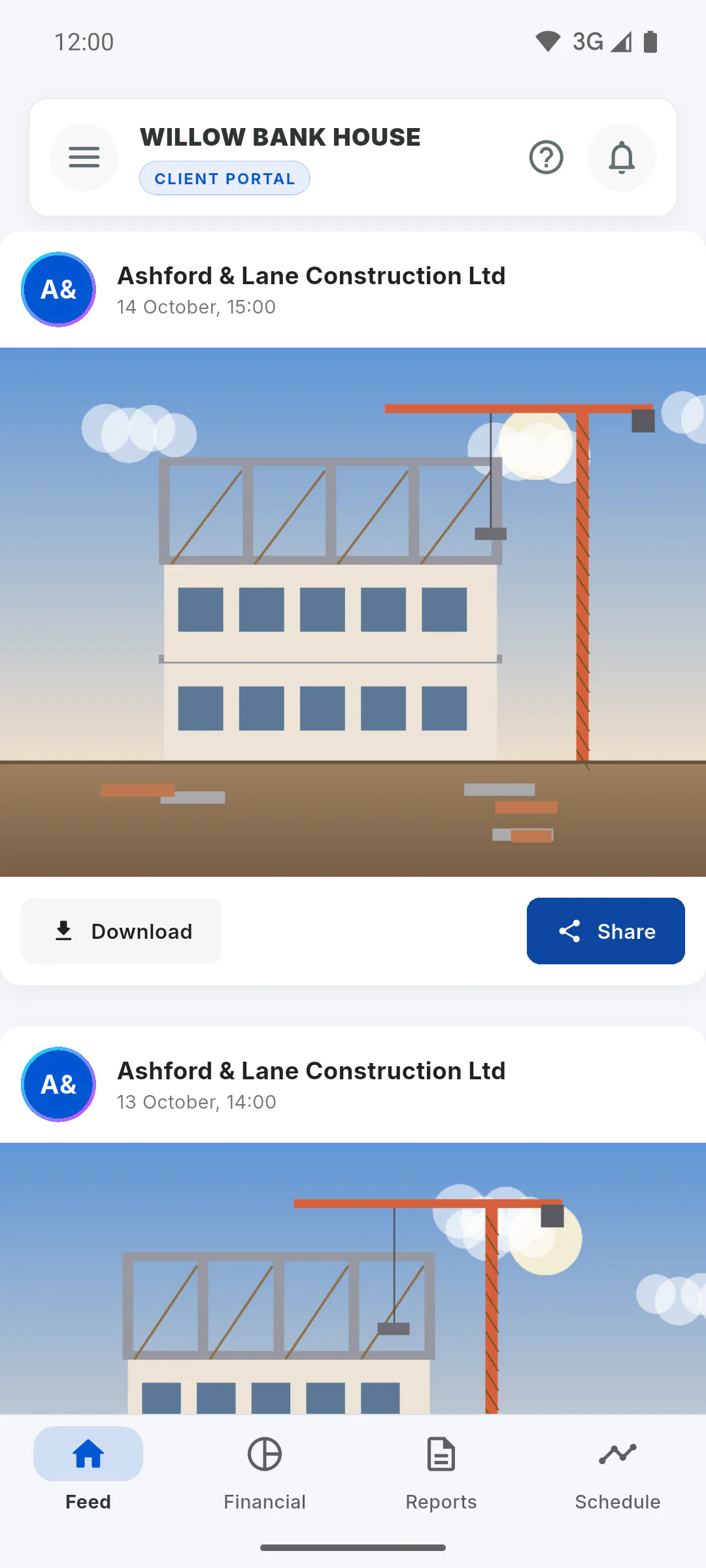
In the project's Portal, tap the Schedule tab at the bottom of the screen. If the manager hasn't added any stages yet, you'll see Empty Schedule.
Step 2: Summary or detailed view
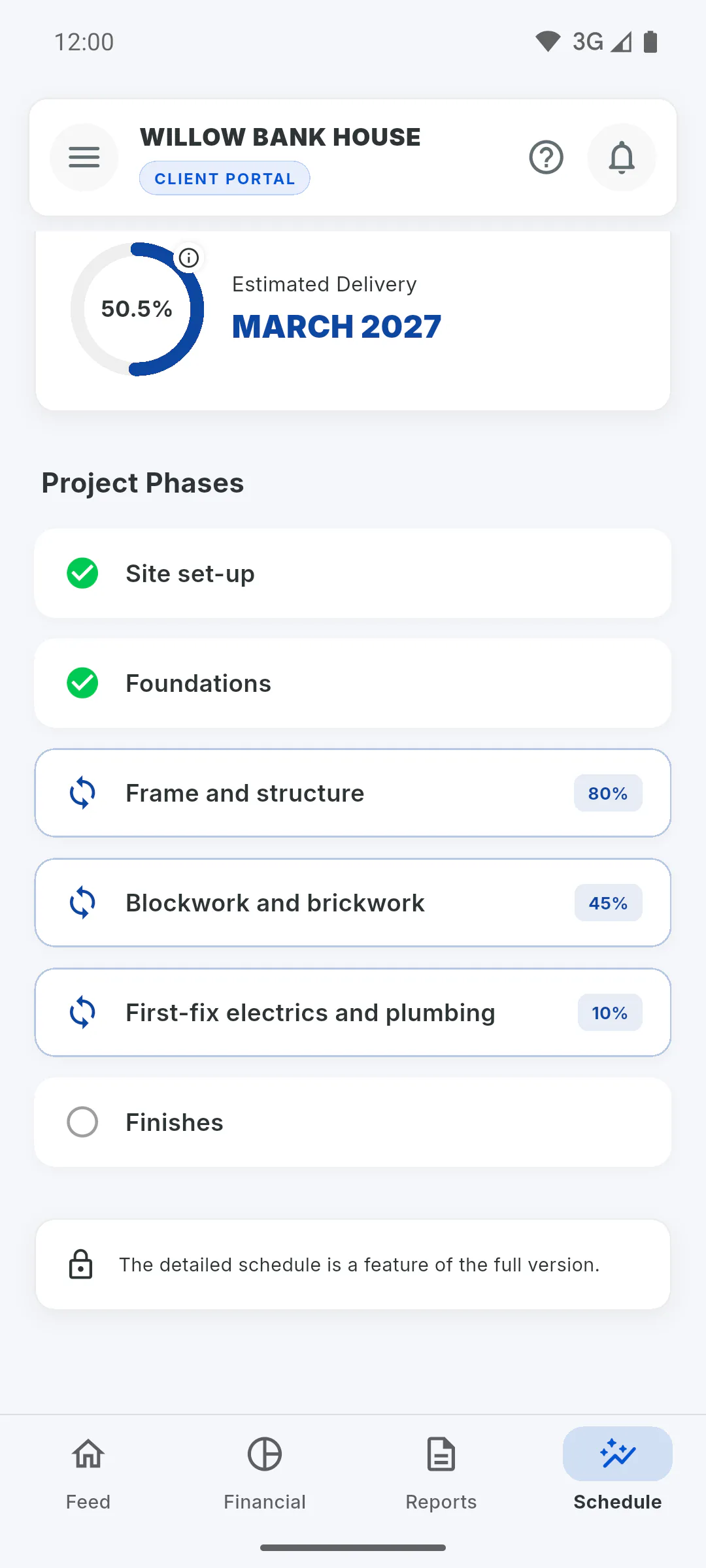
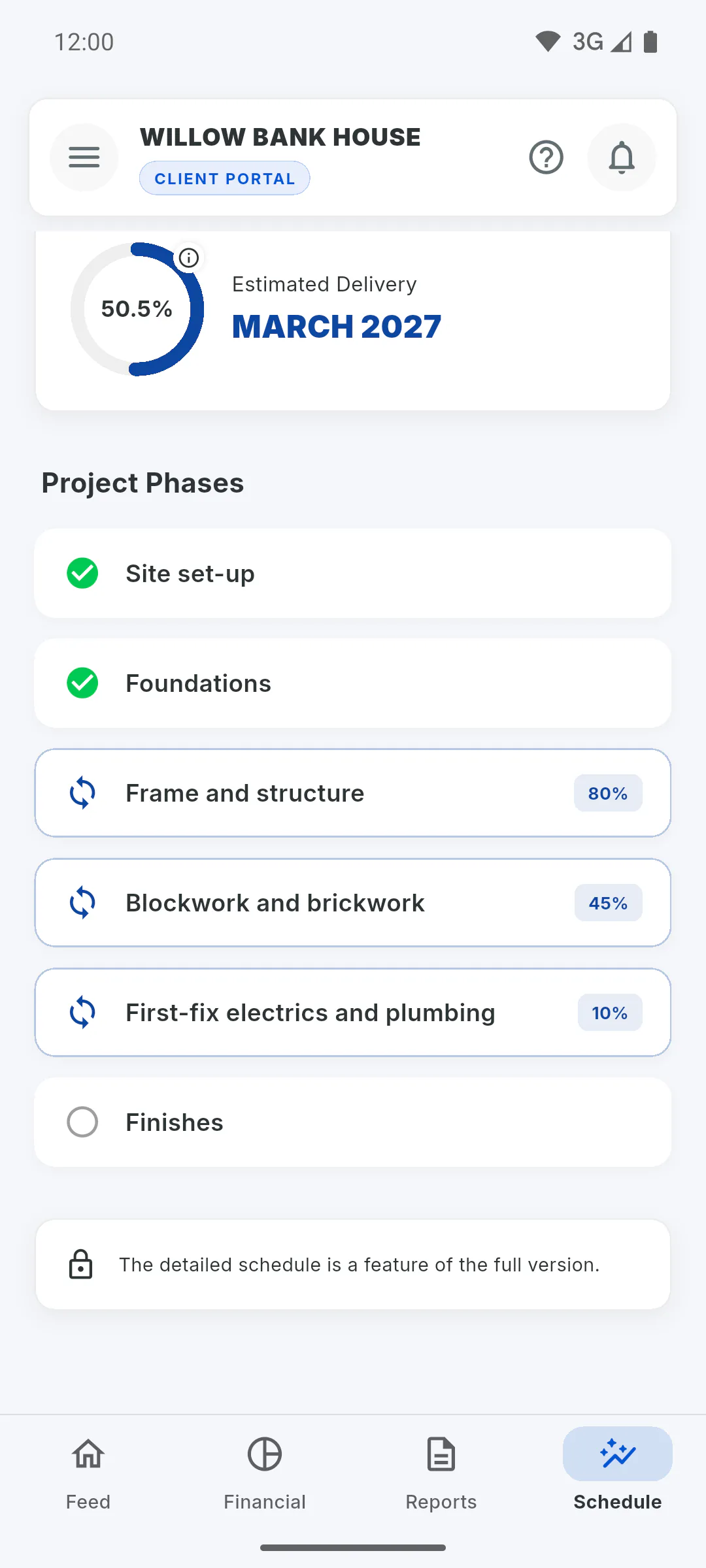
What you see depends on what the manager has unlocked. With the detailed schedule unlocked, you get the deadline gauges and the Detailed Timeline. Without it, you get a project summary, with the note The detailed schedule is a feature of the full version. at the bottom of the screen. To see the detailed view, speak to the project manager.
Step 3: Summary: progress and delivery
The circle shows how much of the project has been built: tap it for an explanation. Next to it, Estimated Delivery shows the month and year. If the project has no delivery date, the date is taken from the last stage and you'll see Estimate (Based on Phases). With no dates at all, it shows Undefined: ask the manager to update the deadline.
Step 4: Summary: project phases
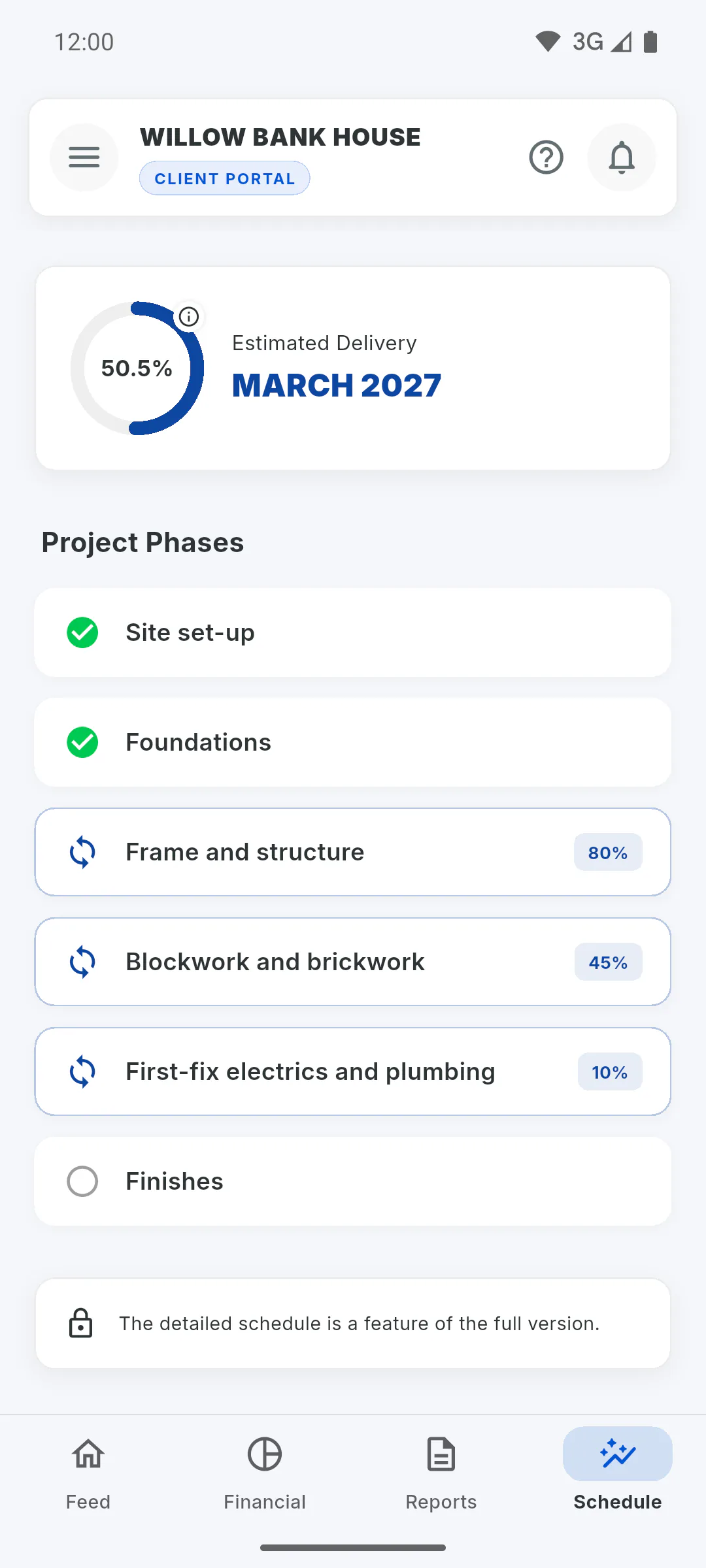
Under Project Phases, each stage has a symbol:
- green tick: completed;
- spinning arrows, with the percentage: in progress;
- empty circle: not started yet.
When a stage is tracked by sub-stages, they appear just below it, each with its own percentage.
Step 5: Detailed: progress vs time
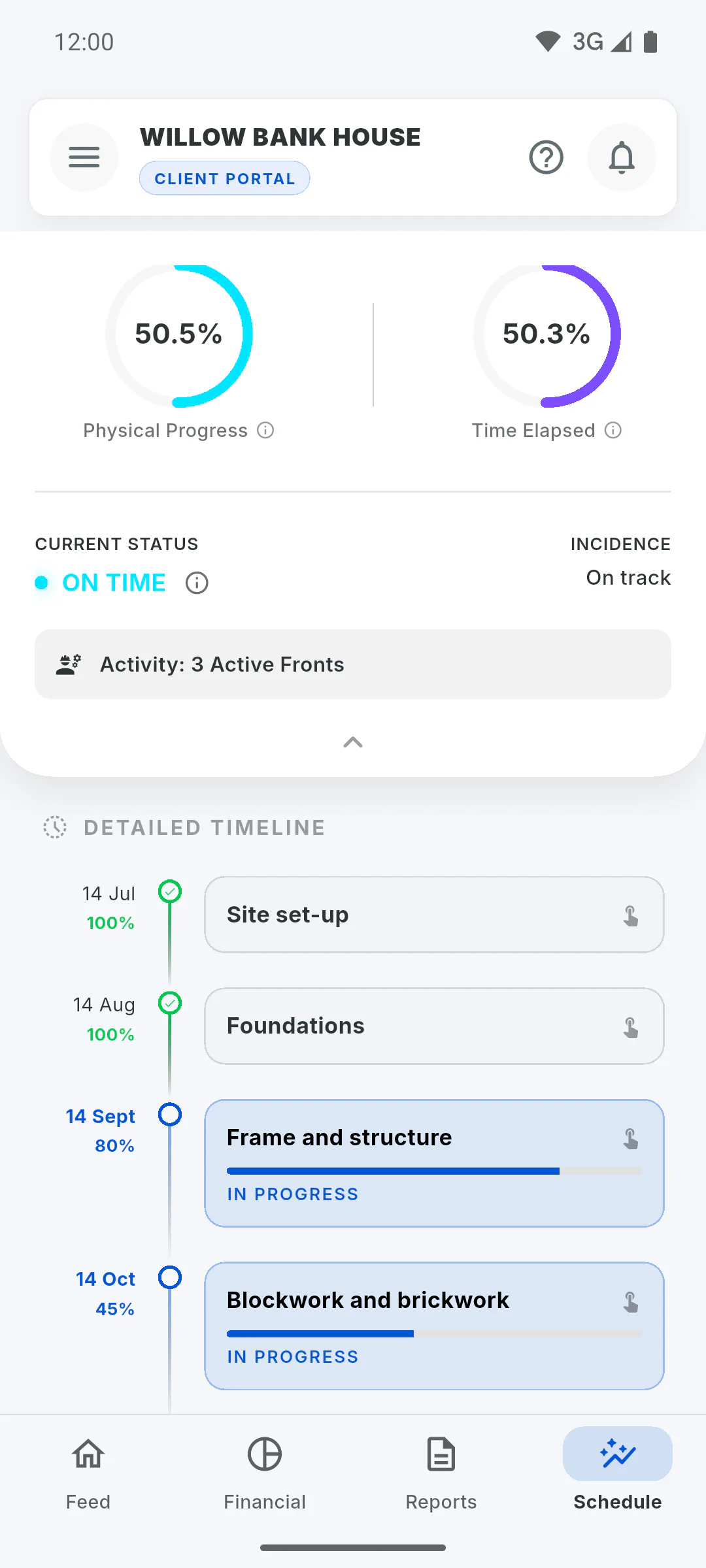
At the top there are two gauges: Physical Progress, how much has been built, and Time Elapsed, how much of the time between the start and the estimated delivery has gone by. Tap each one for an explanation; the time gauge also shows the dates. The arrow underneath collapses or expands this panel.
Step 6: Detailed: is the project on schedule?
Under Current Status, the app compares the two gauges:
- Ahead: progress is more than 5 points ahead of the time elapsed;
- Delayed: it's more than 5 points behind;
- On Time: the gap is 5 points or less. Tap the info icon next to it to see the margin.
Incidence sums up that comparison: when the project is ahead or delayed, it shows the gap in percentage points, such as +8.0% ahead of schedule or 8.0% behind schedule; when it's on time, it just shows On track. Activity shows how many stages are in progress. Without a start date and delivery date, you'll see Dates not set.
Step 7: Detailed: each stage
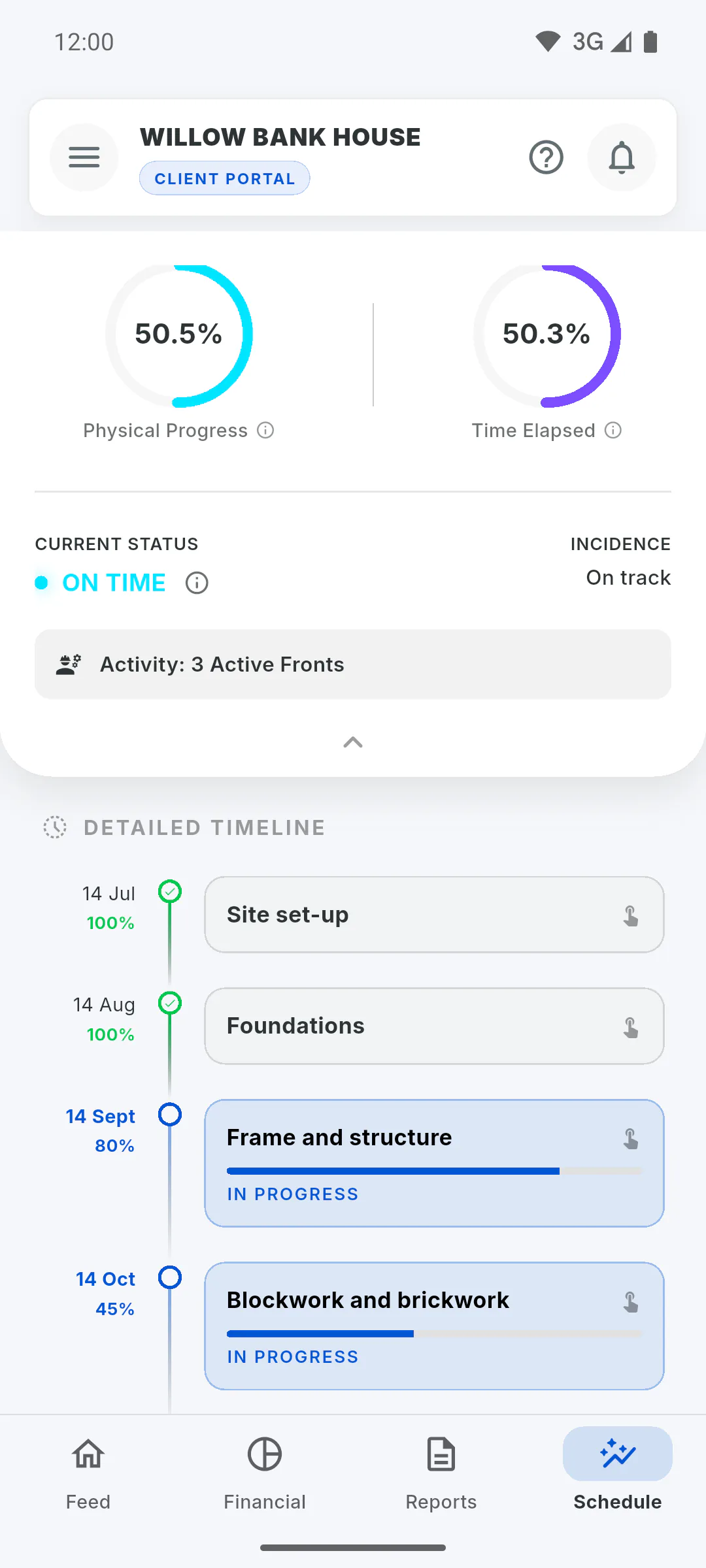
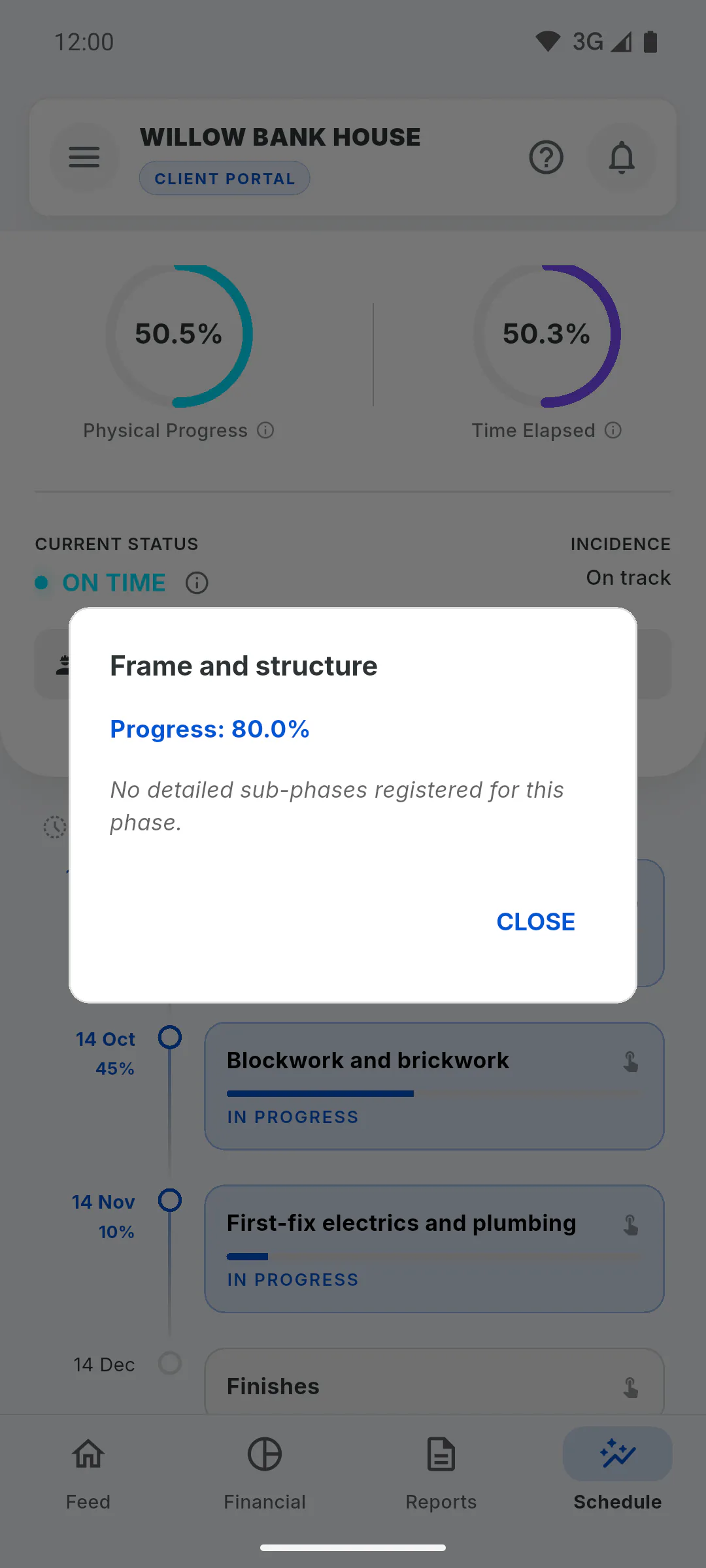
In the Detailed Timeline, each stage shows its end date and percentage. Tap a stage to see its progress and sub-stages: an unfinished sub-stage whose end date has passed is labelled Delayed. Tap Close to go back.
How to follow the project schedule and deadline
See in the Client Portal how much of the project has been built, the estimated delivery, the stages and whether the project is on schedule.
For clients7 steps
Didn't find what you were looking for?
Chat with support on WhatsApp or raise a ticket in the app.