
Step 1: Find the shortcuts
On a mobile, tap the Tools tab at the bottom to see Quick Tools. On a computer or a wide screen, the shortcuts sit below the project list, in the Quick Tools bar.
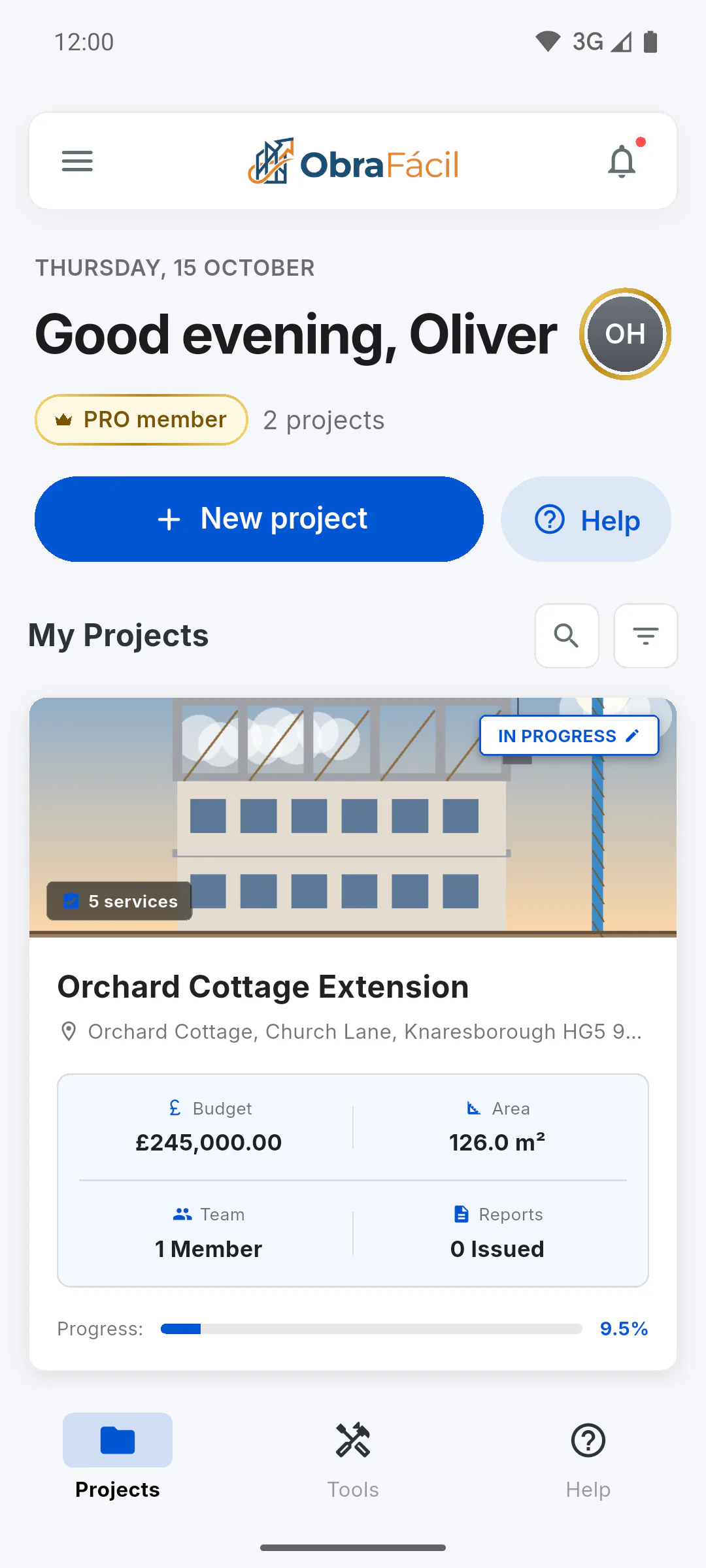
Step 2: Occurrences
Tap Issues. The Occurrences screen, with the subtitle Issue Management, lists your projects and the ones you've been invited to. Tap a project to see its list and use New Occurrence.
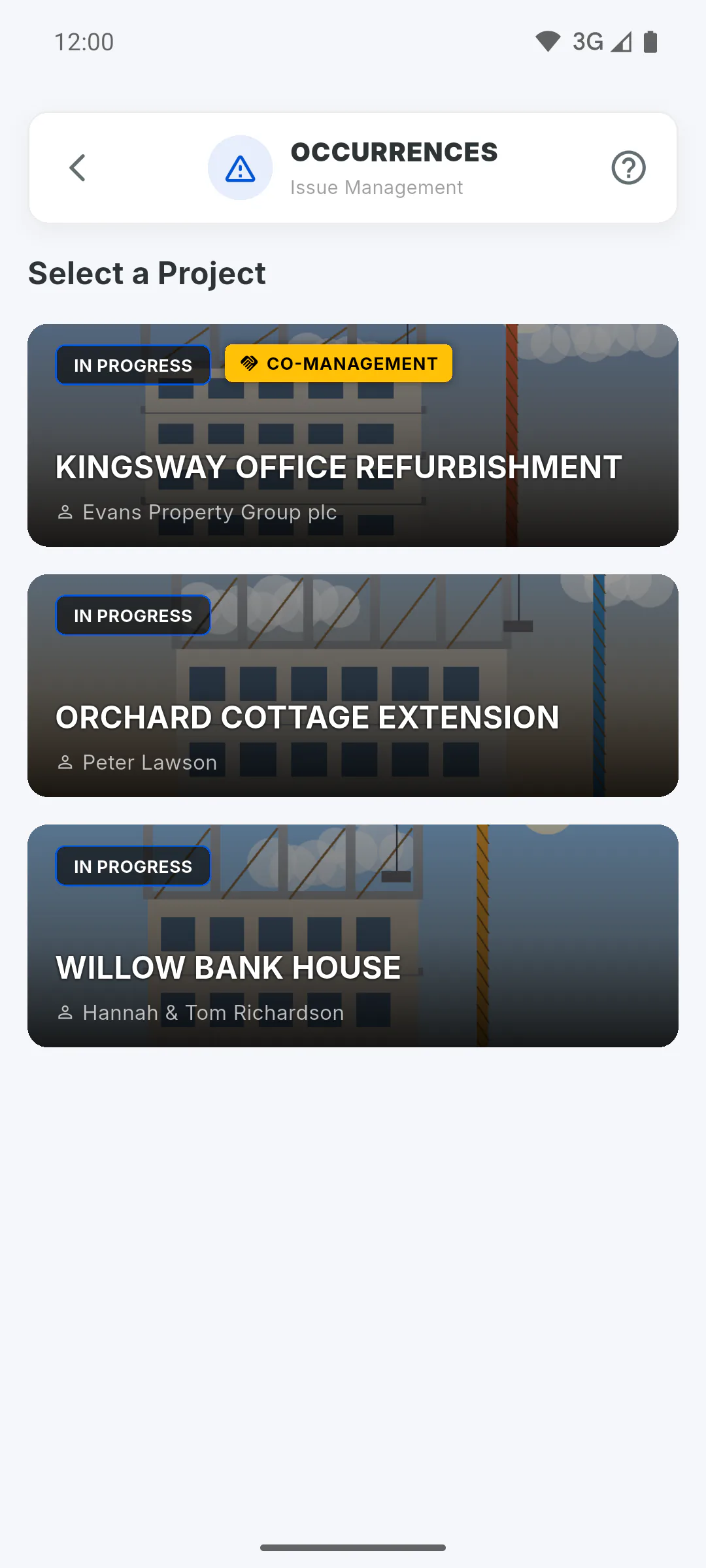
Step 3: Project Reminders
Tap Project Reminders. The Project Reminders screen, with the subtitle Reminders and Alarms, also asks for the project. It then shows the same reminder list you see inside the project, with the New button.
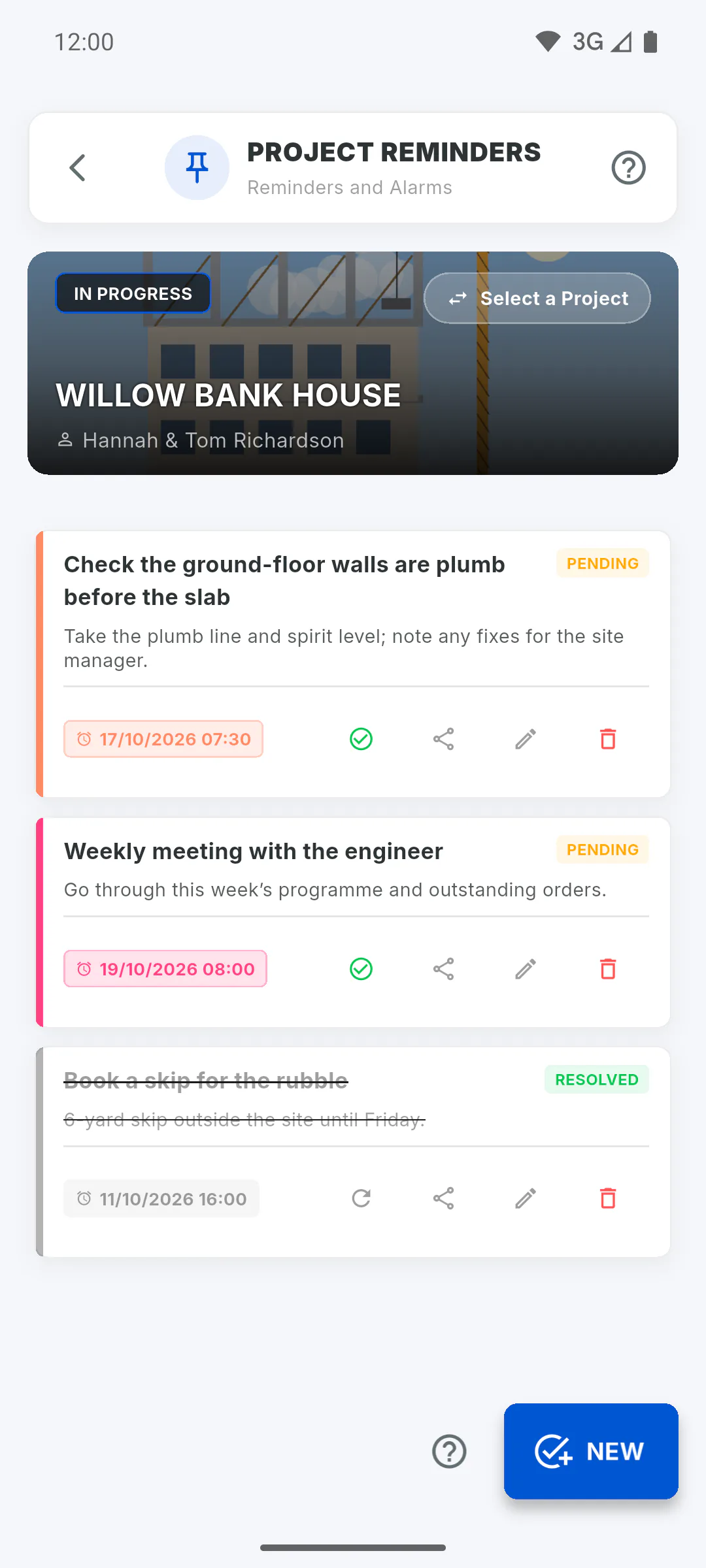
Step 4: Switch projects
On both screens, the project card sits at the top. Tap Select a Project on the card to move to another project without going back to the dashboard.
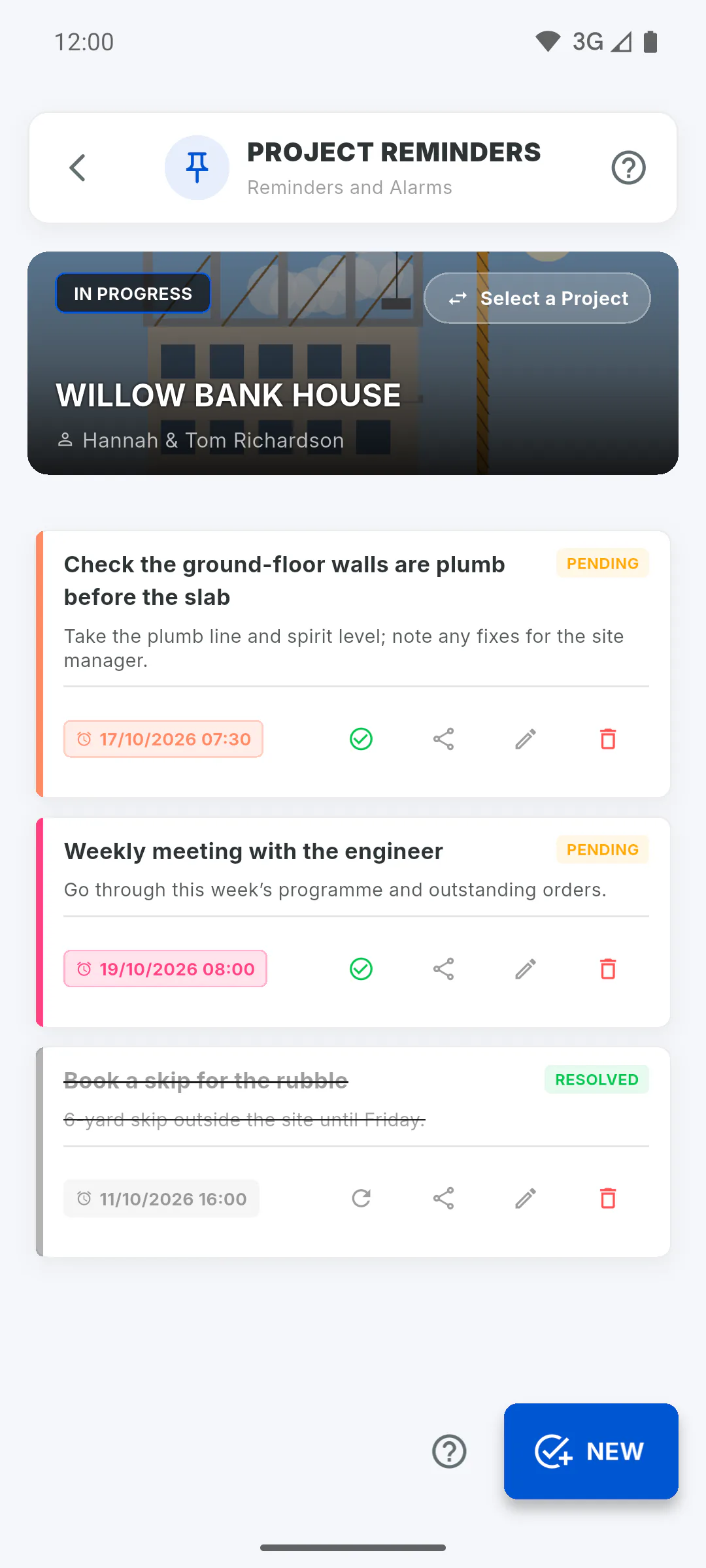
Step 5: From the what's new message
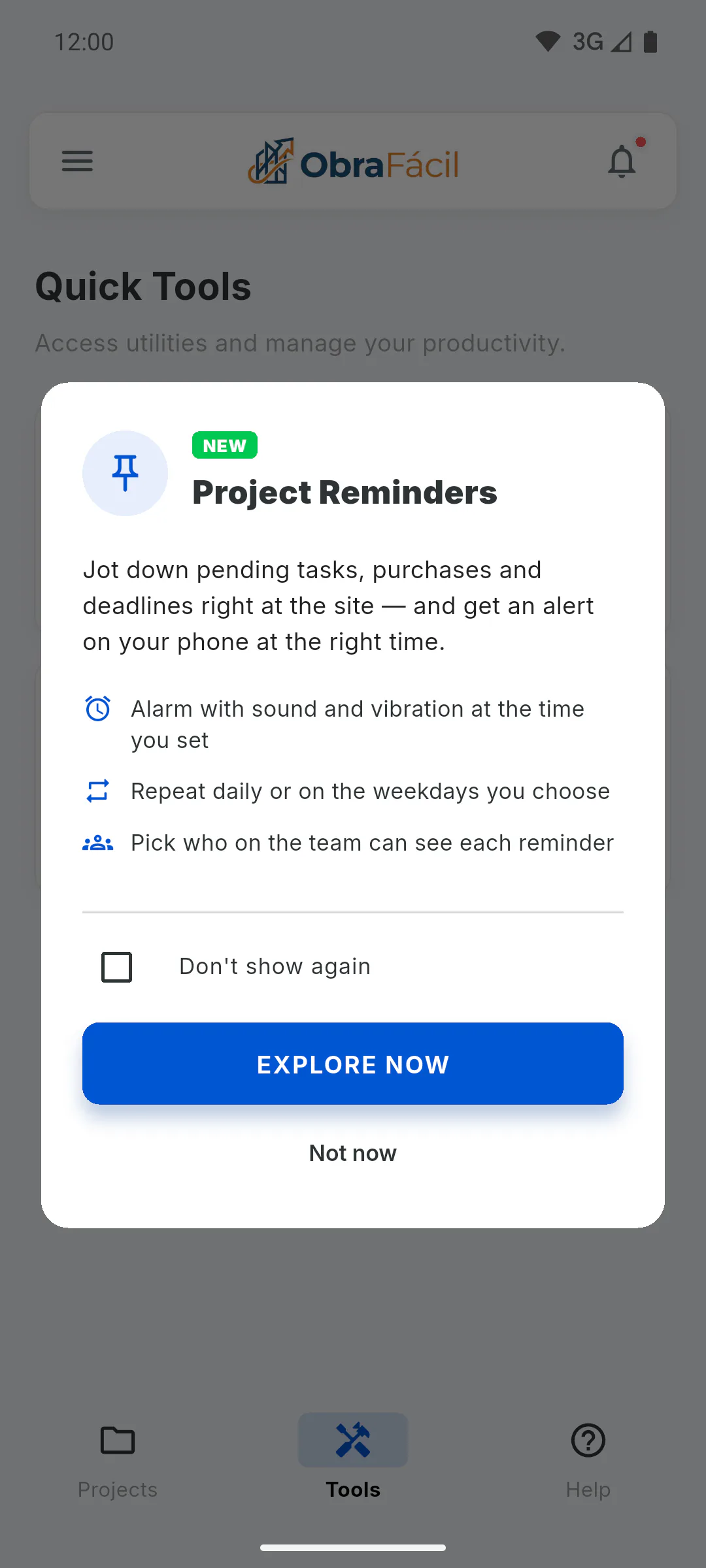
If the dashboard shows the Project Reminders what's new message, the Explore Now button opens the reminders too. The other dashboard shortcuts: Quick tools: what each shortcut does.
How to open Occurrences and Reminders from the dashboard
Use the shortcuts on the home dashboard to get to the occurrences and reminders of any project without opening the project first.
For managers and team members5 steps
Didn't find what you were looking for?
Chat with support on WhatsApp or raise a ticket in the app.