
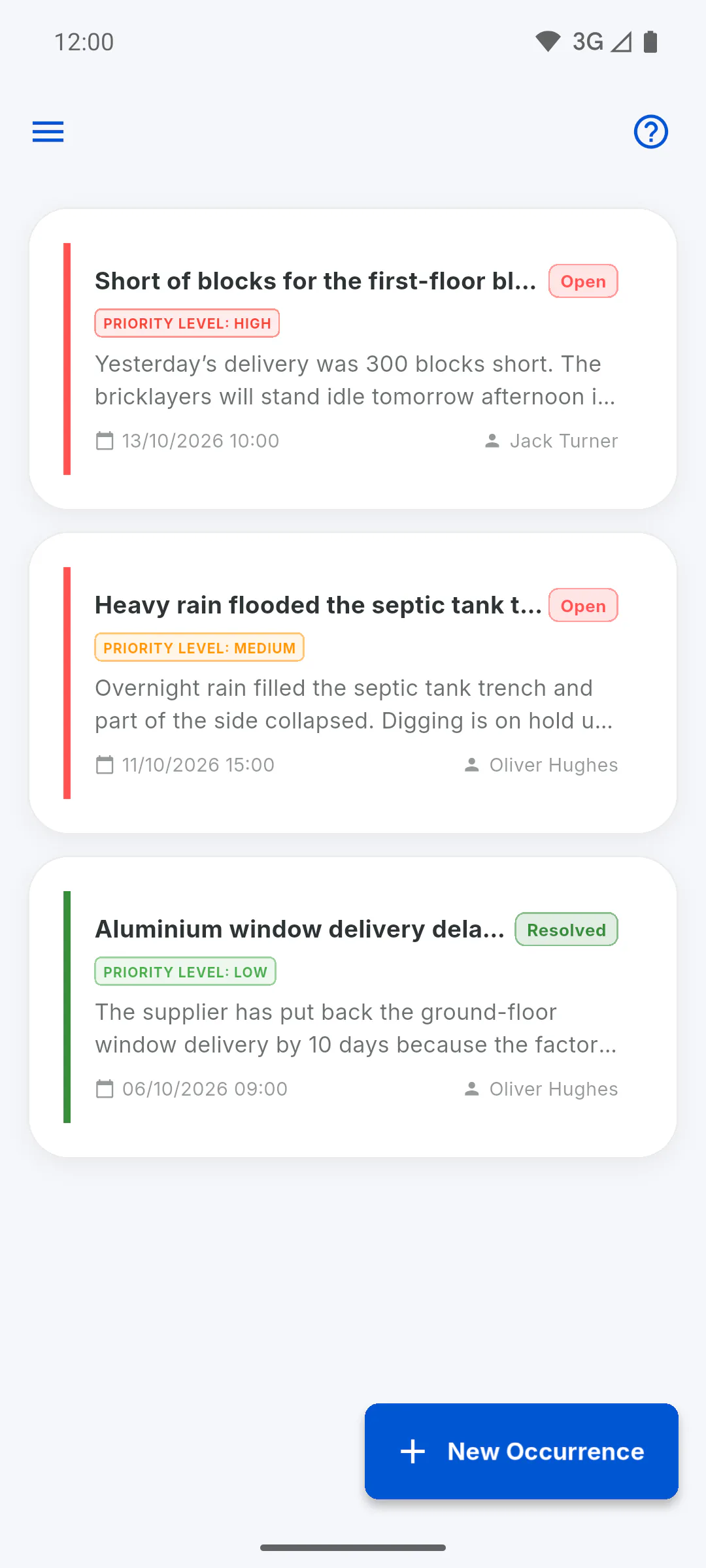
Step 1: Open the project's occurrences
Open the project and, in the Project Menu, tap Occurrences. You can also use the Issues shortcut on the home dashboard (on a mobile, in the Tools tab of the bottom bar) and pick the project: How to open Occurrences and Reminders from the dashboard. Then tap the New Occurrence button.
Step 2: Describe the problem
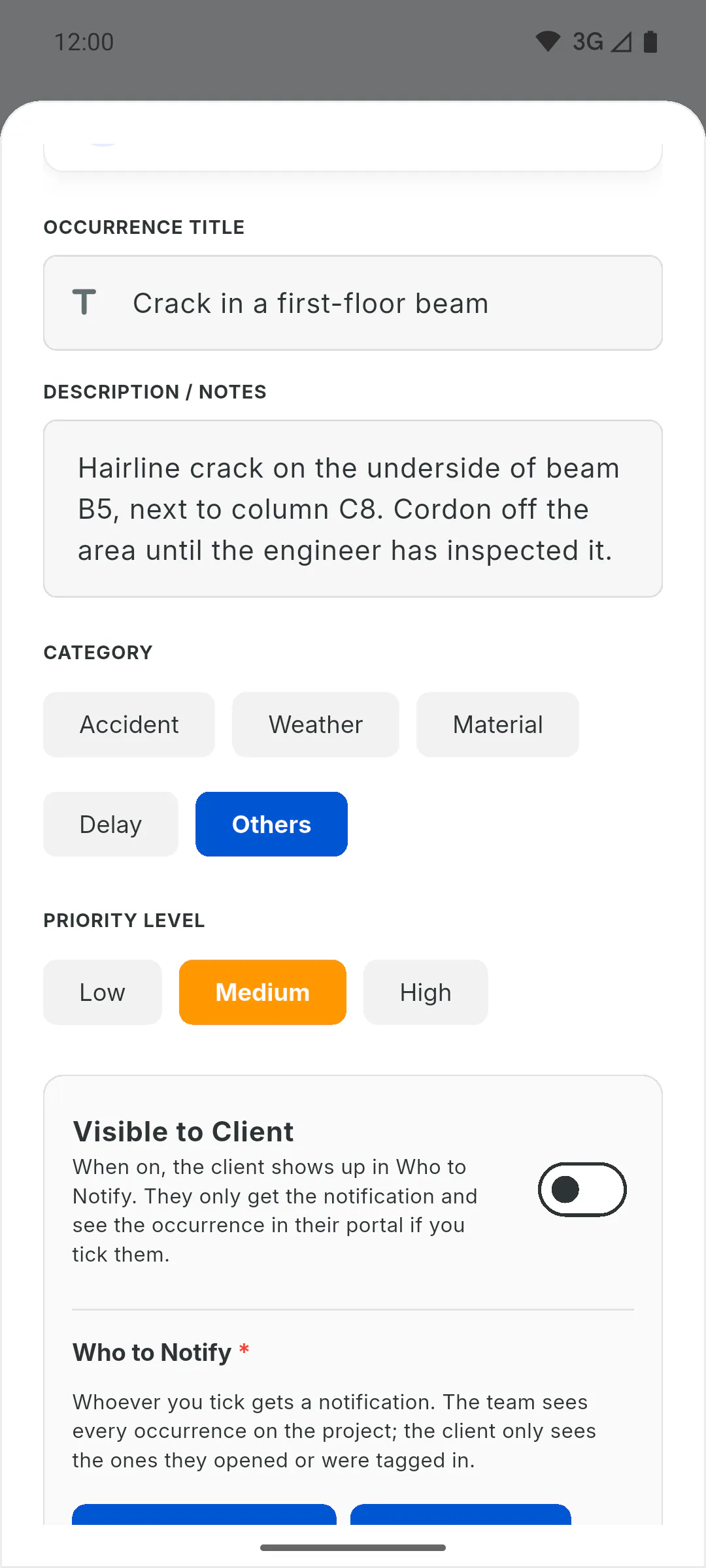
Fill in Occurrence Title and Description / Notes; both are required.
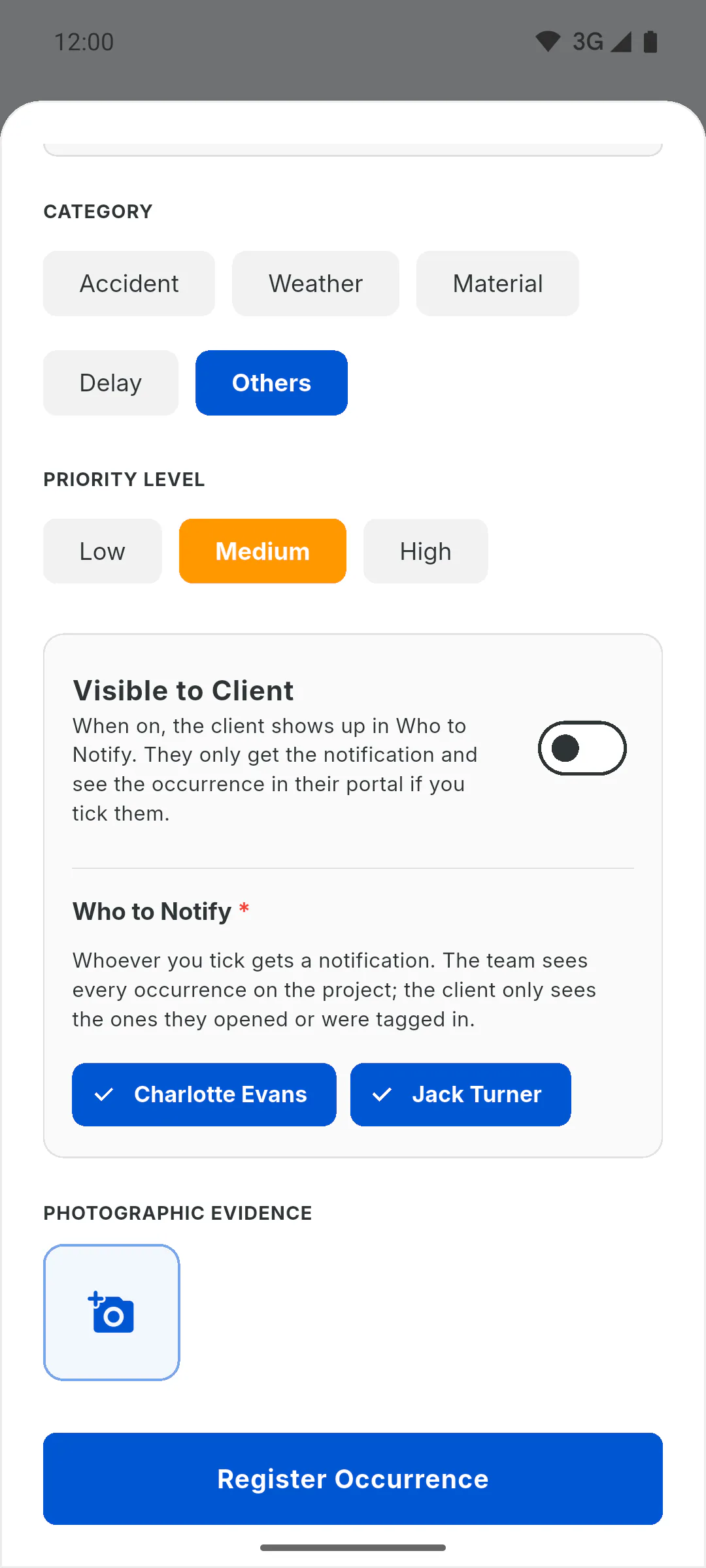
- Under Category, choose Accident, Weather, Material, Delay or Others (Others is selected by default).
- Under Priority Level, choose Low, Medium or High (Medium is selected by default). The priority is stored in its own field: in the list, the occurrence shows a tag such as Priority Level: Medium, and the details screen has a Priority Level: line.
Step 3: Choose who to notify
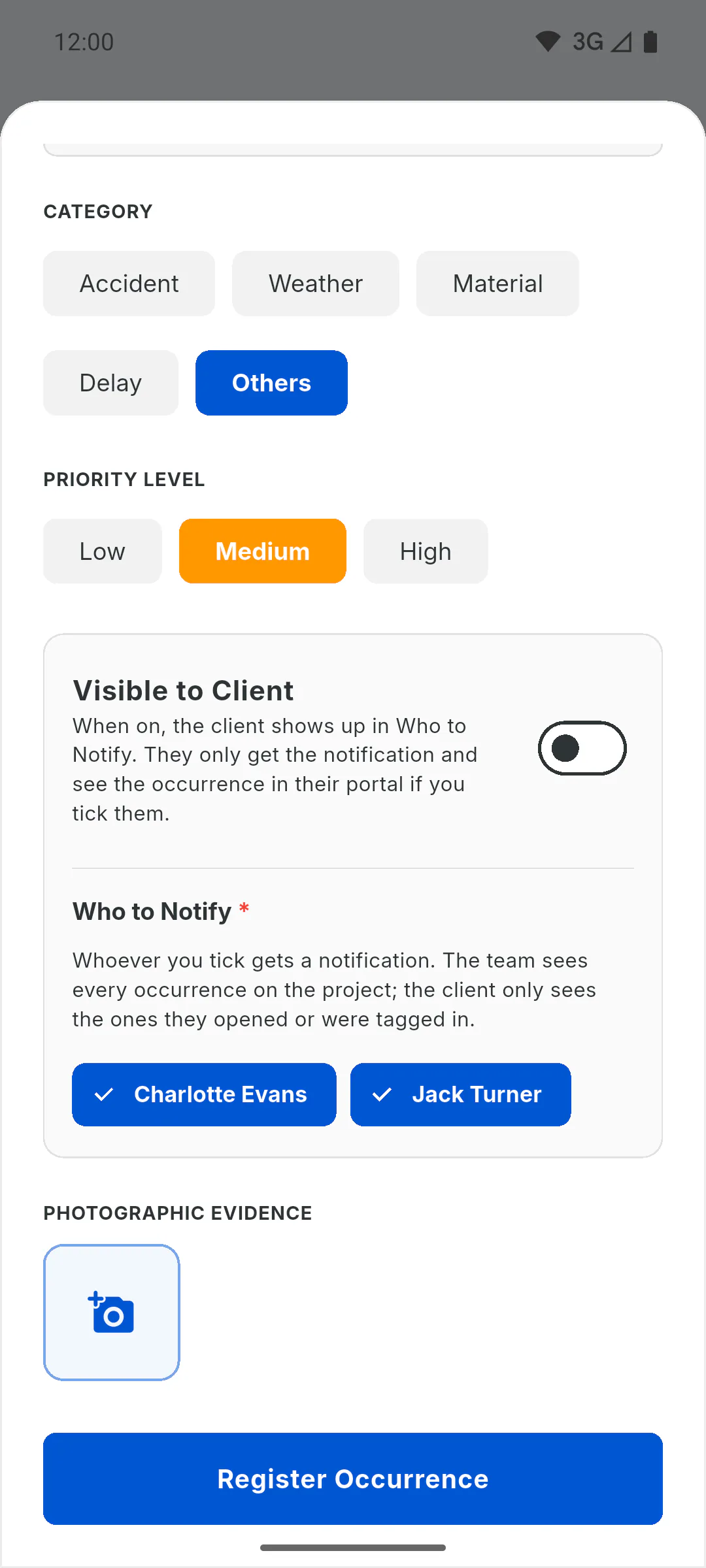
Under Who to Notify, the team members invited to the project are already ticked: untick anyone who doesn't need the notification. If there are other people on the list, at least one must stay ticked. The project owner is always notified, unless they registered it themselves. The client only appears on the list when Visible to Client is on: How to show an occurrence to the client.
Step 4: Add photos
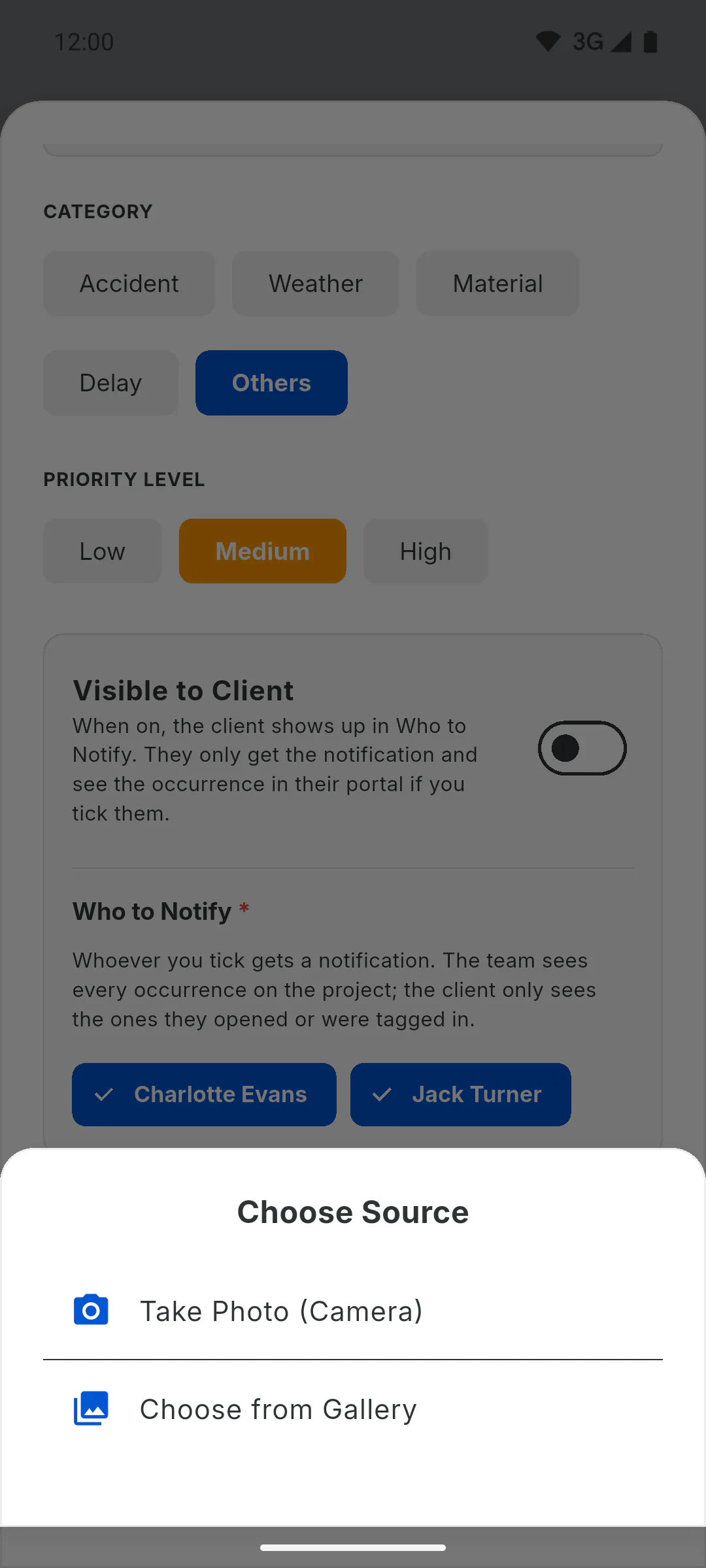
Under Photographic Evidence, tap the square with the camera and choose Take Photo (Camera) or Choose from Gallery, where you can pick several at once. Tap the red X to remove a photo. Photos are optional and count towards your account storage.
Step 5: Register and check
Tap Register Occurrence. The form closes and a message says the registration has started: the photos upload in the background, and the occurrence only shows up in the list once they've all been sent. Keep the app open and online until it appears. If it doesn't: My occurrence didn't show up.
How to register an occurrence
Log a problem on the project with a description, category, priority and photos, and choose who gets notified.
For managers and team members5 steps
Didn't find what you were looking for?
Chat with support on WhatsApp or raise a ticket in the app.