
Step 1: What the balance is
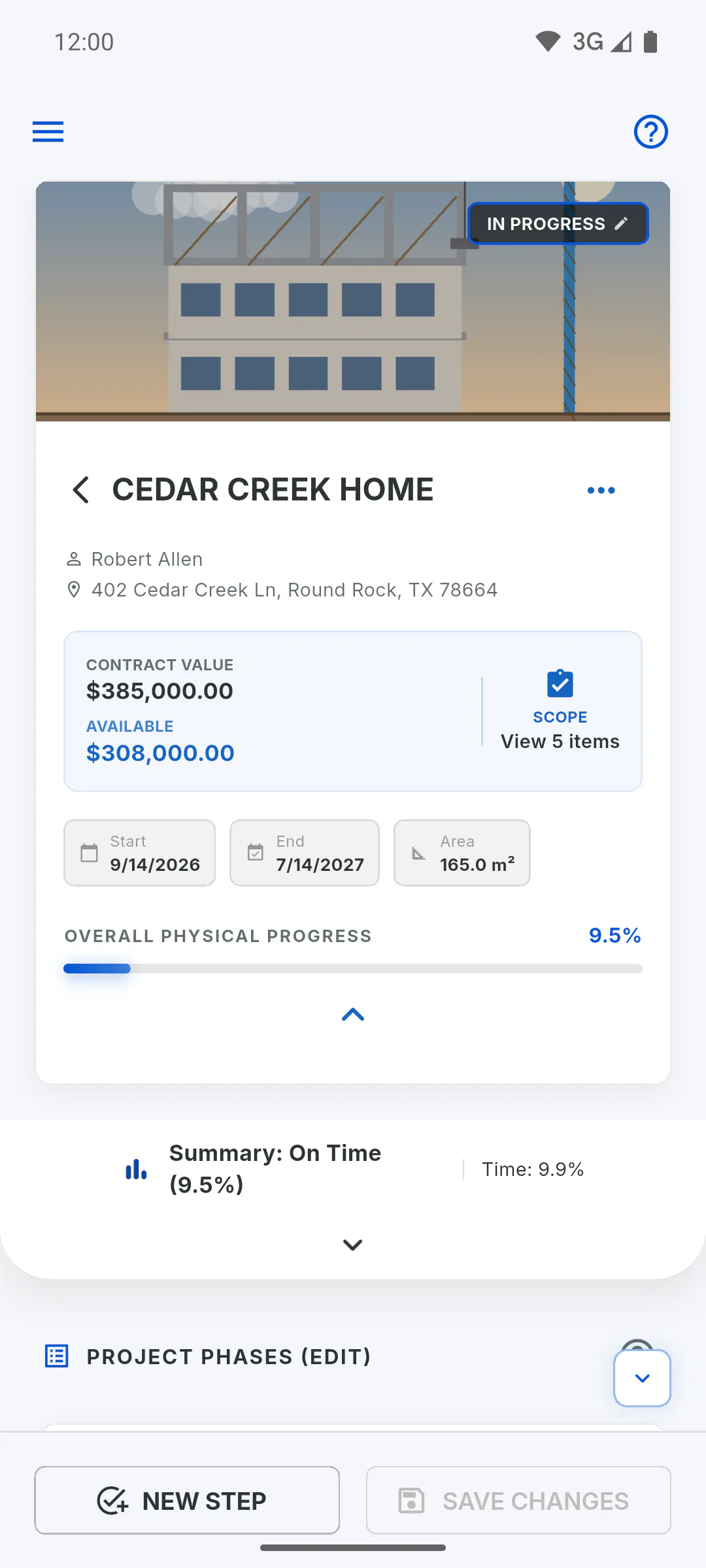
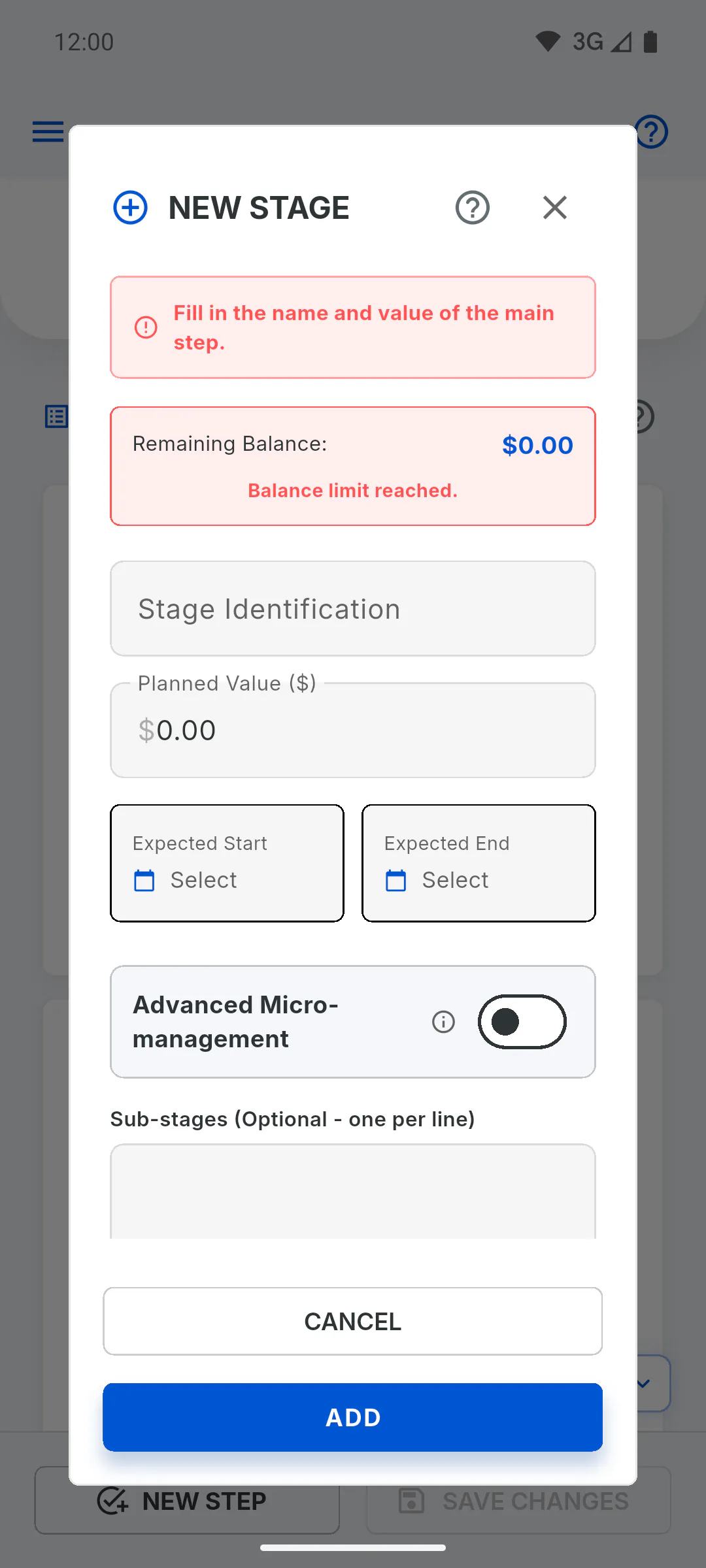
The balance is the contract value (Contract value, on the project Overview tab) minus the combined value of all stages. It shows as available in the Contract value box on the Overview tab, only when it's above zero, and as Remaining Balance: in the New Stage window.
Step 2: Why the stage isn't created
A new stage can't be worth more than the balance. With a zero balance, whatever you type drops back to zero, and tapping Add shows Fill in the name and value of the main step. This happens when:
- the project has no contract value
- the stages you created already add up to the contract value
Step 3: Free up balance from a stage
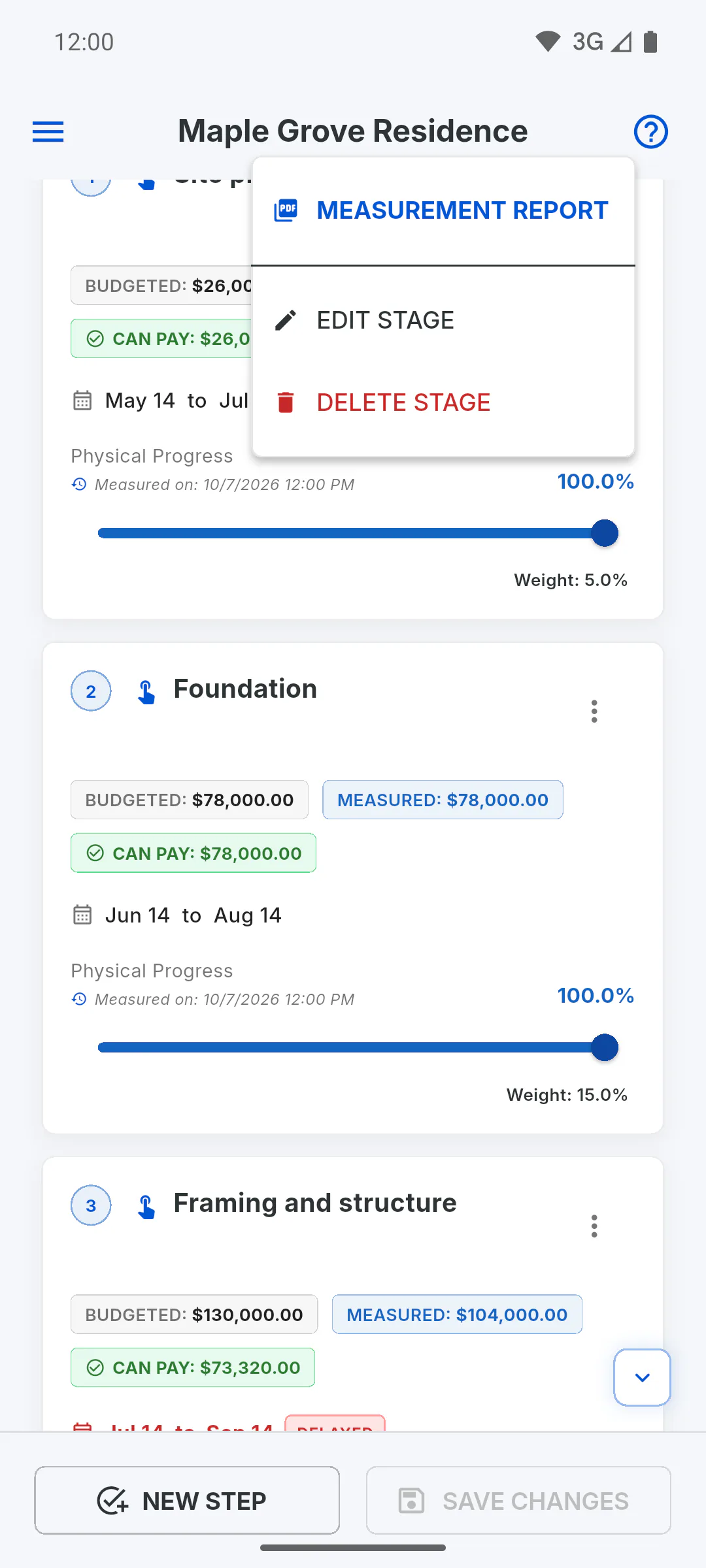
On Schedule, open a stage's three-dot menu and tap Edit Stage to lower its Planned Value, or Delete Stage to remove one you won't use. The difference becomes balance right away and already shows in New Stage. When you're done, tap Save Changes: How to edit or delete a stage
Step 4: Raising the contract doesn't free up balance
If the project already has stages, changing the Contract Value when you edit the project spreads the new value across the stages in the same proportions, so the balance stays at zero. Only on a project with no stages does the whole contract value become balance: How to edit a project's details
Step 5: Watch the project progress
Lowering the value of, or deleting, a stage that already had progress makes the overall project progress drop. When you save, the app asks for a reason: Progress regression: why the app asks for a reason
Why I can't create a stage (contract balance)
A new stage has to fit within the contract balance. Find out why the balance drops to zero and how to free up value for the stage.
For managers5 steps
Didn't find what you were looking for?
Chat with support on WhatsApp or open a ticket right in the app.