
Step 1: When it appears
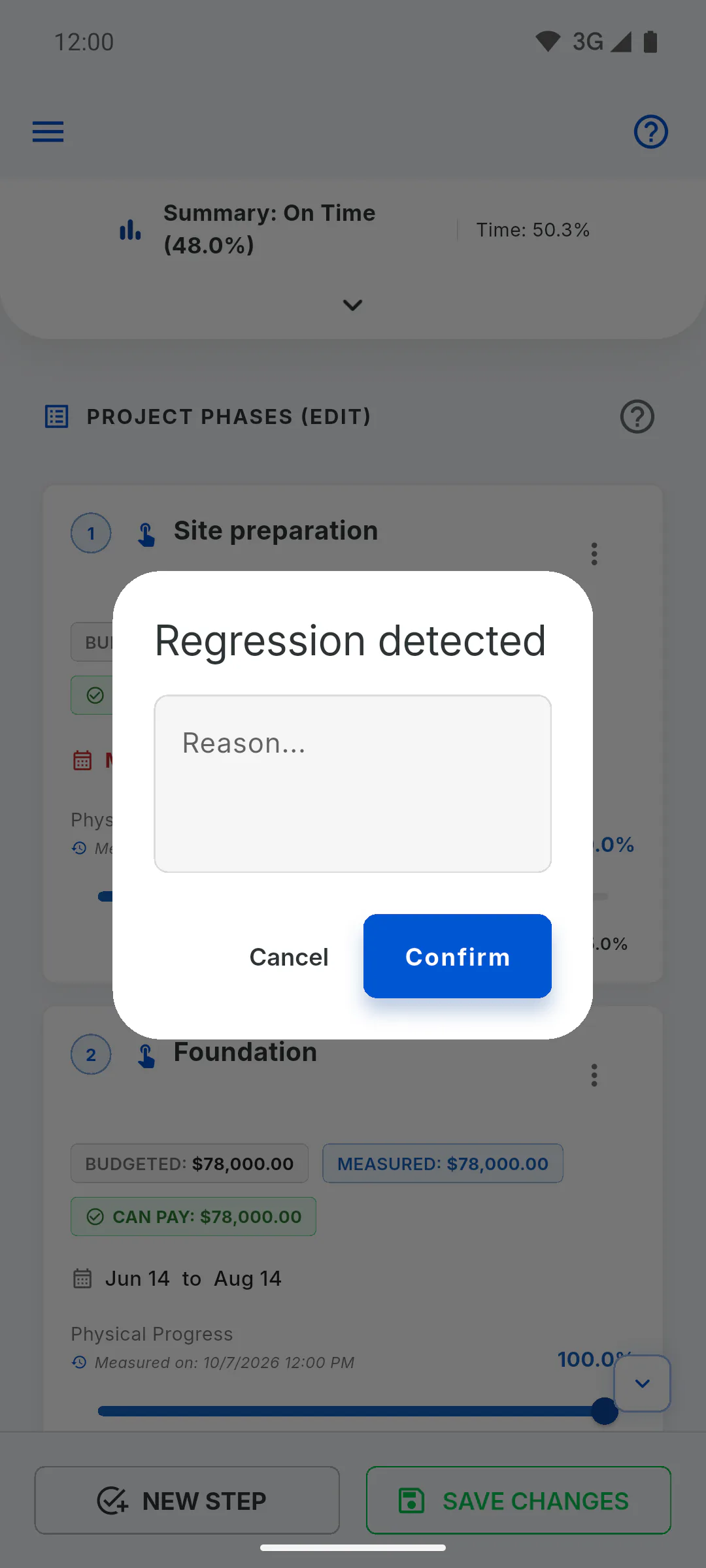
When you save the schedule, the app compares overall project progress with the last saved value. If it's lower, Regression detected appears. This happens, for example, when you:
- lower a stage's progress
- delete a stage that had progress
- lower the value of a stage that had progress
- turn on micro-management for a stage that already had progress
Step 2: Why the app asks for a reason
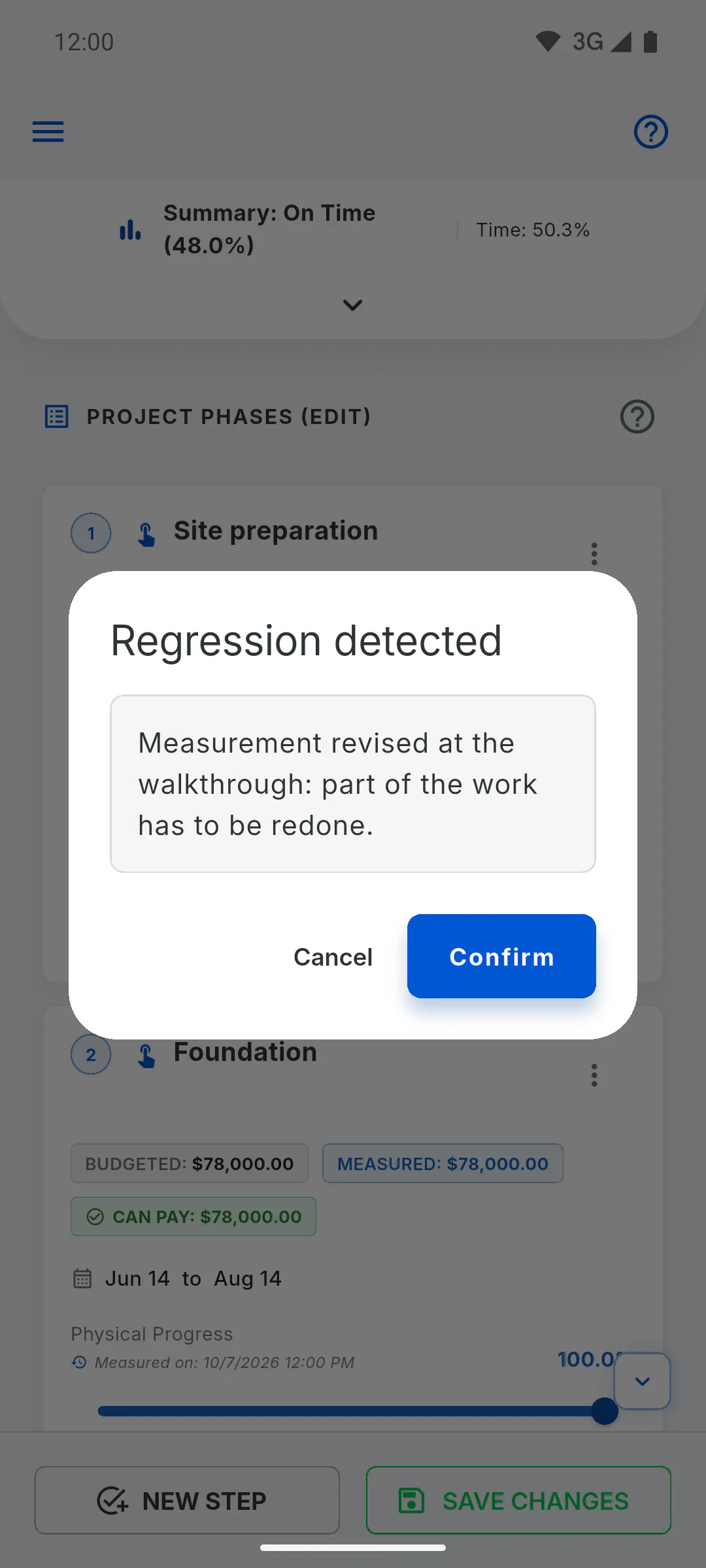
Progress that goes backward needs an explanation. The reason is kept in the project history, so anyone following the project can see why the number dropped.
Step 3: Type it and confirm
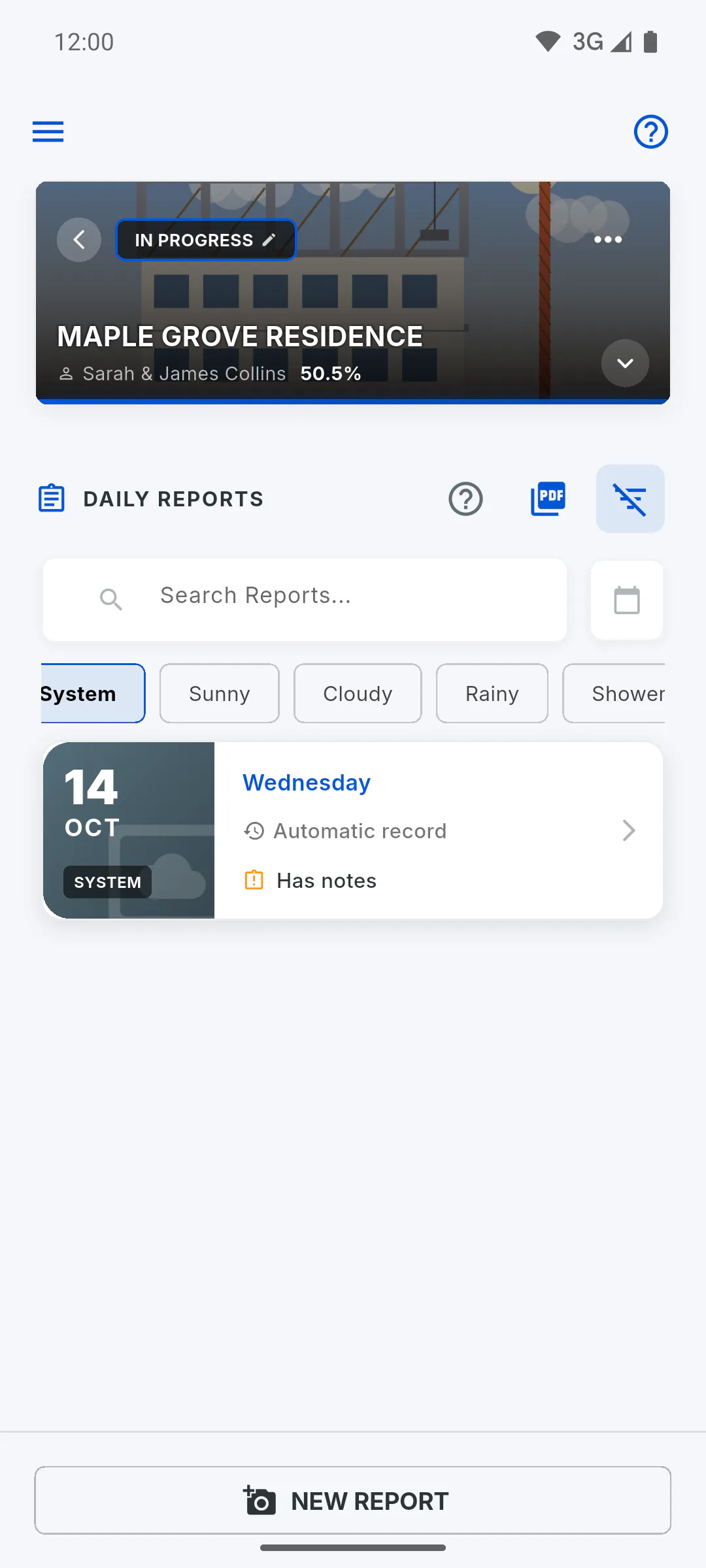
Type the reason in the Reason... field and tap Confirm. The schedule is saved and the app automatically adds an entry to Daily Reports with System as the weather. The field isn't required, but without it the entry has no explanation.
Step 4: What the entry looks like
The entry has today's date, the text Automatic Record: Project Progress Rolled Back and your reason after Reason:. These texts appear in the app language of whoever opens the report, older entries included. In the list of reports, its card shows Automatic record instead of the number of workers. To find the entry, filter the reports by the System weather: How to find a daily report
Step 5: Who sees the entry
The entry sits alongside the project's other daily reports: anyone who opens them can see it, including an invited client in the Client Portal. To delete one: How to delete a daily report
Step 6: If you would rather cancel
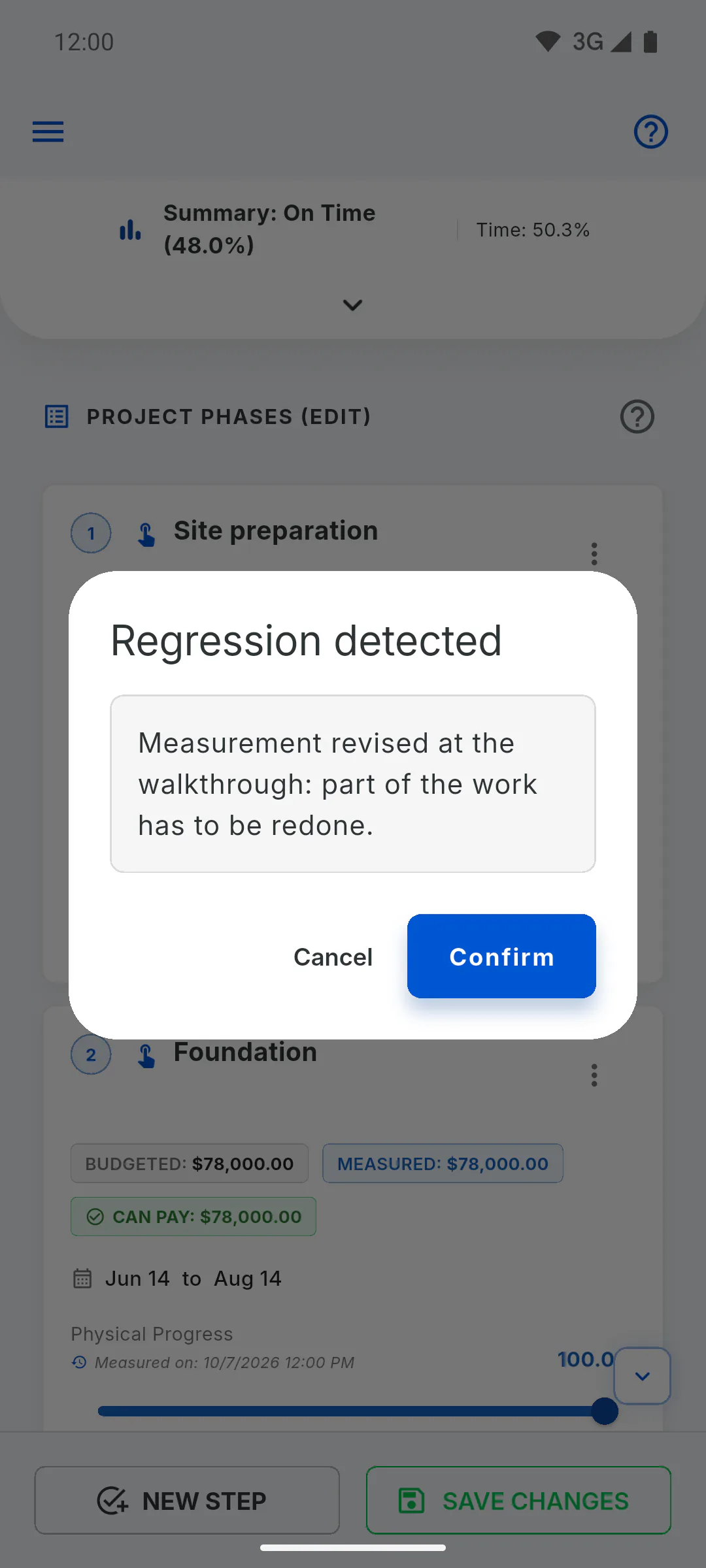
If you tap Cancel, nothing is saved and your changes stay pending. Adjust the schedule and save again, or switch to another area in the project menu and choose Discard to go back to what was saved.
Progress regression: why the app asks for a reason
When overall project progress goes down, the app asks for a reason before saving and logs the regression in Daily Reports.
For managers6 steps
Didn't find what you were looking for?
Chat with support on WhatsApp or open a ticket right in the app.