
Step 1: Open your profile
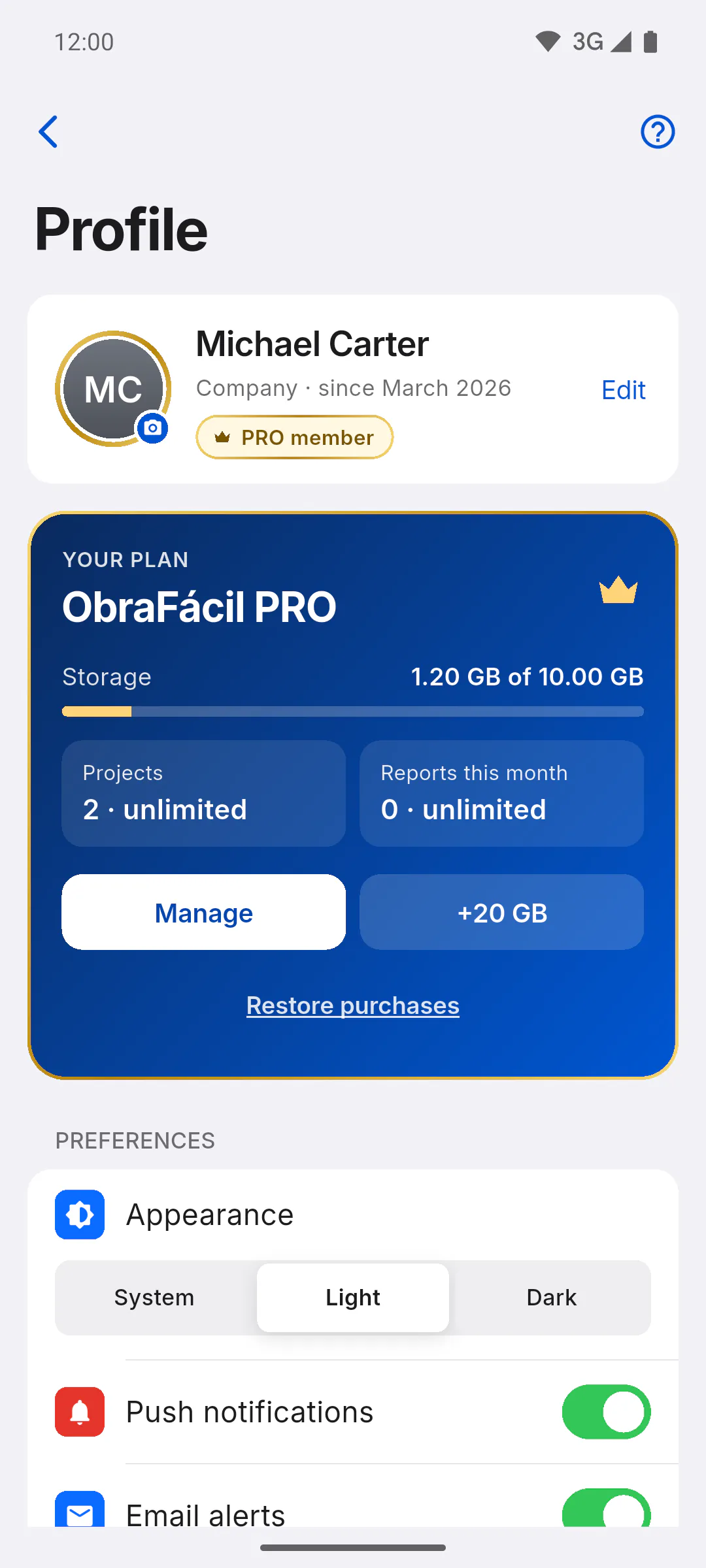
Open Profile from your card in the menu or by tapping your photo on the dashboard: How to open and use your profile. Your photo sits in the circle on the top card, with a gold ring on PRO or a silver one on free. With no photo, the circle shows your initials.
Step 2: Change the photo
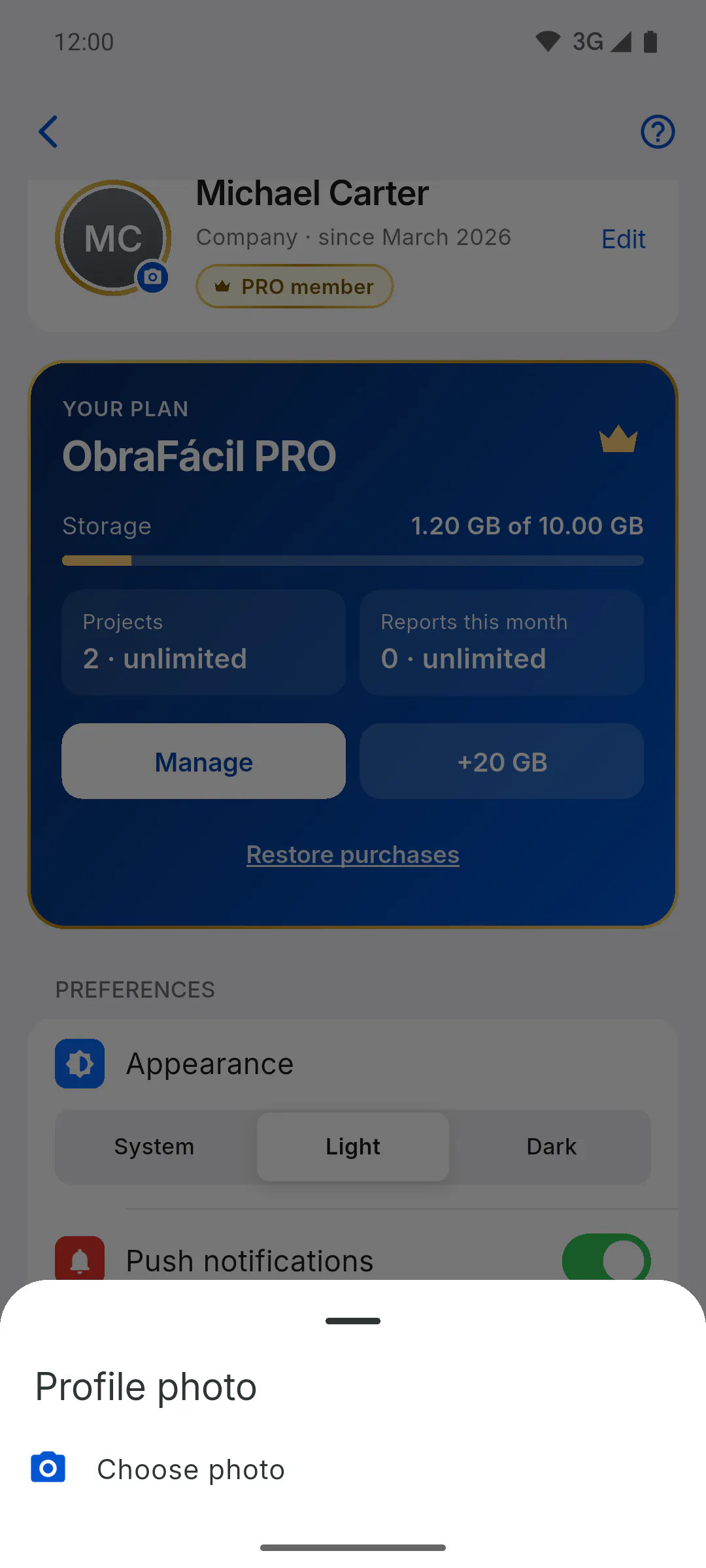
Tap the photo (the small camera icon in the corner shows it can be changed). In the Profile photo window, tap Choose photo and pick an image from your device gallery. On a computer, choose the image file. When the upload finishes, Photo updated! appears and the new photo also shows on the dashboard and on your card in the menu.
Step 3: Remove the photo
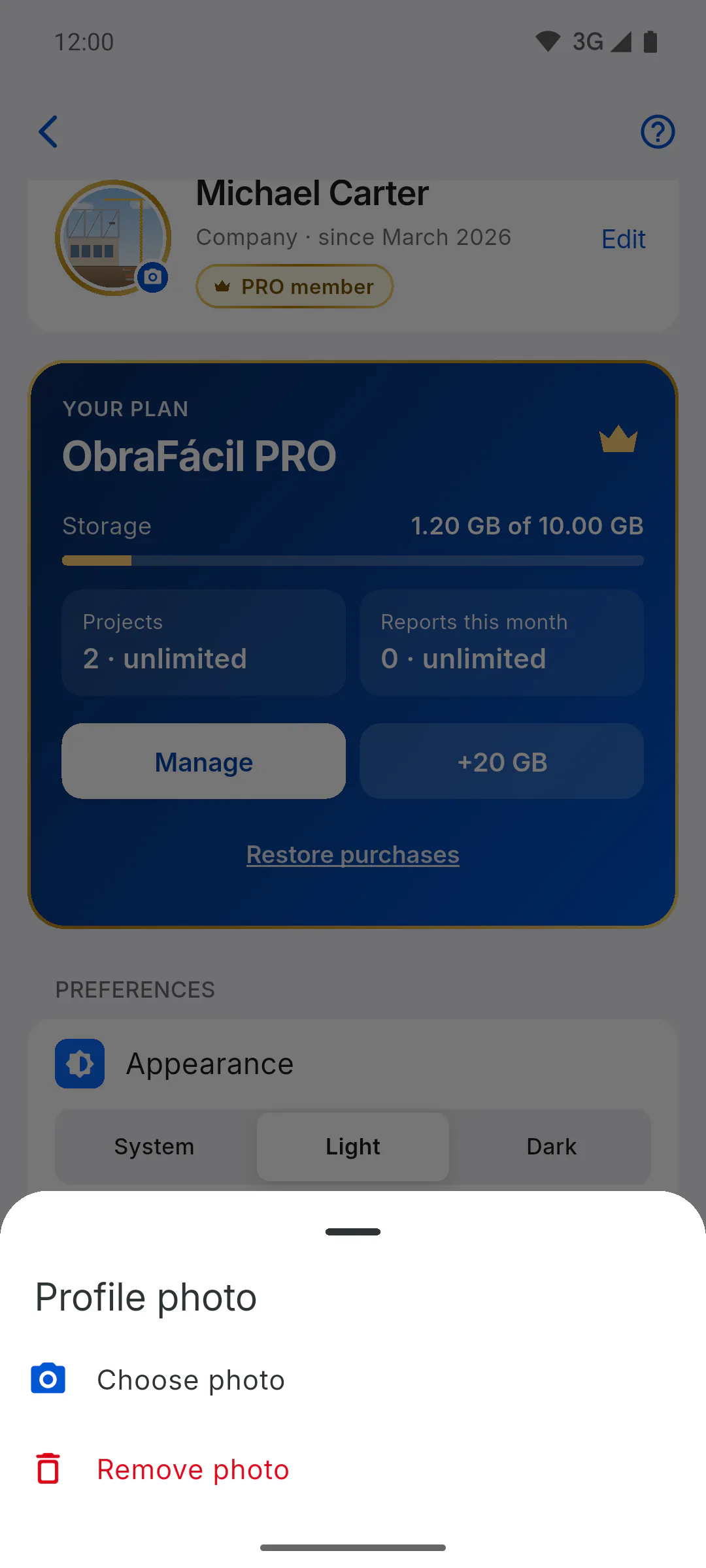
Tap the photo and, in the Profile photo window, tap Remove photo, in red. This option only shows up when there is a photo. The photo comes off your profile right away and Photo removed. appears.
Step 4: Good to know
- Changing or removing the photo needs an internet connection.
- The uploaded photo uses space in your account storage: How much storage you have
- If you sign in with Google you can still use your own photo: the one you upload replaces your Google photo.
How to change or remove your profile photo
Add a photo of yourself to your profile or take the current one off. It shows on the top card of your Profile, next to the greeting on the dashboard and on your card in the menu.
For managers and team members4 steps
Didn't find what you were looking for?
Chat with support on WhatsApp or open a ticket right in the app.