
Step 1: Open your profile
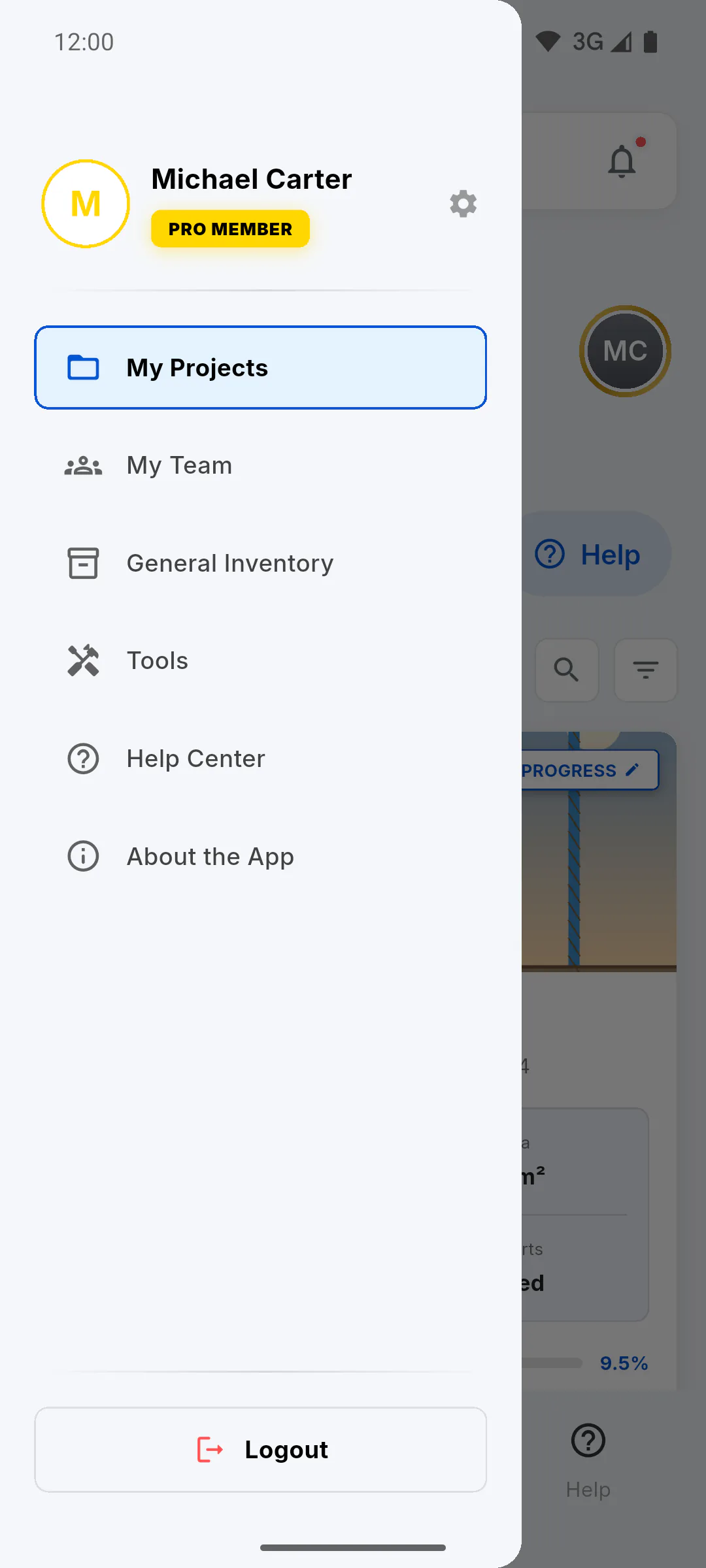
On a phone, tap the menu icon (three lines) at the top of the dashboard, then tap your card, with your photo and name, at the top of the menu. On the dashboard, tapping your photo, next to the greeting, also opens your profile. On wide screens, like a computer, the card sits in the fixed side bar: just tap it. The screen opens with the title Profile.
Step 2: The top of the screen
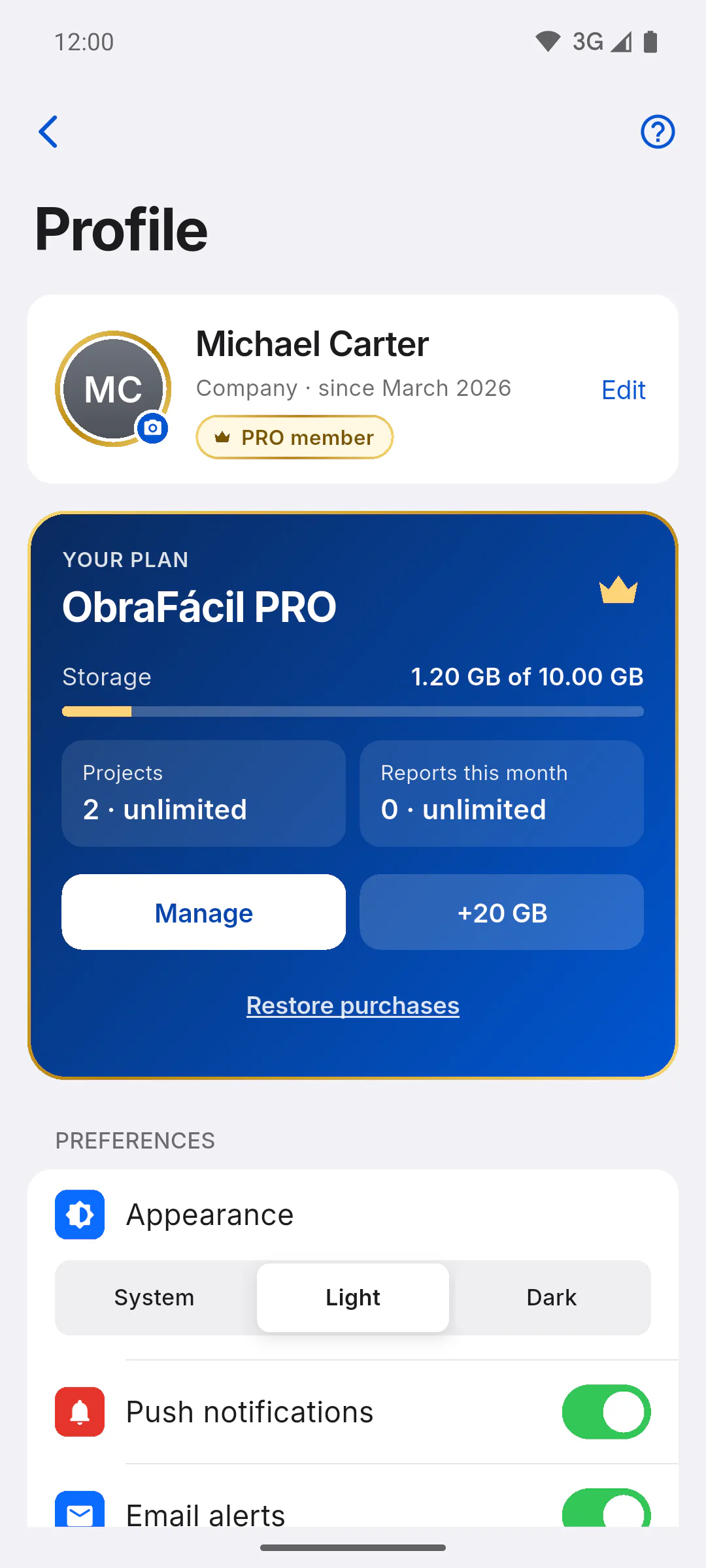
At the top is the card with your photo, with a gold ring on PRO or a silver one on free, your name, the account type (Individual or Company) with the month and year you joined, and your plan badge: PRO member or Free member. Edit opens your personal details.
- To change your photo: How to change or remove your profile photo
Step 3: App preferences
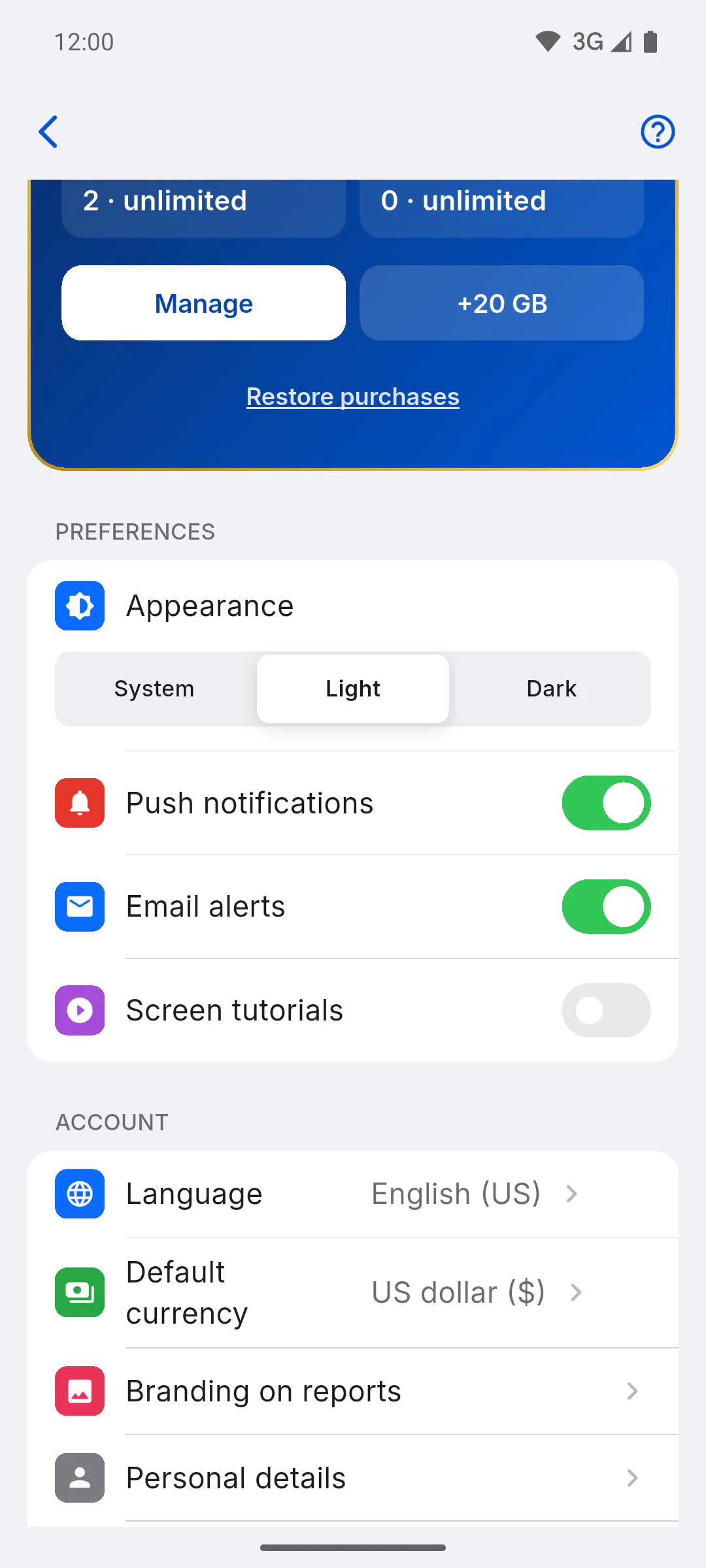
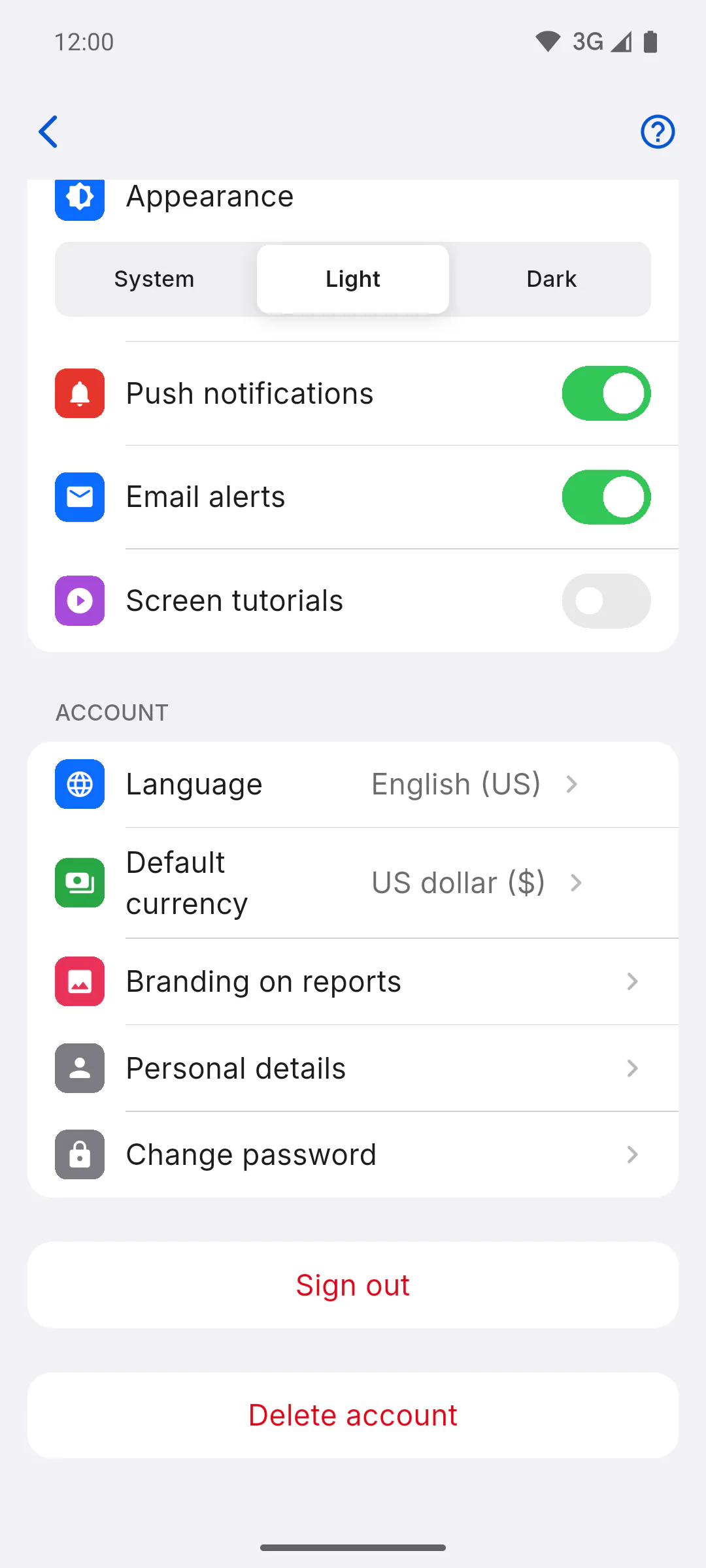
The PREFERENCES section has Appearance (System, Light or Dark), the Push notifications, Email alerts and News and offers by email switches, and the Screen tutorials switch (when on, each screen's tutorial opens by itself the first time). Everything applies right away, with nothing to save.
Step 4: Your plan
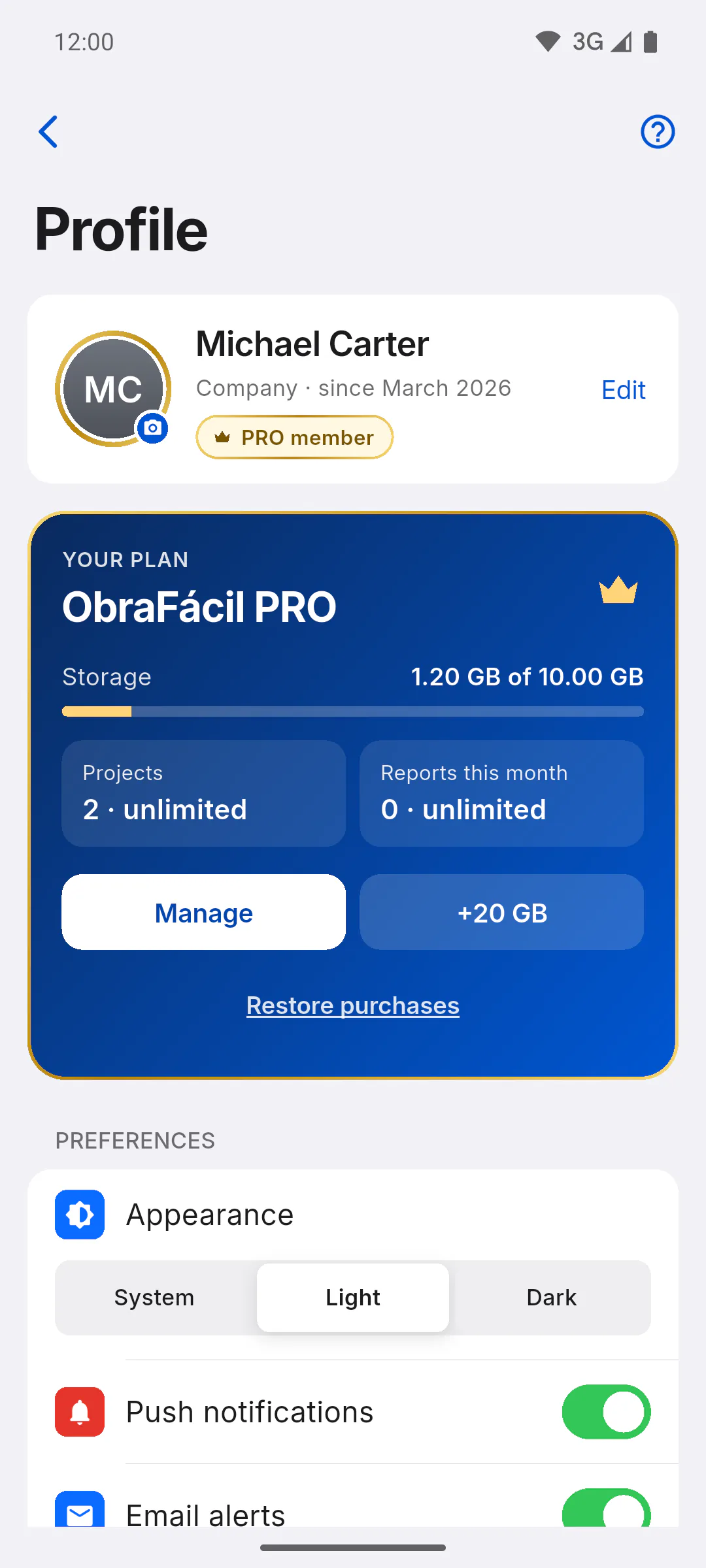
Right below the photo card, the YOUR PLAN card shows your plan, storage used, projects and this month's reports, with the buttons to subscribe or manage your subscription.
Step 5: Account, details and password
In the Account section, each row opens its own screen:
- Language, with the current language next to it: How to change the app language
- Default currency for new projects: How to change the default currency for new projects
- Branding on reports, the logo and footer on your PDFs on PRO: How to add your logo and footer to PDF reports
- Personal details: country, name, ID number and phone: How to edit your personal details and country
- Change password, which doesn't show up if you sign in with Google: How to change your password
Step 6: Signing out and deleting your account
At the bottom of the screen are Sign out, in red, and Delete account. Without internet, the app won't let you log out, so you don't get locked out: How to log out (and why you can't do it offline). To delete your account: How to delete your account (30-day period).
How to open and use your profile
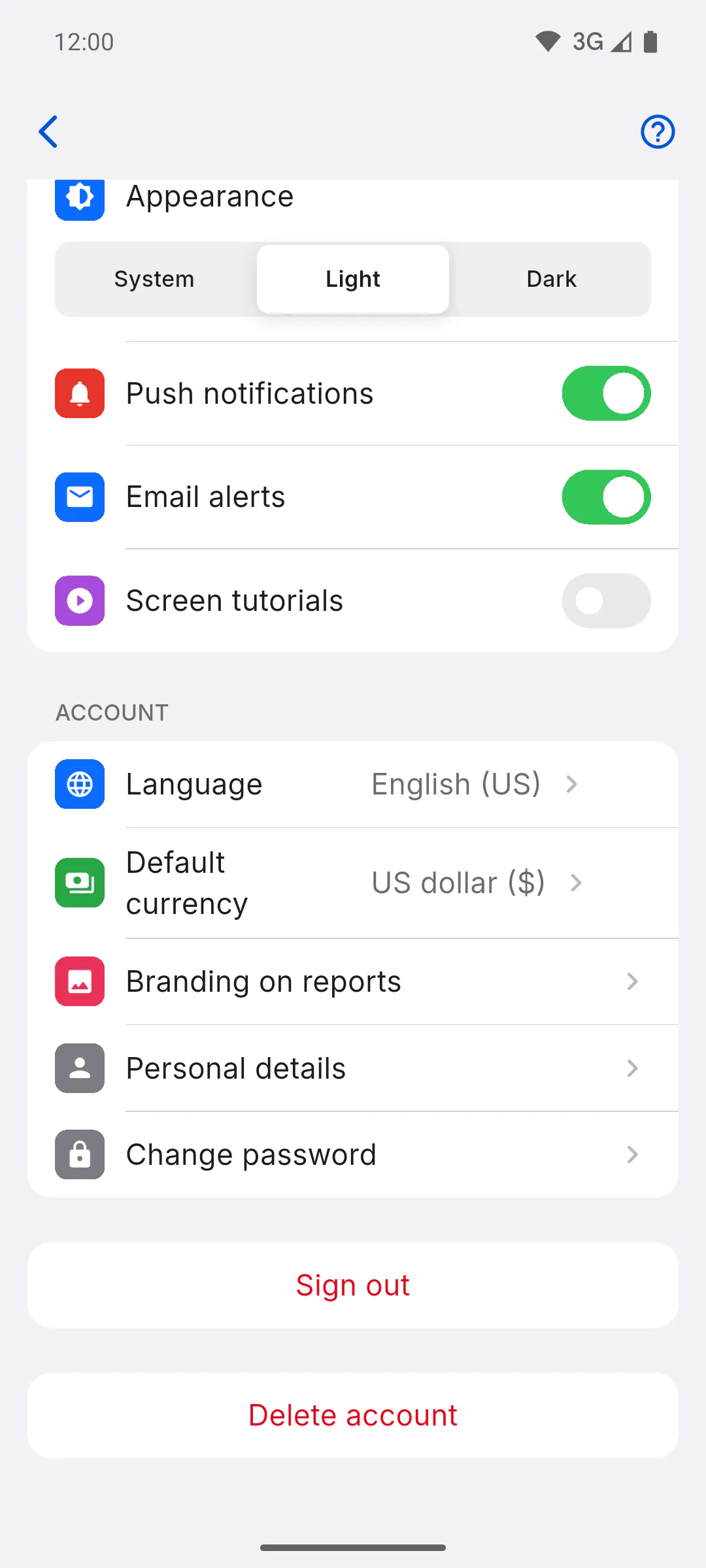
In your Profile you change your photo, check your plan, set appearance, notifications and tutorials, and manage your language, currency, branding on reports, personal details and password.
For managers and team members6 steps
Didn't find what you were looking for?
Chat with support on WhatsApp or open a ticket right in the app.