
Step 1: Choose the signature type
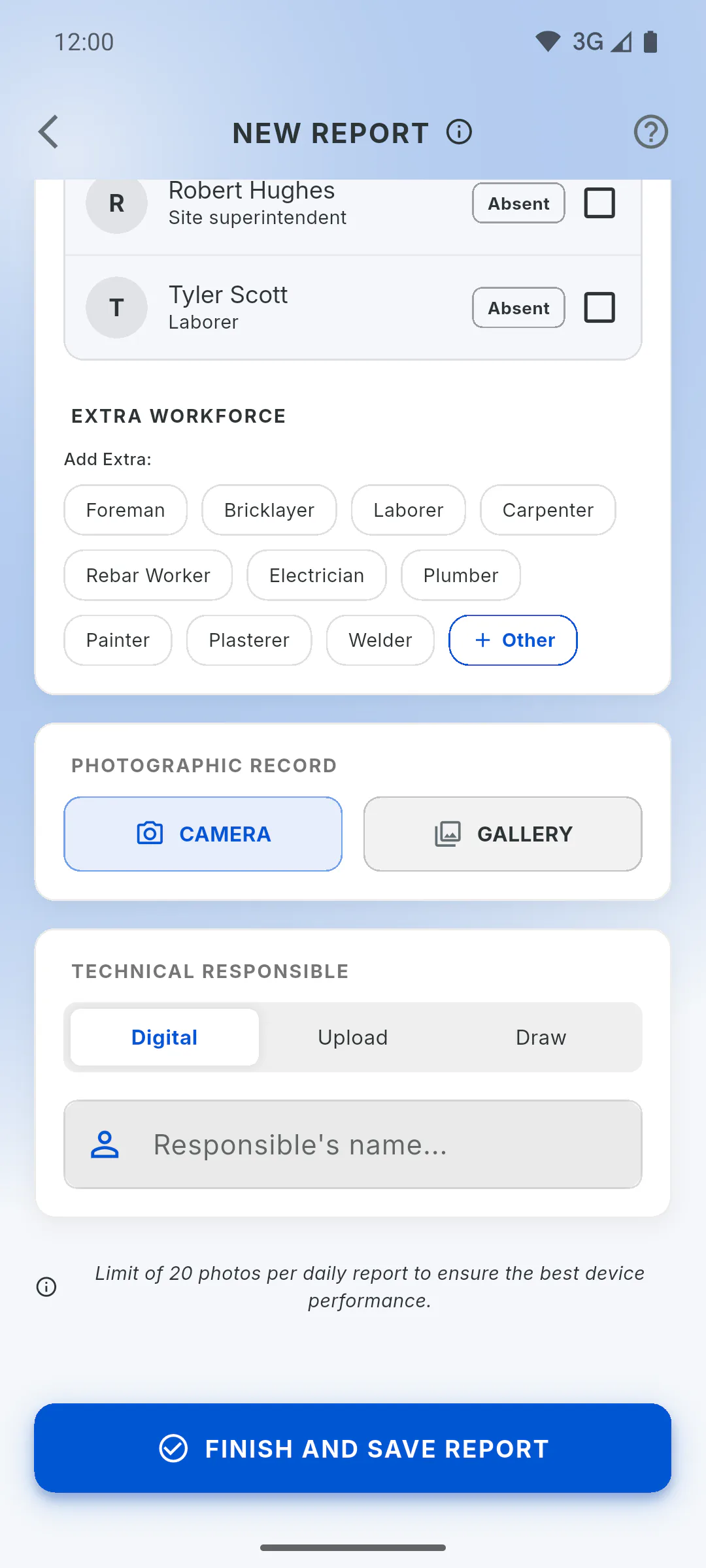
At the end of New Report, under Technical Responsible, there are three options: Digital, Upload and Draw. Digital is selected by default.
Step 2: Digital: type the name
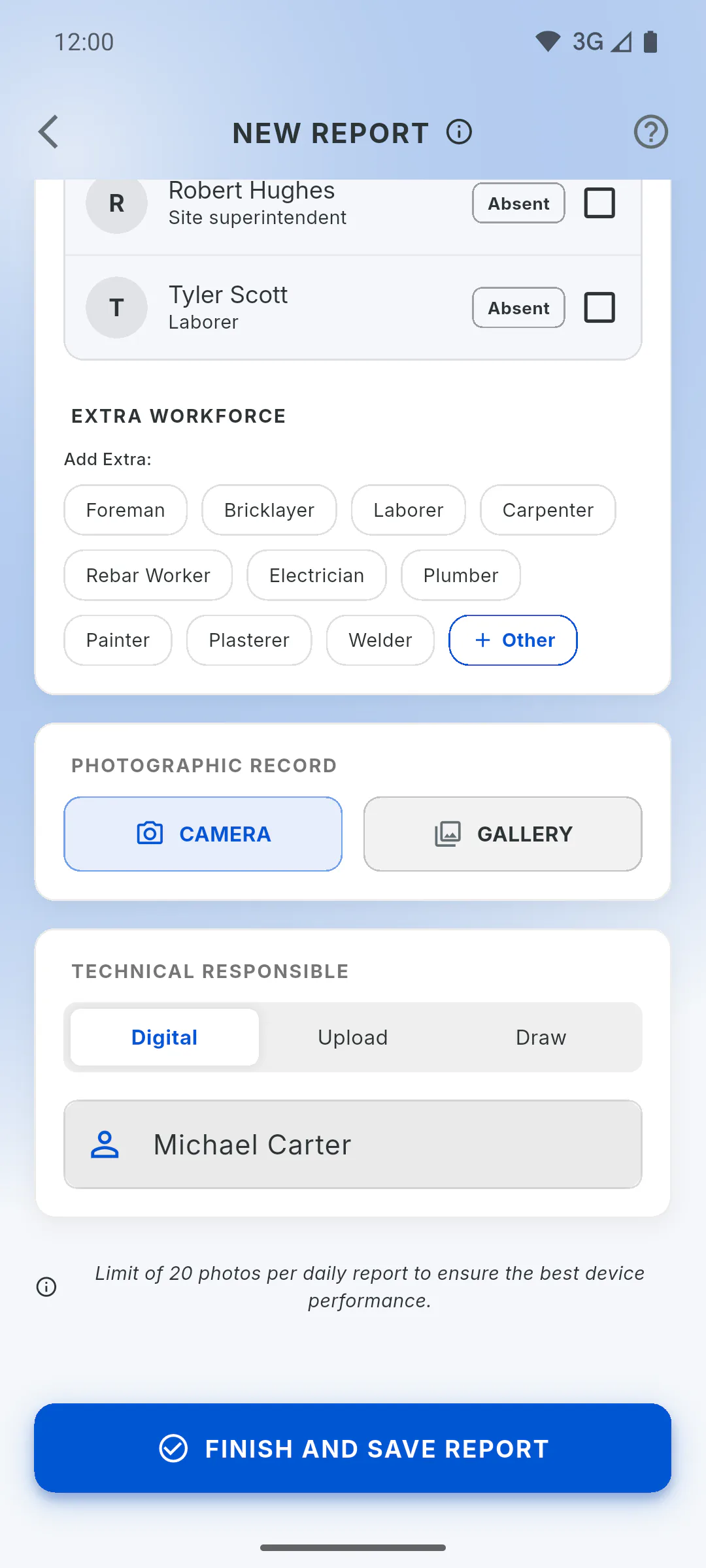
With Digital, type the name of the person in charge in the Responsible's name... field. The name is required for this option: without it, you'll see Responsible person's name is required. and the report isn't saved. It works offline on any device.
Step 3: Upload: use an image of the signature
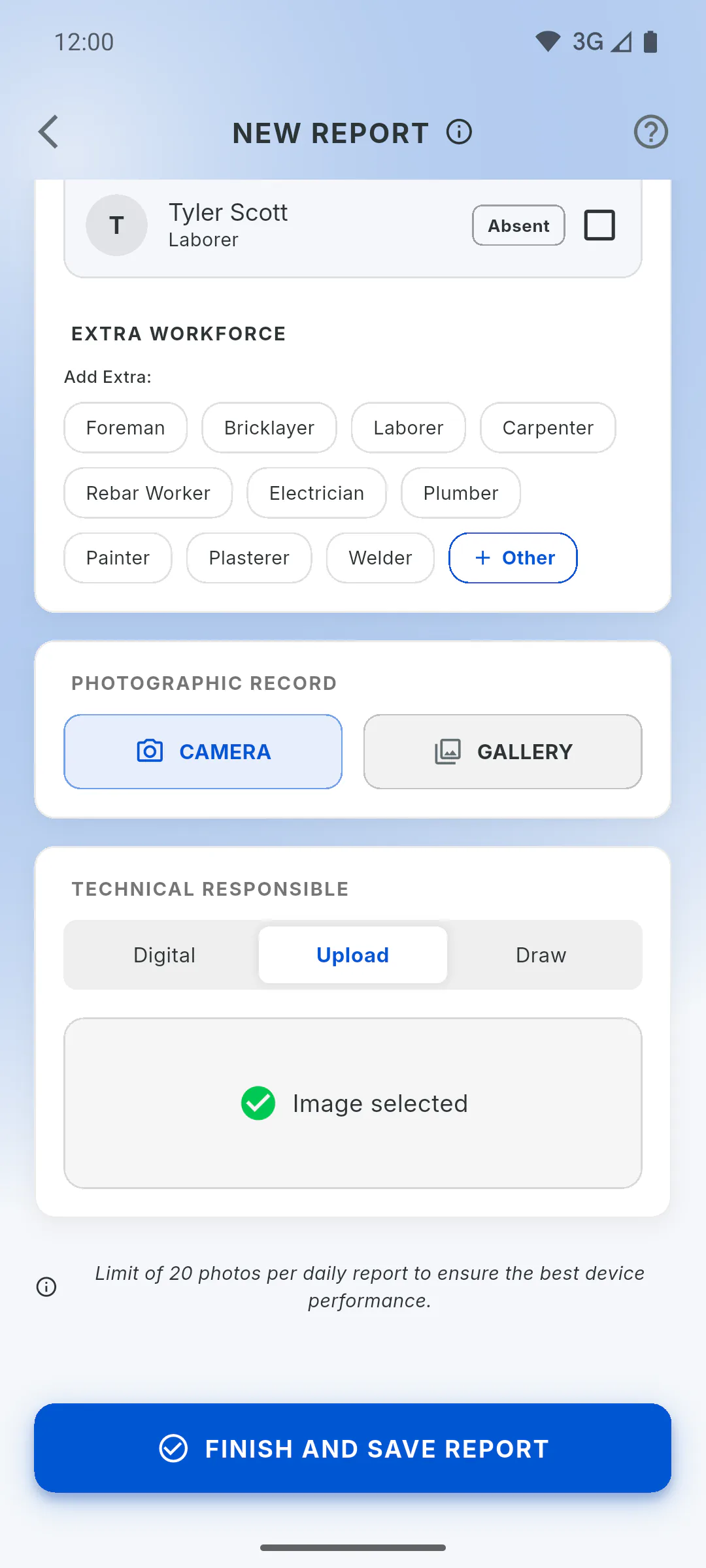
With Upload, tap Tap to select image and pick a photo of the signature from the gallery, ideally on white paper. Image selected appears. Offline on a phone, the image is kept and sent later; on a computer, you need internet when saving.
Step 4: Draw: sign on the screen
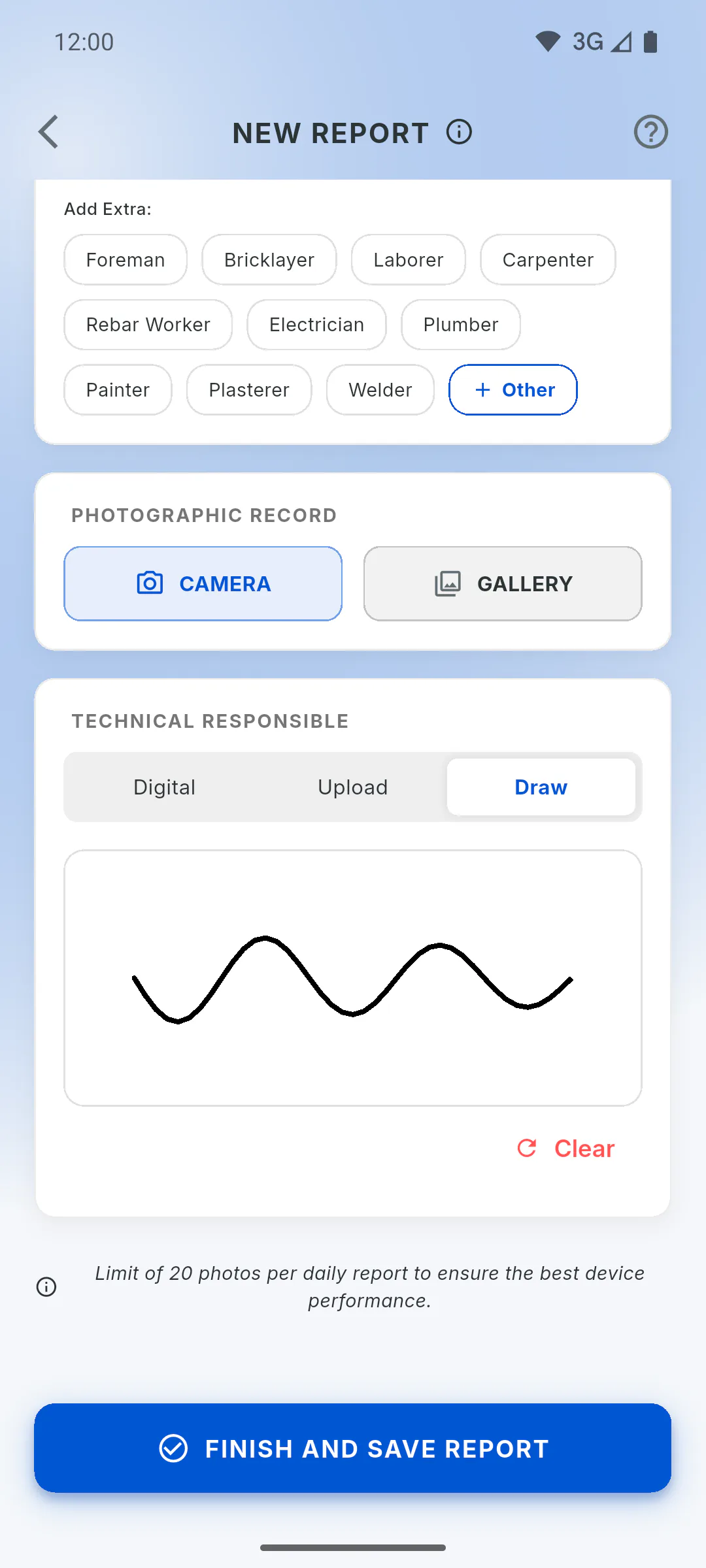
With Draw, sign with your finger, or with the mouse on a computer, inside the white box. To start over, tap Clear. Offline, it works like Upload: on a phone, the drawing is kept and sent later; on a computer, you need internet when saving.
Step 5: Offline or no signature
On a phone, a report saved offline with Upload or Draw shows Not signed until the image is sent, which happens on its own when the connection comes back. In a web browser or on Windows, a report with these options isn't saved offline: use Digital or wait for the connection. If you choose Upload or Draw and don't add the image or drawing, the report shows Not signed.
Step 6: Where the signature shows
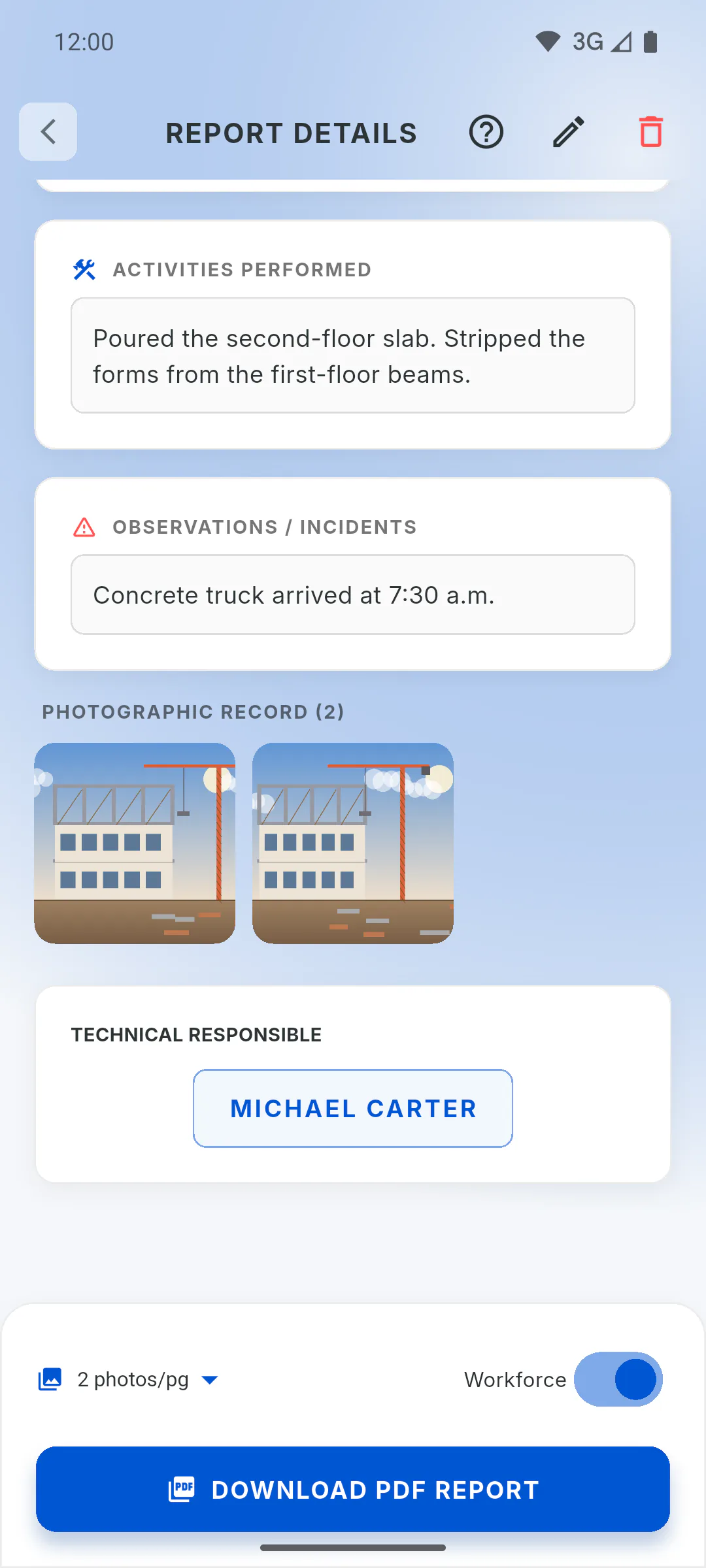
In the saved report, under Technical Responsible. In the PDF, it goes at the foot of the pages, above the Technical Manager line. In the Client Portal, only signatures made with Upload or Draw appear. To change the signature later, edit the report.
How to sign a daily report (typed, image or drawn)
Sign the report with the name of the person in charge, an image of the signature, or by drawing on the screen. See how each one works offline.
For managers and team members6 steps
Didn't find what you were looking for?
Chat with support on WhatsApp or open a ticket right in the app.