
Step 1: Open the report
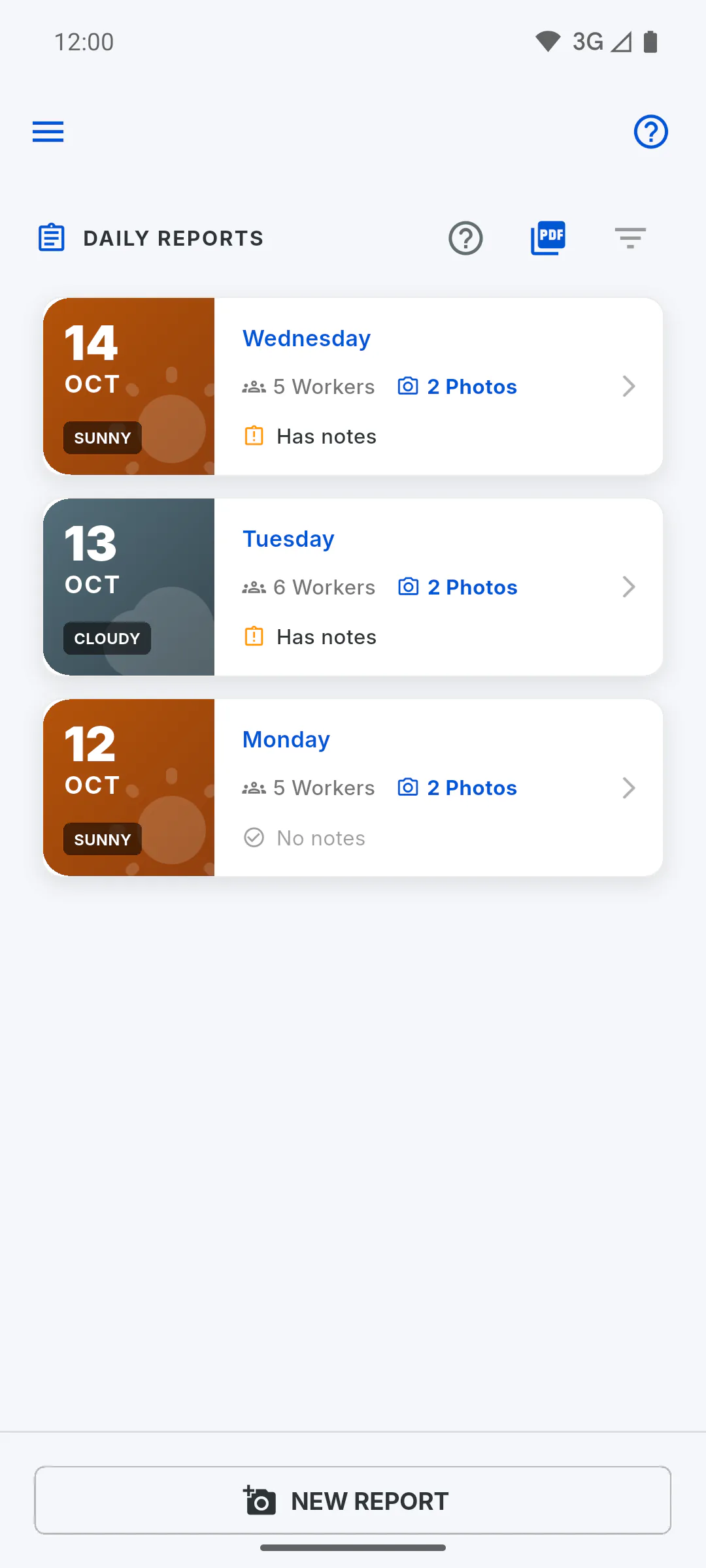
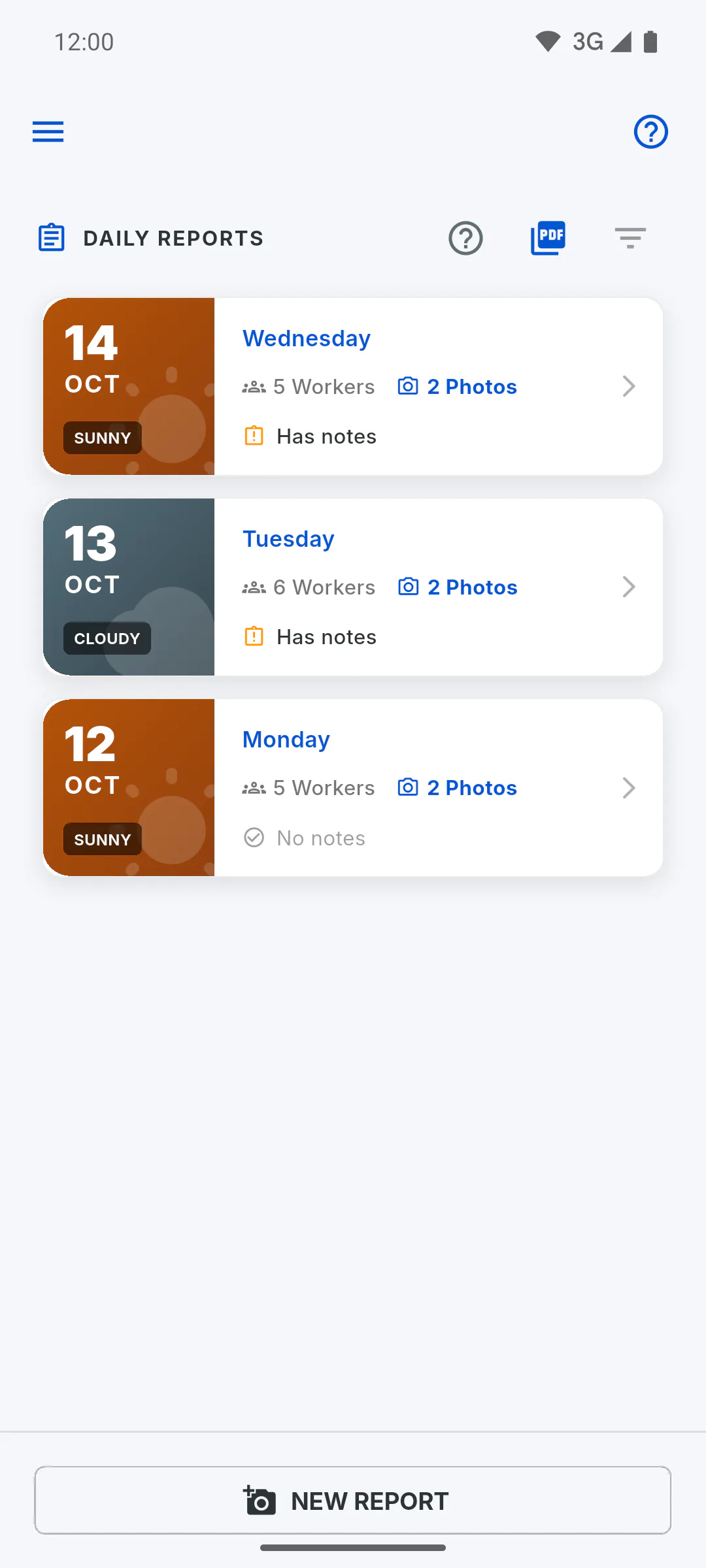
In Daily Reports, tap the card for that day to open Report Details.
Step 2: Choose the options
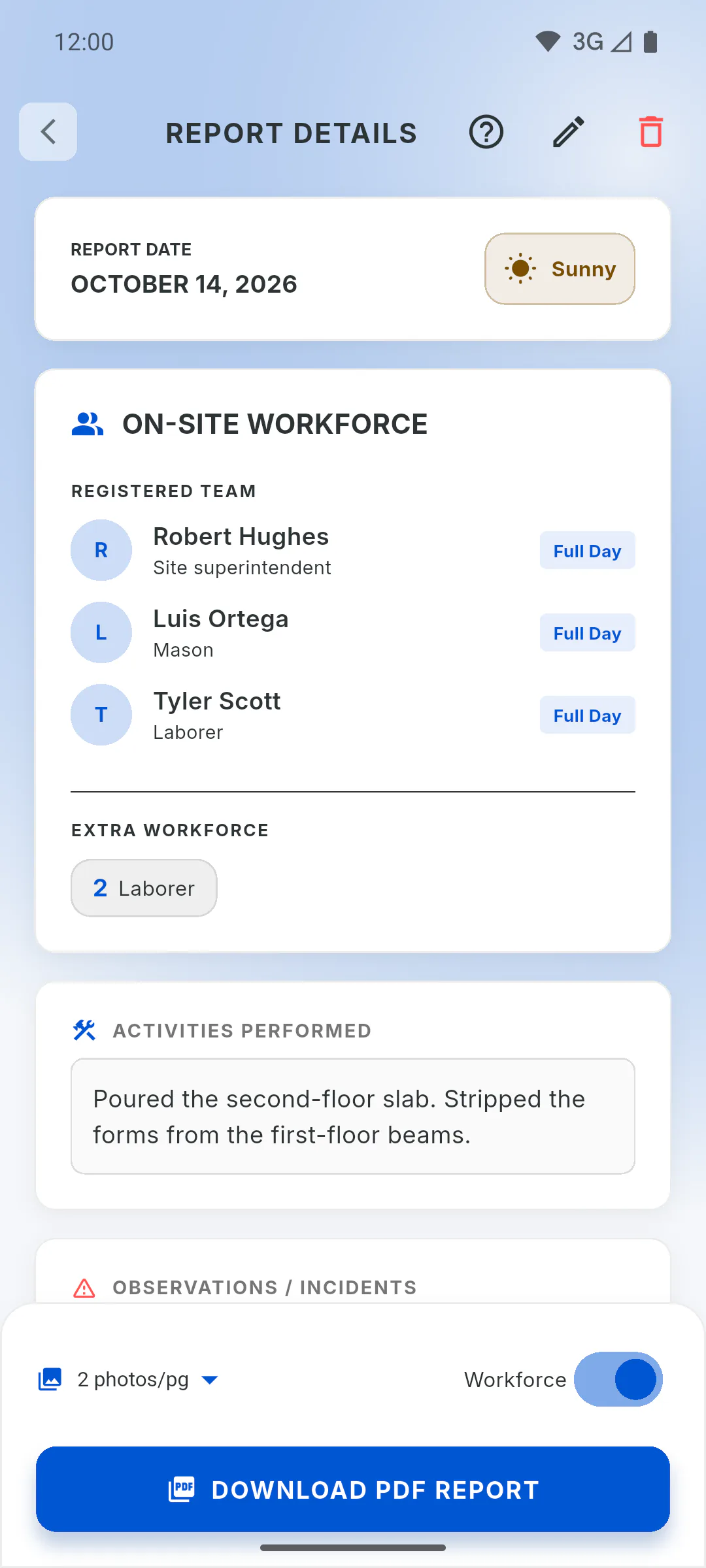
In the bottom bar, choose how many photos go on each page: 1 photo/pg, 2 photos/pg (the default) or 4 photos/pg. With the Workforce switch on, the crew table goes into the PDF; turn it off to leave it out.
Step 3: Create the PDF
Tap Download PDF Report. Generating Report... Please wait. appears and the button shows Generating PDF... until it's done. In a web browser, Generating High-Res PDF appears first: tap Generate Report to continue.
Step 4: Share or save
On a phone, your device's share options open, for example WhatsApp or email, or you can save the file. In the Windows app, a Save PDF window opens so you can choose the folder, and the file opens once saved. In a web browser, the PDF is downloaded or opened for sharing, depending on the browser. The file name starts with RDO_ followed by the date.
Step 5: What's in the PDF
- First, the photo pages, with up to 20 photos
- Then Daily Report - Details, with the project, date, client, weather and the project's Physical Progress at the moment the PDF is created, not on that day
- The crew table, with those present and extra workforce (absences aren't included), the activities and the observations
- The signature at the foot of the pages
Step 6: On the free plan
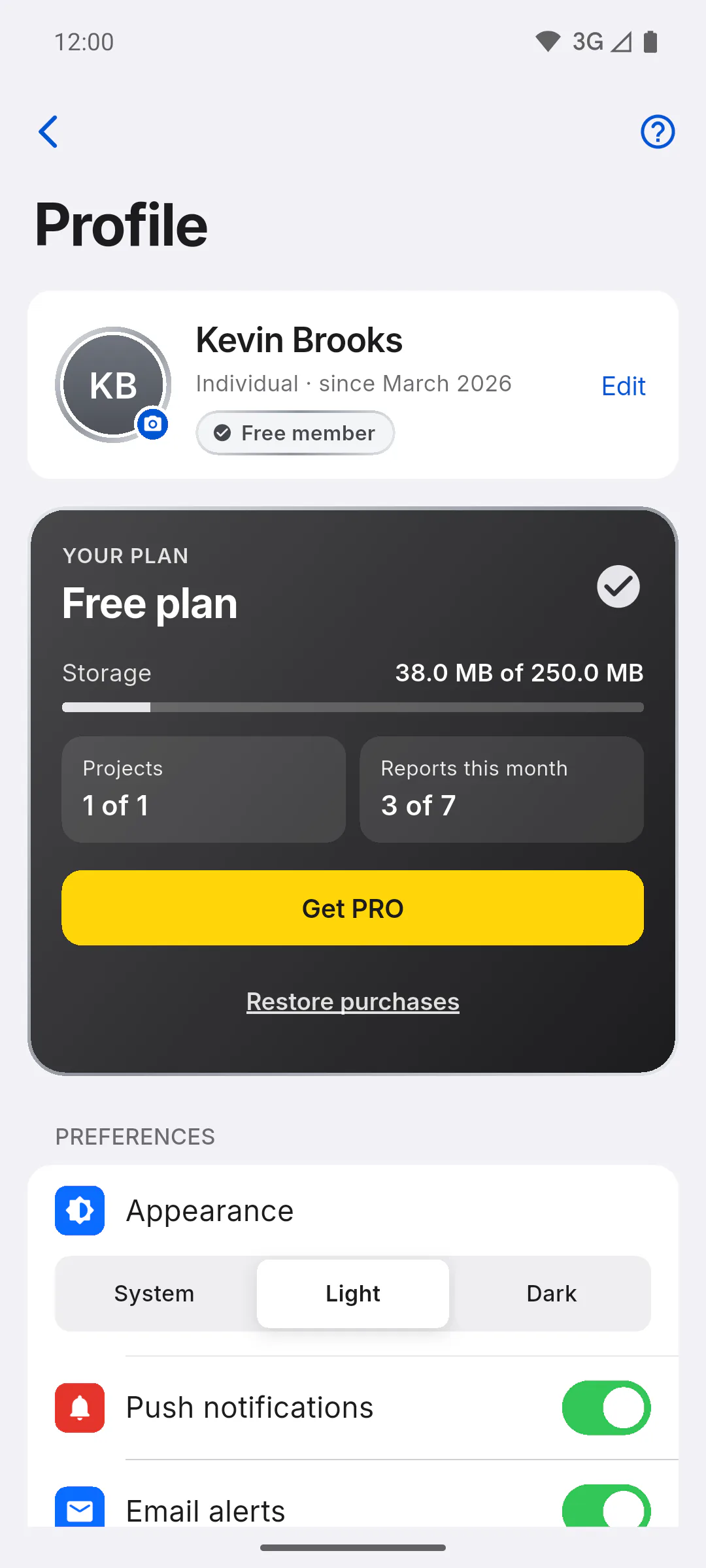
Each PDF counts toward the free plan's monthly report limit, even if you close the window without saving, and it comes with the app logo and a Free Version watermark. On PRO, there's no limit and the PDF carries your logo. A guest on a project whose owner is PRO creates that project's report PDFs with no limit, but the watermark follows the guest's own plan.
Step 7: For the client and for several days
The Client Portal has no download for the report PDF: if your client needs it, send them the file. To bundle several days at once, PRO exports a ZIP file.
How to download and share a daily report PDF
Create a PDF of a report with photos, crew, activities and signature, then send it by WhatsApp or email, or save it on your device.
For managers and team members7 steps
Didn't find what you were looking for?
Chat with support on WhatsApp or open a ticket right in the app.