
Step 1: What the tag shows
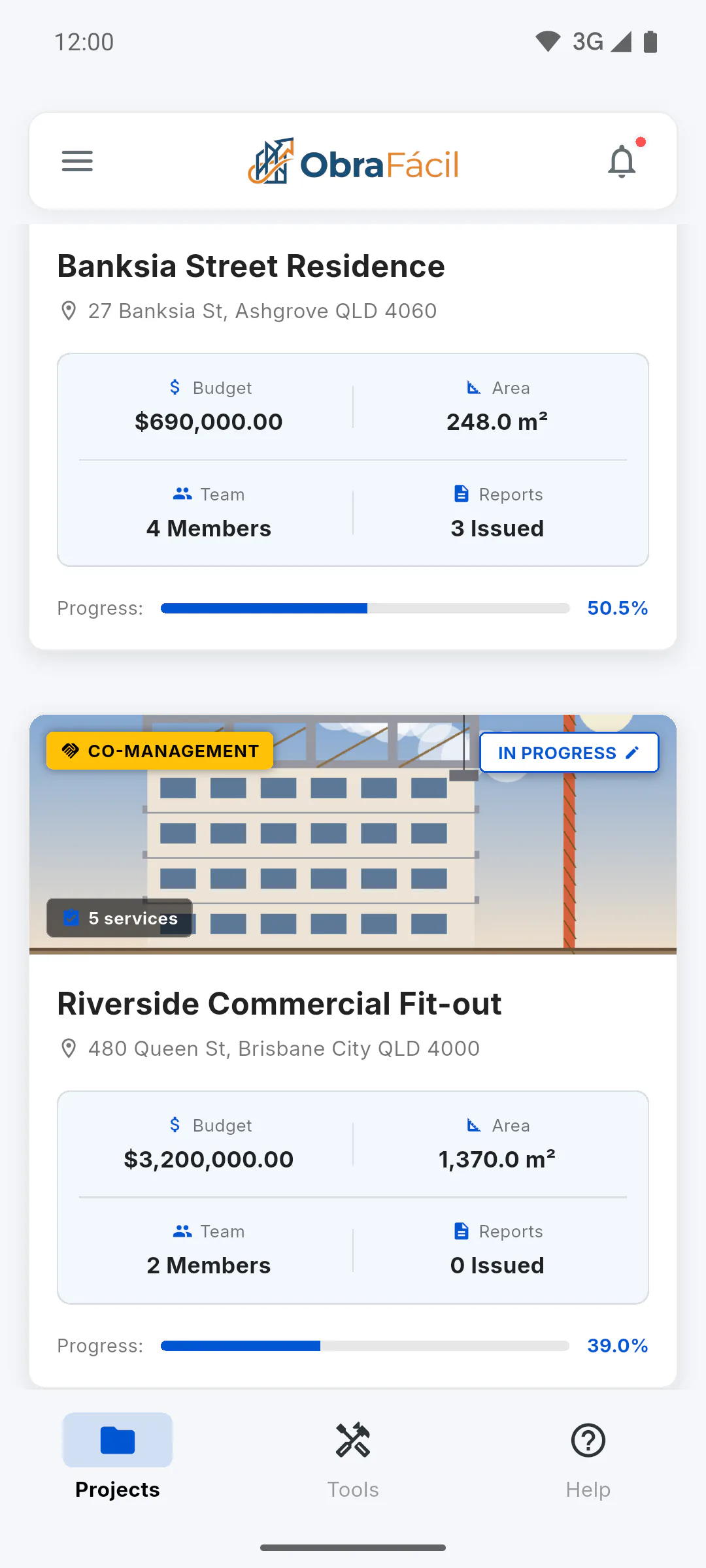
On the dashboard, the yellow Co-Management tag with a handshake icon shows on the cards of projects that belong to someone else and that you were invited to. Projects you created yourself don't have this tag.
- If you were invited as a Client, the card shows You're the Client instead of Co-Management and opens the project's Client Portal.
Step 2: What you can do on it
You're working on the project of the person who invited you. What you can see and do depends on the role the owner chose in the invitation, such as Engineer or Team: Engineer, Team and Client: what each role sees
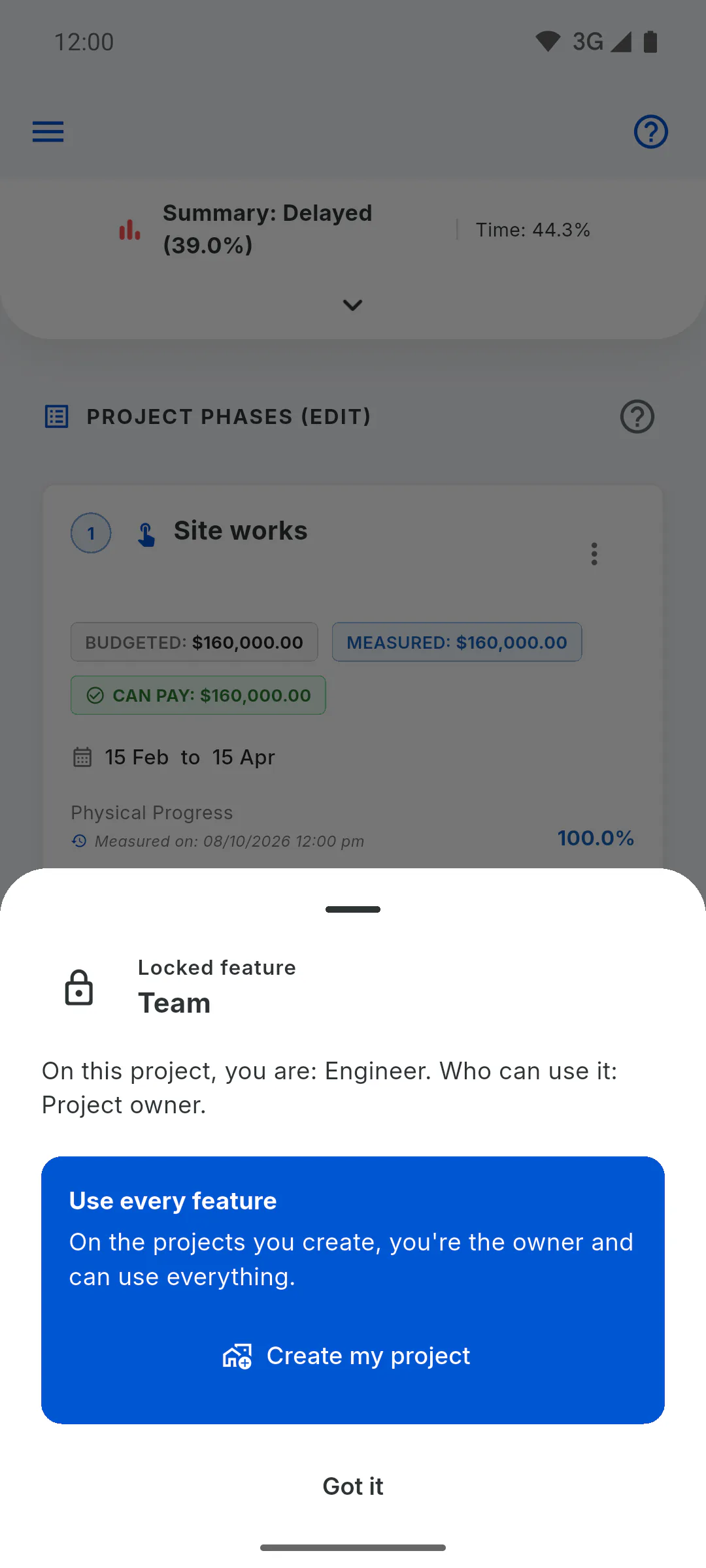
- Anything your role doesn't allow is greyed out with a padlock. Tap it to open a window showing your role on the project and who can use it.
Step 3: Plan and project limit
Co-managed projects don't count towards the project limit of your free plan, because someone else owns them: How many projects can I have on the free plan
- If the owner removes you from the project or deletes it, the card no longer shows on your dashboard.
What "CO-MANAGEMENT" means on a project card
The CO-MANAGEMENT tag marks the projects on your dashboard that belong to someone else and that you joined by invitation.
For team members3 steps
Didn't find what you were looking for?
Chat with support on WhatsApp or raise a ticket in the app.