
Step 1: Open a new report
Open the project, tap Daily Reports, then New Report. The first time, the button reads Create First Report.
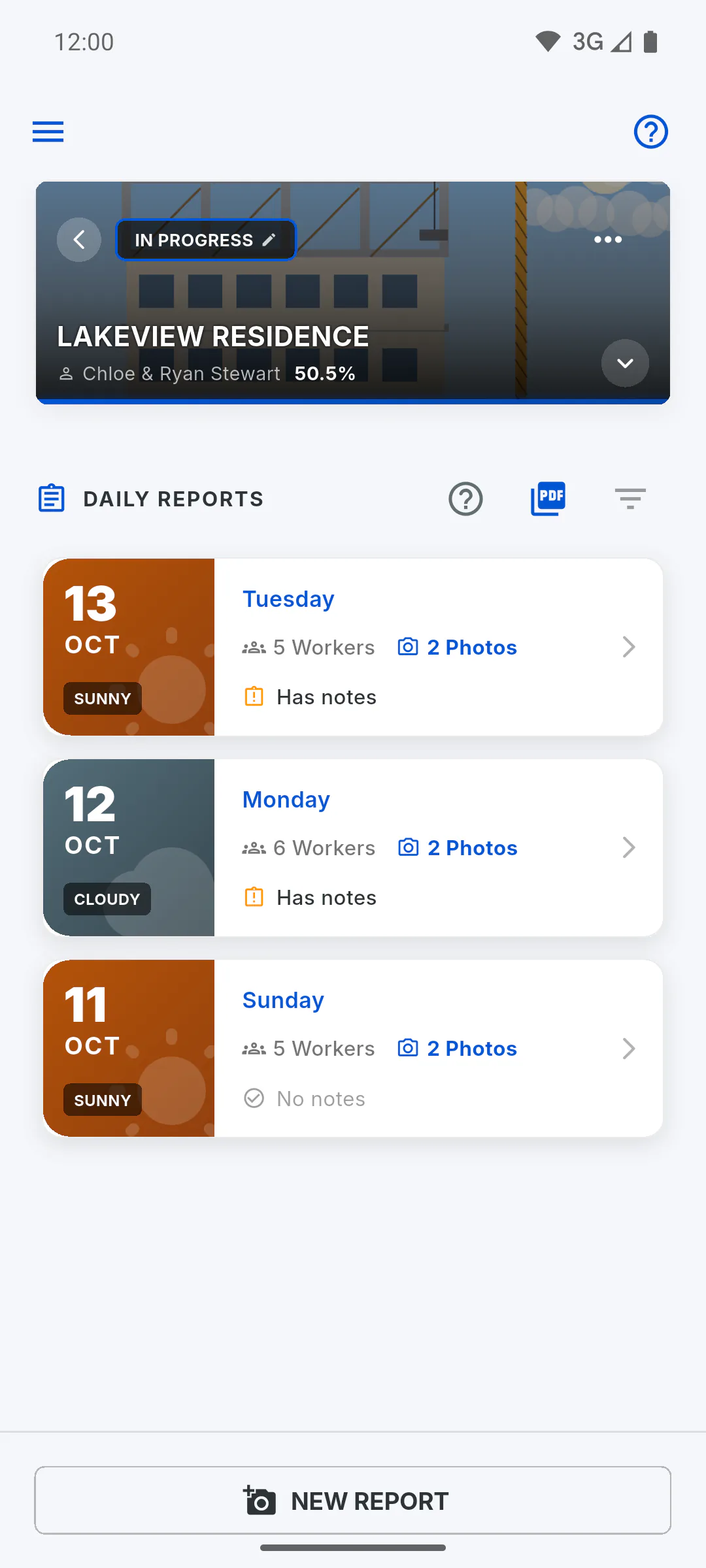
Step 2: Date and weather
Under Reference, today's date is already set. Tap it to pick another day; that report is marked as retroactive. Under Weather Conditions, choose the weather on the job site: none is selected for you, and the report can only be saved once you choose.
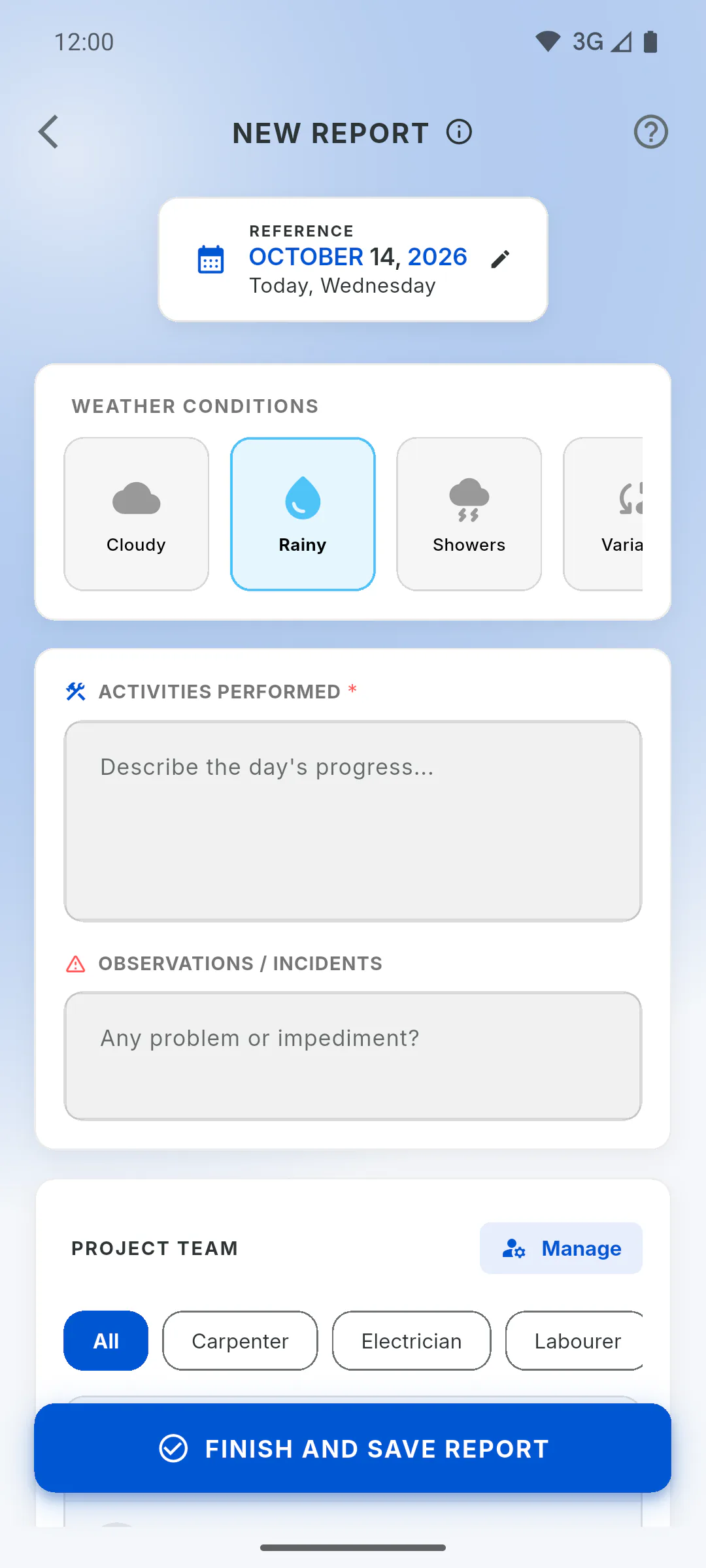
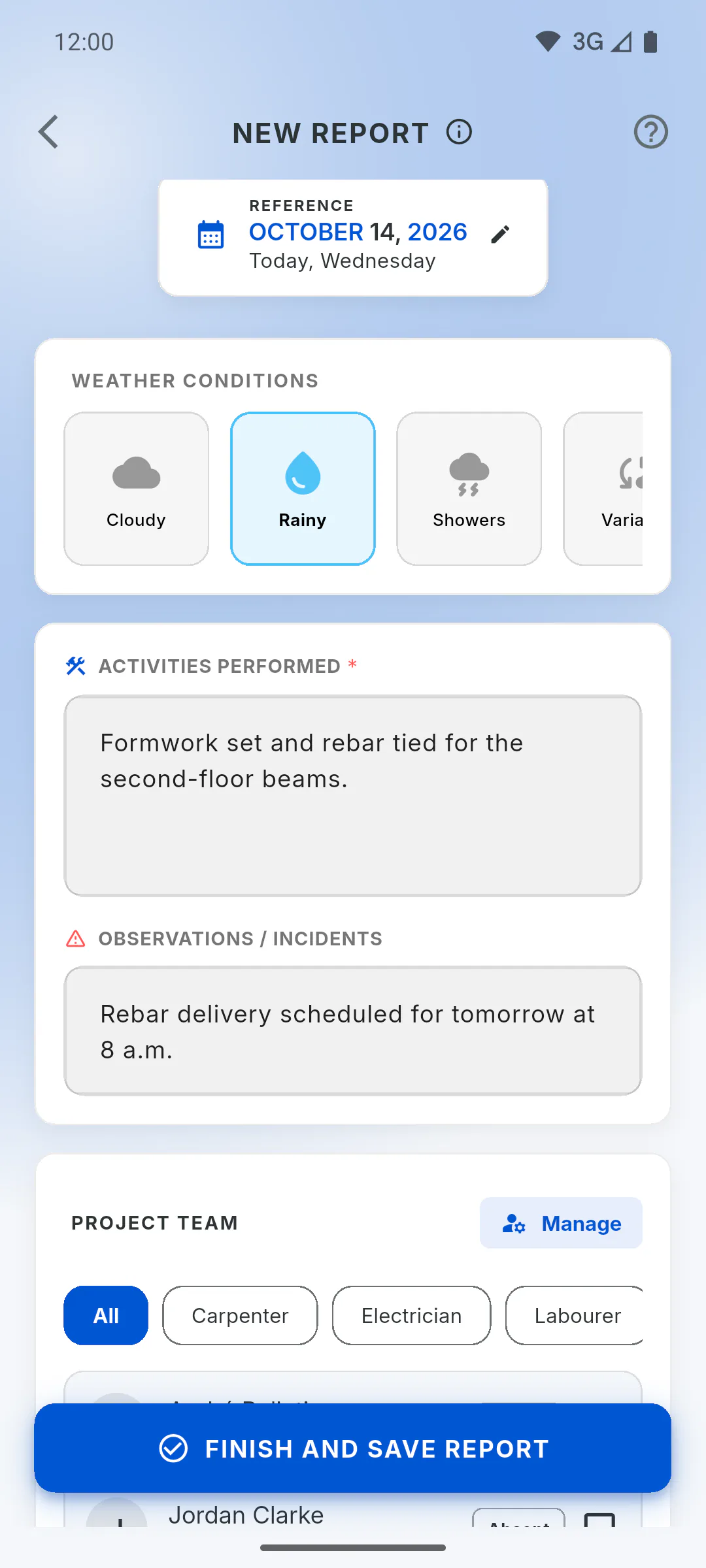
Step 3: What was done today
Describe the day's work under Activities Performed; this field is required. Use Observations / Incidents for anything that needs attention.
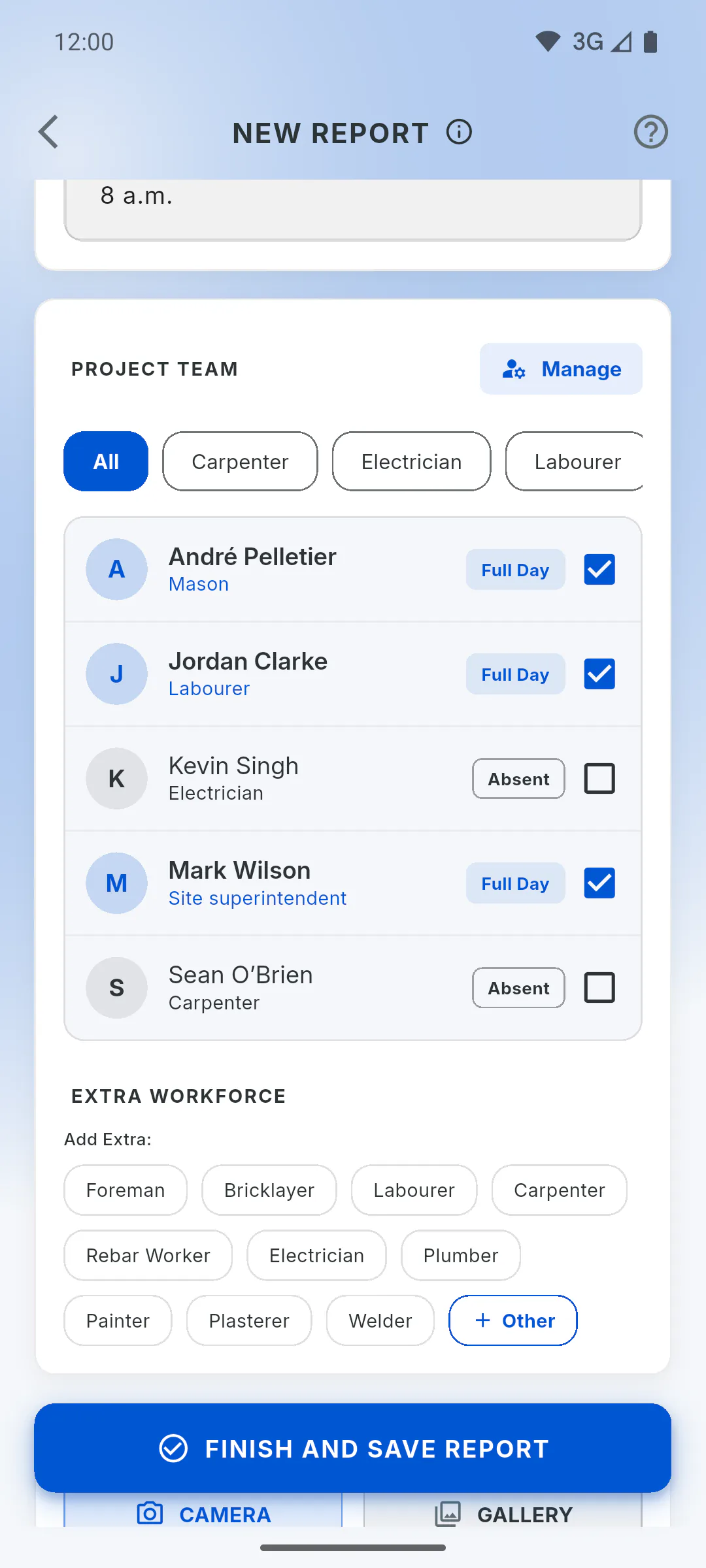
Step 4: Crew and photos
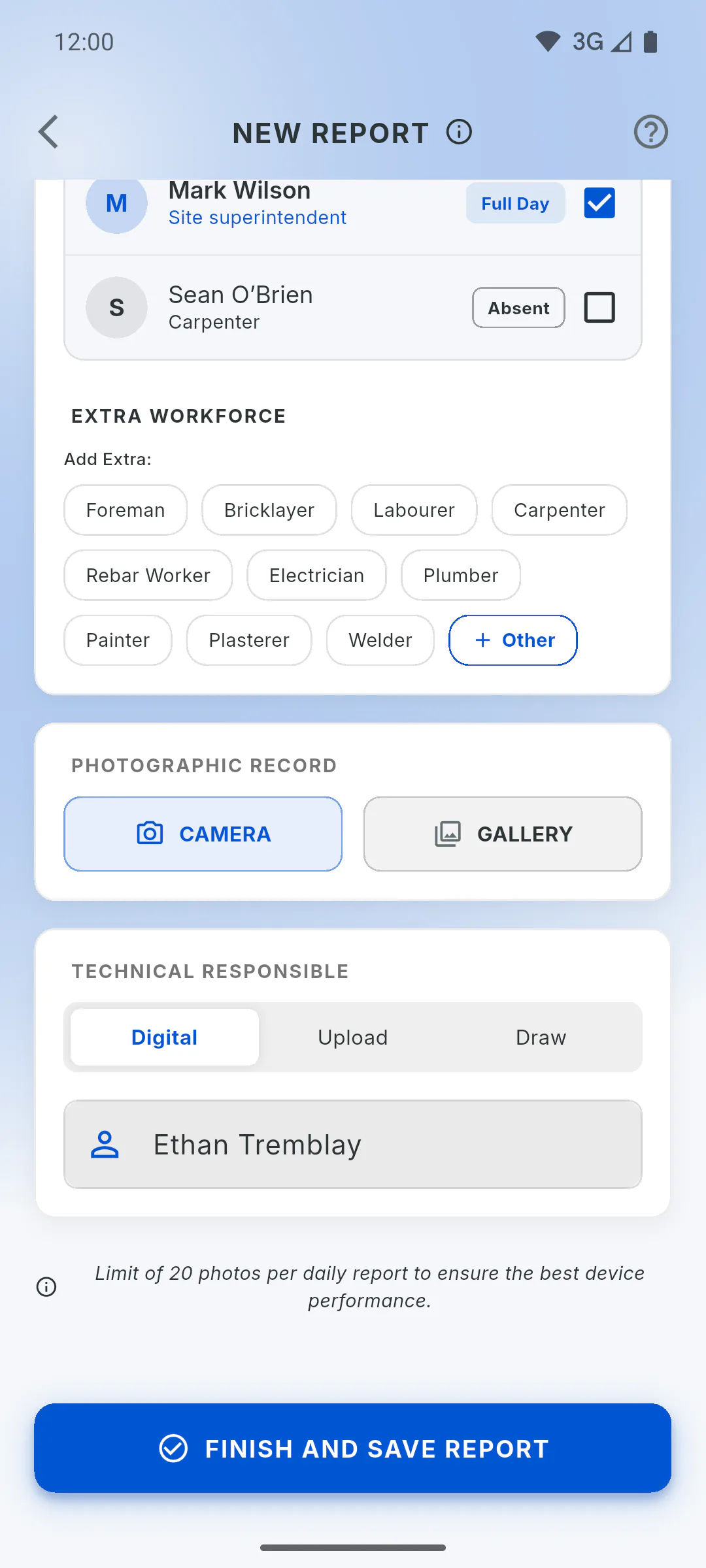
Under Project Team, mark each worker as Full Day, Half Day or Absent. Anyone who isn't on your team list goes under Extra Workforce. Under Photographic Record, use Camera or Gallery, up to 20 photos.
- The crew list comes from your team: How to add a team member
Step 5: Sign and save
Under Technical Responsible, the Digital option is selected by default: type the name of the person in charge, which is required for this option and also works offline. Tap Finish and Save Report. Without internet, the report is saved on the device; on a phone, the photos upload on their own once you're back online.
How to create a daily report
Log the day on the job site in one place: date, weather, work done, crew attendance, photos and sign-off.
For managers and team members5 steps
Didn't find what you were looking for?
Chat with support on WhatsApp or raise a ticket in the app.