
Step 1: Have your team set up
The report lists the active team members of the project owner's team, added under My Team. If there are none, you'll see The team hasn't been registered yet.
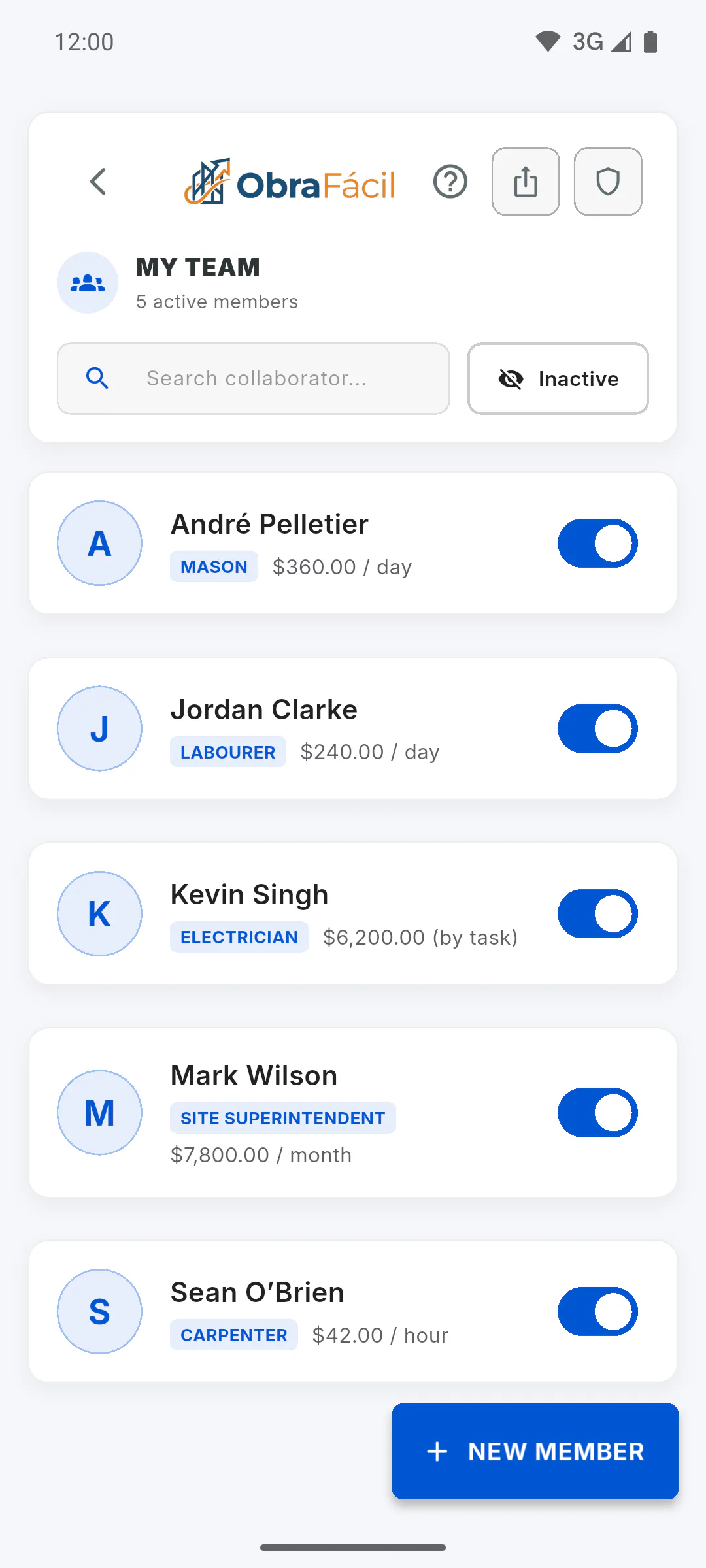
Step 2: Open the list in the report
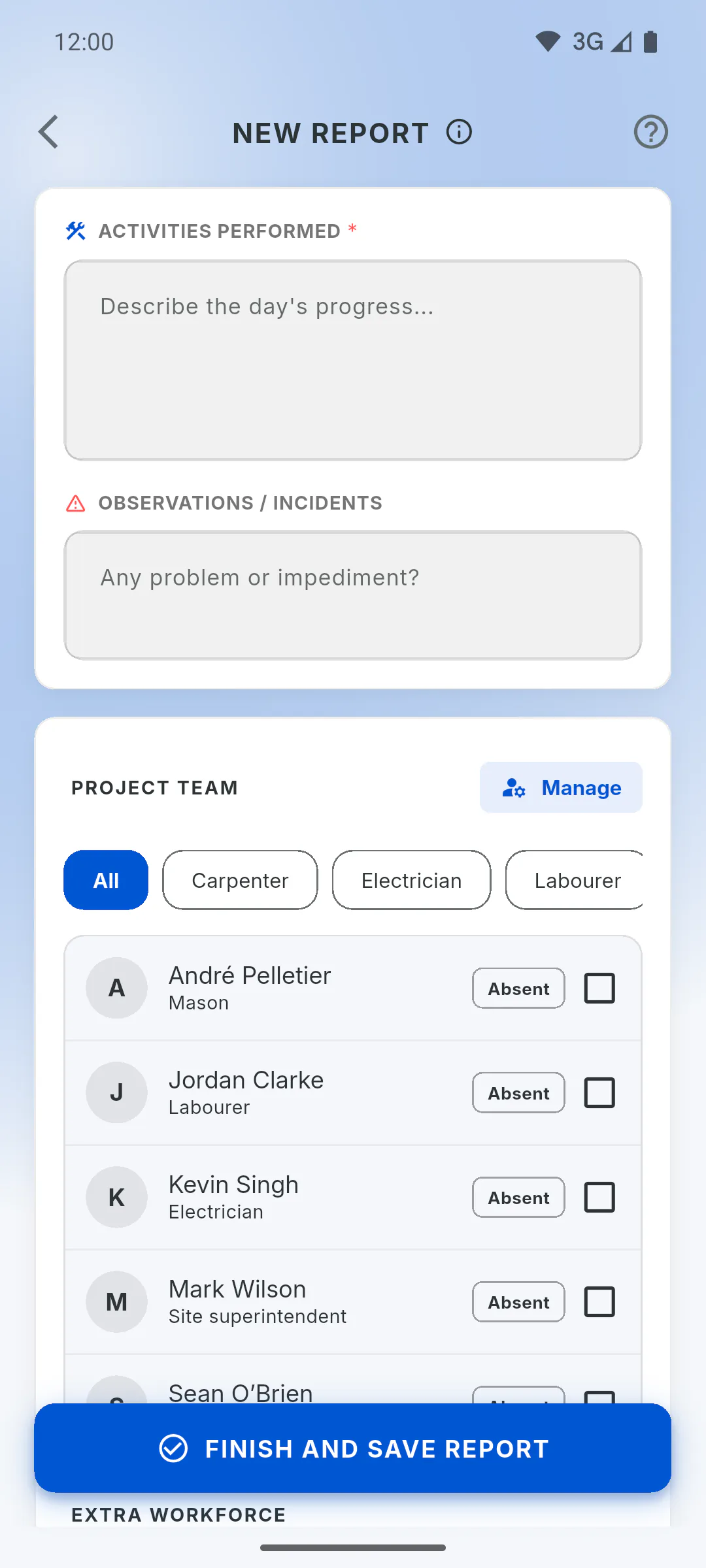
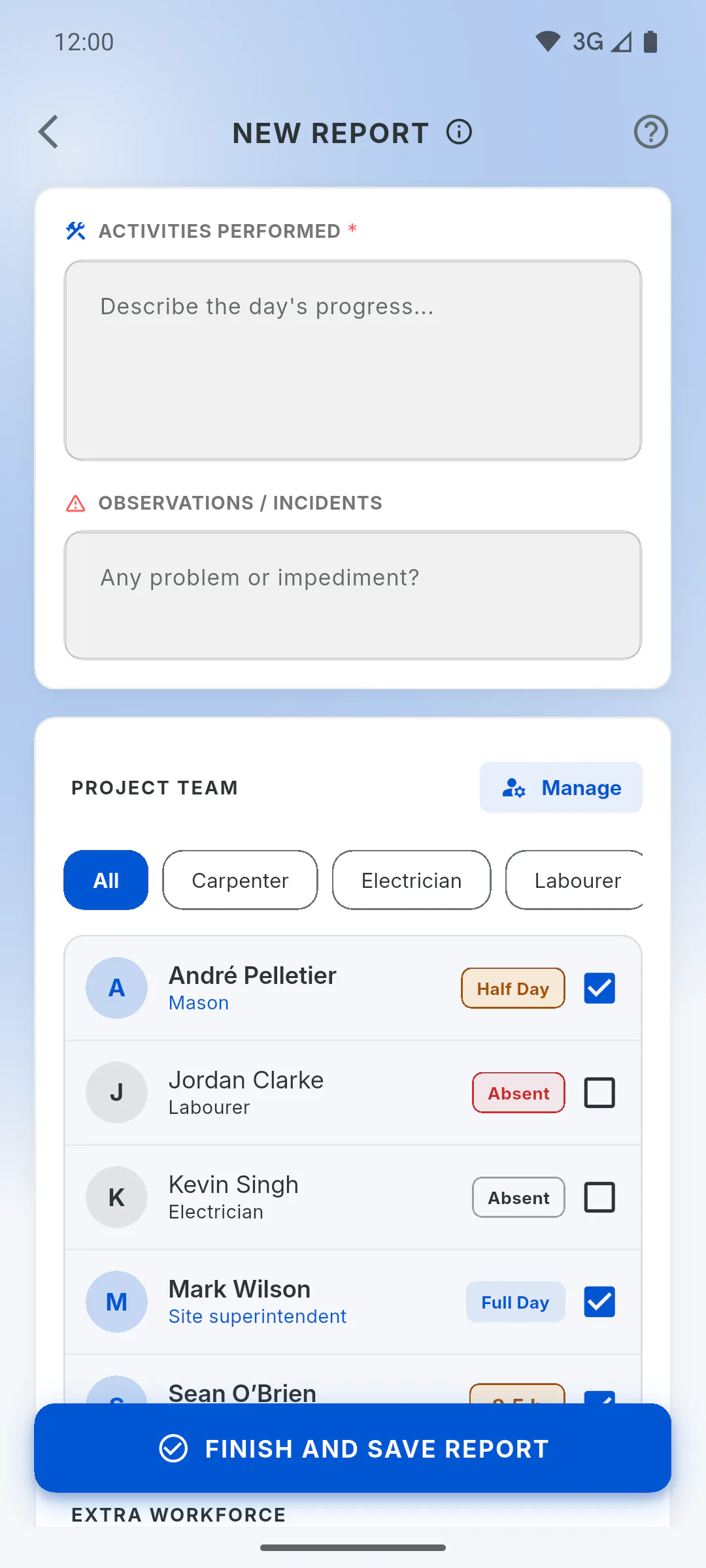
Open the project, tap Daily Reports, then New Report. Scroll down to Project Team. The buttons above the list, starting with All, filter by role; if nobody has the chosen role, you'll see No member with this role.
Step 3: Mark who worked
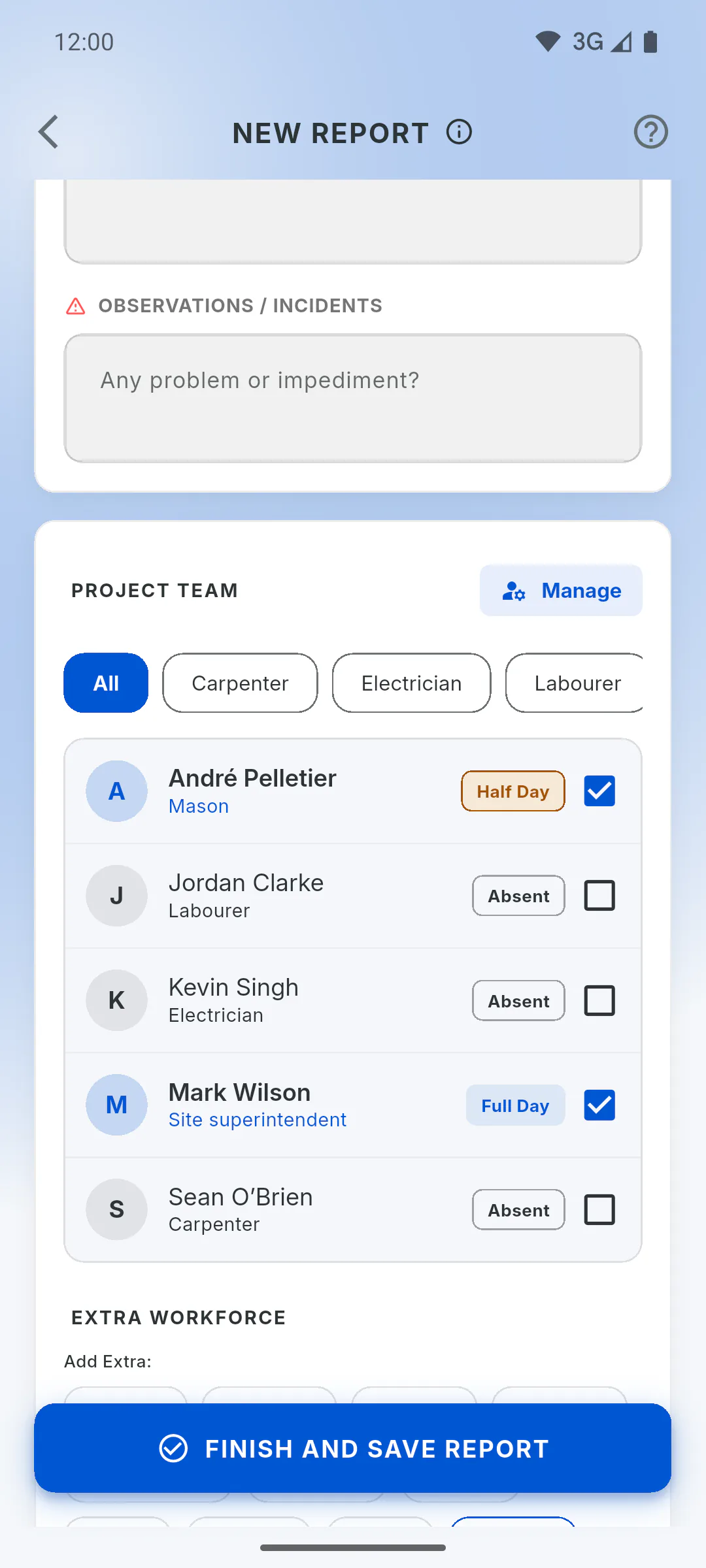
Tap the person's name: they're checked and show Full Day. Tap Full Day to switch to Half Day, and tap again to switch back. To uncheck someone, tap their name again.
Step 4: Mark who was absent
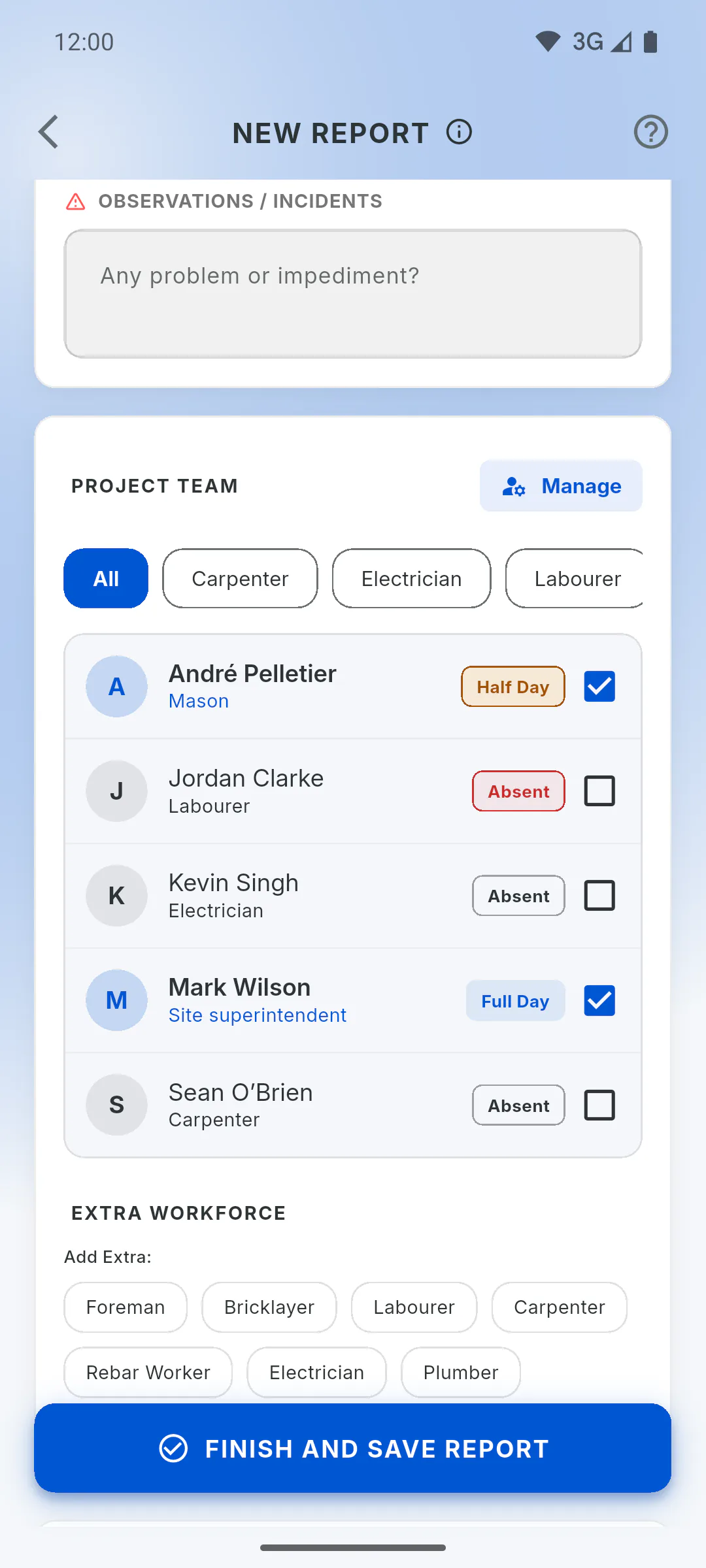
Anyone who isn't checked has an Absent button next to their name: tap it to record the absence. If the person did show up, tap their name and the absence is cleared. People left unmarked aren't included in the report and don't count as absent.
Step 5: Adjust hours for hourly workers
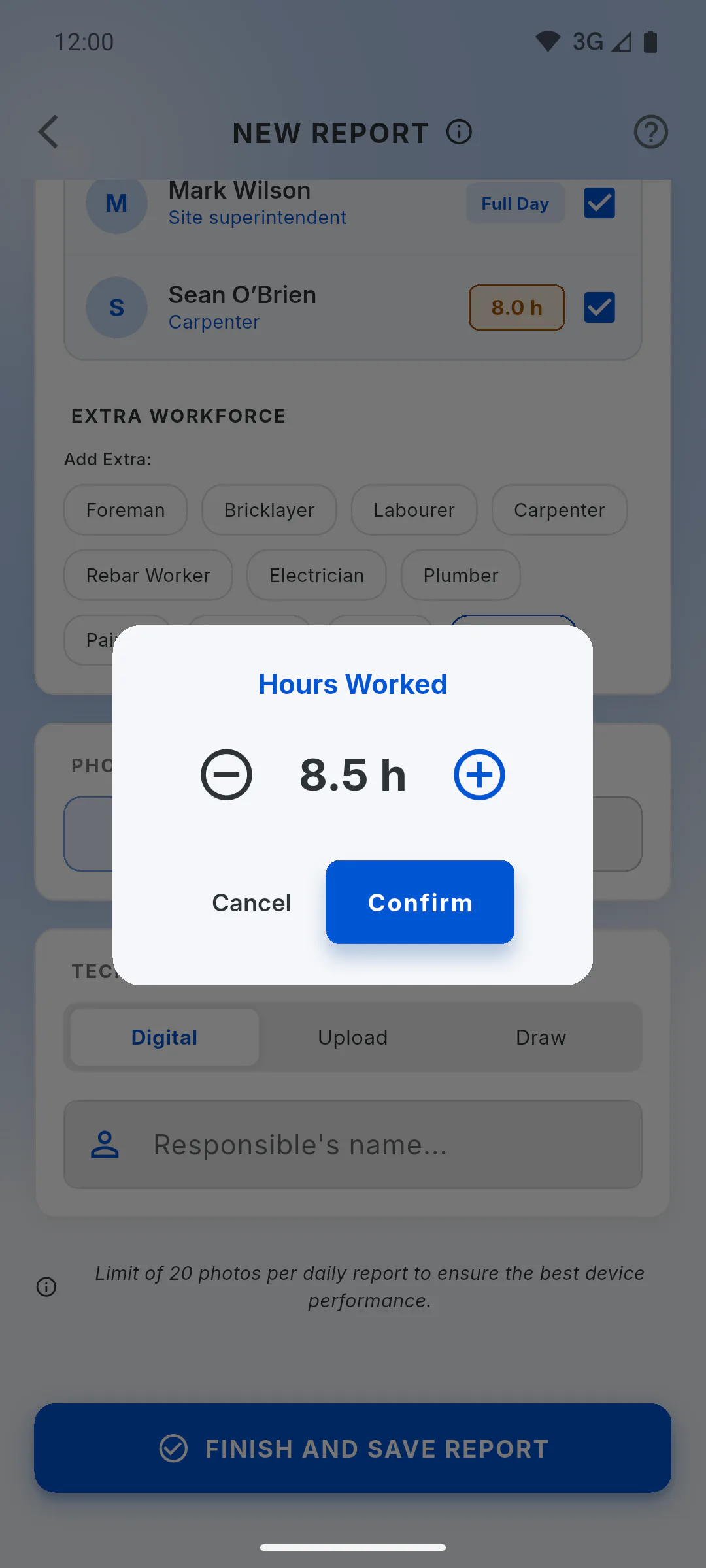
For a team member paid Per Hour, you see hours instead of Full Day: they start at 8 hours. Tap the hours to open Hours Worked, use minus and plus to adjust in half-hour steps, then tap Confirm.
Step 6: Add someone without leaving the report
Someone new on the job site? Tap Manage, next to Project Team, add the person and come back: they're already on the list, and what you filled in is still there. An invited project member can only add team members if the owner allows it.
Step 7: Check before saving
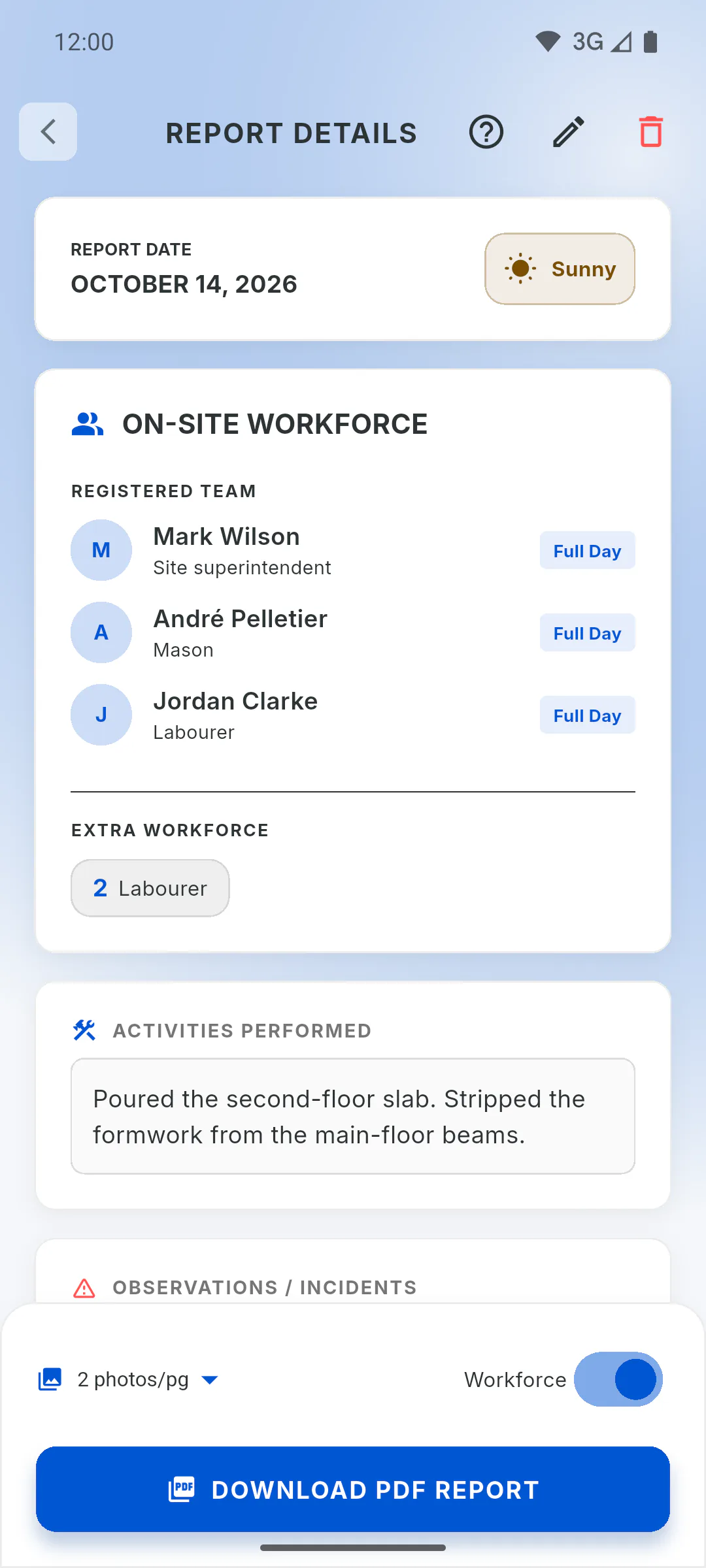
Once you tap Finish and Save Report, attendance can't be changed: editing a report doesn't show the crew. If you made a mistake, delete the report and create a new one. In the saved report, On-Site Workforce shows Registered Team and Recorded Absences, and the project's payroll uses these marks.
How to record crew attendance in a daily report
Mark who worked a full day, half a day or by the hour, and who was absent. These marks feed the project's payroll.
For managers and team members7 steps
Didn't find what you were looking for?
Chat with support on WhatsApp or raise a ticket in the app.