
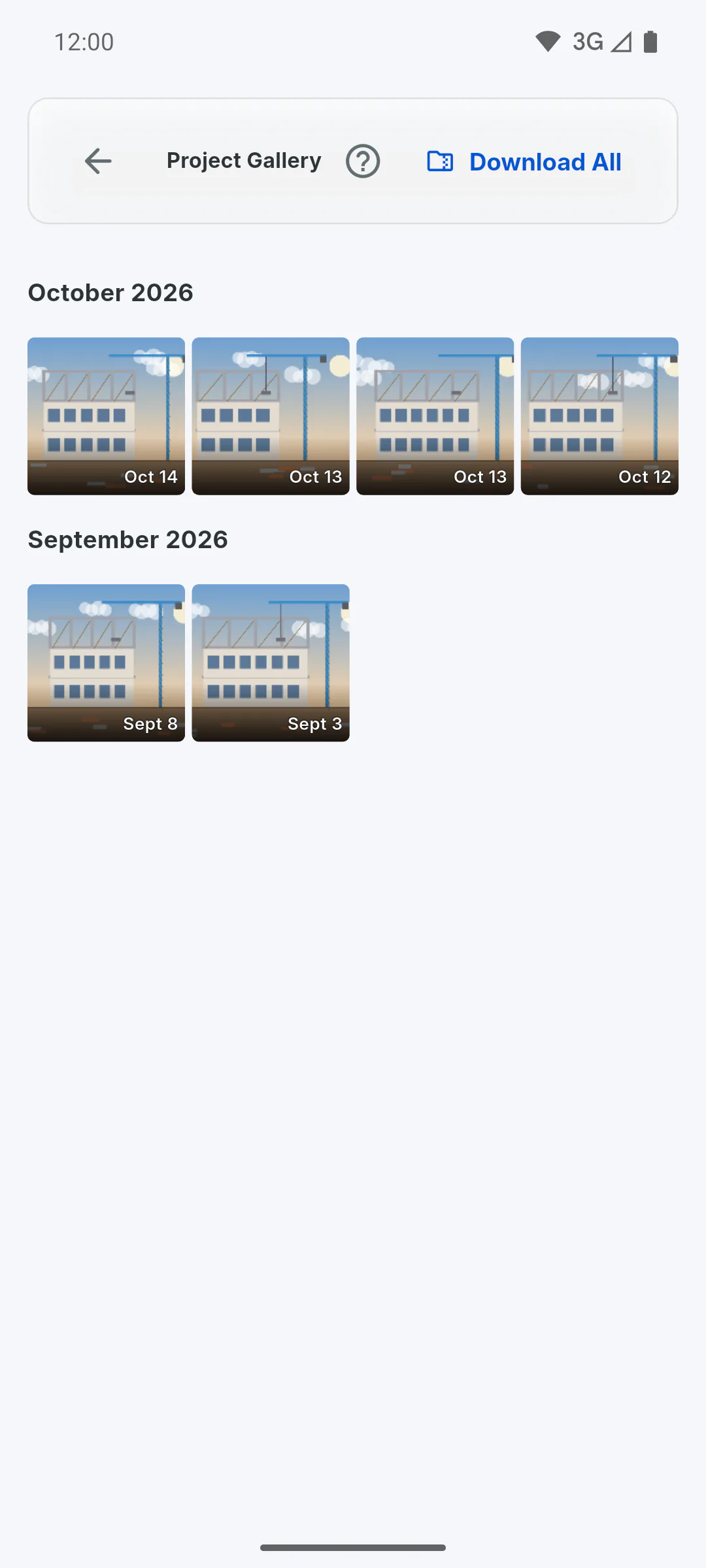
Step 1: Request the ZIP
In the Portal, open the menu, tap Project Gallery, then Download All at the top. The request only goes ahead when the project is at 100% or during a grace period:
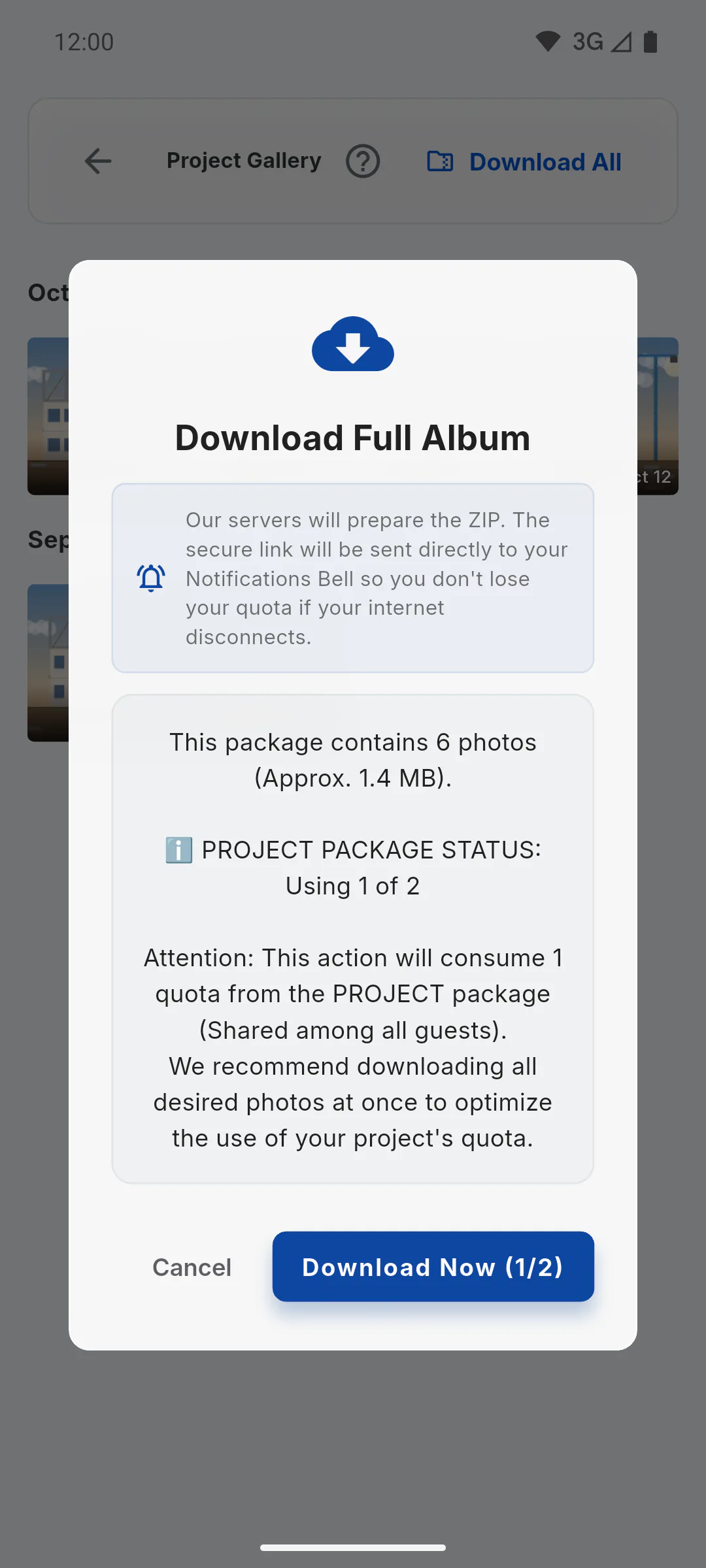
Step 2: Confirm the request
In the Download Full Album window, check the number of photos, the approximate size and how many of the project's downloads have been used. Tap Download Now (the button shows which download from the limit will be used) or Cancel.
Step 3: Keep using the app
You'll see Order Sent!. Tap Understood, Close and use the app as usual while the ZIP is built on the servers. How long it takes depends on the number of photos. The download only counts against the limit once the ZIP is ready.
Step 4: Open the bell
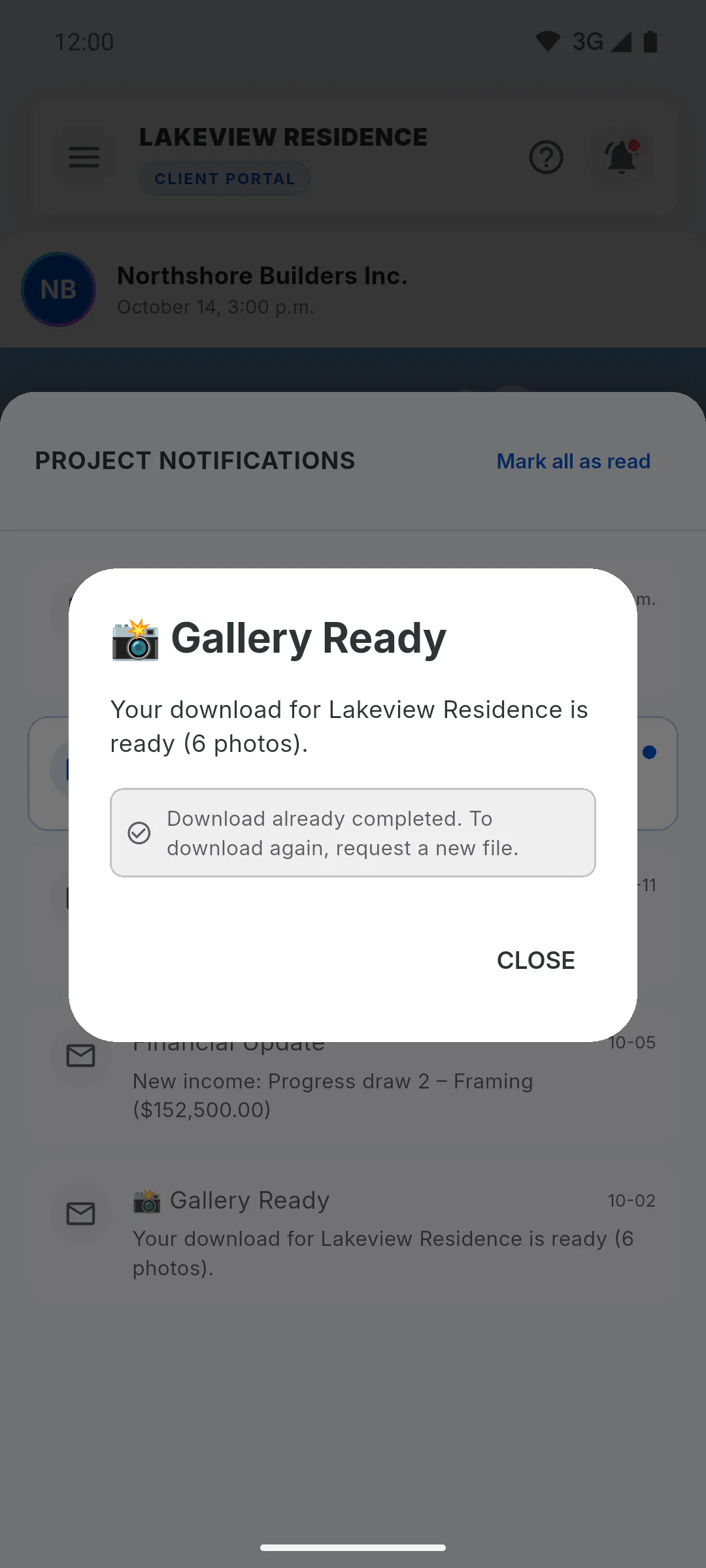
When the ZIP is ready, a red dot appears on the bell at the top of the Portal. Tap it: under Project Notifications you'll see Gallery Ready, with the project name and the number of photos.
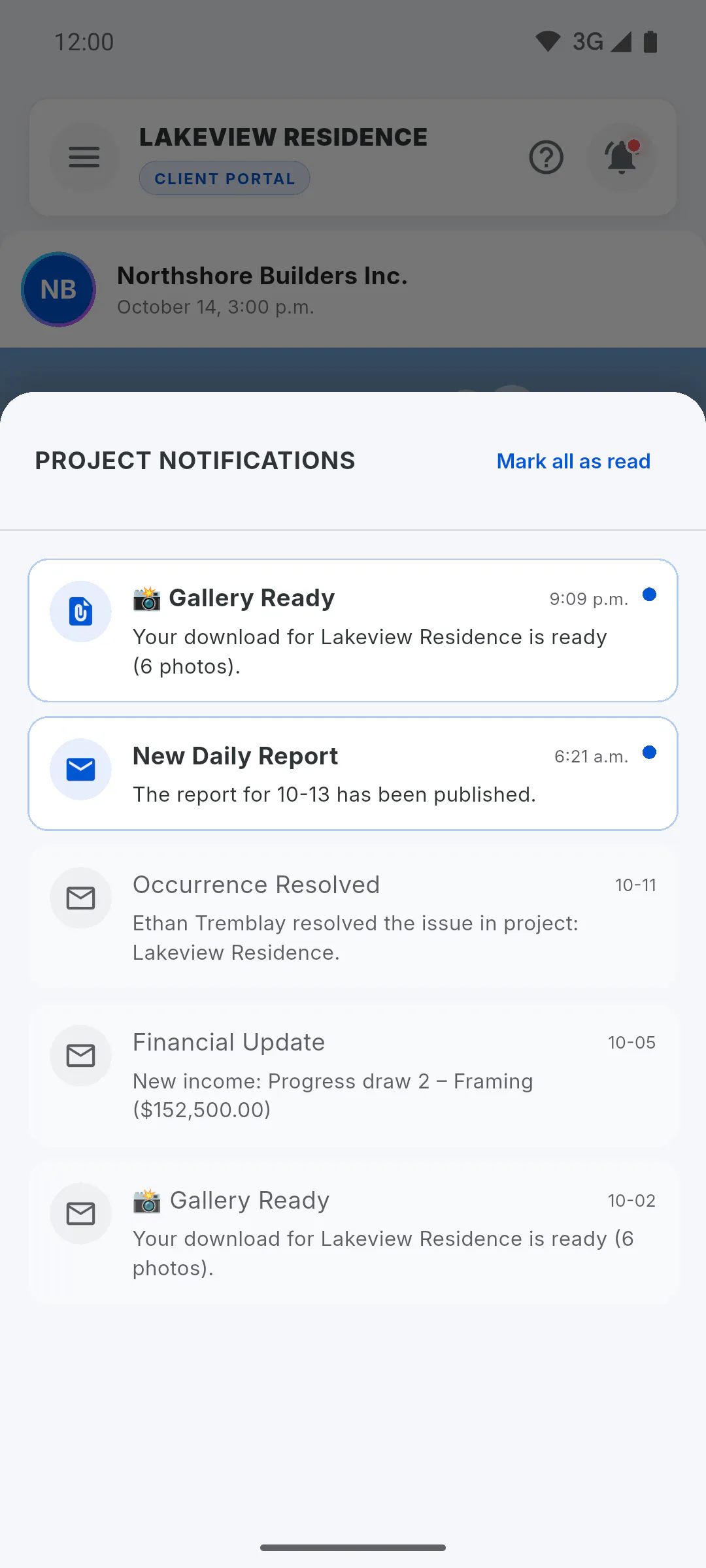
Step 5: Download the file
Tap the notification, then Download. The ZIP opens in your browser so you can save it to your device. Inside, the photos are organized into folders by month.
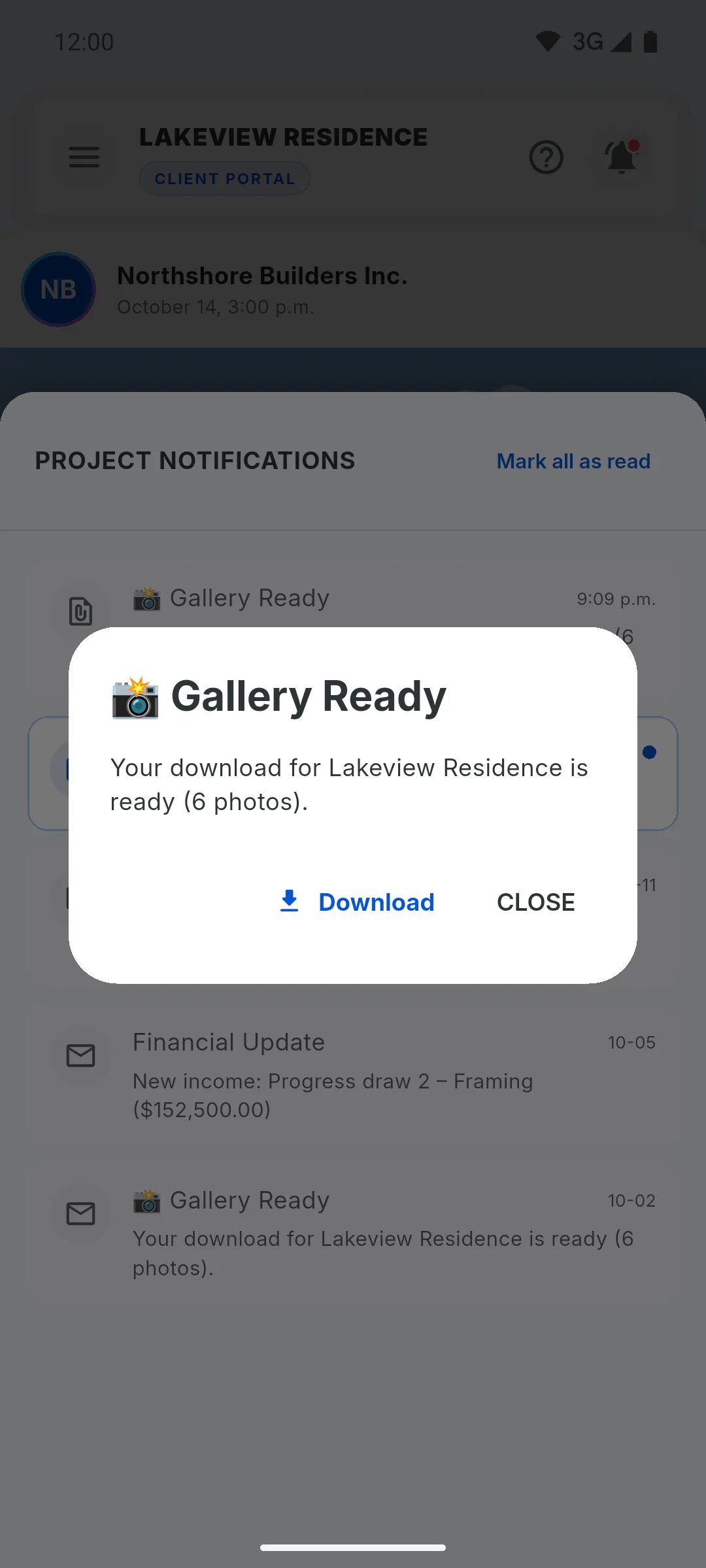
Step 6: The link works once, for 7 days
After you tap Download, the notification shows Download already completed. To download again, request a new file. The ZIP is kept for 7 days: after that it's deleted and the notification shows the same message, even if you never downloaded it. Download it soon and keep the file somewhere safe, because a new request uses another download from the limit. If you get an Error generating ZIP notification, the limit wasn't used: try again later.
How to get the ZIP with all photos through the bell
Request the ZIP with every project photo in the Project Gallery, keep using the app, and download the file from the notification that arrives in the bell.
For clients6 steps
Didn't find what you were looking for?
Chat with support on WhatsApp or raise a ticket in the app.