
Step 1: Browser or Windows app
On a computer, ObraFácil runs in a web browser and as an app for Windows. It's the same account as on your mobile: sign in with the same email and you'll see the same projects, reports and data.
Step 2: Wide screen
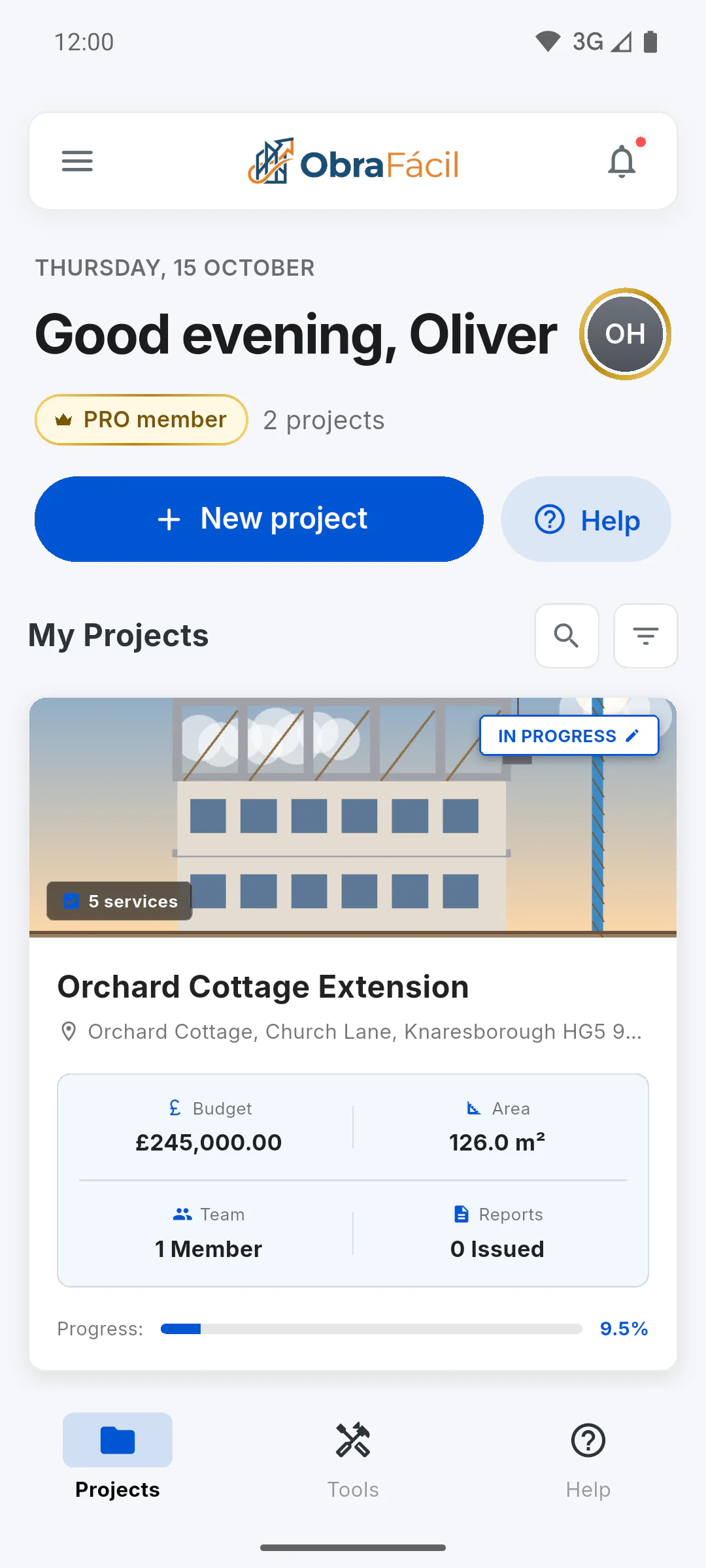
With a wide window, the dashboard shows the menu fixed on the side and Quick Tools below the project list. With a narrow window, the app uses the same layout as on a mobile, with the menu icon and the tabs at the bottom. How to use the side menu
Step 3: What only the mobile app has
- alerts on your mobile: How to turn mobile and email notifications on or off
- reminder alarms: Why the reminder alarm didn't go off
- the Almost ready! permissions screen
- keeping report photos and signatures offline to upload later: How what you did offline gets sent later
Using the browser on a mobile counts as the browser: these features aren't there either.
Step 4: Signing in
Sign in with Apple only shows on iPhone, iPad and Mac, not in the browser or on Windows. How to sign in with Google or Apple
Step 5: Photos in the browser
In the browser, the Camera button on the daily report opens the picker for images already saved on the computer, instead of a camera.
Step 6: Subscribing to PRO
In the browser and in the Windows app, you pay for PRO on a payment page that opens in the browser, for accounts in Brazil only. Outside Brazil you'll see Subscribe and buy in the app: subscribe in the mobile app with the same account, and PRO works on your computer too. Restore purchases doesn't show in the browser or on the Windows plans screen; in the Profile on Windows it shows but doesn't work.
Step 7: Updates and other details
- When an update is required, Windows downloads a new version, and in the browser you tap Reload Page: Seeing "Update required": how to update the app
- Under Appearance, the System option follows the computer's theme.
- In the Windows app, the storage almost full notice may take a few minutes to update.
Using ObraFácil on a computer (web and Windows): what's different
ObraFácil also runs in a web browser and as a Windows app, with the same account. See how the screen changes and what only works in the mobile app, like alerts, alarms and offline photo uploads.
For managers, team members and clients7 steps
Didn't find what you were looking for?
Chat with support on WhatsApp or raise a ticket in the app.