
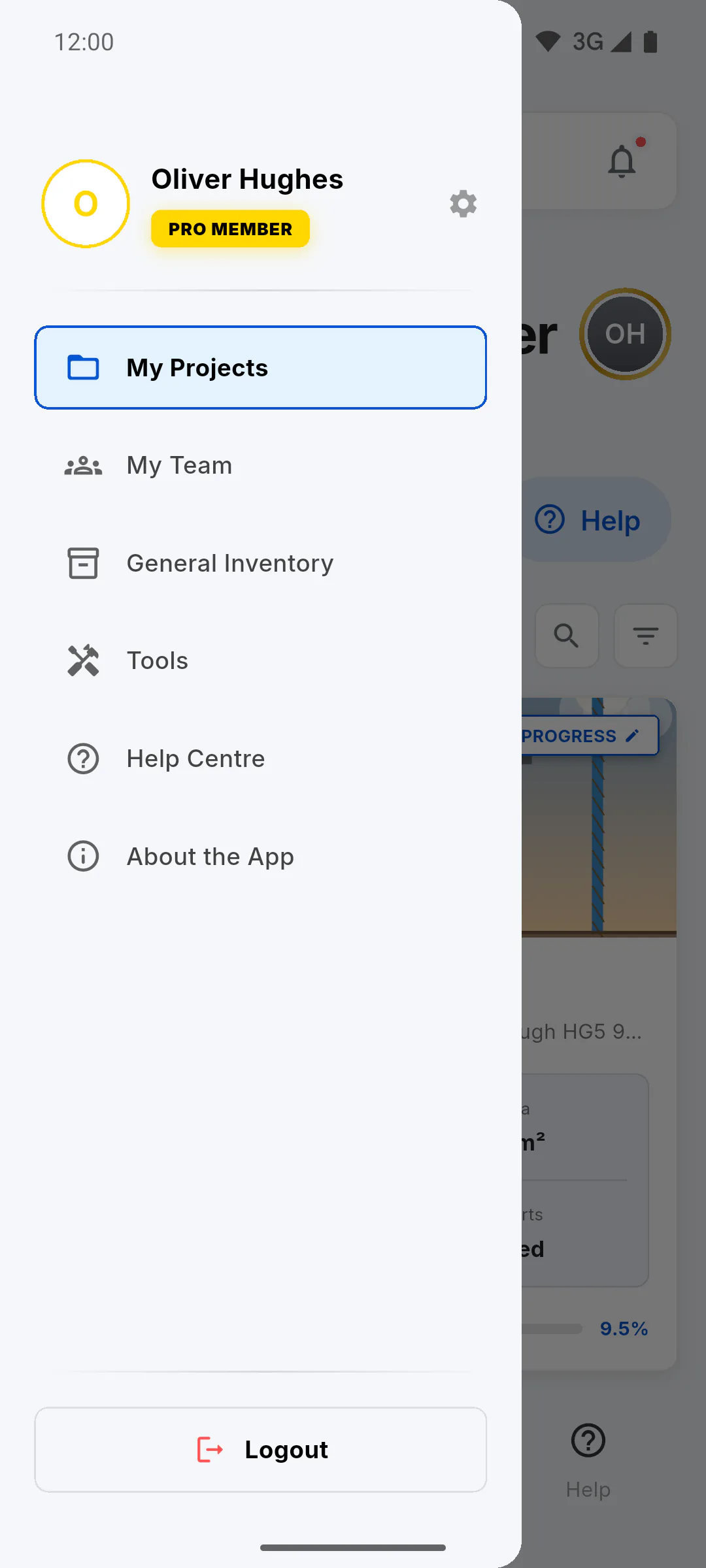
Step 1: From the side menu
Open the side menu (on a mobile, the three-line icon at the top of the dashboard; on a computer, the side bar) and tap Logout at the bottom of the menu. The login screen opens next. On a mobile, logging out also turns off your account's notifications on this device: do it if you'll stop using the device or hand it to someone else.
Step 2: From Profile
In Profile, scroll to the bottom of the screen and tap Sign out, in red. It works just like Logout in the side menu, including turning off notifications on a mobile.
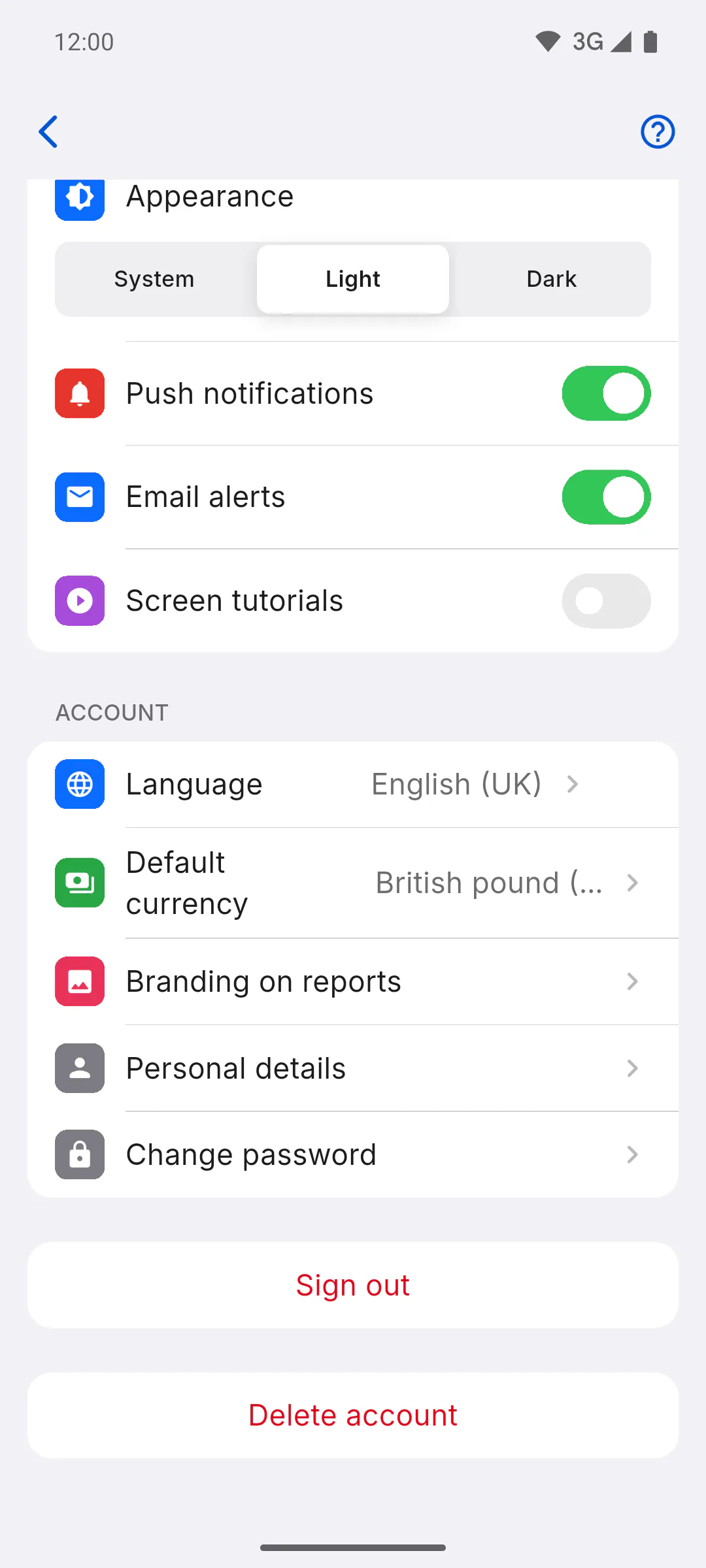
Step 3: Offline, the app won't log you out
If the device has no Wi-Fi and no mobile data, No Connection appears: You are offline. For security reasons, logout is blocked. Tap Understood and try again once you have internet.
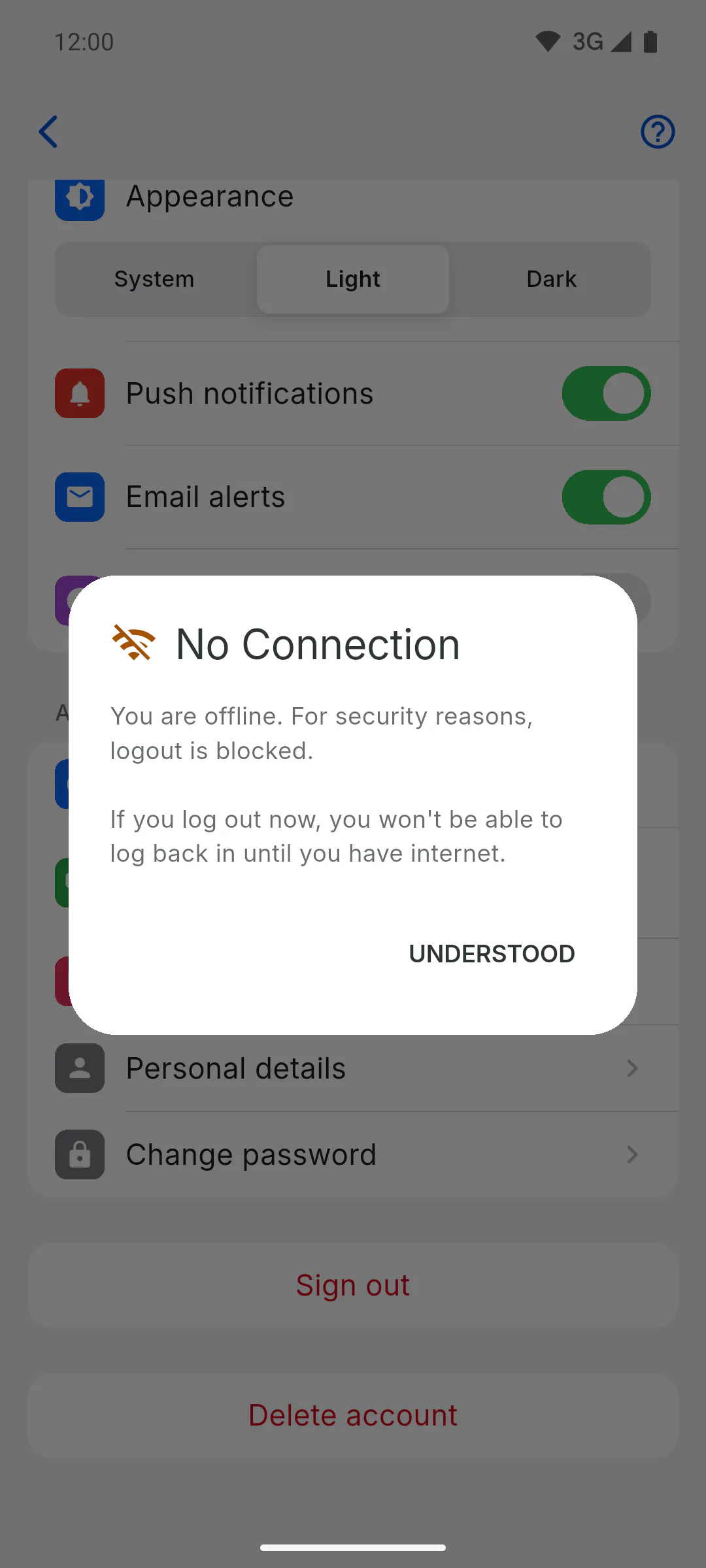
Step 4: Why this block exists
Signing in needs internet. If the app let you log out offline, you'd be locked out of the app, and of what you saved in it, until the internet came back. While your session stays open, the app keeps opening offline: Using the app offline: what works without internet
Step 5: Wi-Fi without internet
The app only checks whether the device is connected to a network. On Wi-Fi without internet it lets you log out, and you can only sign back in once the internet works.
Step 6: Before you log out
Photos from reports saved offline are only sent while your account is signed in on that device. Before logging out, open the app with internet and check that the photos already show in the reports: How what you did offline gets sent later. Your theme and language stay on the device after you log out.
How to log out (and why you can't do it offline)
Log out from the side menu or from the bottom of Profile. See why the app blocks logging out without internet and what to check before you leave your account.
For managers and team members6 steps
Didn't find what you were looking for?
Chat with support on WhatsApp or raise a ticket in the app.