
Step 1: Mobile app only
Moving tools offline works in the mobile app (Android and iPhone). In a web browser or the computer app, move tools while online.
Step 2: In the General Inventory
Offline, the movement is saved on the device and the list shows the new status straight away. It is sent once the connection is back.
Step 3: In the project's Inventory tab
Anyone who can move tools on the project (the owner and guests with inventory permission) can also do it offline, even when several people have permission. Each movement is kept on the device and sent when the connection is back. If two people change the same tool offline, the status from the last movement to reach the server is kept; for lots, everyone's quantities are added up. Every movement stays in History.
Step 4: The explanation in the app
In the movement window, tap the crossed-out Wi-Fi icon next to the tool name (on a computer, hover over it with the mouse) to see how moving tools works offline. If the window opens without internet, the same explanation already shows just below the title.
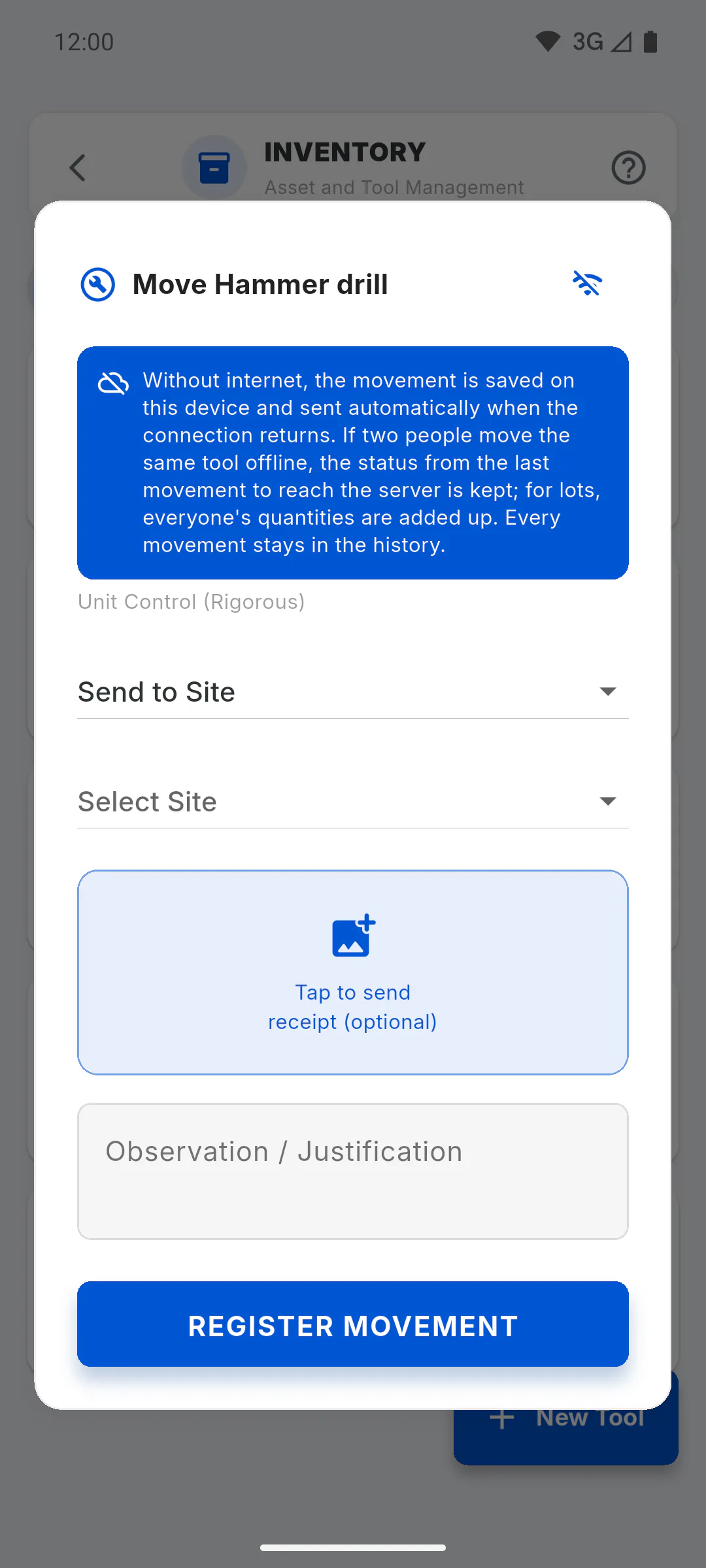
Step 5: The receipt photo
Offline, the photo is kept on the device and you see Movement saved. Photo will be uploaded when connection is restored. It uploads on its own when the app opens with internet or when the connection comes back. Until then, only the device that logged it shows the photo. If the photo is deleted from the device before it uploads, the movement ends up without a photo.
Step 6: Before heading somewhere without signal
Offline, the app uses what is already saved on the device. Every time it opens with internet, or when the connection comes back, it saves the tools of every project where you can move tools. If you were just given permission, open the app once with internet before heading to the site.
Step 7: Online, the photo must upload
When you are online, if the photo fails to upload, the movement is not saved and an error appears. Try again, or log it with just the note.
Moving tools without internet: what you can and can't do
How to log tool shipments, loans and returns without a connection, what happens when two people change the same tool offline, and what happens to the receipt photo.
For managers and team members7 steps
Didn't find what you were looking for?
Chat with support on WhatsApp or raise a ticket in the app.