
Step 1: Who needs permission
In a project's Inventory tab, only the project owner can see and move tools without permission. Invited engineers and team members need it: without it, they see No Access and a How to unlock button, which opens the Locked feature window, titled Inventory, explaining that the owner turns on each person's switch in Inventory Permissions. Clients never appear on the list.
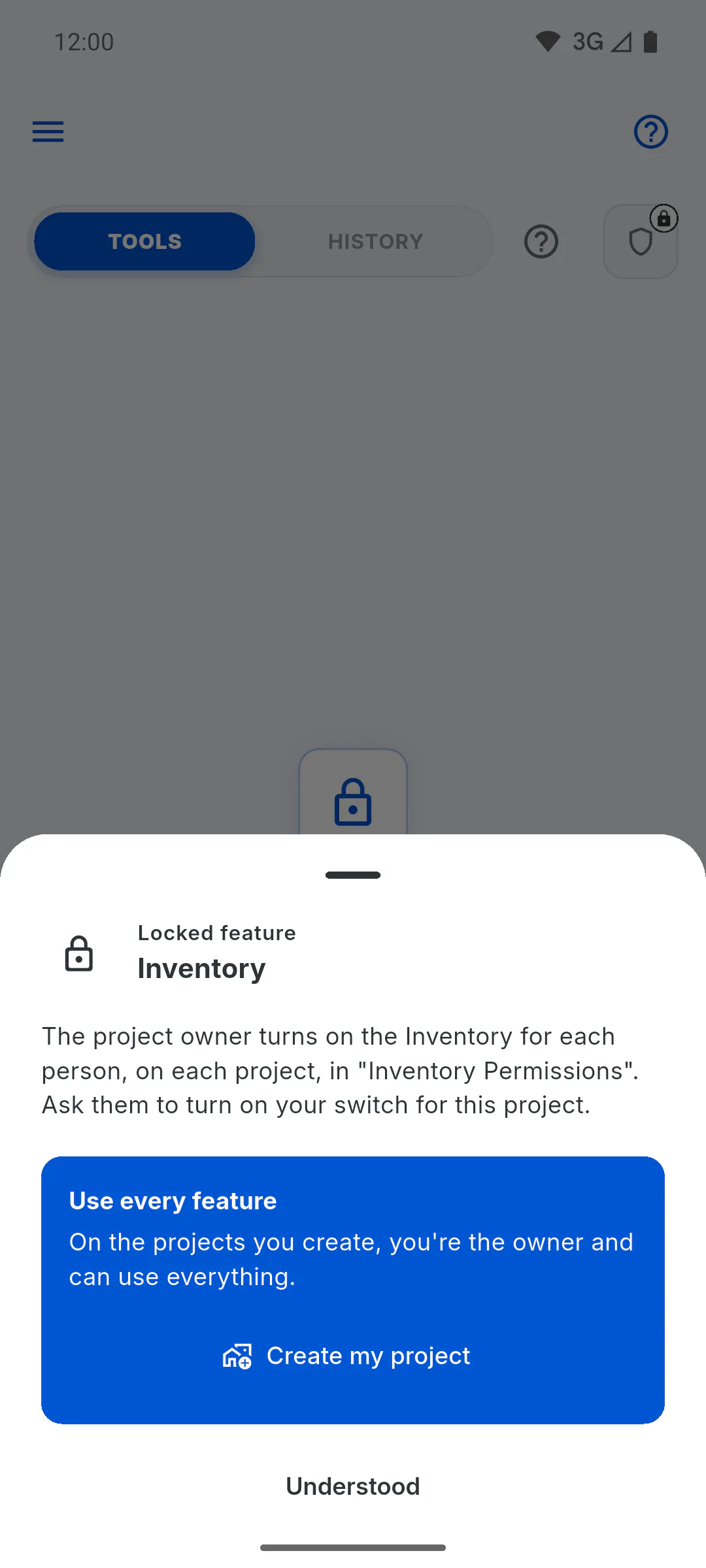
Step 2: Open the permissions
Open the project, tap Inventory and then the shield icon next to the tabs (Manage Permissions). Only the project owner can use the shield: for guests, it's greyed out with a padlock.
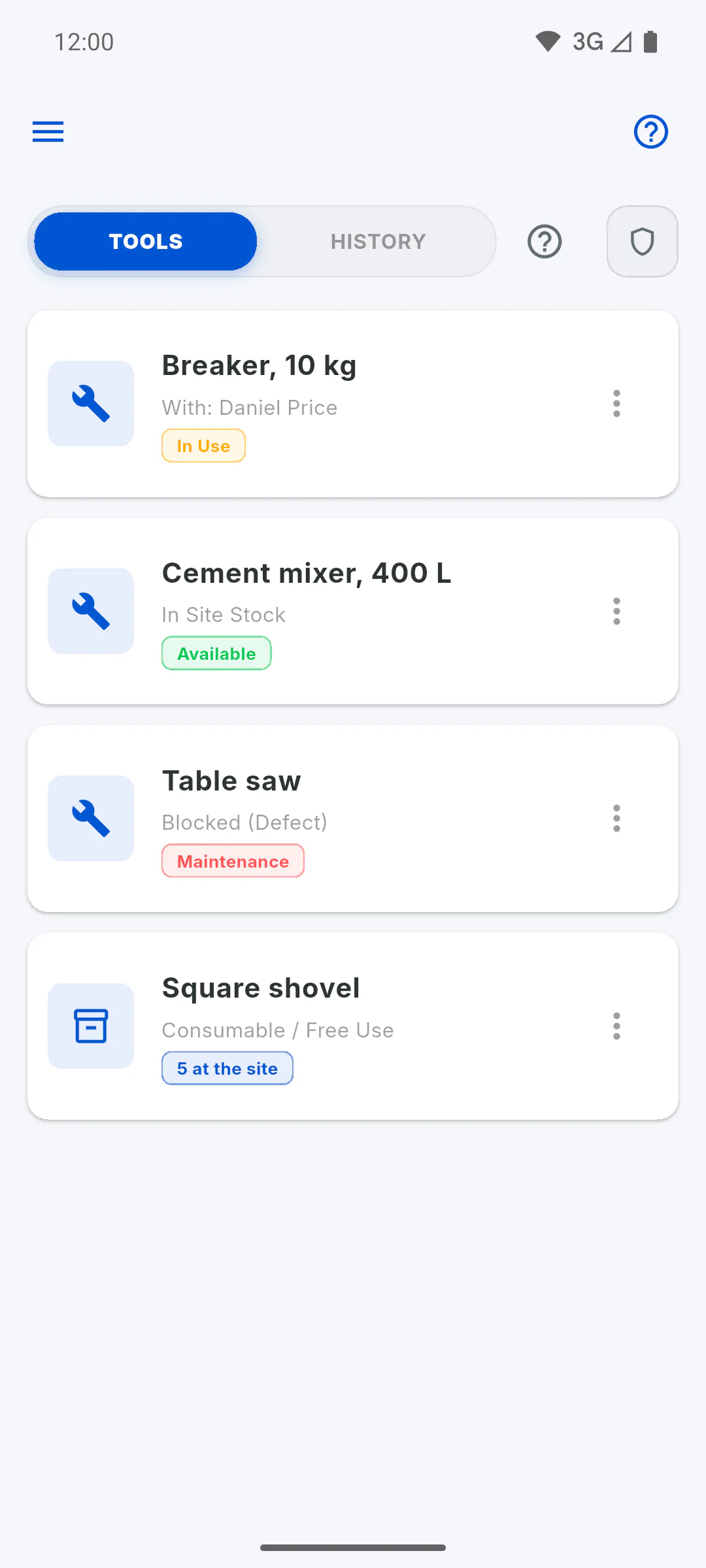
Step 3: Turn on the switch
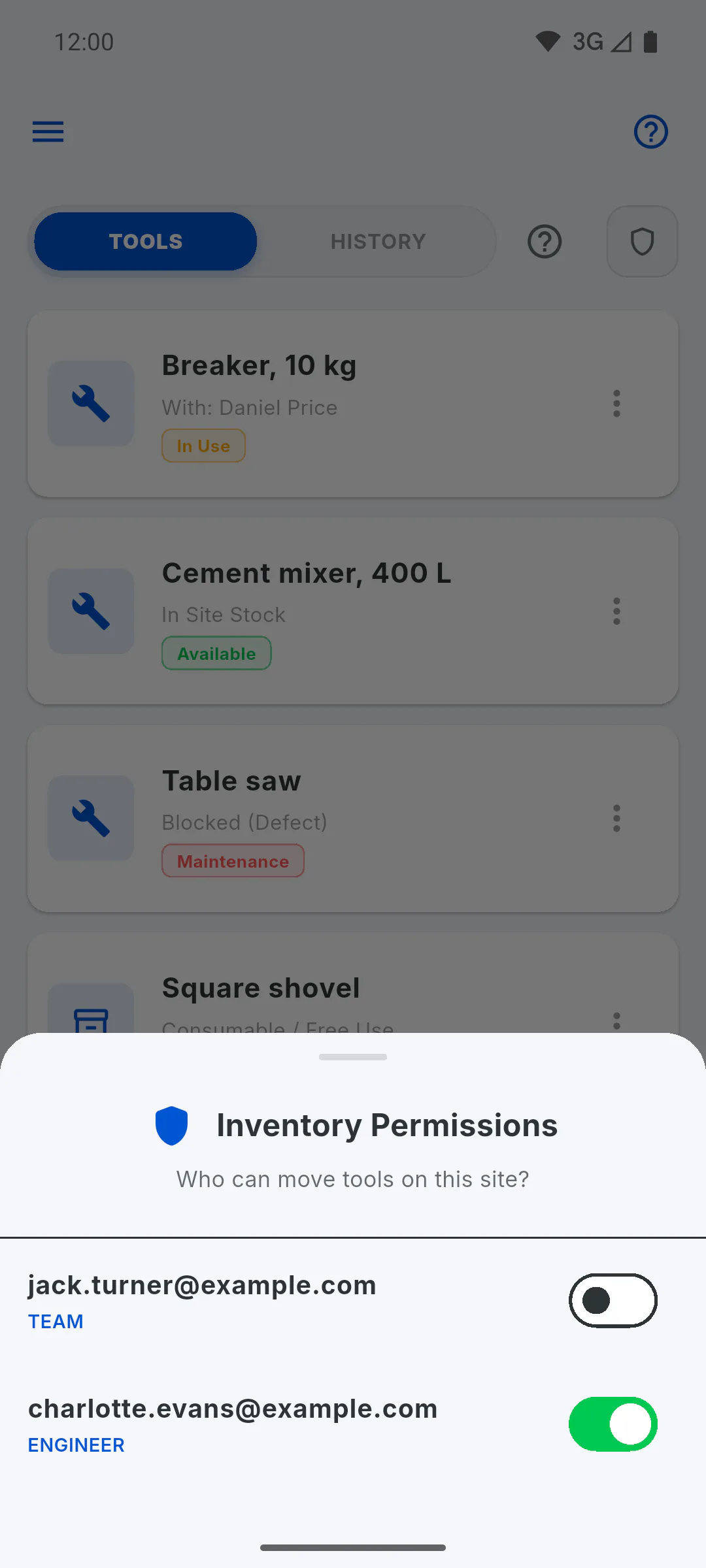
In Inventory Permissions, each guest is listed by name or email, with their role underneath. Turn on the switch for anyone who can move tools on this project. It takes effect right away; to remove the permission, turn the switch off.
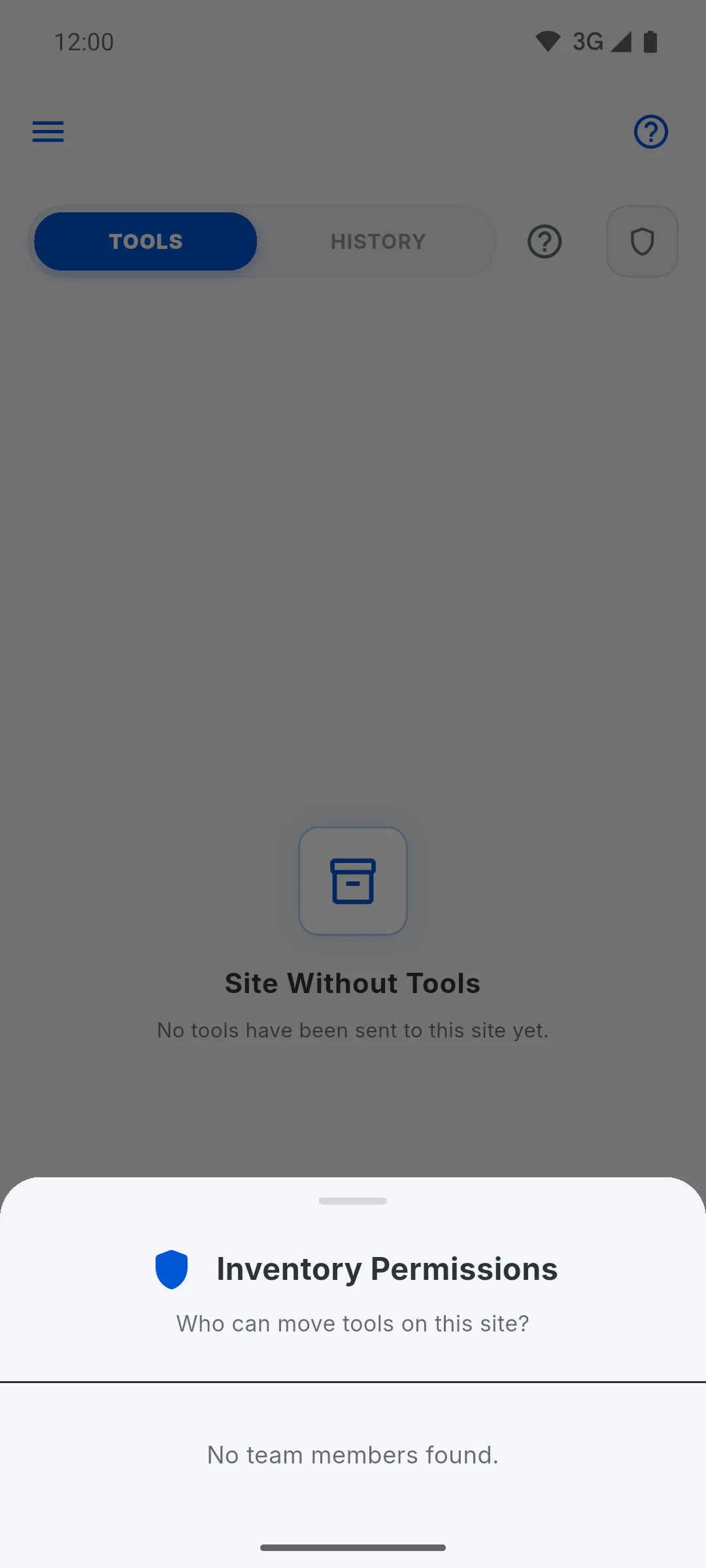
Step 4: Nobody on the list?
The list only shows guests who have already created their account and signed in to the app. If you see No team members found., invite the person and ask them to sign in: How to invite someone to your project (email and WhatsApp)
Step 5: It only applies to this project
Permission is per project. If you remove the person from the project, the permission goes too. People with permission can also move tools offline in the mobile app: Moving tools without internet
How to give someone on the project inventory permission
Choose which project guests can see and move the tools that are on the project: lend them out, receive them and return them.
For managers5 steps
Didn't find what you were looking for?
Chat with support on WhatsApp or raise a ticket in the app.