
Step 1: The four statuses
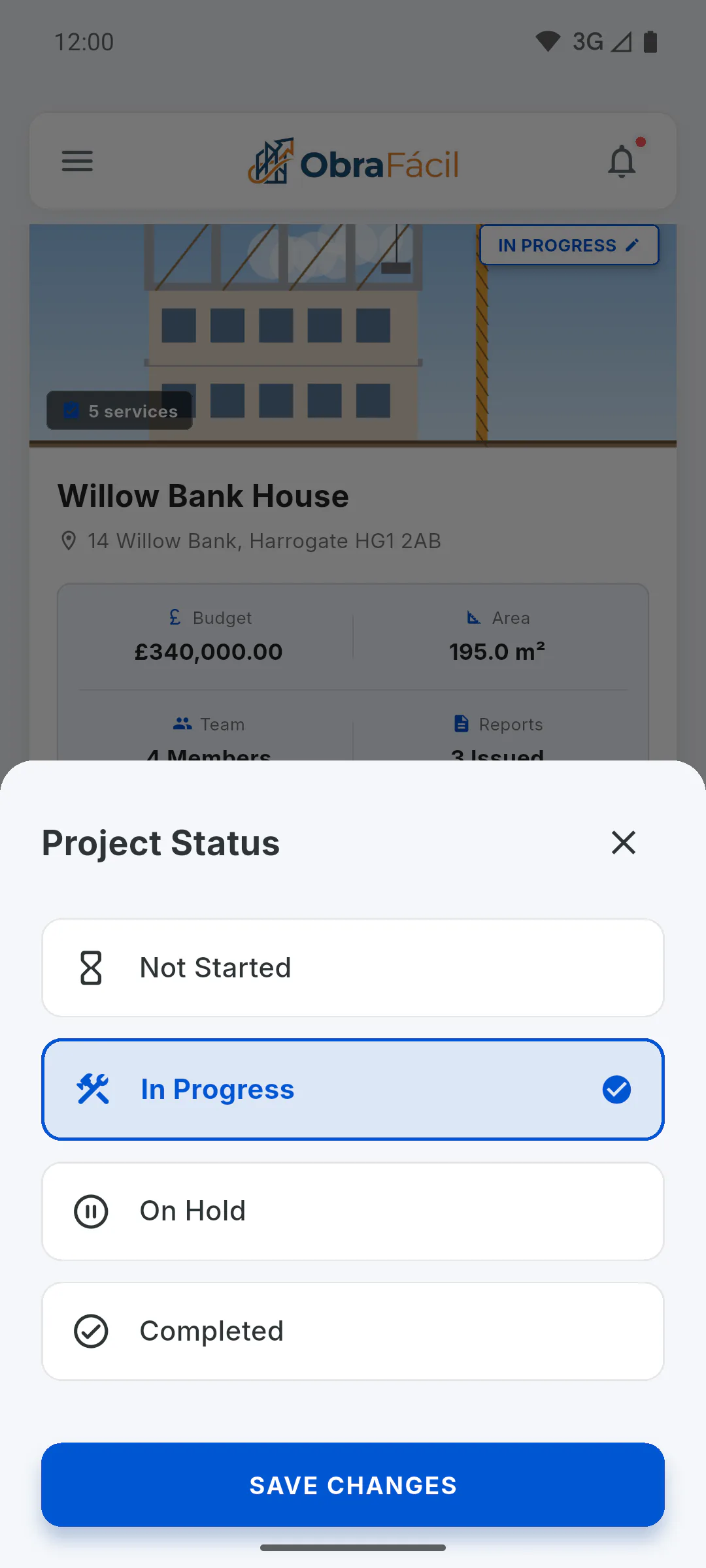
Each project has one of these statuses:
- Not Started: work hasn't begun yet
- In Progress: work is under way
- On Hold: work is paused
- Completed: work is finished
The status shows as a tag on the project card on the dashboard, on the project cover and on the Overview tab.
Step 2: Status of a new project
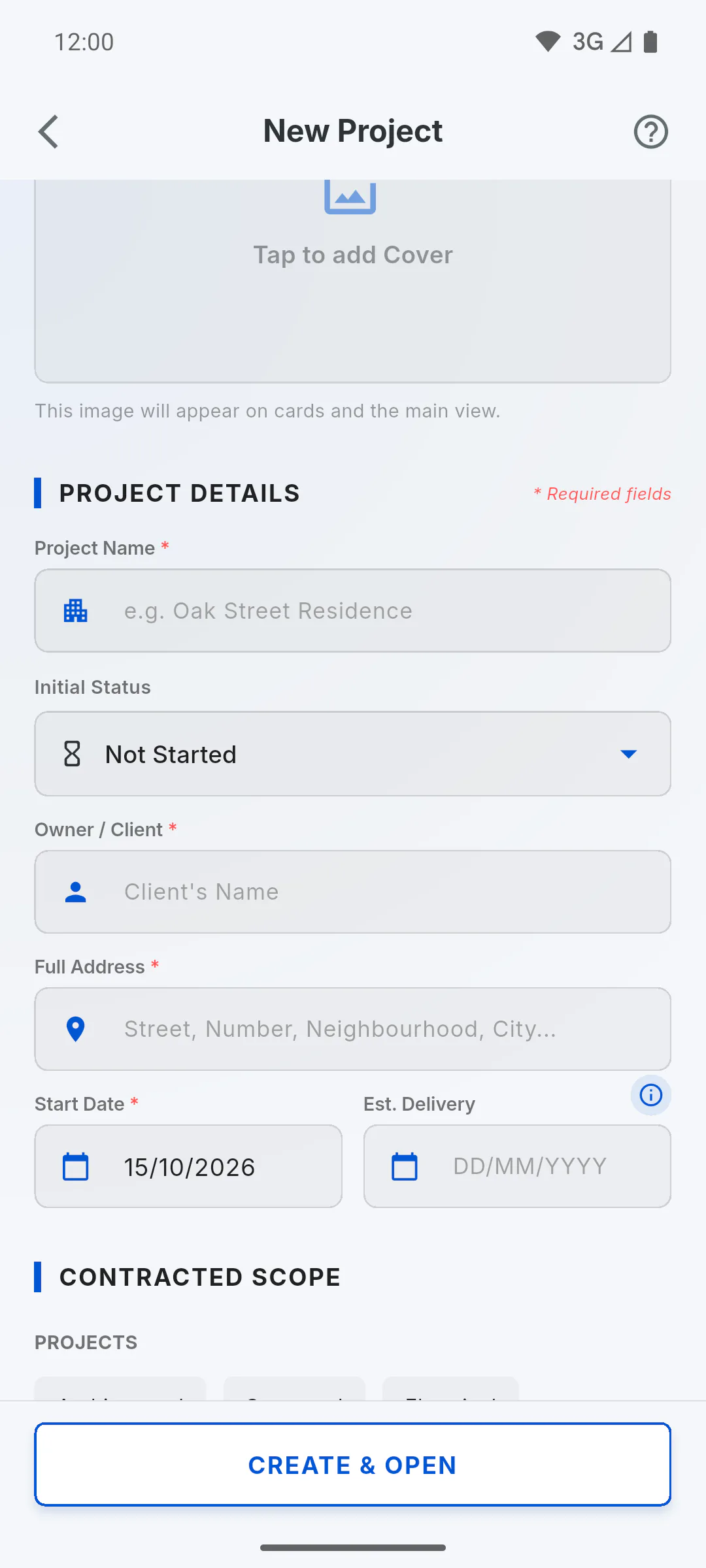
When you create a project, the Initial Status field is already set to Not Started. You can pick another one before saving.
Step 3: When the status changes on its own
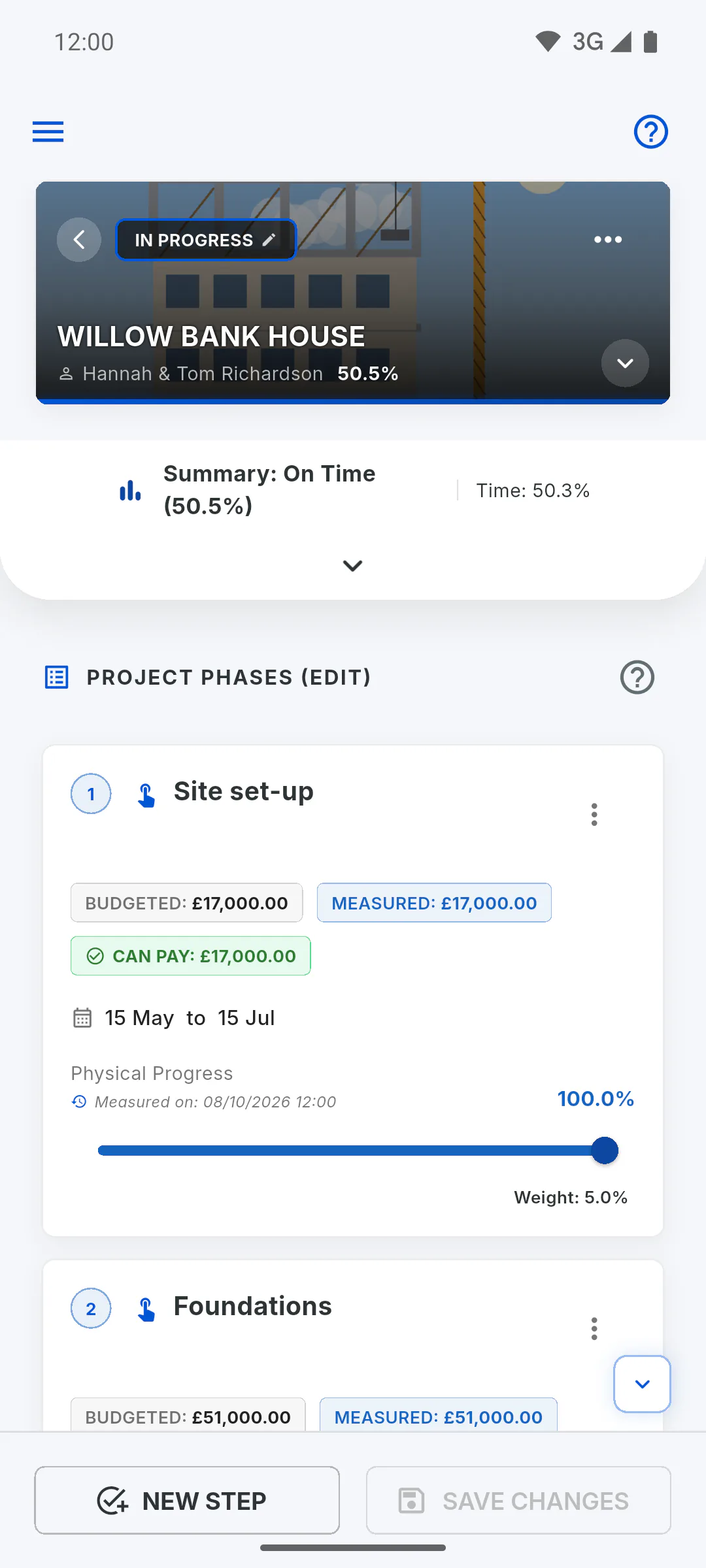
Every time you tap Save Changes on the schedule, the app checks the project's physical progress:
- it reached 100%: it becomes Completed
- it was Completed and progress dropped below 100%: it goes back to In Progress
- it was Not Started and progress went above 0.1%: it becomes In Progress
- On Hold stays as it is until the project reaches 100%
Step 4: Changing the status by hand
You can change the status at any time: How to change a project's status. Keep in mind the rule above applies again the next time you save the schedule: a project marked Completed with progress below 100% goes back to In Progress.
Project status: what each one means and when it changes on its own
A project can be Not Started, In Progress, On Hold or Completed. See where the status shows and when the app changes it automatically.
For managers4 steps
Didn't find what you were looking for?
Chat with support on WhatsApp or raise a ticket in the app.