
Step 1: Sign in before the deadline
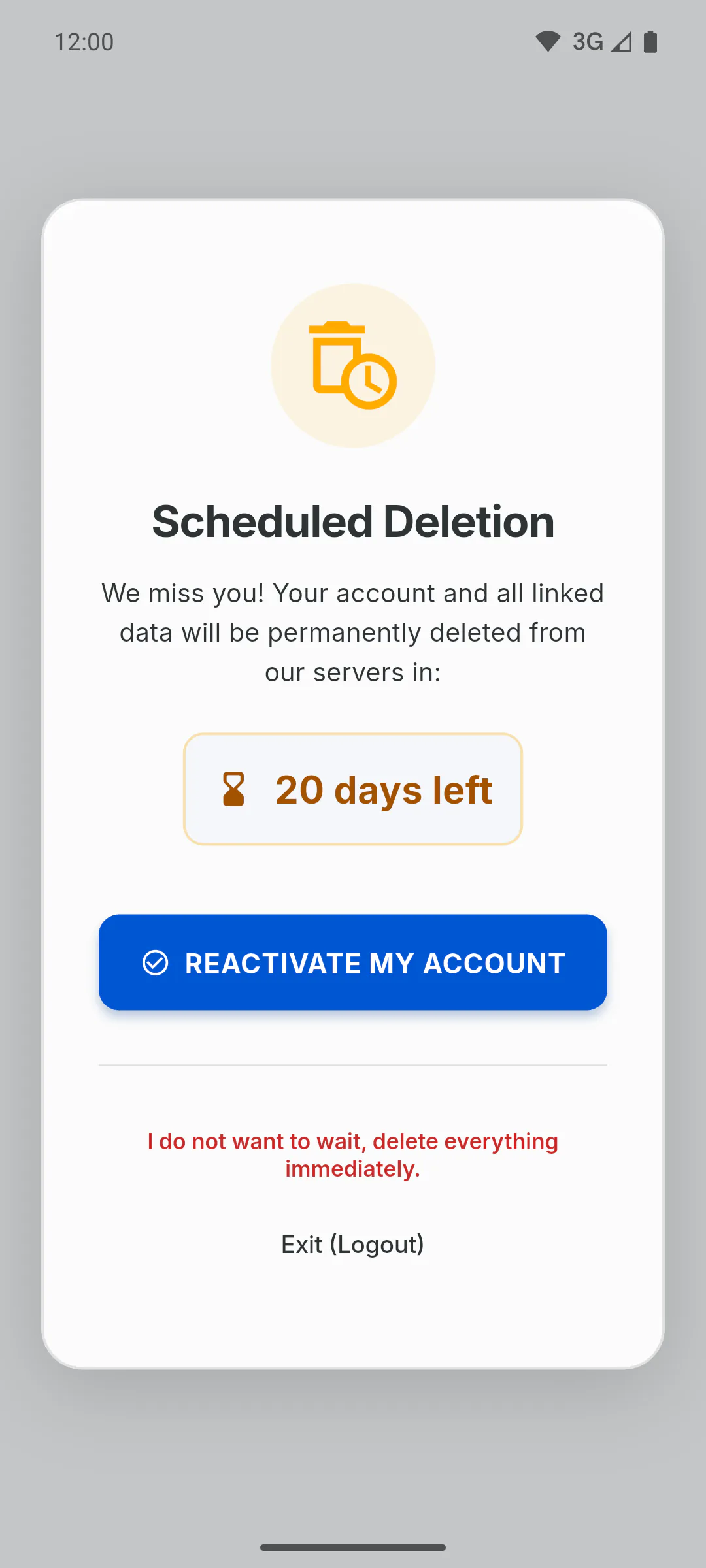
Open the app and sign in as usual: email and password, Google or Apple. If your account is scheduled for deletion, the app opens the Scheduled Deletion screen instead of the dashboard, showing the days left, such as 12 days left. Forgot your password? How to reset your password. On the sign-in screen, the Trouble logging in? link also explains this.
Step 2: Reactivate your account
While online, tap Reactivate My Account. The deletion is cancelled right away and the app opens as normal, with your projects, photos and reports as they were.
Step 3: If you just want to leave
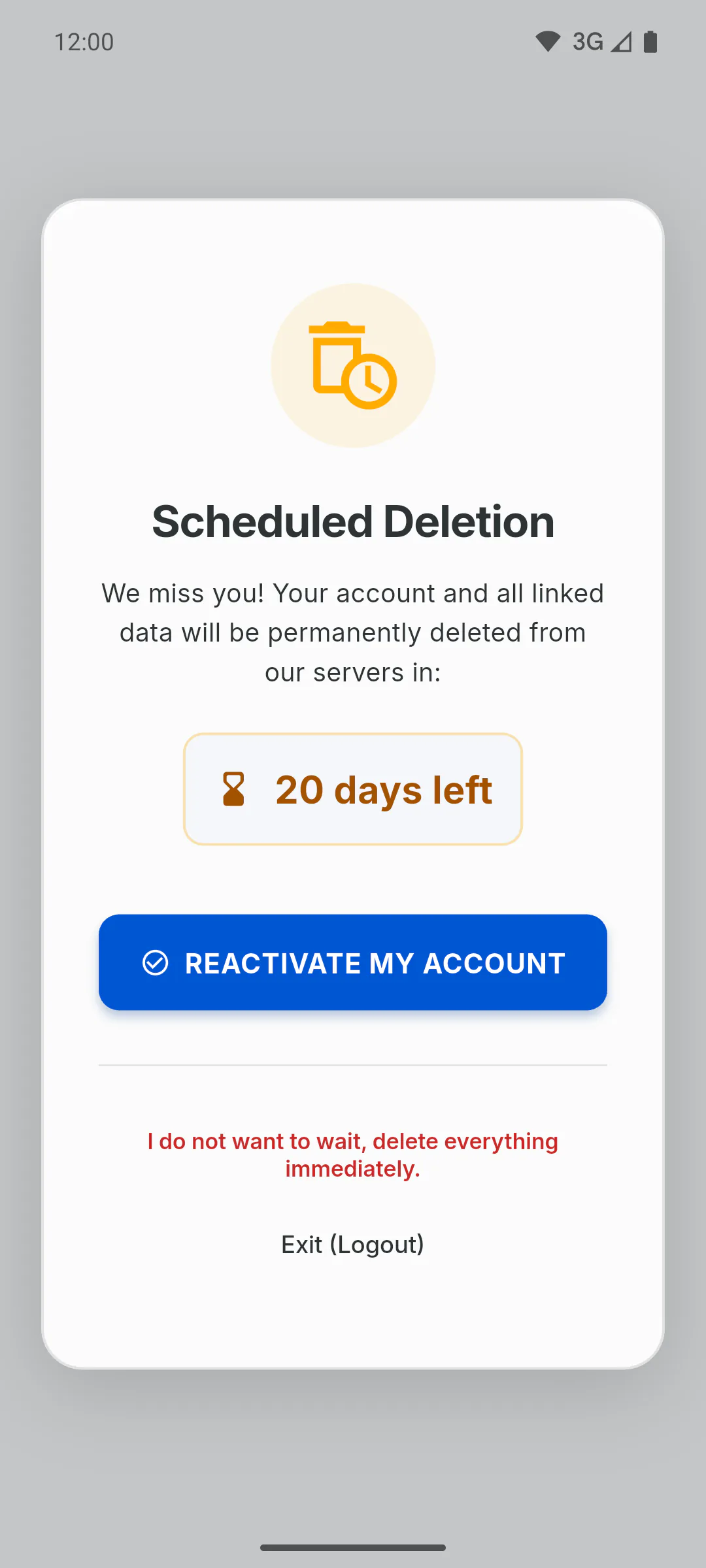
Exit (Logout) closes the screen without changing anything: the deletion stays scheduled and the clock keeps running.
Step 4: Delete everything before the deadline
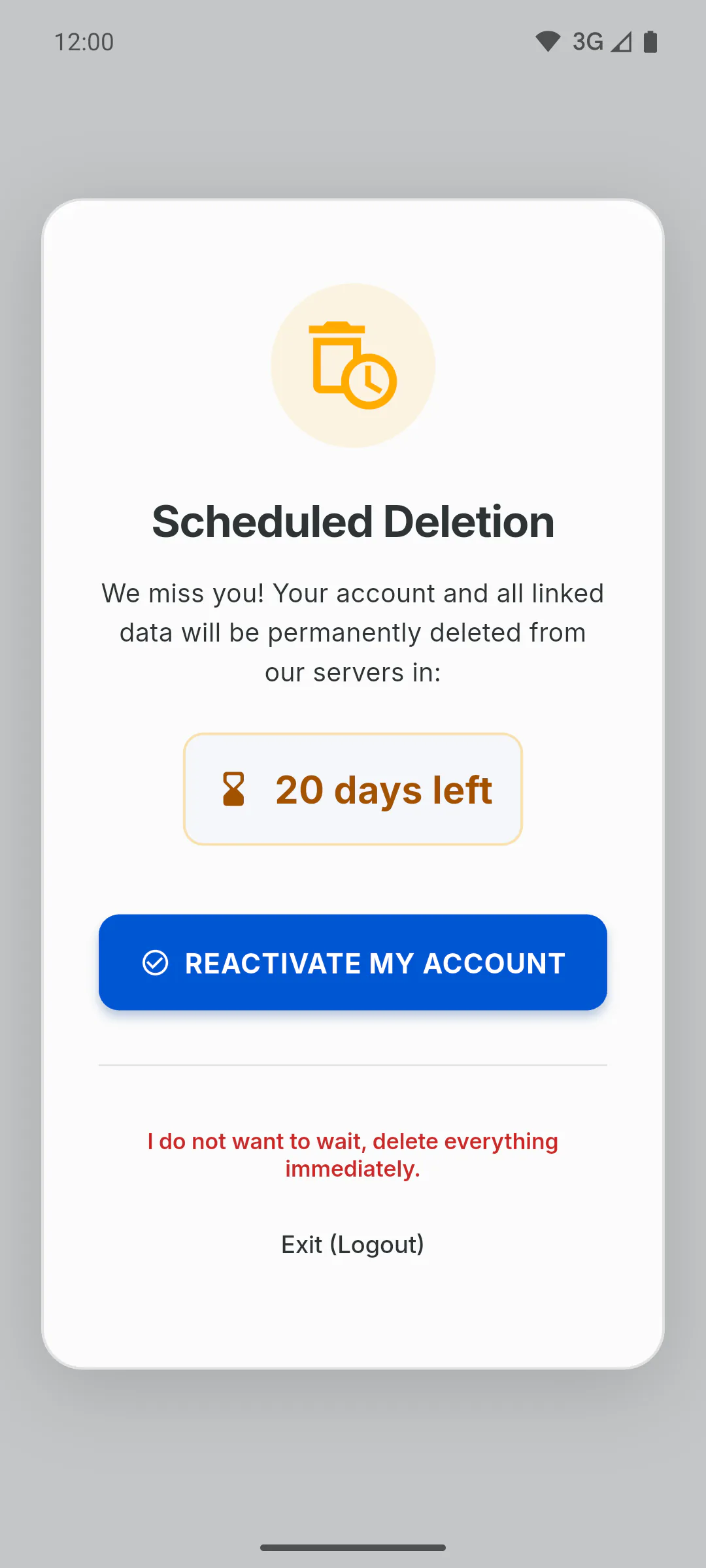
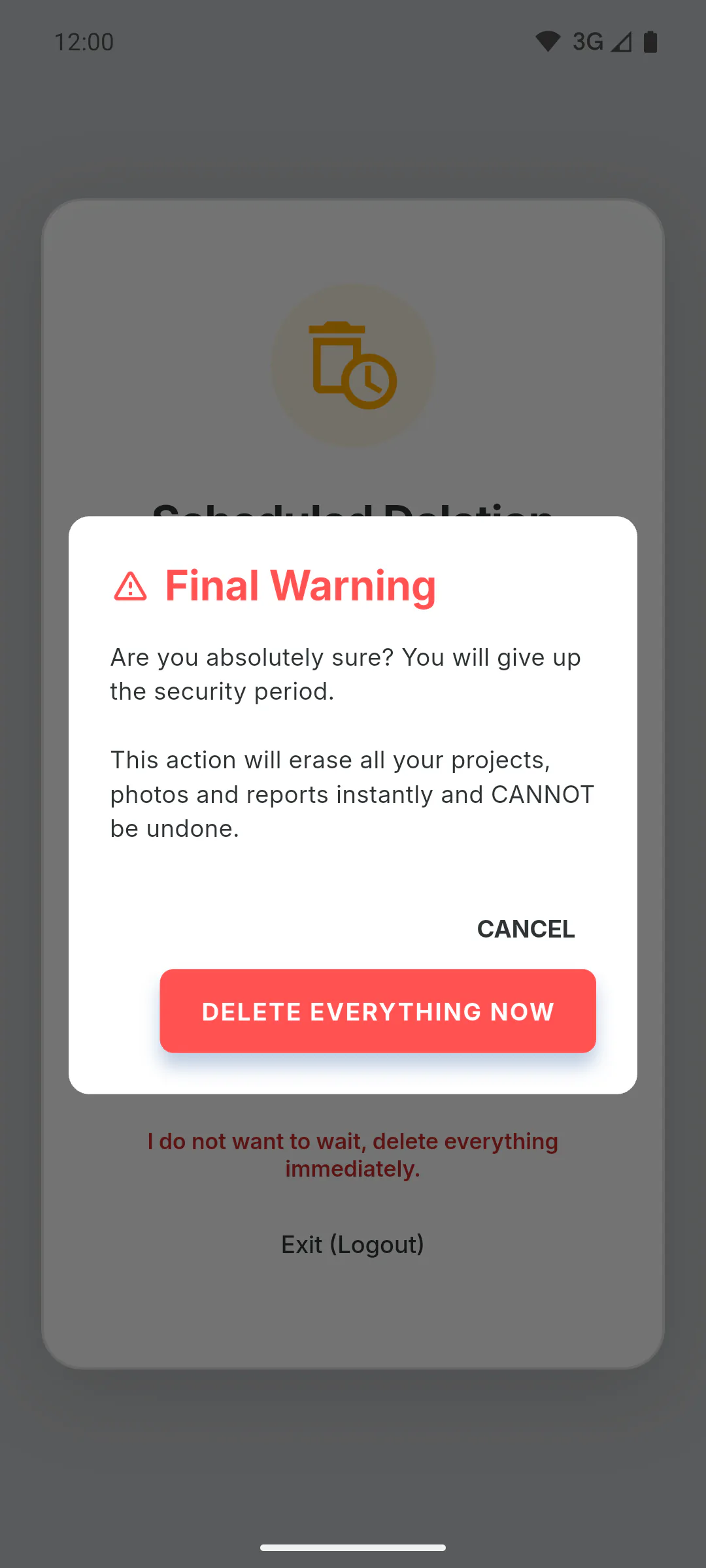
If you don't want to wait 30 days, tap I do not want to wait, delete everything immediately. and confirm with Delete Everything Now in the Final Warning window. Then confirm it's you: if you sign in with email and password, Confirm it's you appears: enter your Password and tap Confirm and delete; with Google or Apple, confirm your account there. Your account, projects, photos and reports are deleted at once, for good, and the app goes back to the sign-in screen. If the confirmation fails or you cancel it, nothing is deleted.
Step 5: After the deadline
Once the 30 days are up, the account and its data are deleted and can't be recovered.
How to reactivate an account scheduled for deletion
Changed your mind after asking to delete your account? Within the 30 days, just sign in to the app and reactivate it, with everything as it was.
For managers and team members5 steps
Didn't find what you were looking for?
Chat with support on WhatsApp or raise a ticket in the app.