
Step 1: Open the scope
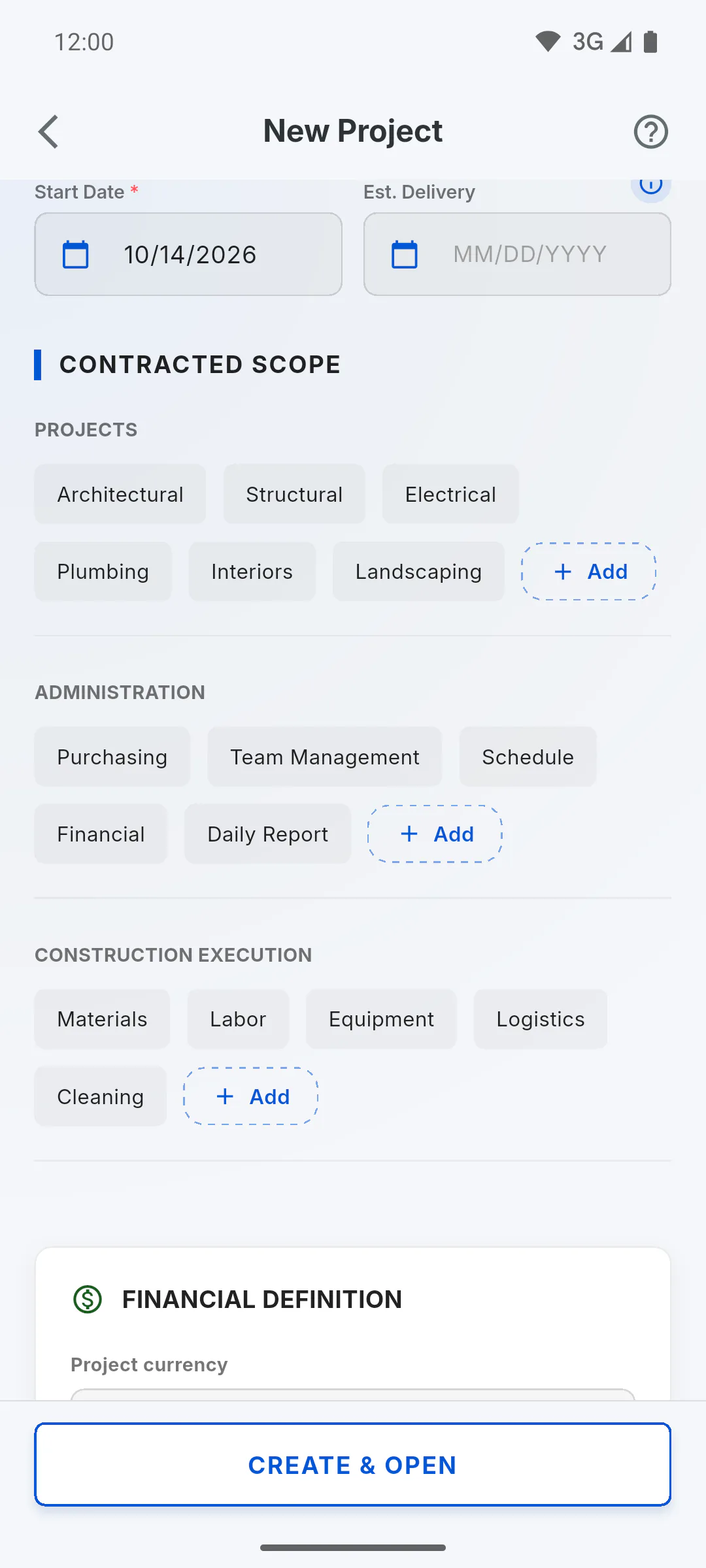
When creating the project or in Edit Project, scroll to Contracted Scope. Services are in three groups: Projects, Administration and Construction Execution.
Step 2: Mark the services
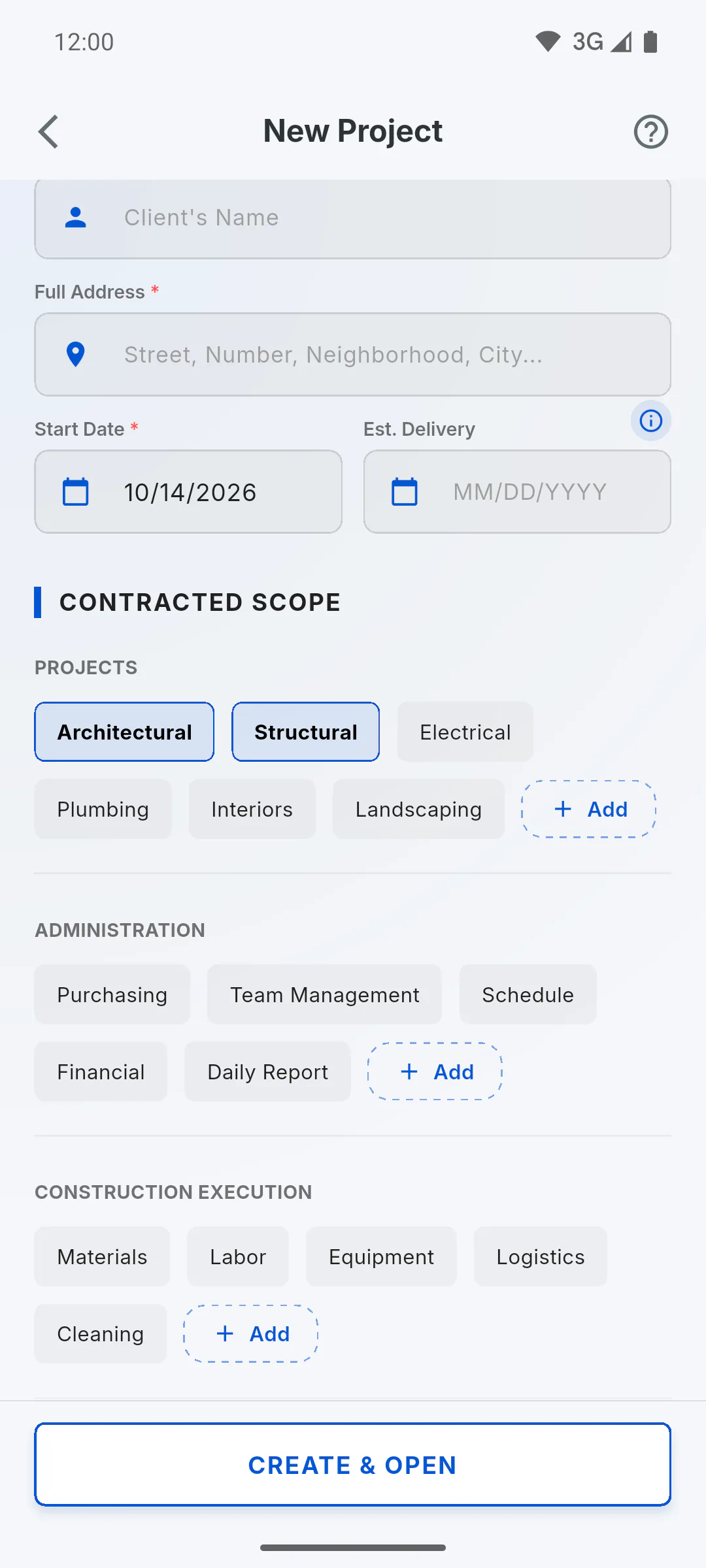
Tap each service included in the contract, such as Architectural, Structural, Purchasing, Schedule, Materials or Cleaning. Selected items are highlighted. Tap again to deselect.
Step 3: Add your own item
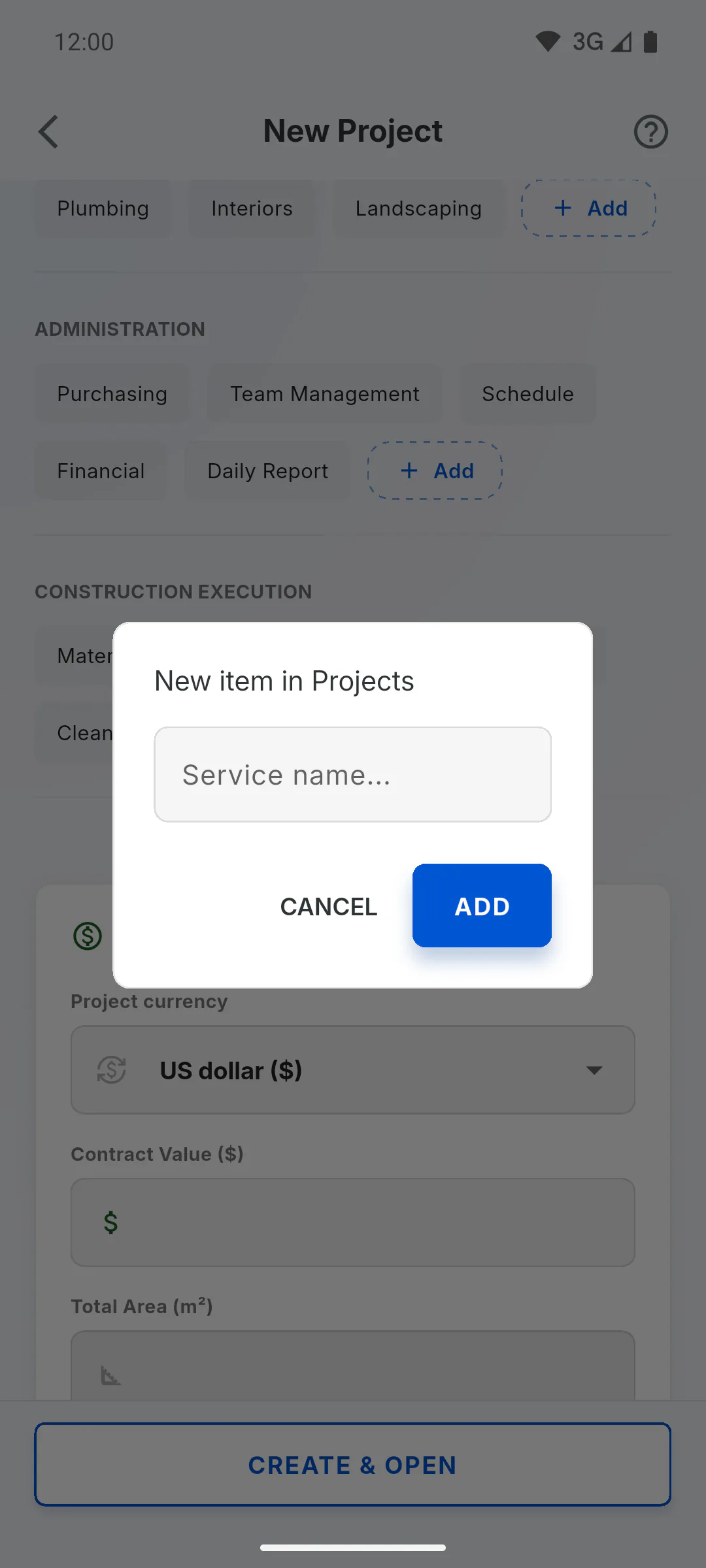
If a service isn't listed, tap Add at the end of the group. In the New item in window, type in Service name... and tap Add. The item is added already selected, with the name exactly as you typed it.
Step 4: Save and check
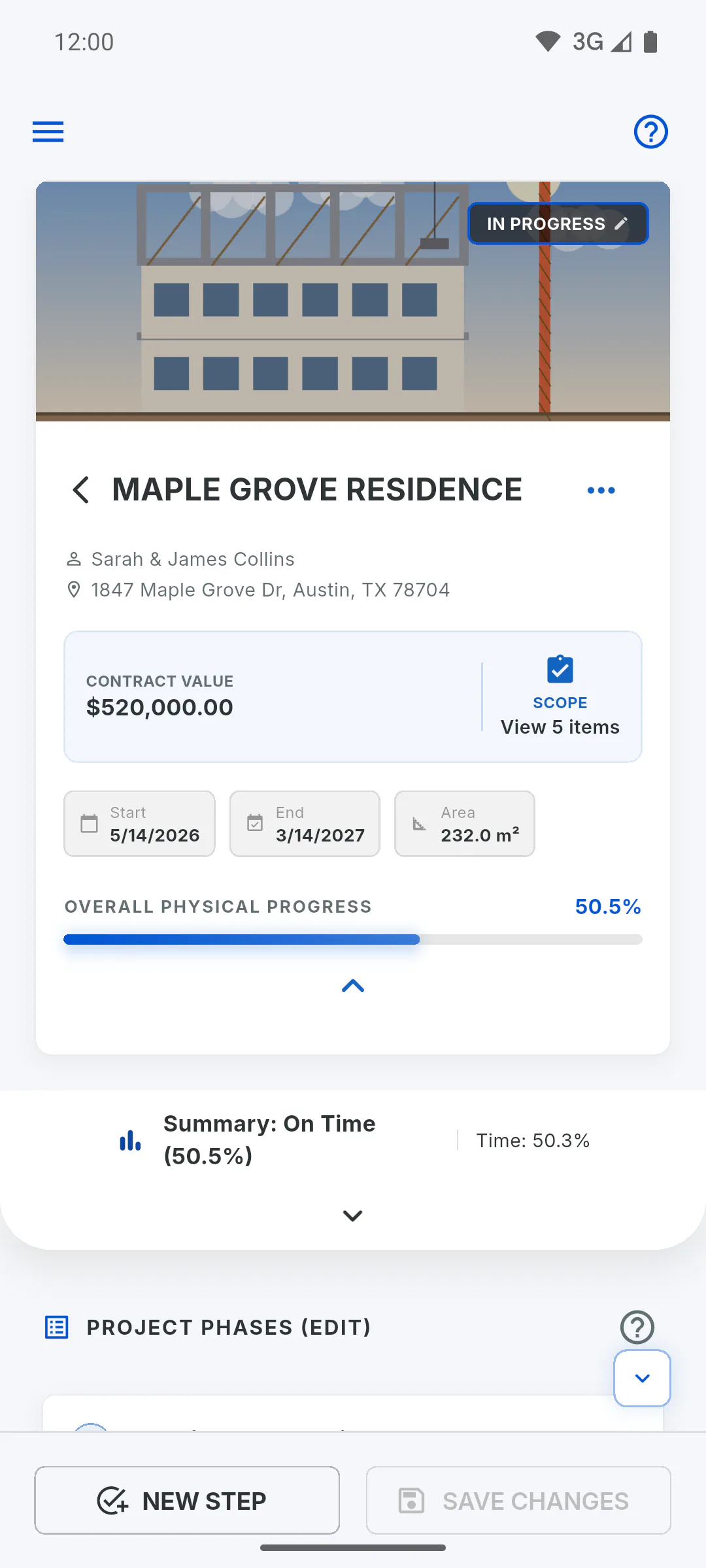
Tap Create & Open or Save Changes. On the project Overview tab, tap the Contracted scope box (showing View N items, such as View 5 items) to open the Contracted Scope list.
- The scope is a record of what was contracted: selecting Schedule or Daily Report or not doesn't turn any part of the app on or off.
How to set the contracted scope
Mark the services included in the project contract, including your own items, and check the list later on the project Overview tab.
For managers4 steps
Didn't find what you were looking for?
Chat with support on WhatsApp or open a ticket right in the app.