
Step 1: Where it is
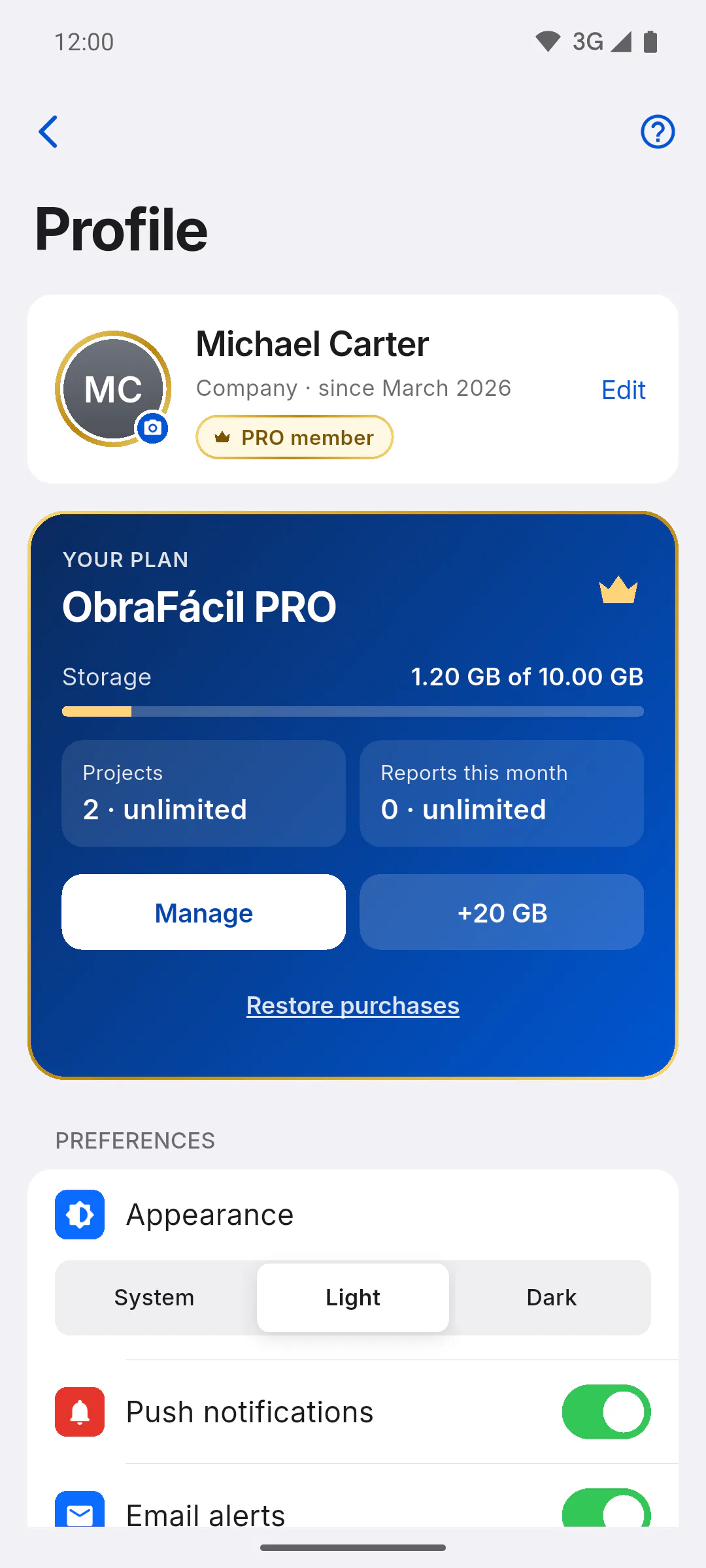
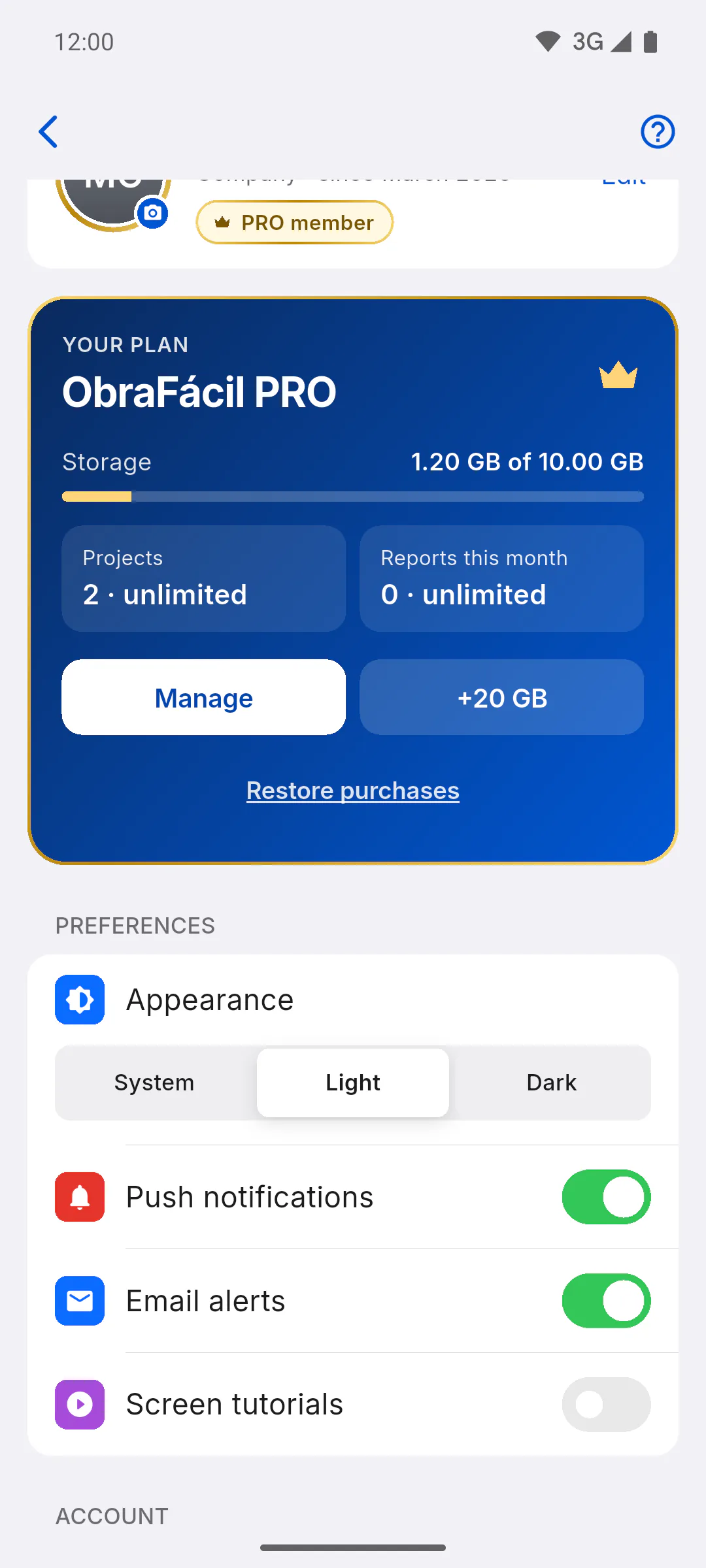
The YOUR PLAN card is in Profile, right below the card with your photo. Your plan shows at the top of it: ObraFácil PRO or Free plan. On PRO the card is blue with a gold border; on free, it's dark gray with a silver border.
Step 2: Storage, projects and reports
- Storage: space used and your plan's total, with the usage bar: 250 MB on free and 10 GB on PRO, plus 20 GB with the add-on
- Projects: projects you created; projects you were only invited to don't count. On free the limit is 1, as in 1 of 1; on PRO you see unlimited
- Reports this month: PDFs created this month, out of 7 on free, as in 3 of 7. The count resets on the 1st of each month (Brasília time)
Step 3: The card buttons
- On free, Get PRO opens the plans screen: How to subscribe to PRO on your phone or computer
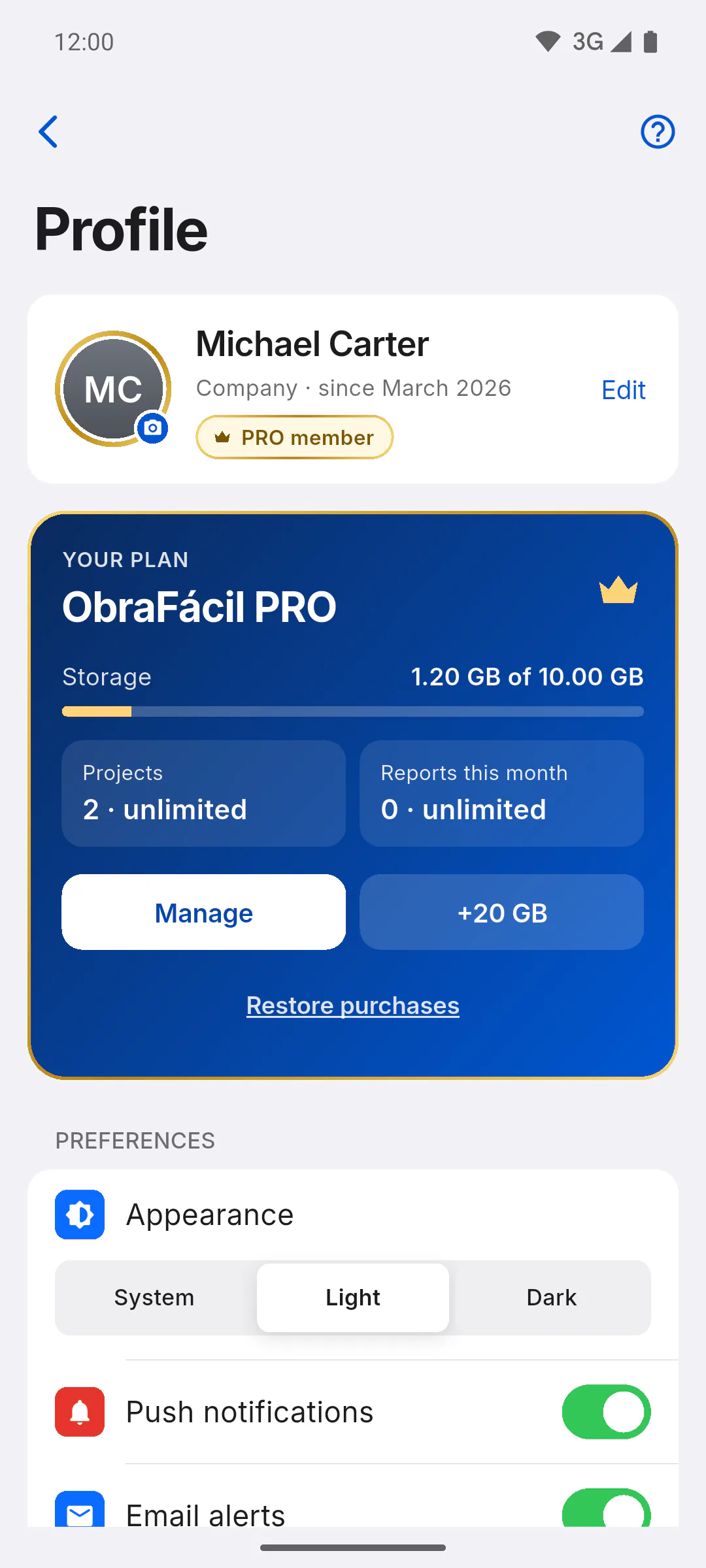
- On PRO, Manage opens the page where you manage your subscription: How to manage or cancel your subscription
- On PRO, +20 GB adds more storage; once the expansion is active, +20 GB expansion active appears below the Storage bar: How to add 20 GB of storage
Step 4: PRO courtesy
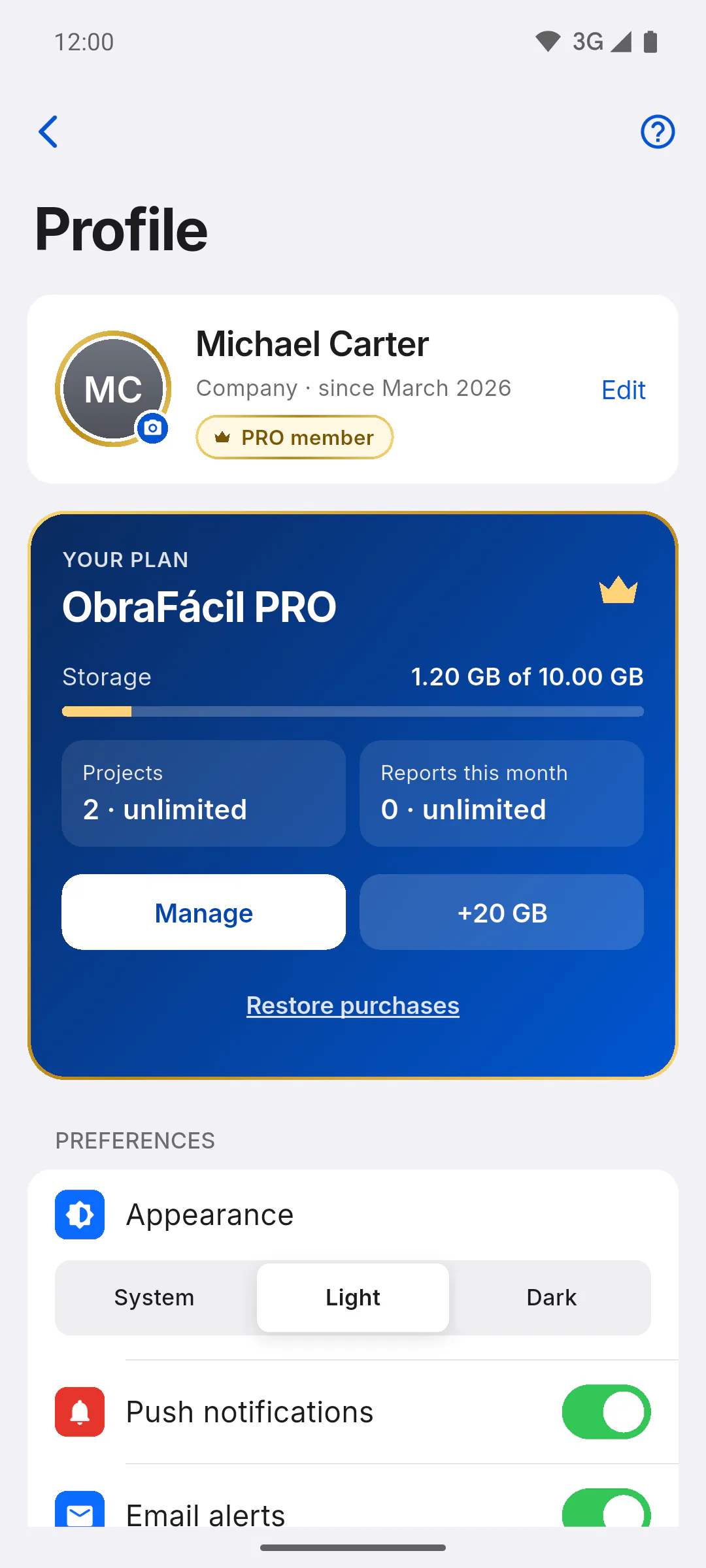
If the ObraFácil team gave you PRO as a courtesy, the card shows the PRO courtesy active box and, when there's an end date, Valid until with the date. In that case Manage and Restore purchases don't appear; +20 GB is still there: What Courtesy PRO is.
Step 5: Restore purchases
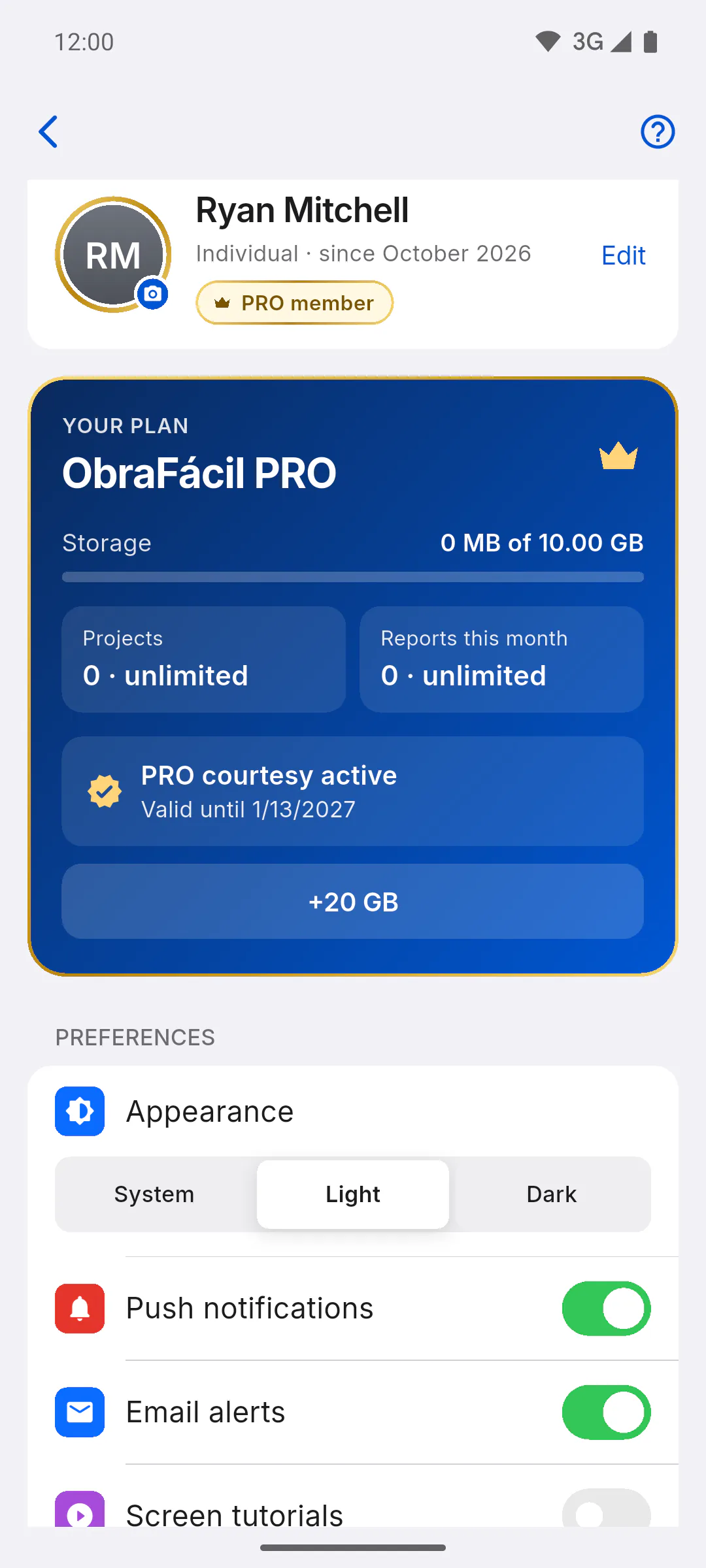
In the phone app, the bottom of the card has the Restore purchases link, for when you subscribed through your phone's app store and don't see PRO on your account. It doesn't show in a web browser: How to restore purchases on your phone.
Understanding the "Your plan" card
The Your plan card in your Profile shows your plan, how much storage you've used, your projects and this month's reports, plus the buttons to subscribe or manage your subscription.
For managers5 steps
Didn't find what you were looking for?
Chat with support on WhatsApp or open a ticket right in the app.