
Step 1: Send from Central to the project
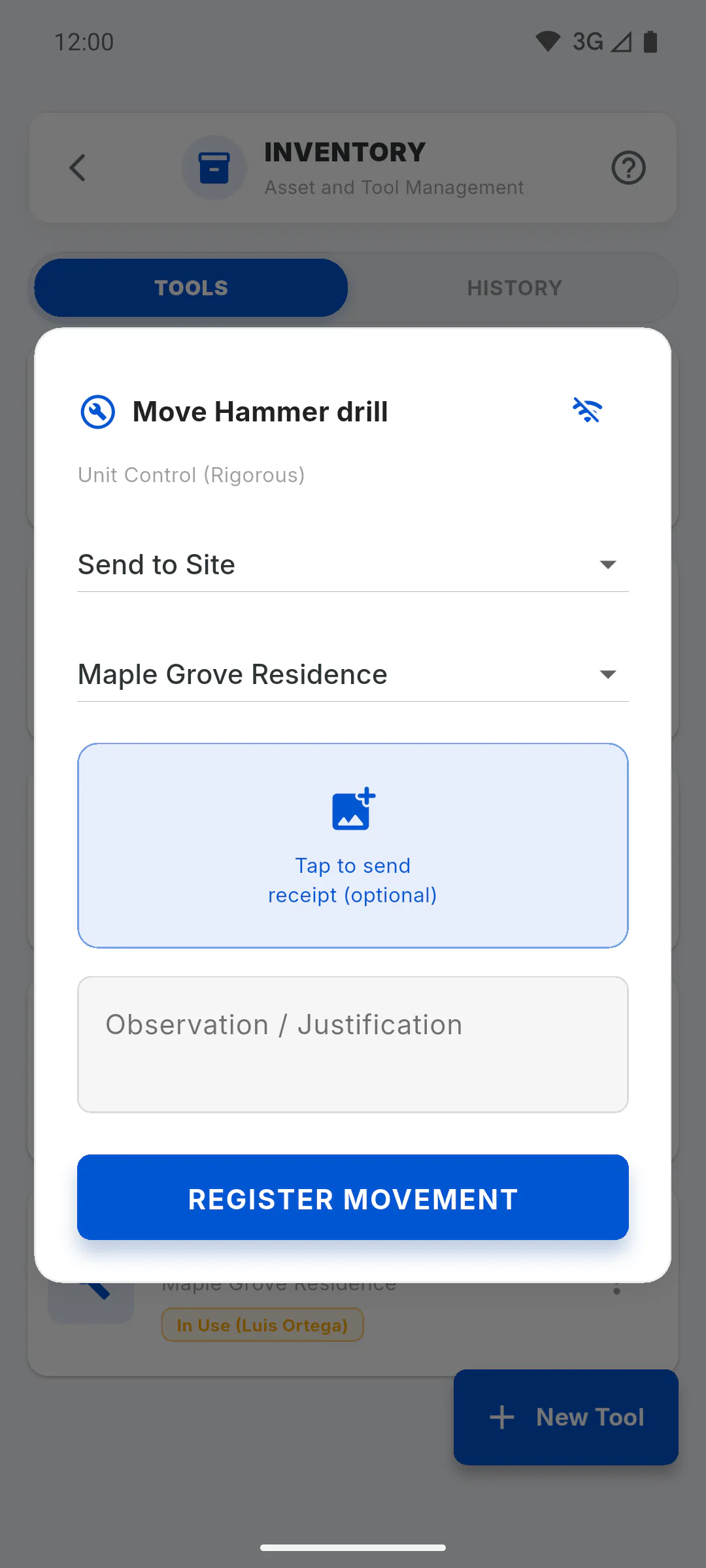
In the General Inventory, tap the three dots on the tool and then Move Tool. In the list of actions, choose Send to Site (for a lot, Send Lot to Site and the Quantity:), then pick the project in the list that appears just below. Only projects you created are listed.
Step 2: Back it up with a photo or a note
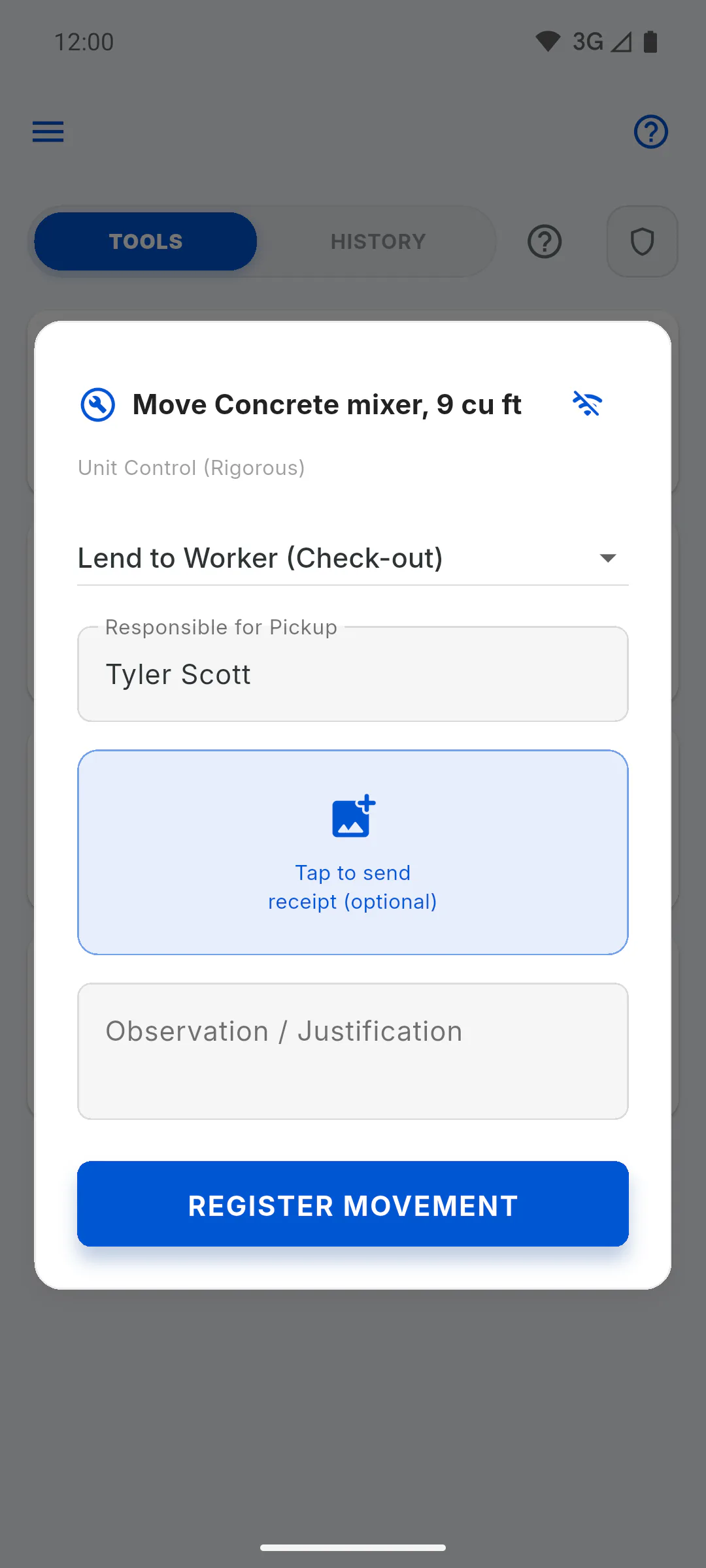
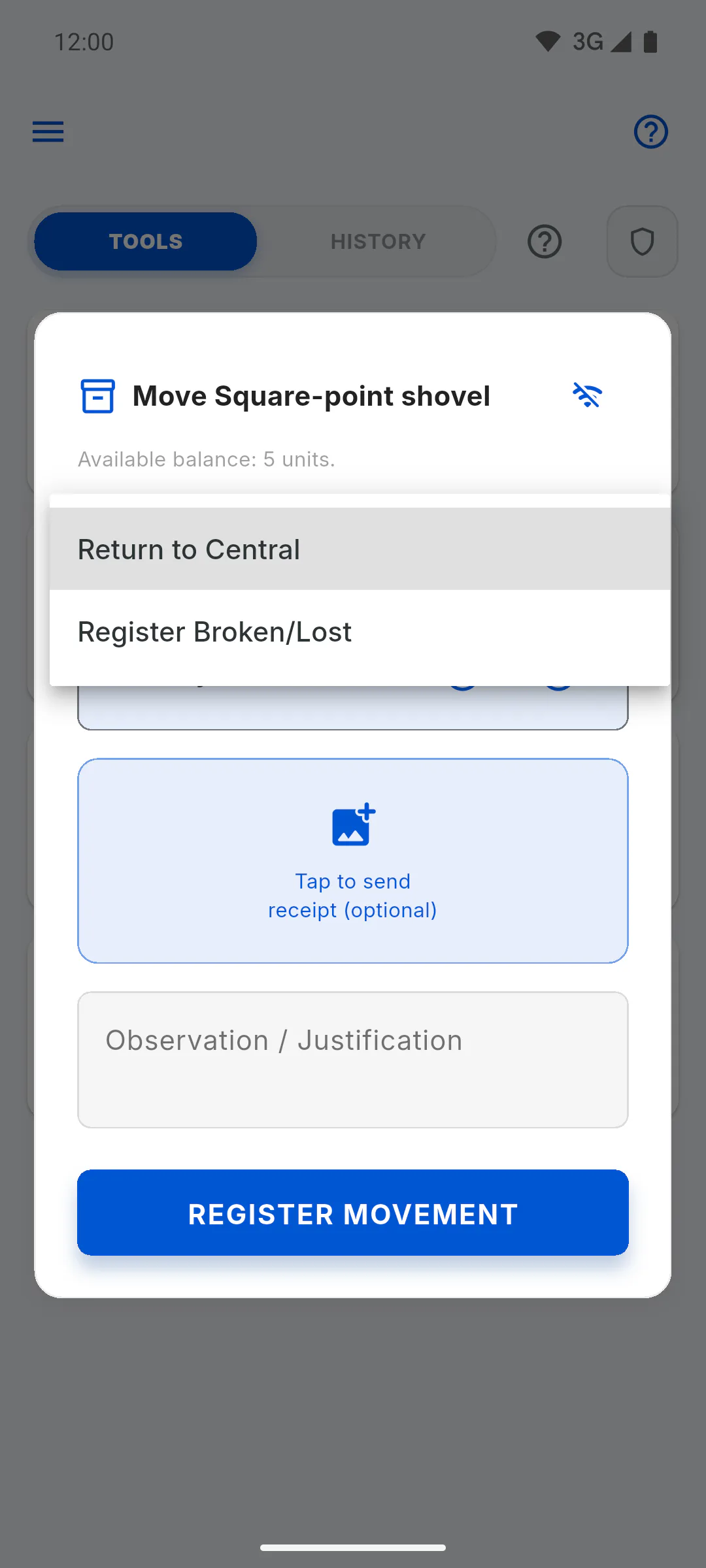
Tap Tap to send receipt (optional) to take a photo, or write in Observation / Justification. Despite the "optional", every movement needs either a photo or a note. Tap Register Movement.
Step 3: Lend and receive on the project
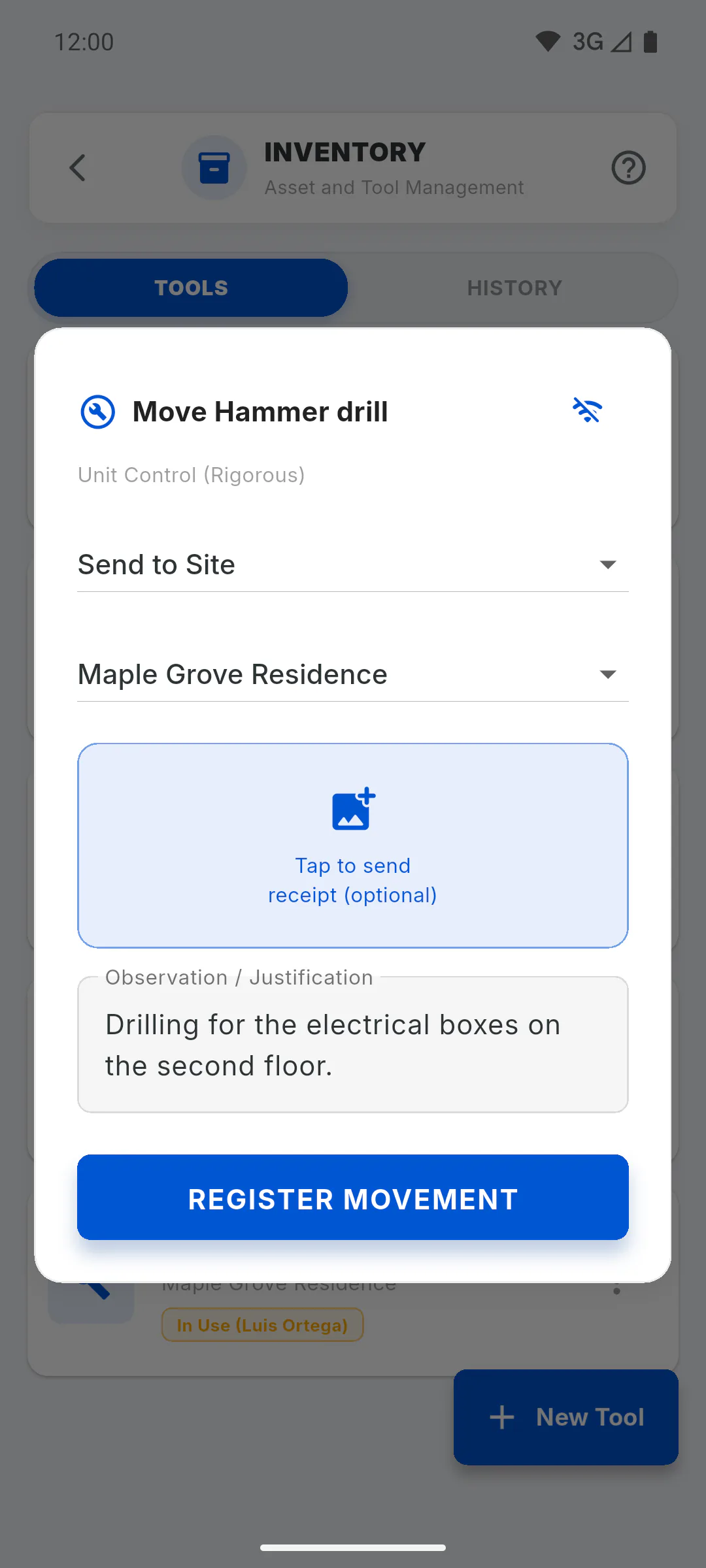
On the project, open Inventory in the project menu and use the three dots on the tool. To hand a unit tool to someone, choose Lend to Worker (Check-out) and type their name in Responsible for Pickup. When it comes back, use Receive Tool (Check-in) and mark All OK or With Defect: with a defect, it is blocked for maintenance.
Step 4: Defects and repairs
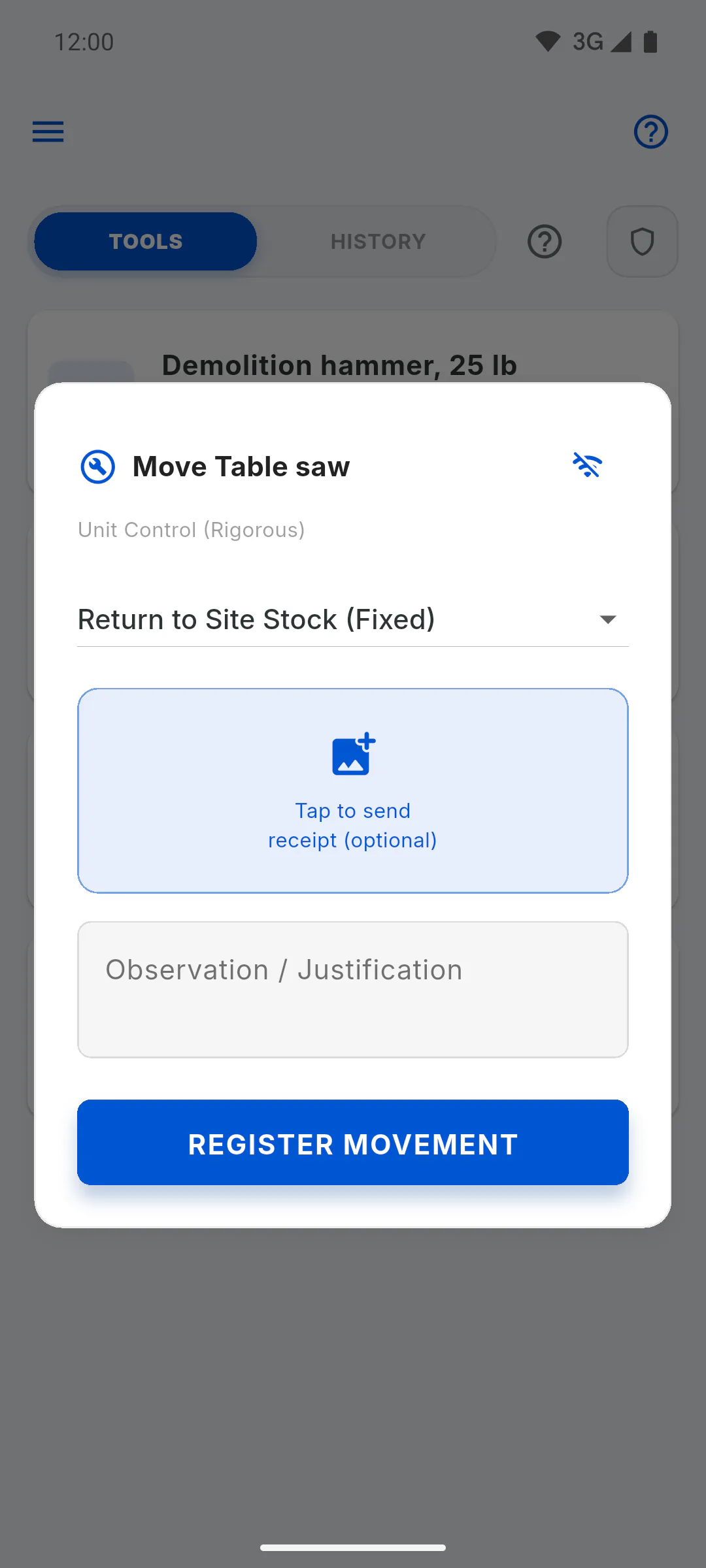
To log a problem outside a loan, use Register Defect / Maintenance. Once it is fixed, bring it back with Return to Site Stock (Fixed) on the project, or Return to Stock (Fixed) in the General Inventory.
Step 5: Return it to Central
Returns are done in the project's Inventory tab: Return to Central (Stock) for a unit tool, or Return to Central for a lot, with the quantity. The General Inventory has no option to return a tool that is on a project. Broken or lost lot units come off the total with Register Broken/Lost. If the project is deleted, the tools that were on it go back to Central on their own, with a record in the history.
Step 6: Who can move tools and where to check
On the project, the owner and the people they authorize can move tools: How to give someone on the project inventory permission. Every movement is kept in History, with its photo: How to see the movement history with photos.
- Offline, on your phone: Moving tools without internet
How to send tools to a project and track loans
From the General Inventory to the project and back: send tools out, lend and receive them with a record of who took them, send them for maintenance and return them to Central.
For managers and team members6 steps
Didn't find what you were looking for?
Chat with support on WhatsApp or open a ticket right in the app.