
Step 1: Find the shortcuts
On a phone, tap the Tools tab at the bottom of the dashboard, or Tools in the side menu: Quick Tools opens, with a tile for each shortcut. On wide screens, like a computer, the shortcuts sit in a Quick Tools bar below the project list, under Tools in the side menu.
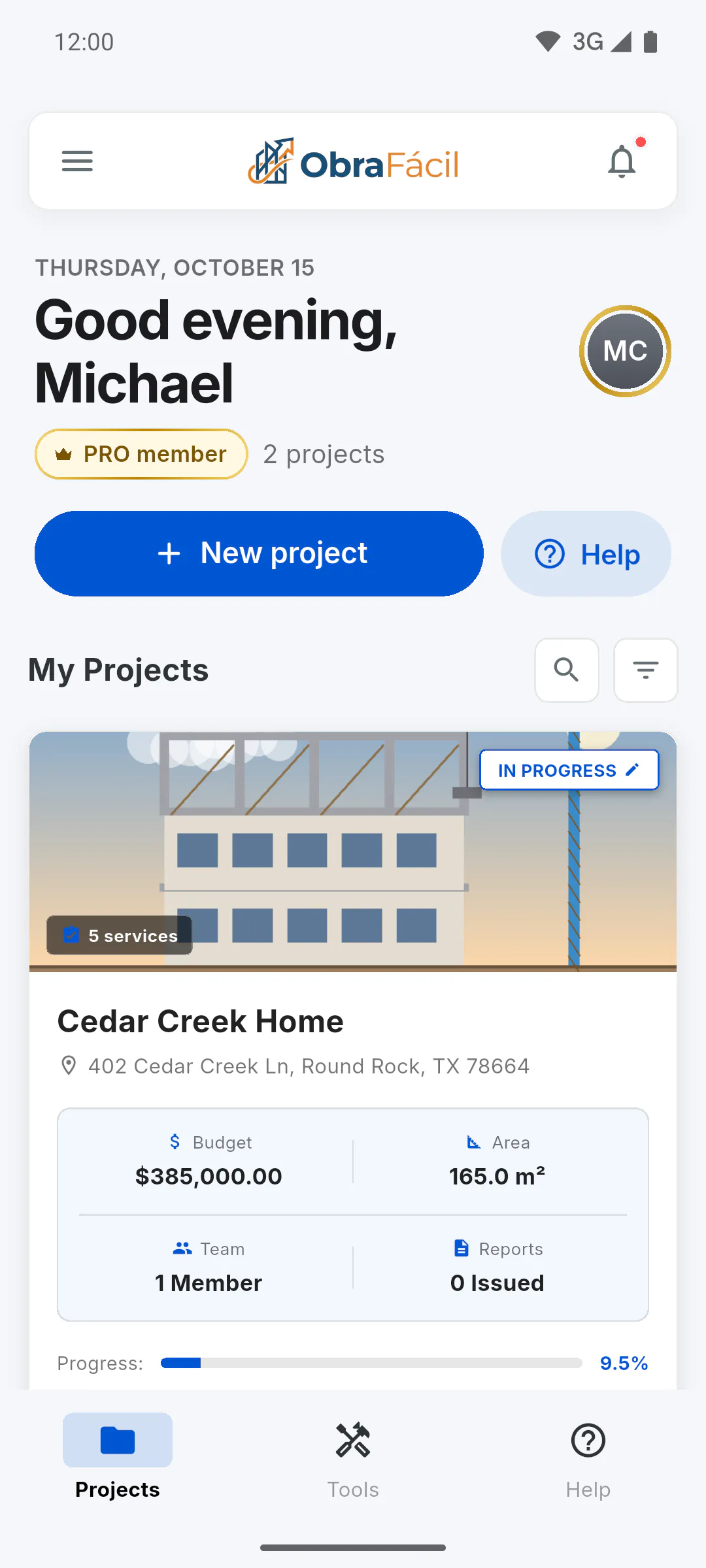
Step 2: Materials Calc.
Estimates how many bricks and how much cement, sand, concrete, paint, tile and drywall to buy from your measurements, with a waste margin. Everyone sees it: How to use the Materials Calculator
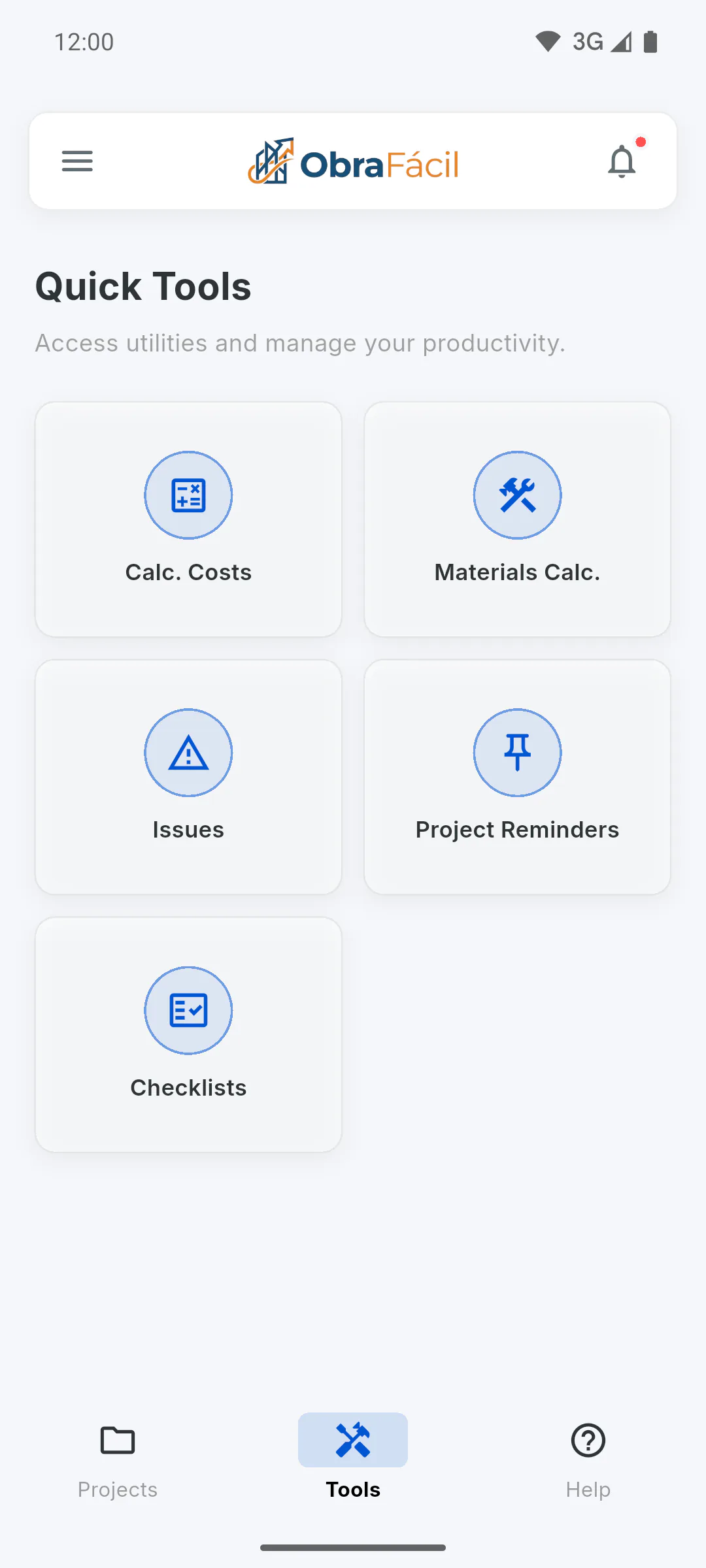
Step 3: Issues
Opens the Occurrences screen with your projects and the ones you've been invited to. Pick a project to see its list and log a problem: How to register an occurrence
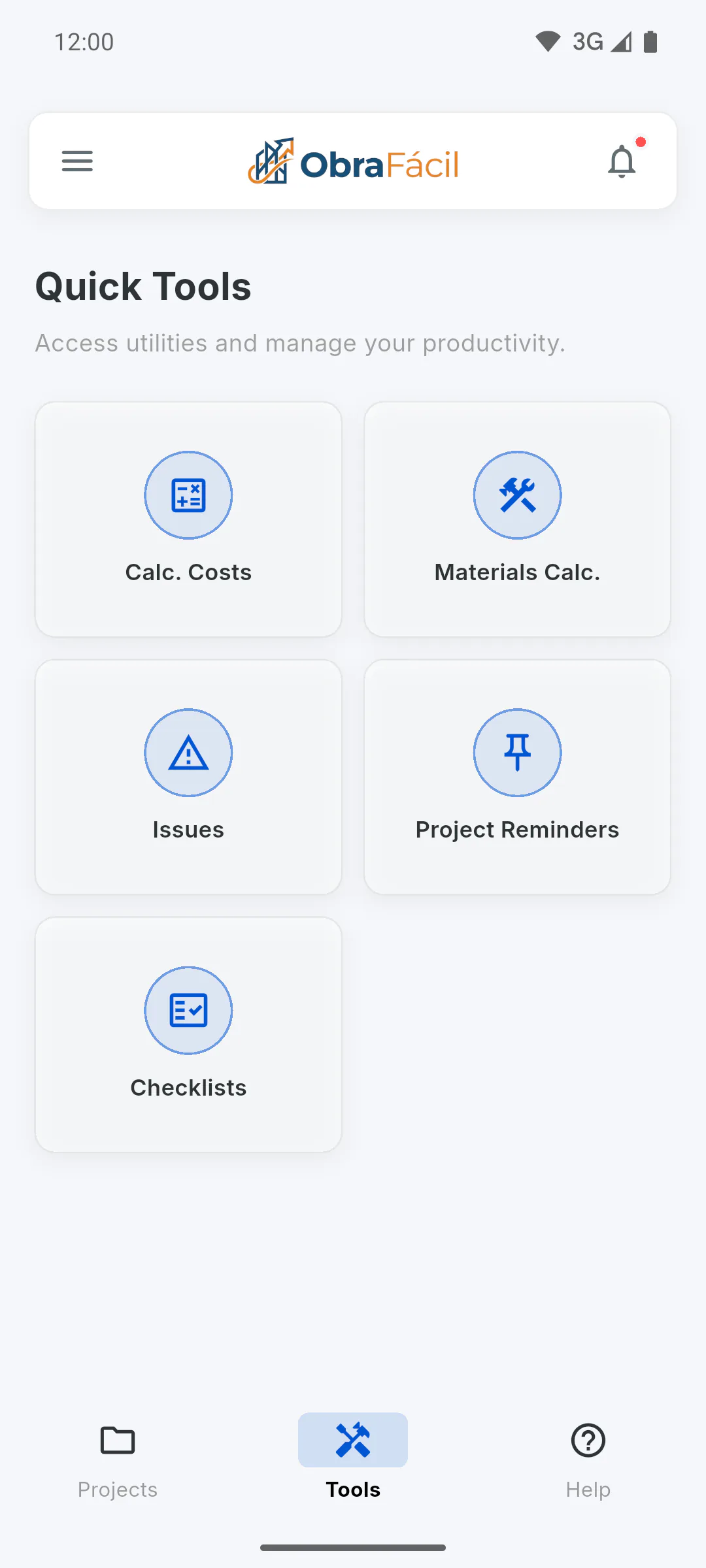
Step 4: Project Reminders
Opens the Project Reminders screen, which also asks for the project, with its reminders and alarms: How to create a reminder with an alarm on a project. More on these two shortcuts: How to open Occurrences and Reminders from the dashboard
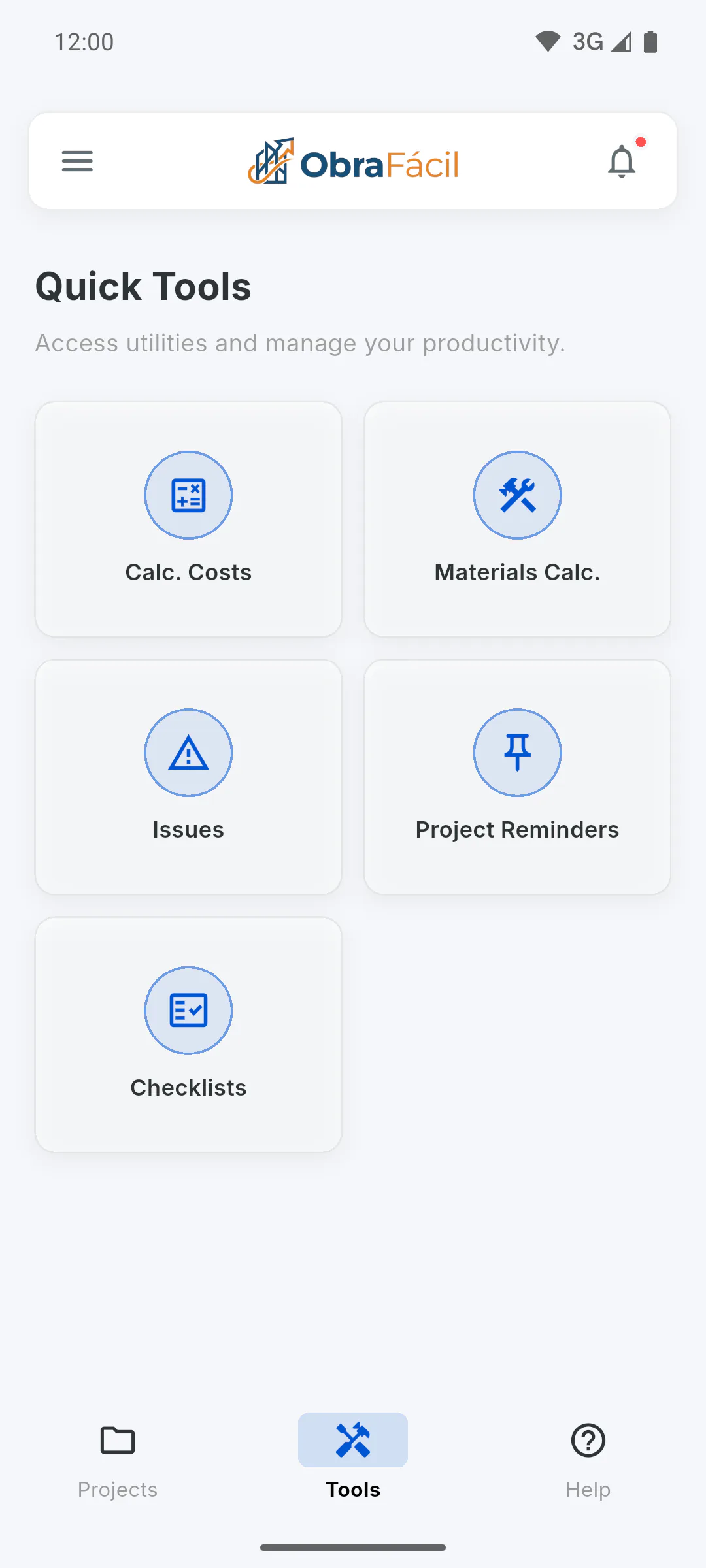
Step 5: Checklists
The Checklists tile doesn't open any screen: tapping it only shows the message The Quality Checklists module is coming soon!
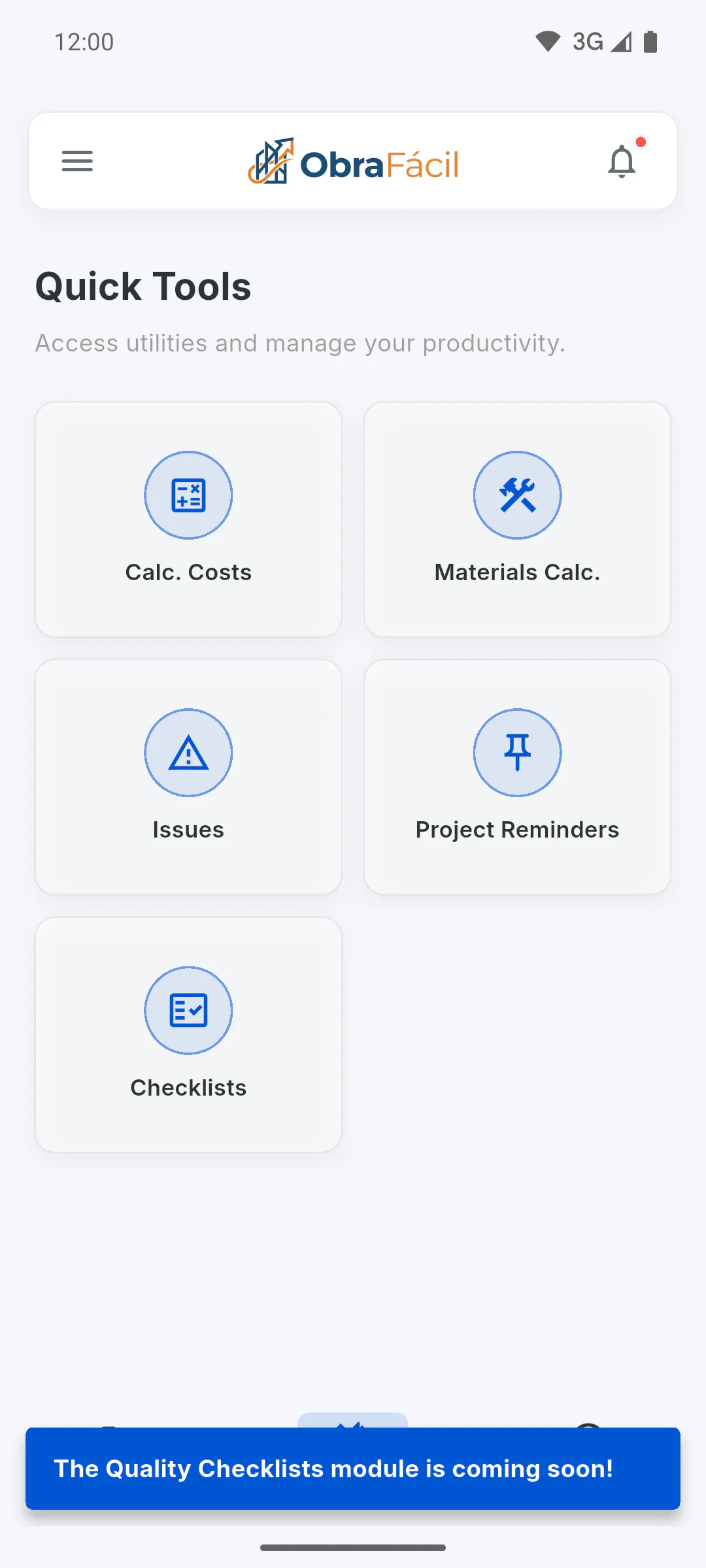
Quick tools: what each shortcut does
Quick Tools gathers shortcuts to the Materials Calculator and to the issues and reminders of any project. See where they are on a phone and on a computer, and what each one opens.
For managers and team members5 steps
Didn't find what you were looking for?
Chat with support on WhatsApp or open a ticket right in the app.