
Step 1: Where the dashboard is
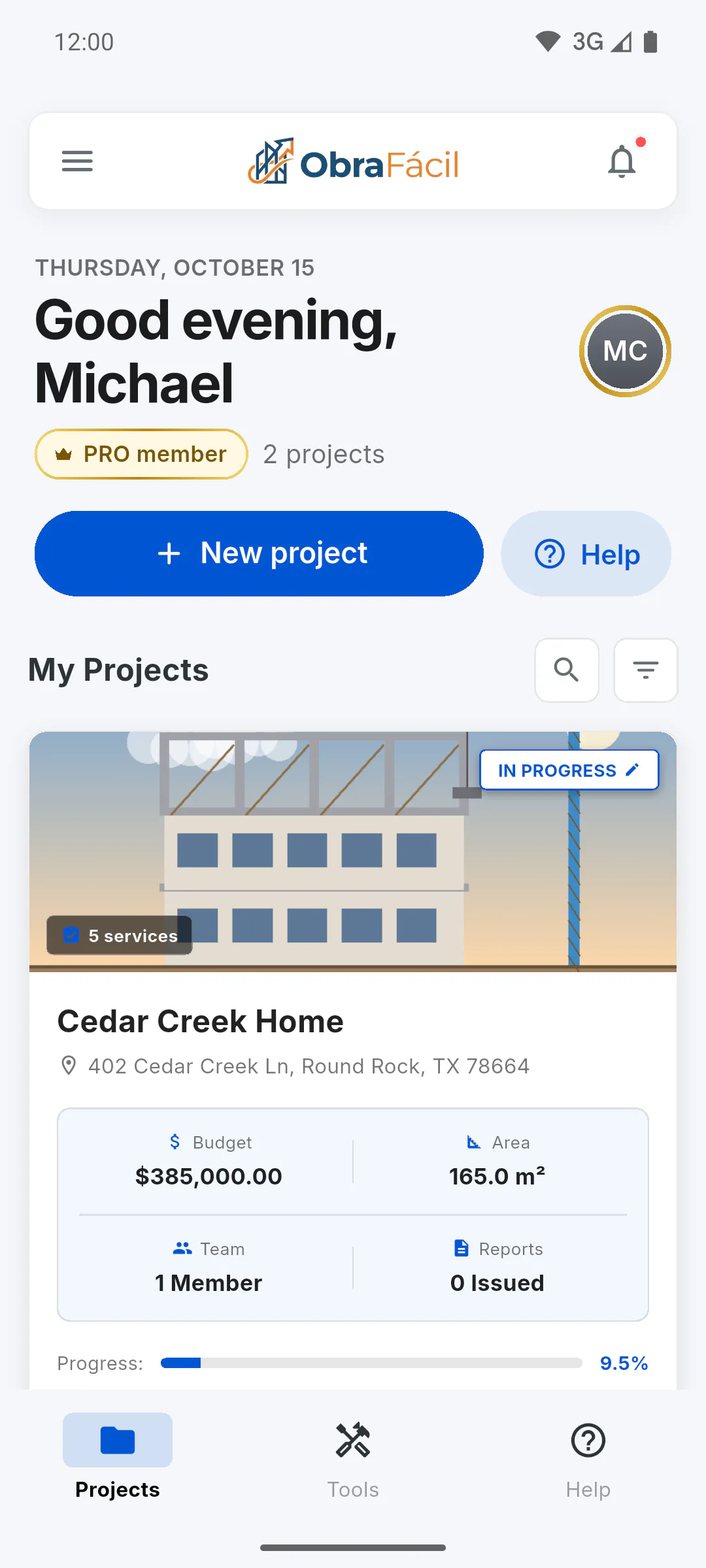
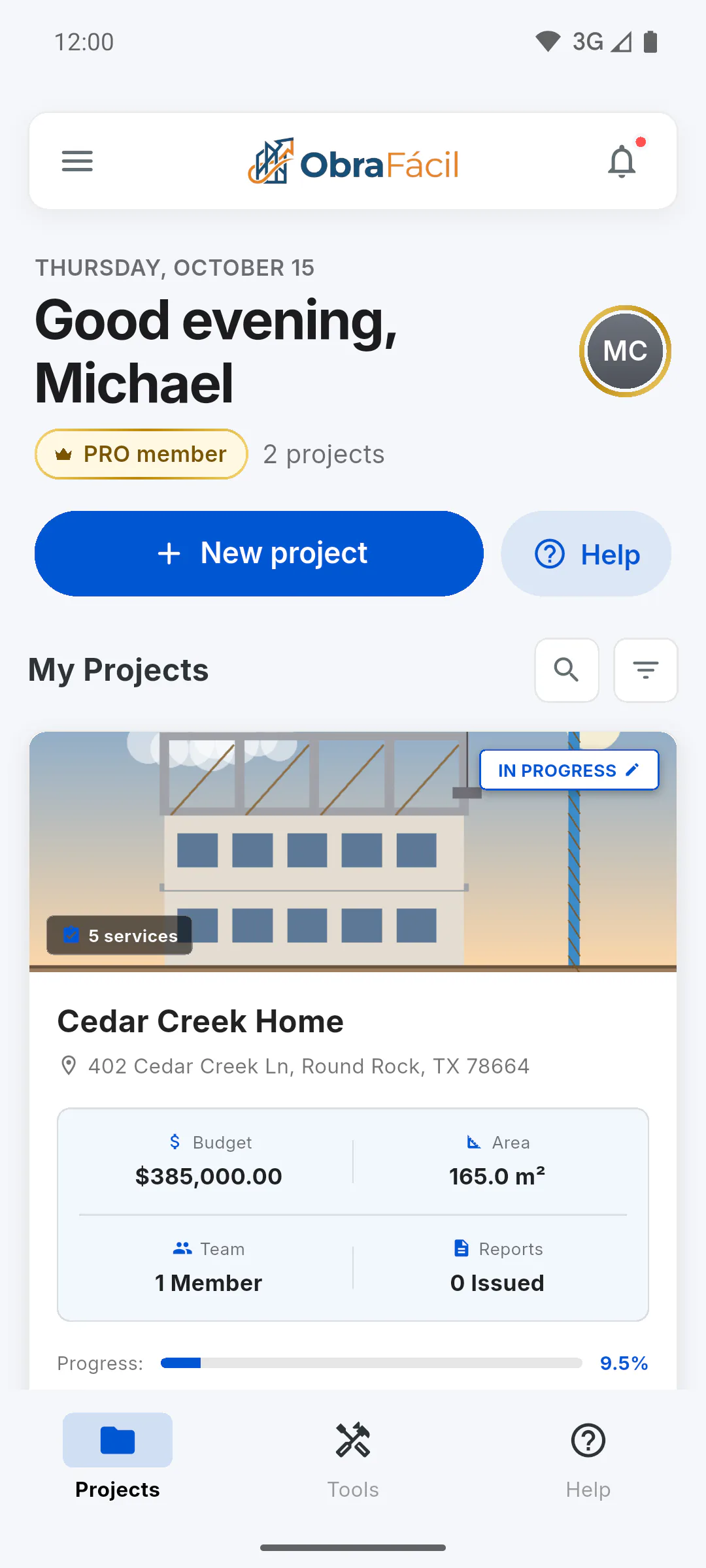
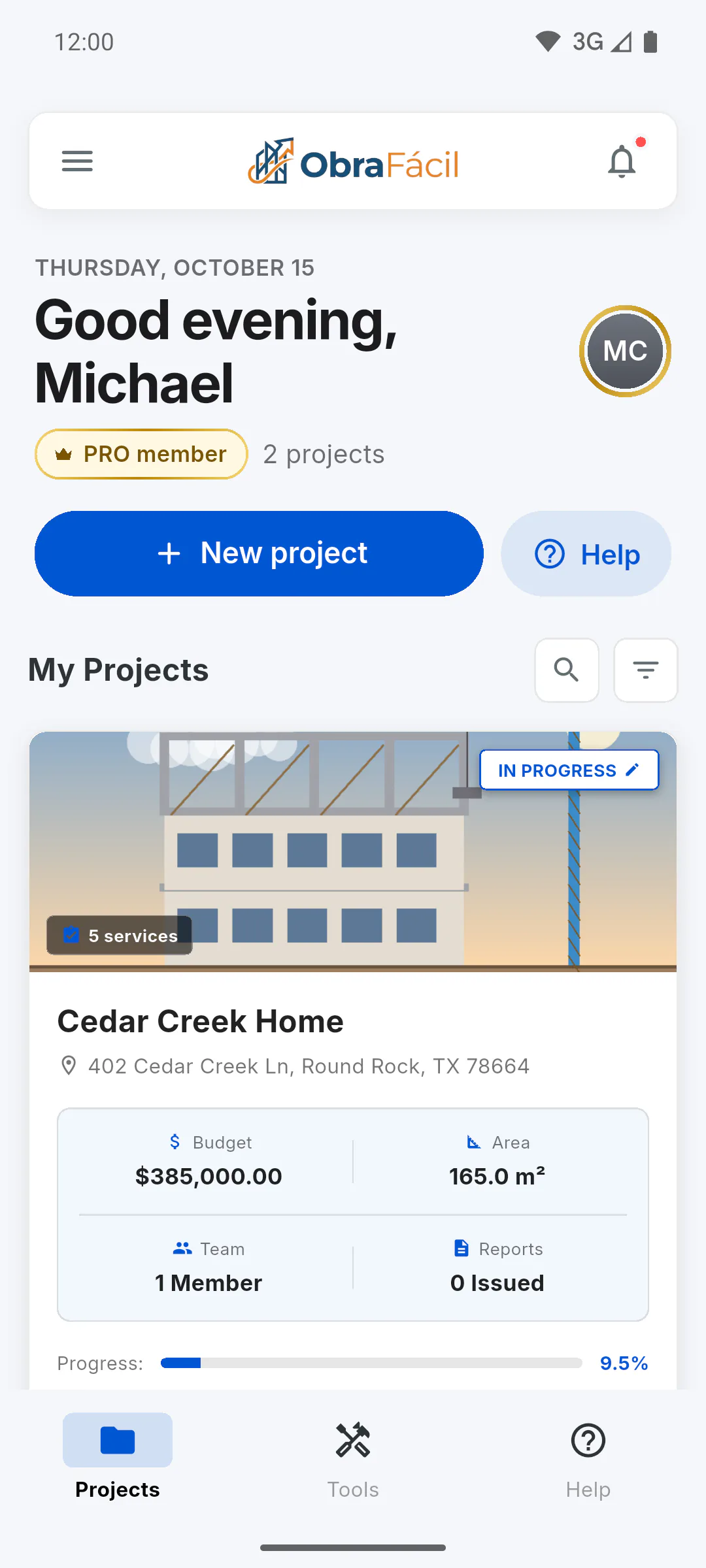
The dashboard is the first screen for people who manage projects and for team members. On a phone, it has a bar at the top with the menu icon (three lines), the logo and the bell, and three tabs at the bottom: Projects, Tools and Help. On wide screens, like a computer, the menu stays fixed on the side.
Step 2: The top
At the top you'll see the date, the greeting (Good morning, Good afternoon or Good evening) with your first name, and your photo, with a gold ring on PRO or a silver one on free: tap it to open your profile. Below are your plan badge, PRO member or Free member, and how many projects you have. The New project button creates a project; on the free plan, once you already have a project of your own, it opens the Project Limit Reached notice. Next to it, Help opens the article for this screen.
Step 3: My Projects
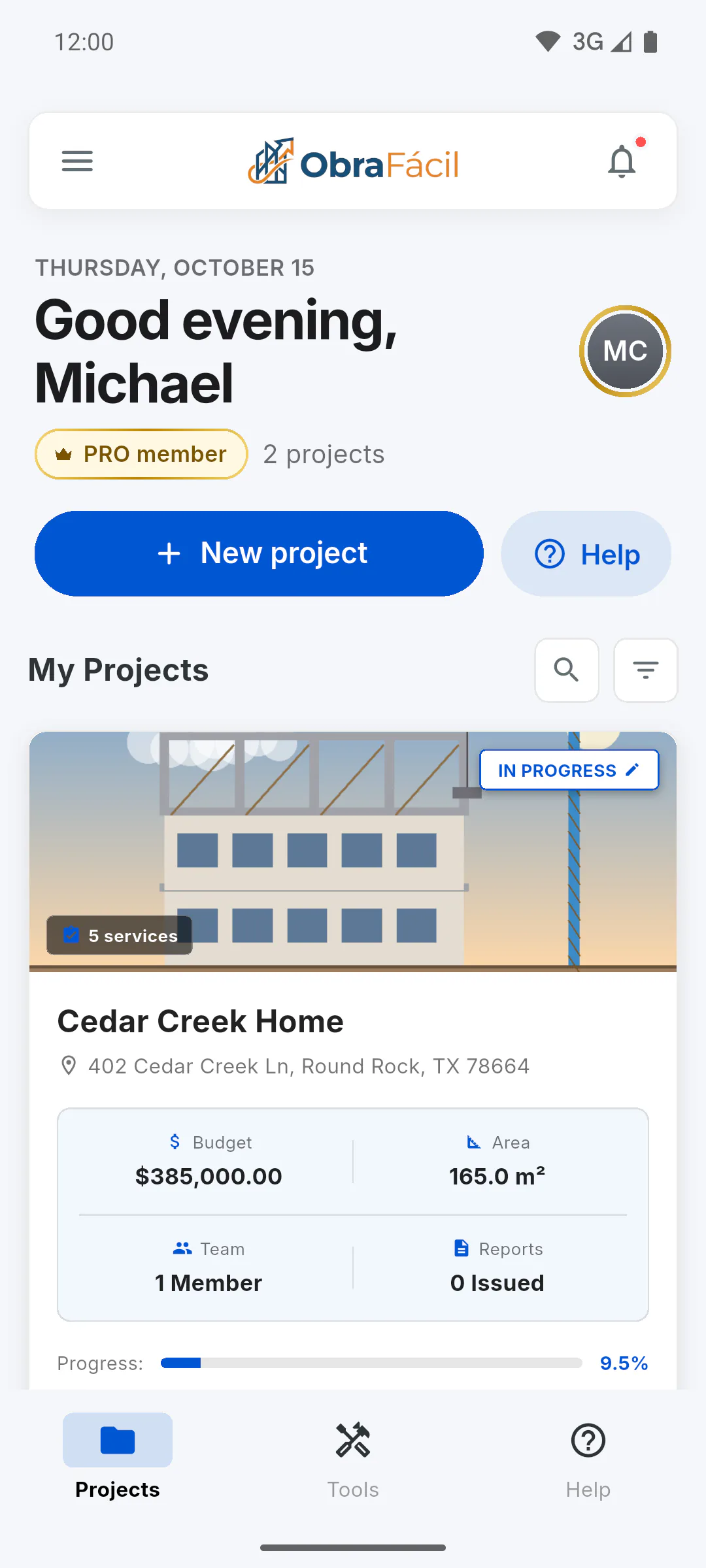
My Projects lists your projects and the ones you were invited to, which carry the Co-Management label. If someone invited you as the client on their project, its card shows You're the Client and opens that project's Client Portal. On a phone, each card shows the cover, name, address, status, Budget, Area, Team, Reports and Progress:. On wide screens the cards may appear in a grid, with less information. On a new account, the list shows No Projects until you create a project or are invited to one. Tap a card to open the project: Getting to know the Project Hub: menu, summary and actions
Step 4: Search and filter
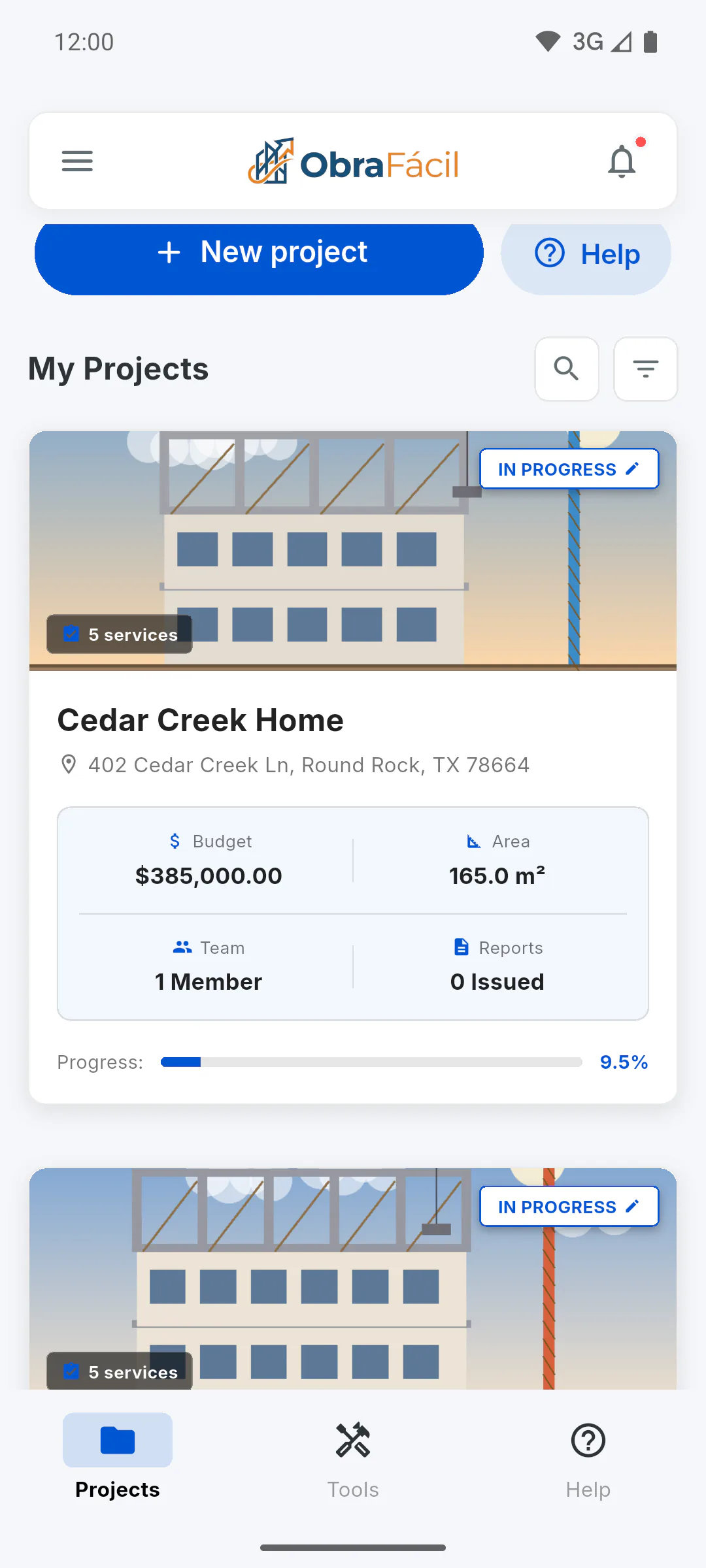
The magnifying glass and the filter icon, next to My Projects, find a project by name and separate ongoing projects from completed ones: How to search and filter your projects
Step 5: Tools and Help
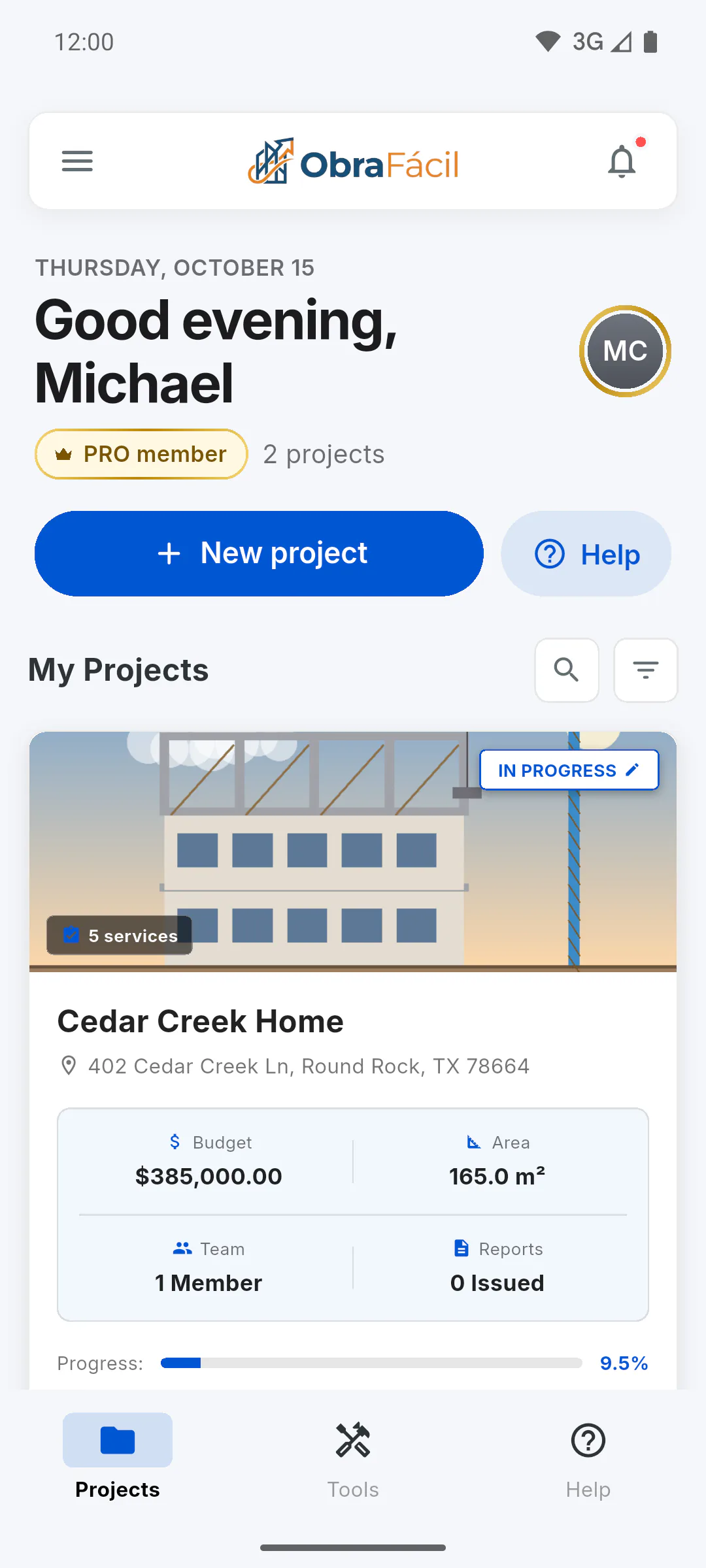
On a phone, the Tools tab opens Quick Tools, with shortcuts to calculators, issues and reminders, and the Help tab opens help and support. On a computer, Quick Tools sit below the project list, under Tools in the side menu.
Step 6: Bell and menu
The bell shows your notifications; a red dot means there are unread ones. The menu icon opens the side menu, with your profile card at the top, items in groups (My Projects, Tools and Help Center; My Team, General Inventory and About the App), the Unlock PRO invite (on the free plan) and Logout in red.
Step 7: Notices at the top
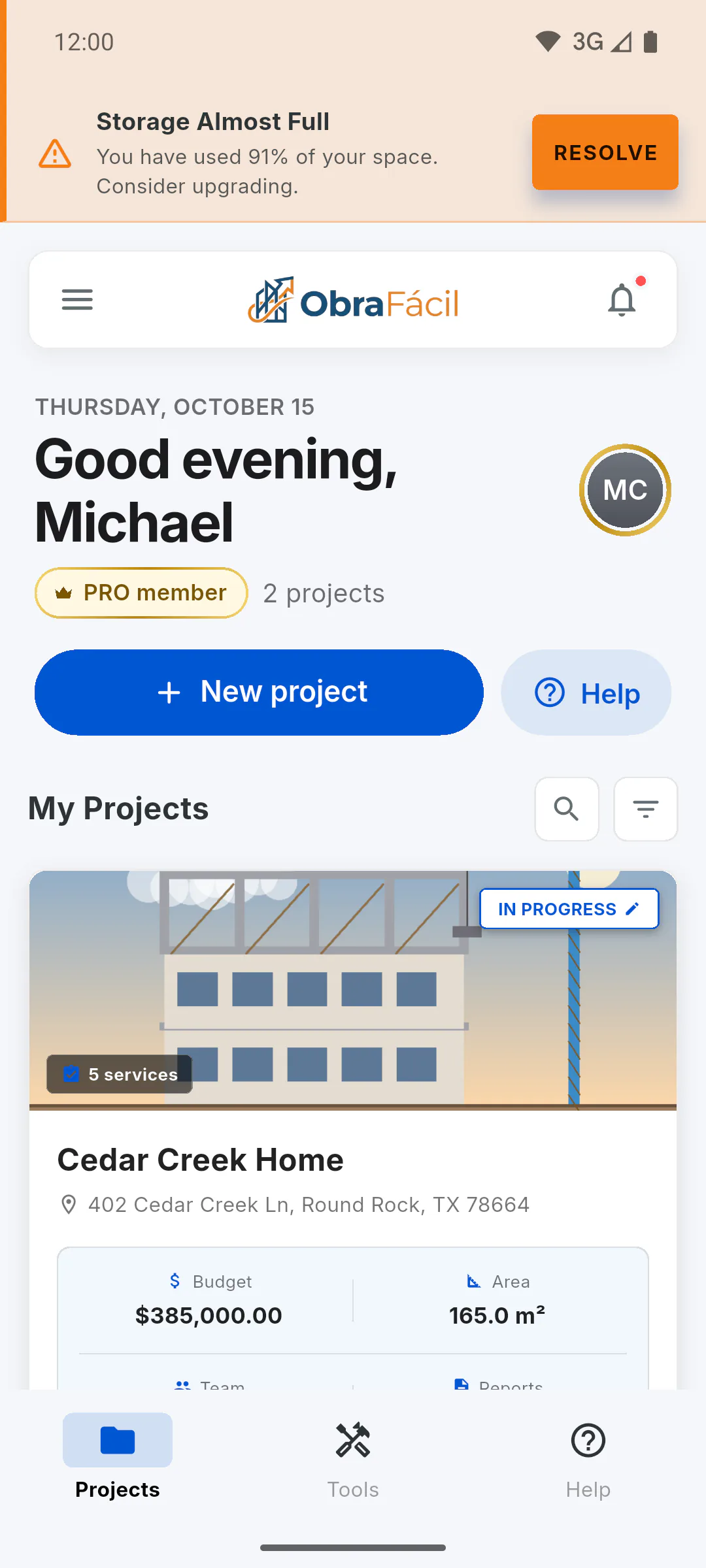
When your storage goes over 85%, Storage Almost Full appears at the top; at 100%, Storage Blocked appears and uploads are paused. The Resolve button opens the options to get more space: How much storage you have: free and PRO plans
Getting to know the dashboard
The dashboard is your starting point: the greeting with your photo and your plan, the New project button, your projects, quick tools, notifications and the side menu. See what each part does on a phone and on a computer.
For managers and team members7 steps
Didn't find what you were looking for?
Chat with support on WhatsApp or open a ticket right in the app.