
Step 1: Where the bell is
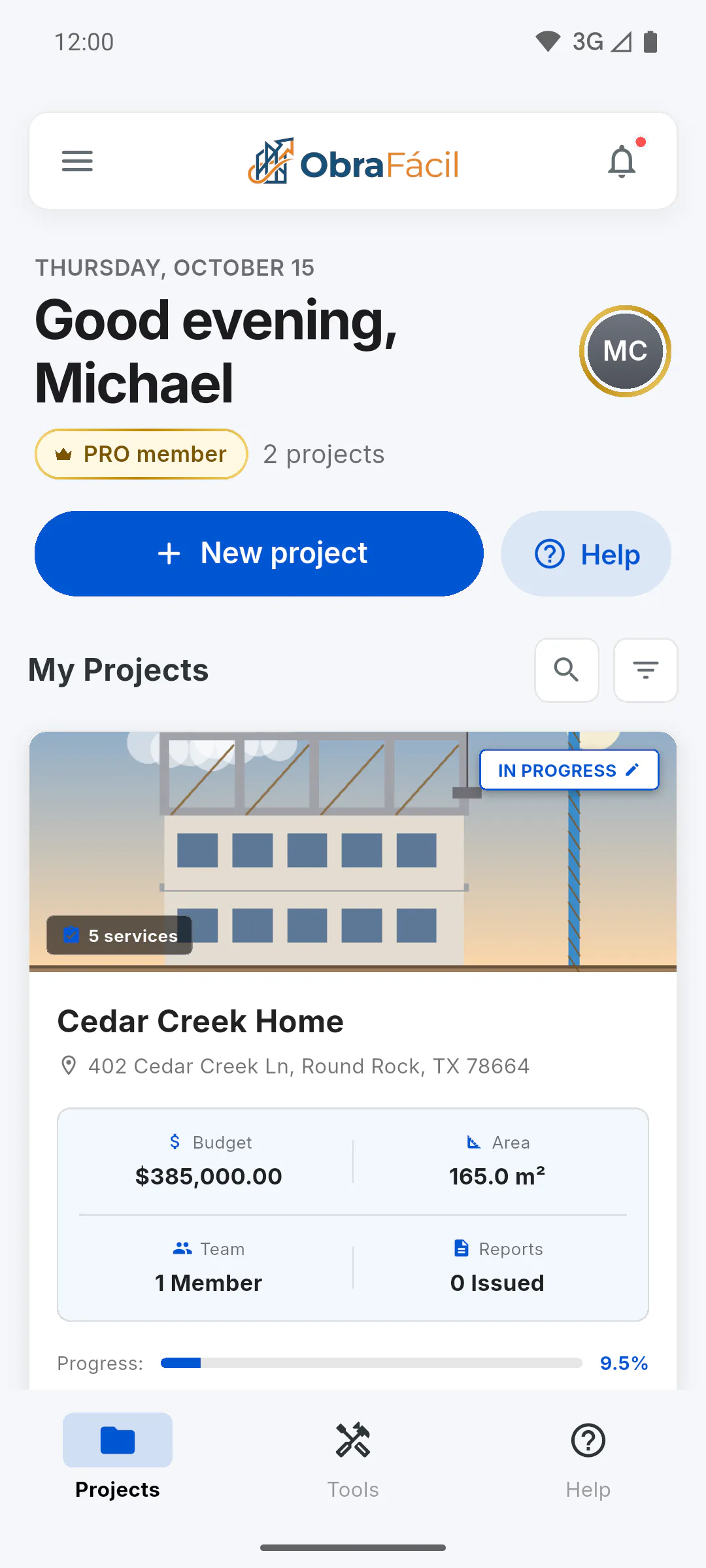
On the dashboard, the bell sits at the top: on a phone, on the right of the bar with the logo; on a computer, to the right of the greeting. A red dot on it means you have unread notifications. In the Client Portal, the bell is at the top of the project screen.
Step 2: The notification list
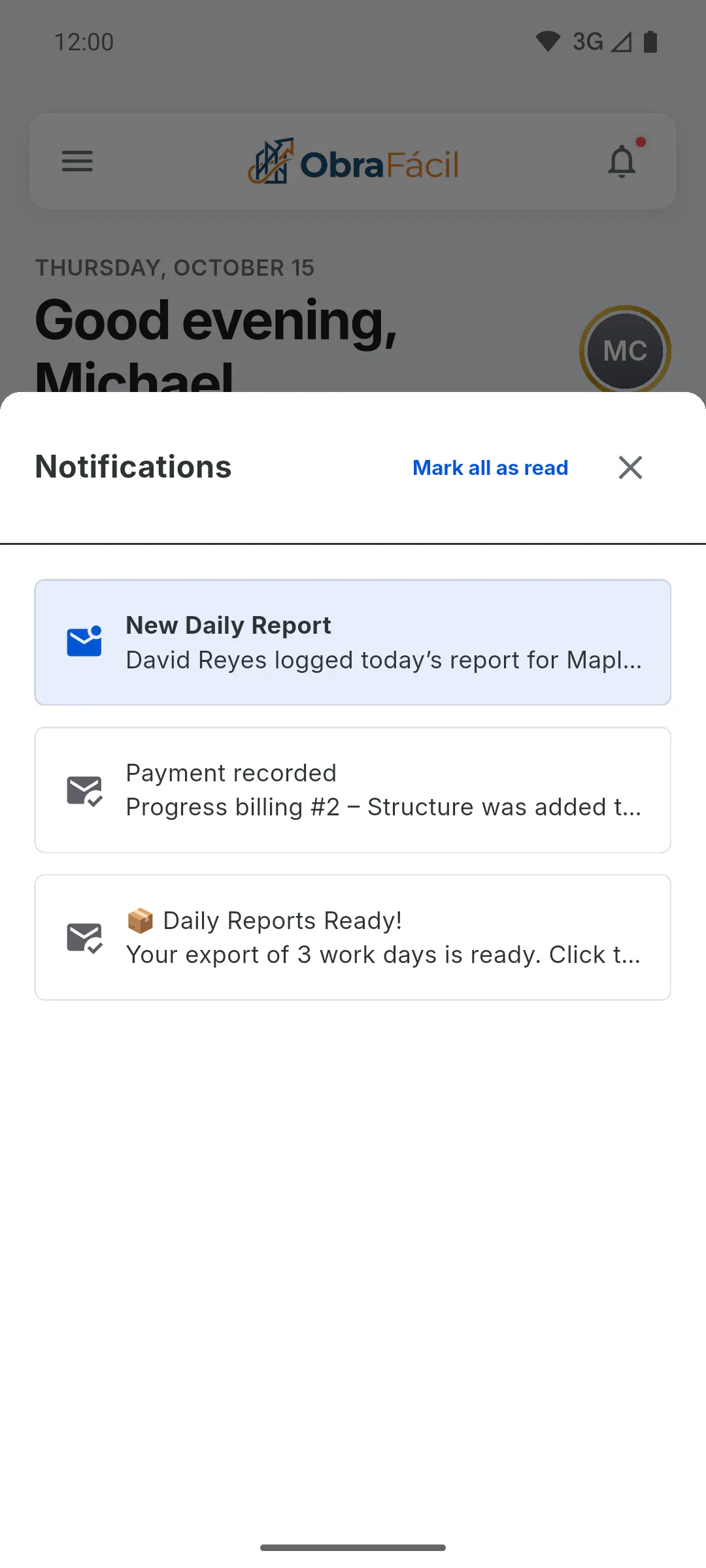
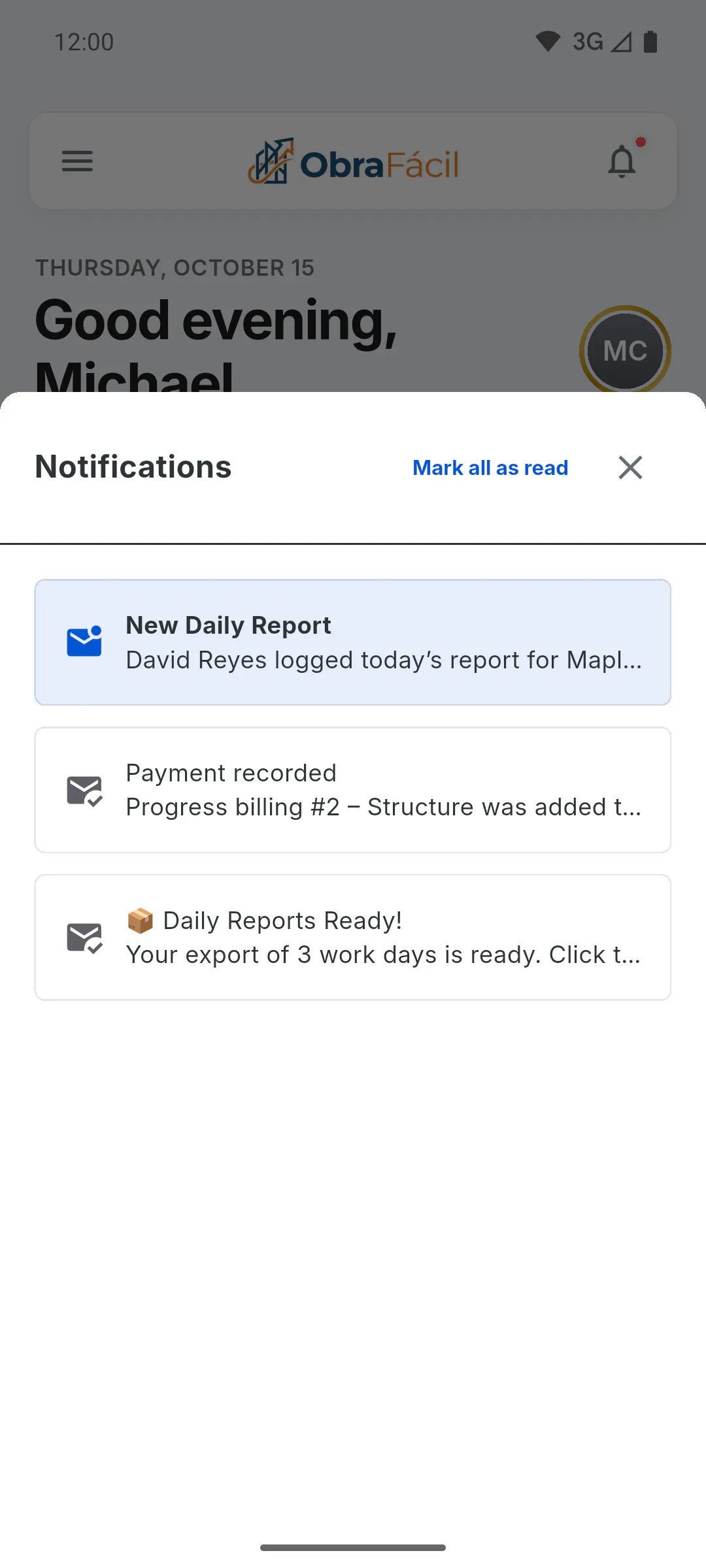
Tap the bell to open Notifications. The newest come first, and unread ones are highlighted, with the title in bold. The list loads 10 at a time: scroll down to see older ones. If there's nothing, you'll see No notifications.
Step 3: Read and mark as read
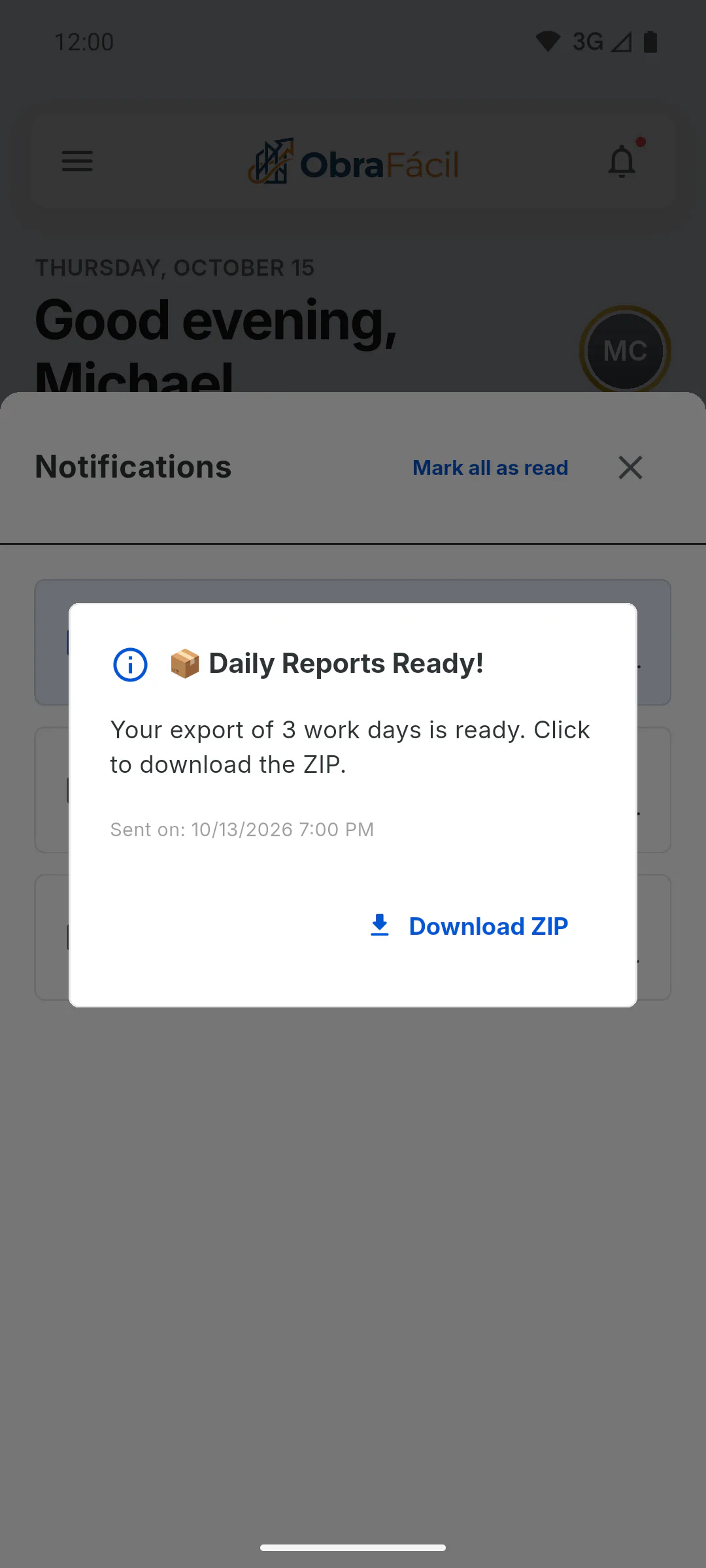
Tap a notification to see the full message and the date under Sent on:. Once opened, it counts as read. It only shows the text: it doesn't open the project, the report or the occurrence. To clear them all at once, tap Mark all as read: the red dot goes away and the list closes. Notifications can't be deleted.
Step 4: What you get notified about
- New reports and new entries in the financials of your projects, when someone else saves them. These go only to the project owner and to the clients.
- Occurrences you were tagged on, and when they're resolved: Who gets notified and who can see each occurrence
- A ZIP file ready, when you ask to export several reports.
- Notices from ObraFácil, offers, and subscription payment or refund updates: 30-day free offer: how it works
Step 5: Language of the notifications
Report, occurrence and new financial entry notifications (Financial Update) appear in the app language of the person reading them. Older notifications, from before version 1.9.3, may show up in the language of the person who did the action.
Step 6: The Download ZIP button
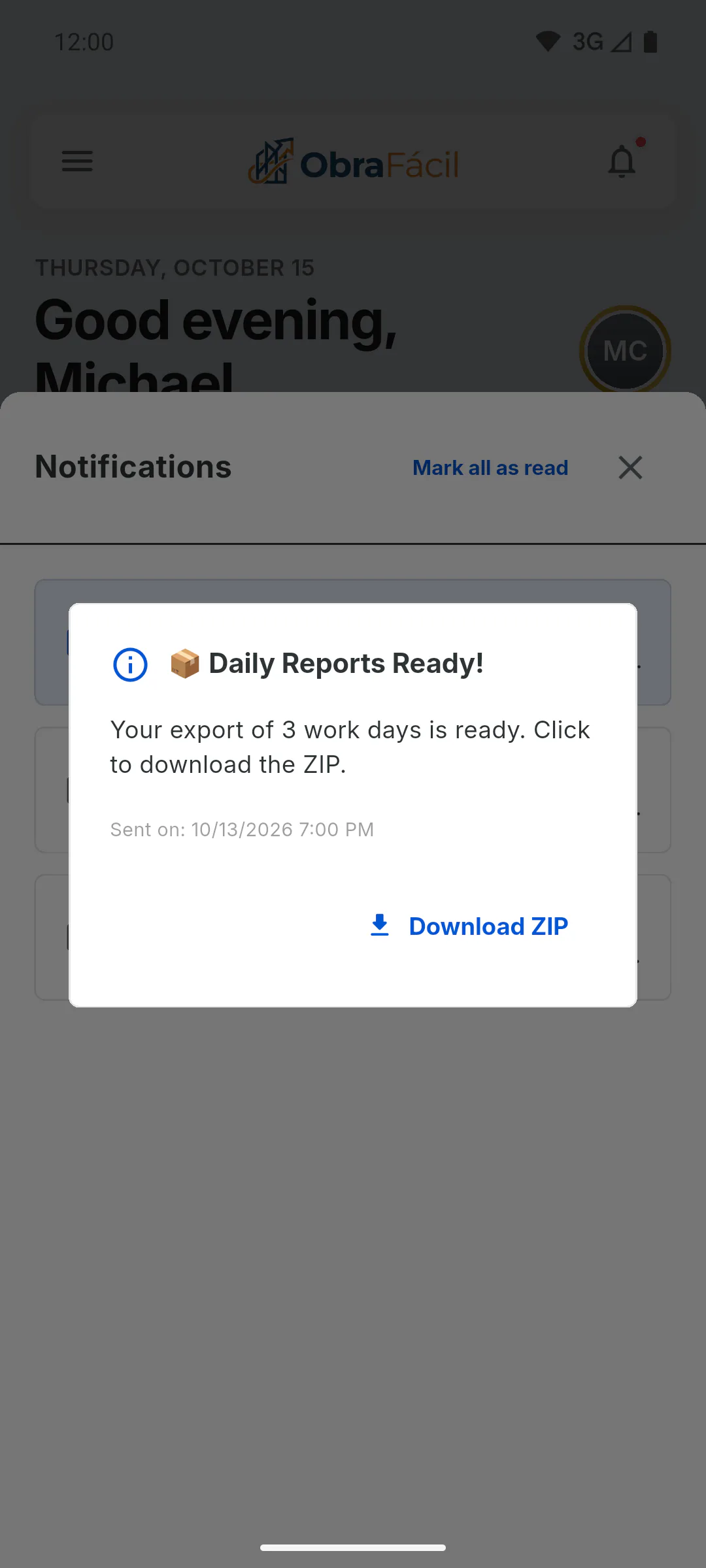
When a ZIP file is ready, the notification has a Download ZIP button. It opens the download and works only once: after you use it, it disappears from the notification. The ZIP is kept for 7 days; after that it's deleted and the button disappears too.
Step 7: In the Client Portal
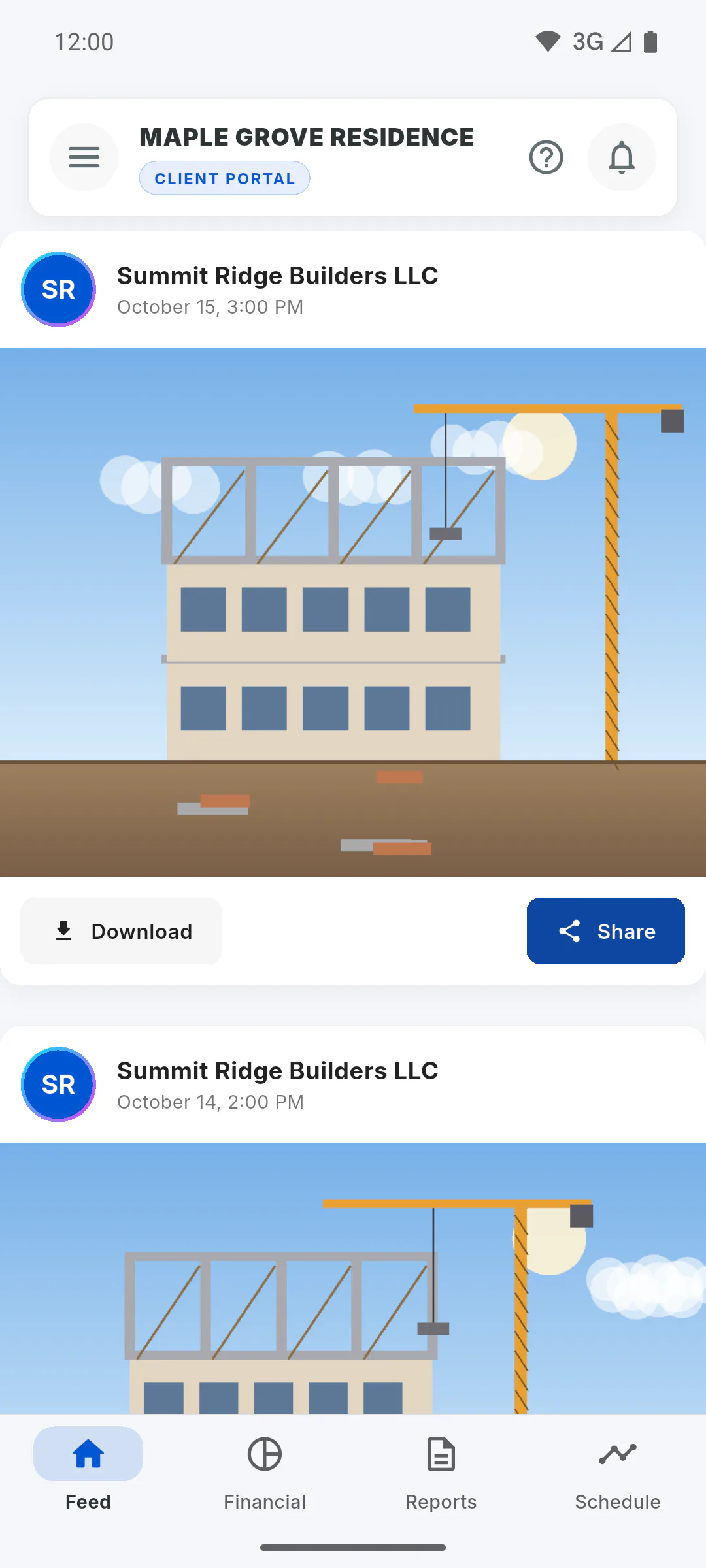
The client taps the bell to open Project Notifications. It lists the account's notifications from every project they follow, with the time (for today's) or the date. Notifications with a file have a Download button; once used, it shows Download already completed. To download again, request a new file. The same message shows after 7 days, when the file is deleted.
Step 8: A red dot that won't go away
Some automatic notices, like System when an occurrence or its resolution is saved, light up the red dot on the dashboard without showing in the list. If the dot stays on and there's nothing new in the list, tap Mark all as read.
Step 9: Notifications outside the app
The bell only shows notifications inside the app. To get alerts on your phone when the app is closed: How to turn phone and email notifications on or off
How bell notifications work
The bell gathers in-app notifications: new reports, issues, files ready to download and ObraFácil notices. See which ones you get, how to read them and how to clear the red dot.
For managers, team members and clients9 steps
Didn't find what you were looking for?
Chat with support on WhatsApp or open a ticket right in the app.