
Step 1: Open the Project Gallery
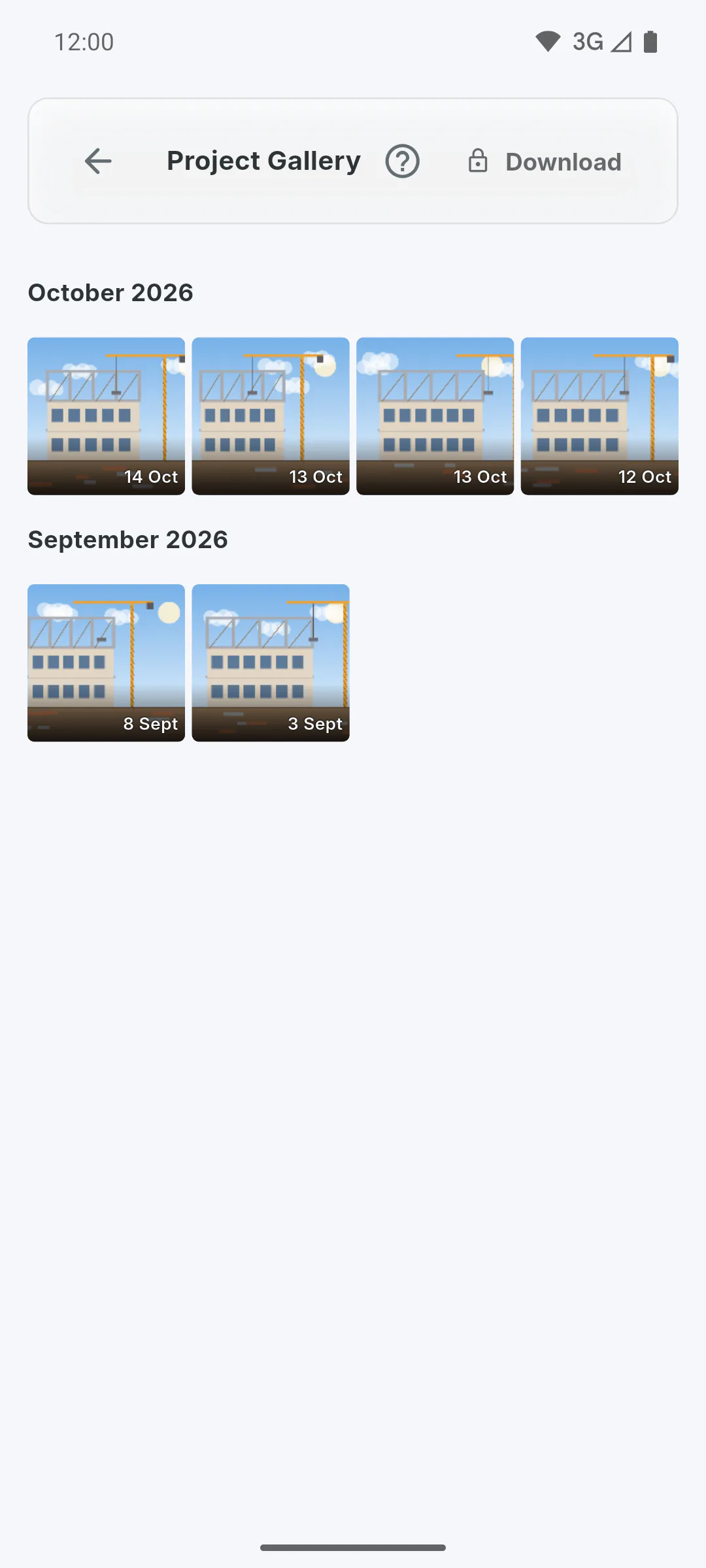
In the Portal, tap the menu button, then Project Gallery. The screen shows the photos from the project album in a grid, grouped by month, newest first. Scroll to load more and pull the screen down to refresh. If there are no photos, you'll see Empty Gallery.
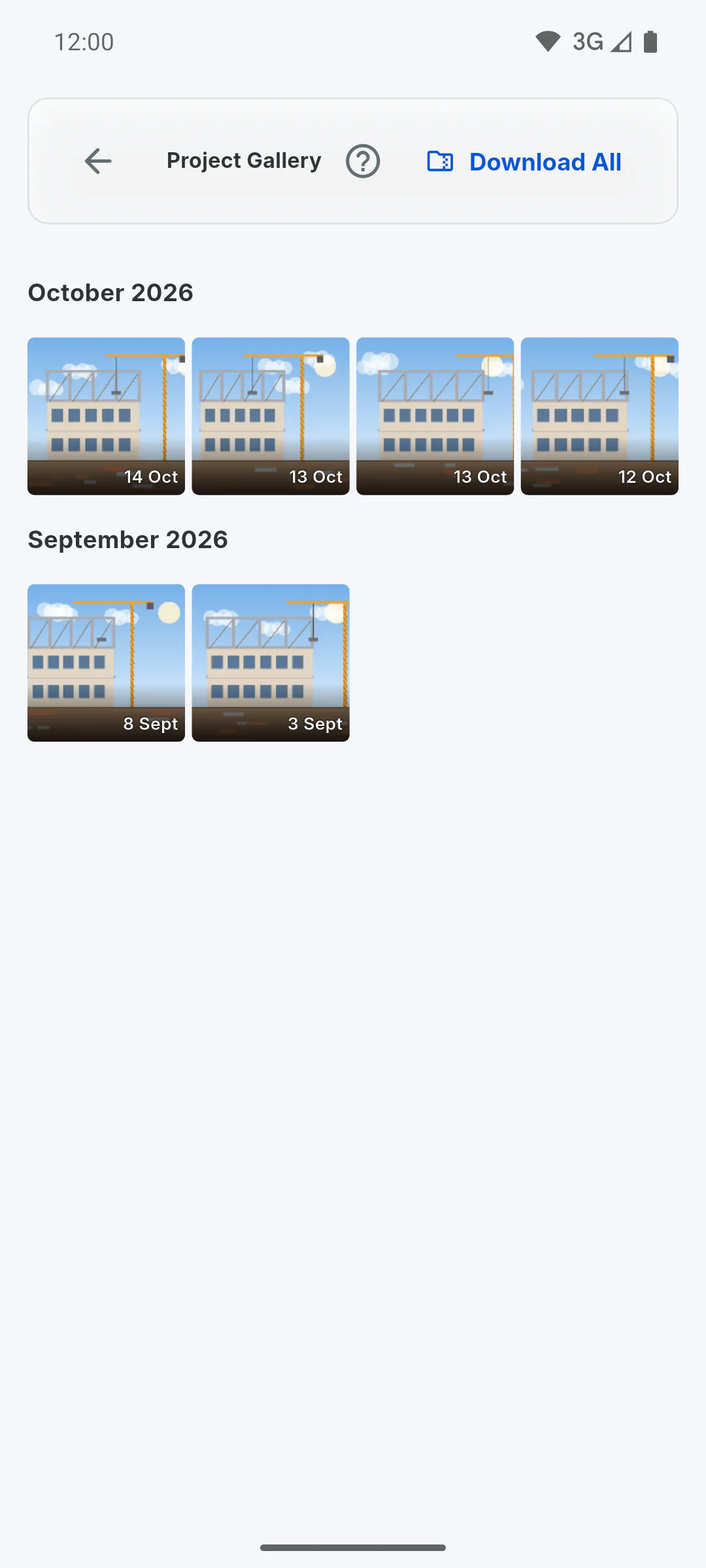
Step 2: View full screen
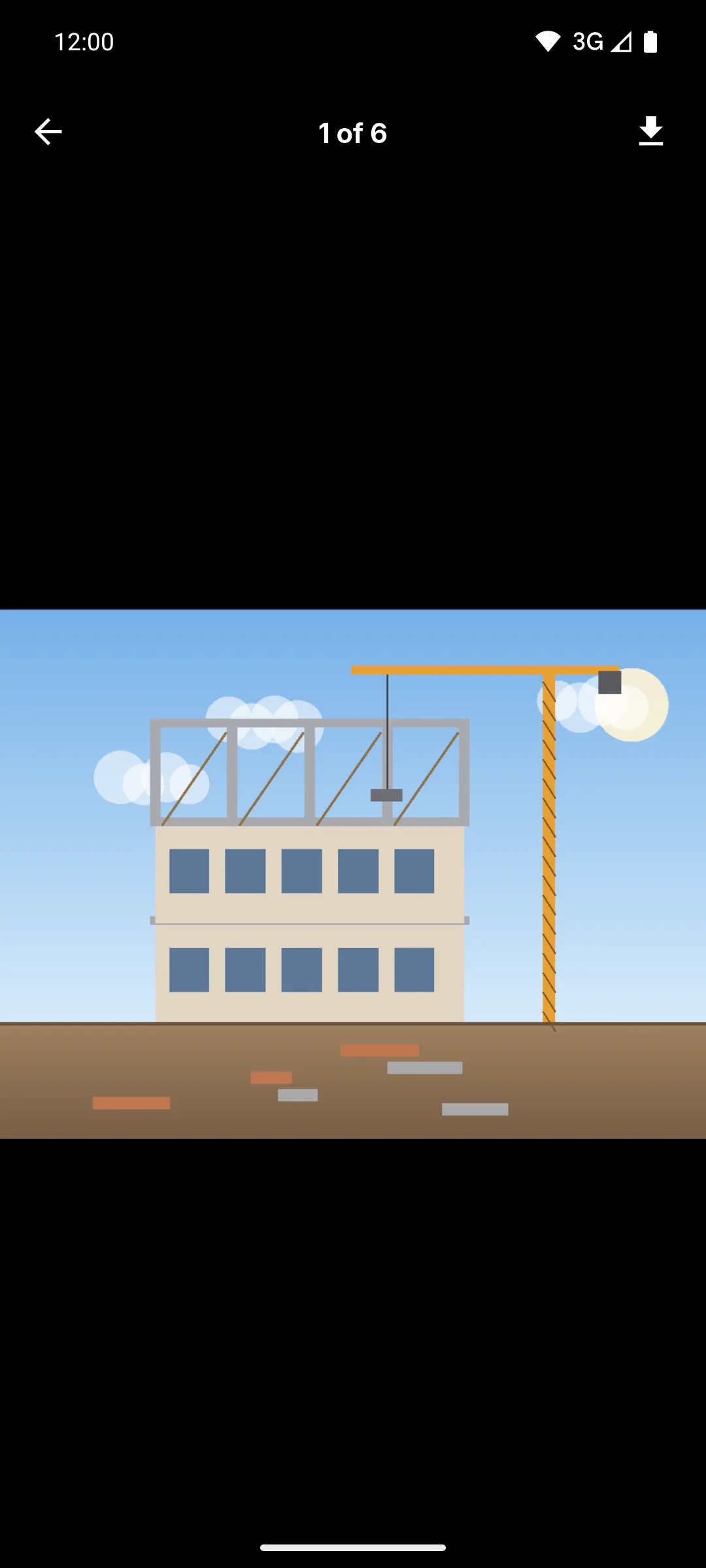
Tap a photo to open it full screen. Swipe sideways to move between photos; the top shows the photo's position and the total. Use two fingers to zoom. In the desktop app, use the arrows on the sides.
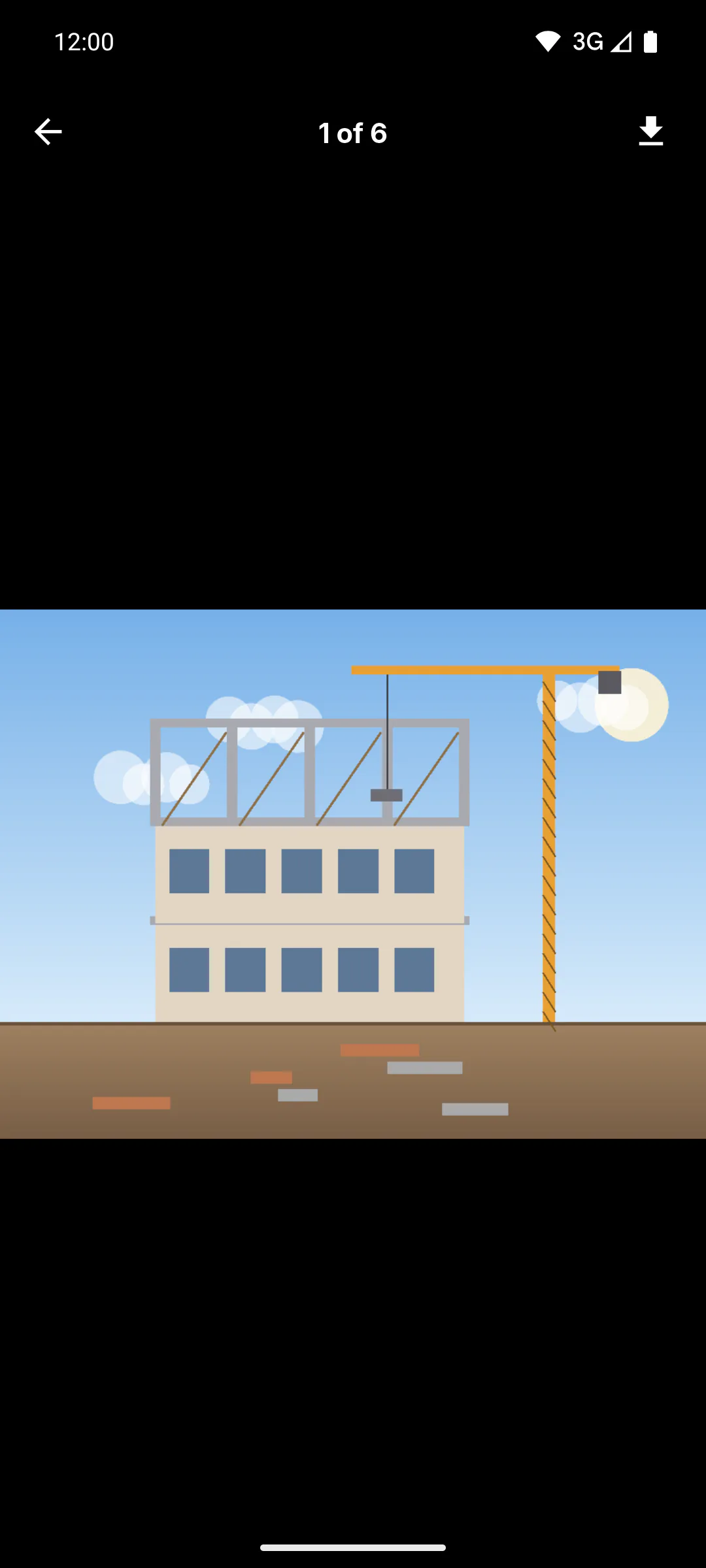
Step 3: Download a photo
In full screen, tap the download icon at the top. The photo opens in your browser in high resolution so you can save it, and you'll see Starting download.... In the grid, you can also press and hold a photo, then tap Download Photo. In the desktop app, the Select icon at the top does the same selection.
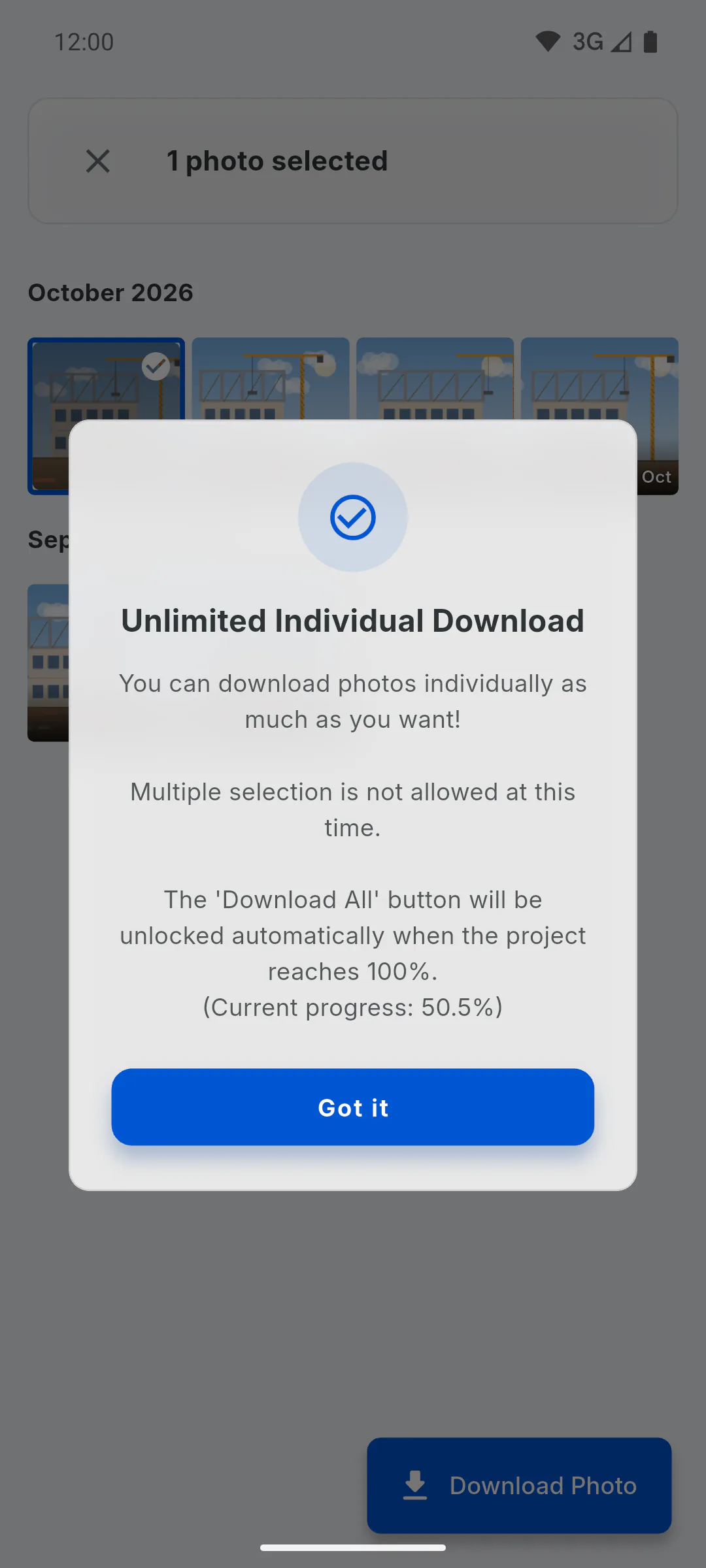
Step 4: One photo at a time
Download Photo downloads one photo at a time, as often as you like. If you try to select a second photo before the project reaches 100%, you'll see Unlimited Individual Download, explaining that multiple selection isn't available yet. To get all the photos at once, use Download All:
Step 5: Button with a padlock
If the top shows Download with a padlock, the manager hasn't allowed photo downloads for you yet. Tapping it, pressing and holding a photo, or tapping the padlock in full screen shows Feature Not Enabled. You can still see every photo: ask the project manager to unlock downloads.
How to download photos in the Gallery
See every project photo in the Client Portal's Project Gallery, grouped by month, and download each photo in high resolution.
For clients5 steps
Didn't find what you were looking for?
Chat with support on WhatsApp or raise a ticket in the app.