
Step 1: Open the Feed
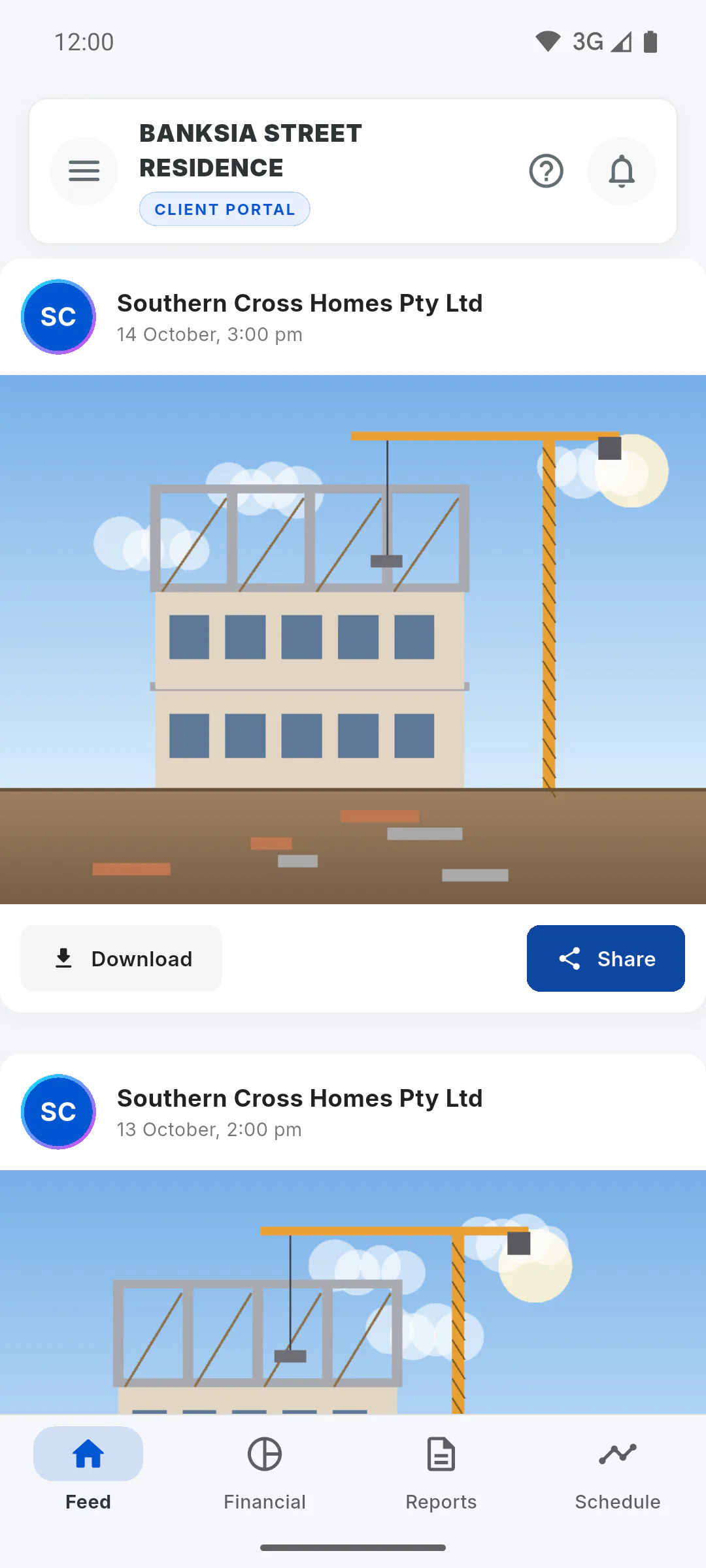
In the project's Portal, tap the Feed tab. Photos the manager posts to the project album appear newest first, with the name of the company in charge. Scroll down to load more. If there are no photos yet, you'll see Project Feed.
Step 2: Download a photo
Tap Download below the photo. It opens in high resolution in your browser, where you can save it.
Step 3: Share it
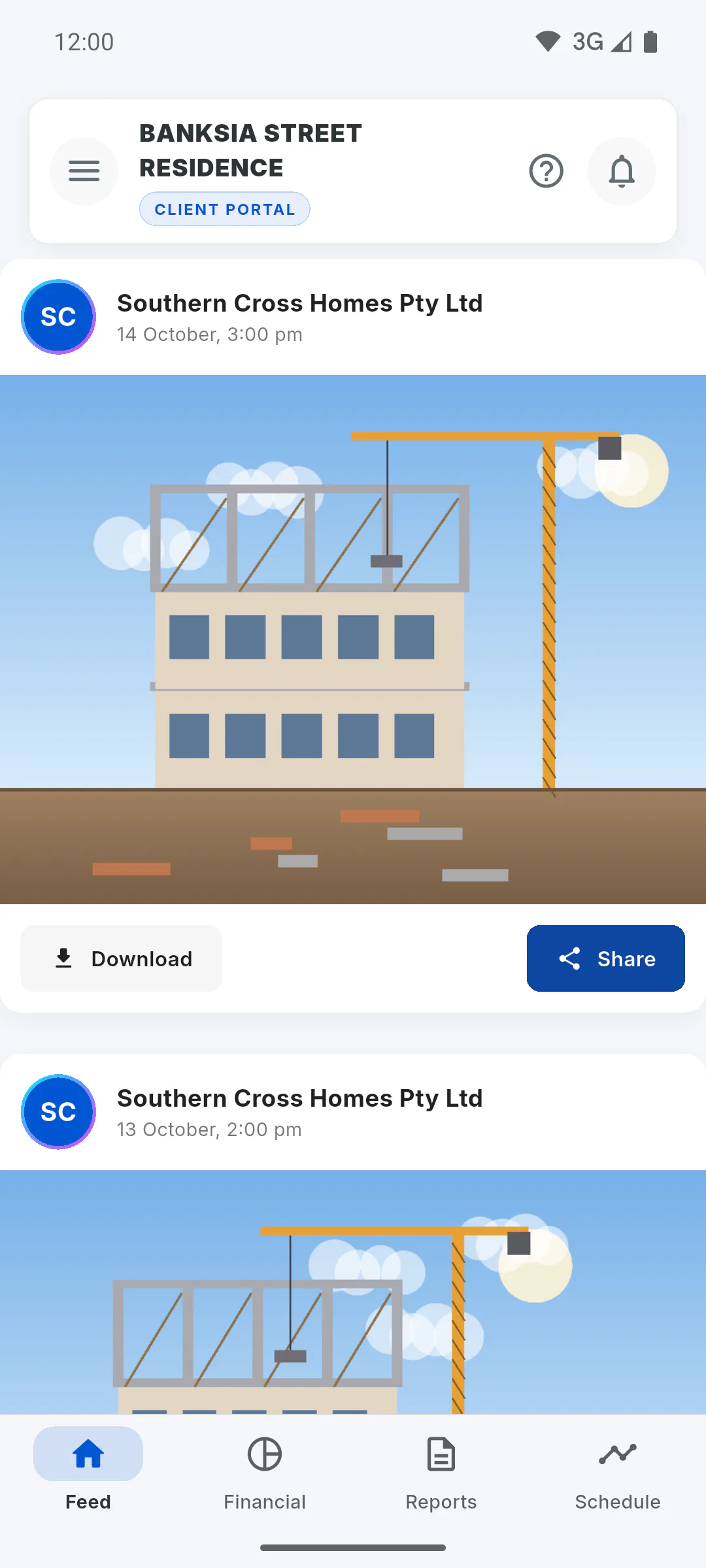
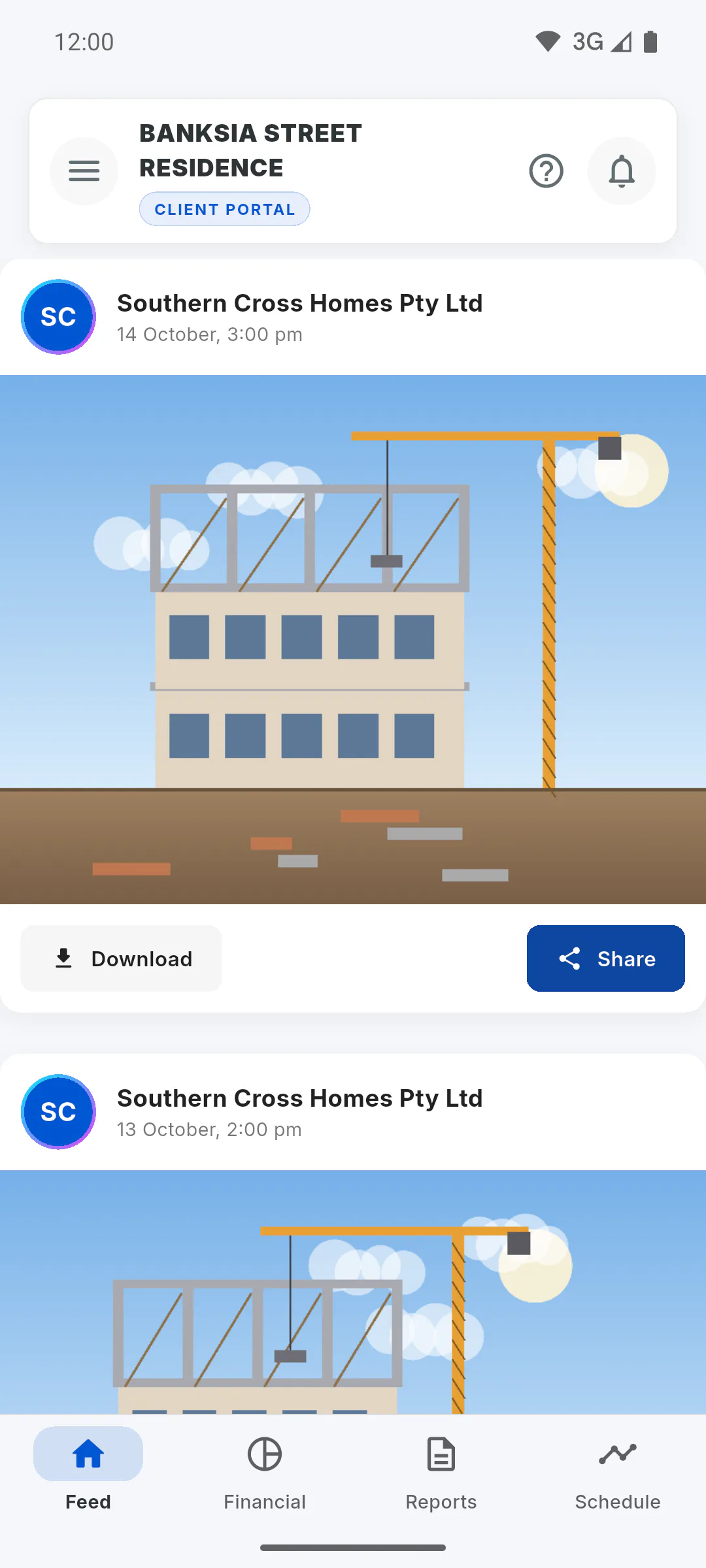
Tap Share. You'll see Preparing to share... and then your device's share options, with a message about your project along with the photo.
Step 4: Button with a padlock
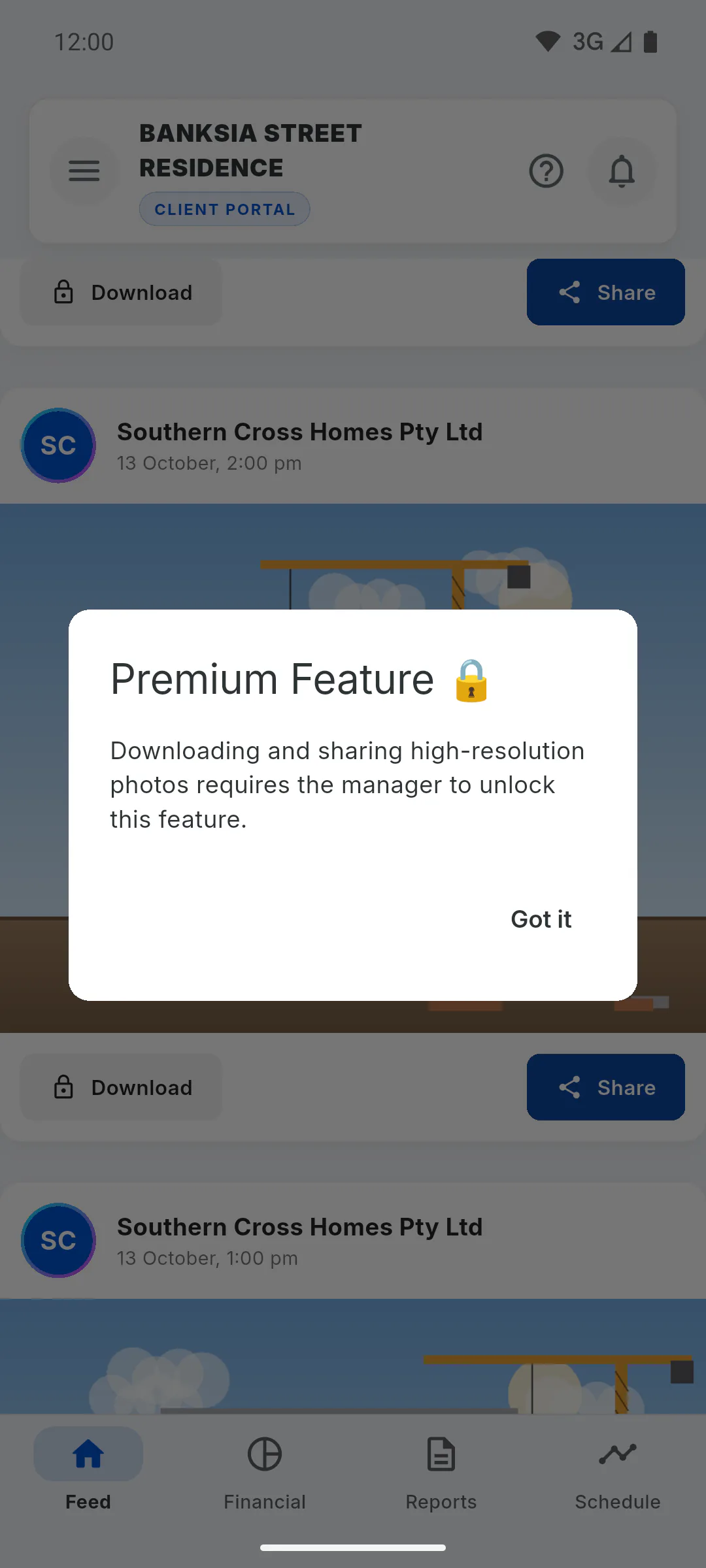
If Download shows a padlock, the manager hasn't allowed photo downloads for you yet. Tapping Download or Share shows Premium Feature. Ask the project manager to unlock it.
Step 5: Many photos at once
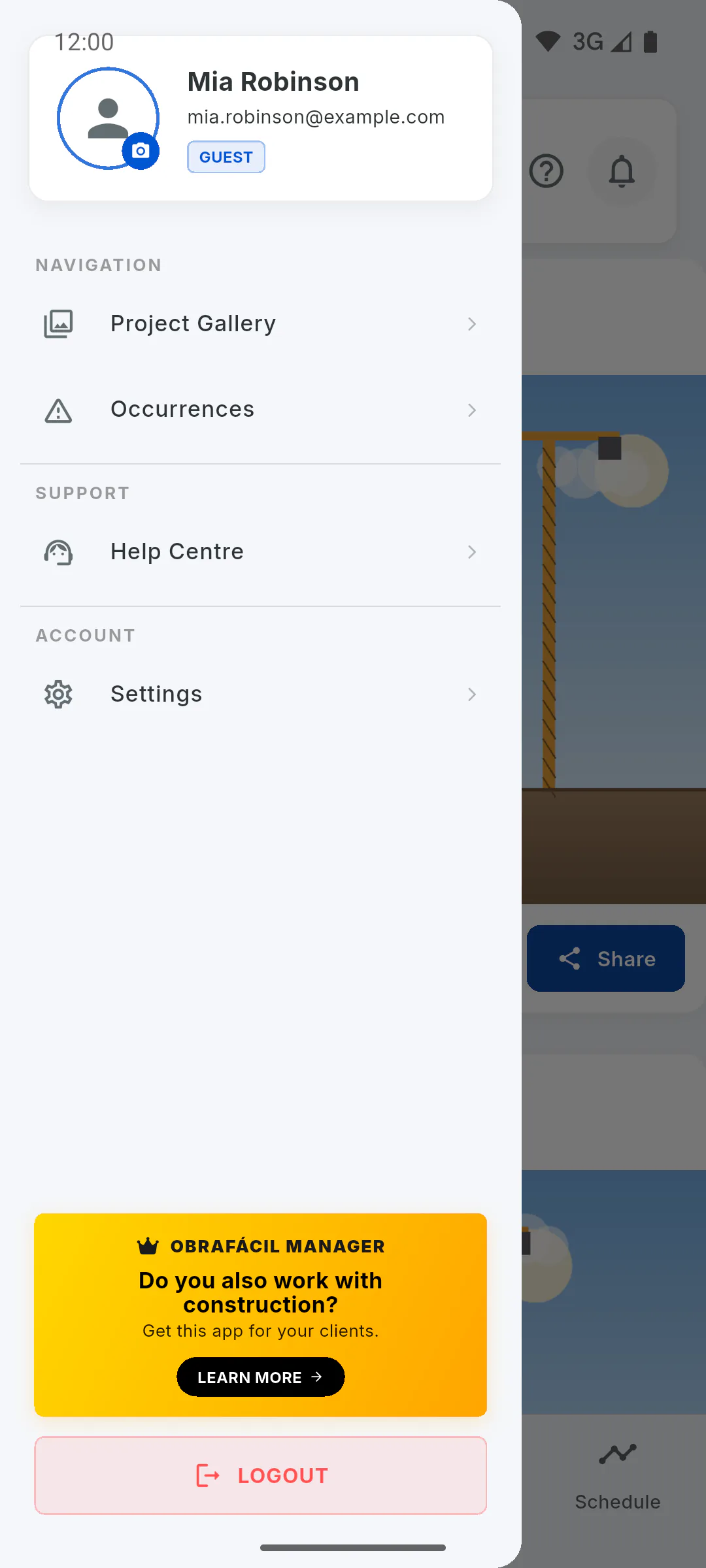
To see photos in a grid or request all of them at once, open the Project Gallery from the menu.
How to download or share photos from the Feed
Browse project photos in the Client Portal Feed, download a photo in high resolution or share it with anyone you like.
For clients5 steps
Didn't find what you were looking for?
Chat with support on WhatsApp or raise a ticket in the app.