
Step 1: Open the list
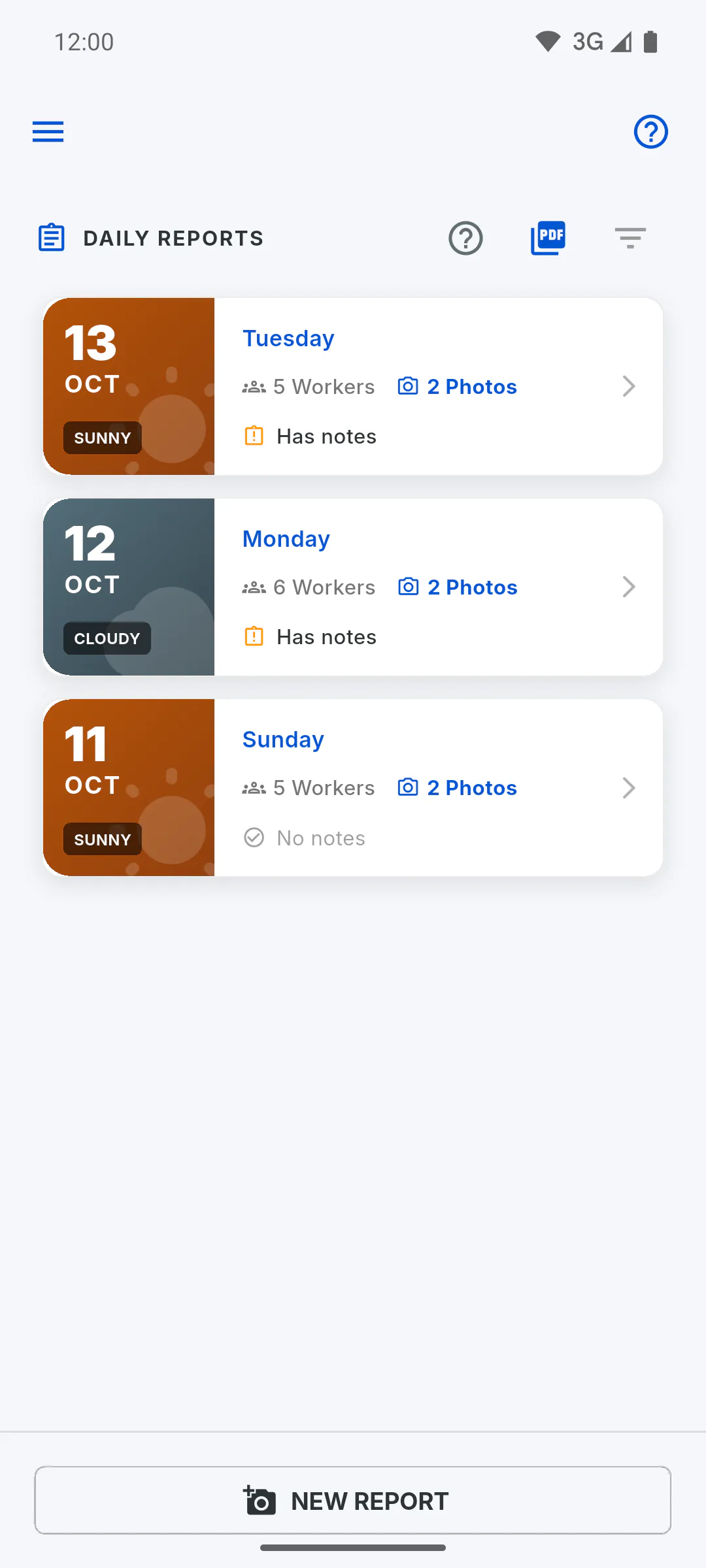
Open the project and tap Daily Reports. For crew members, the project usually opens there already. Reports are listed newest first, a few at a time: scroll to the end to load more. Pull the list down to refresh.
Step 2: Read the card
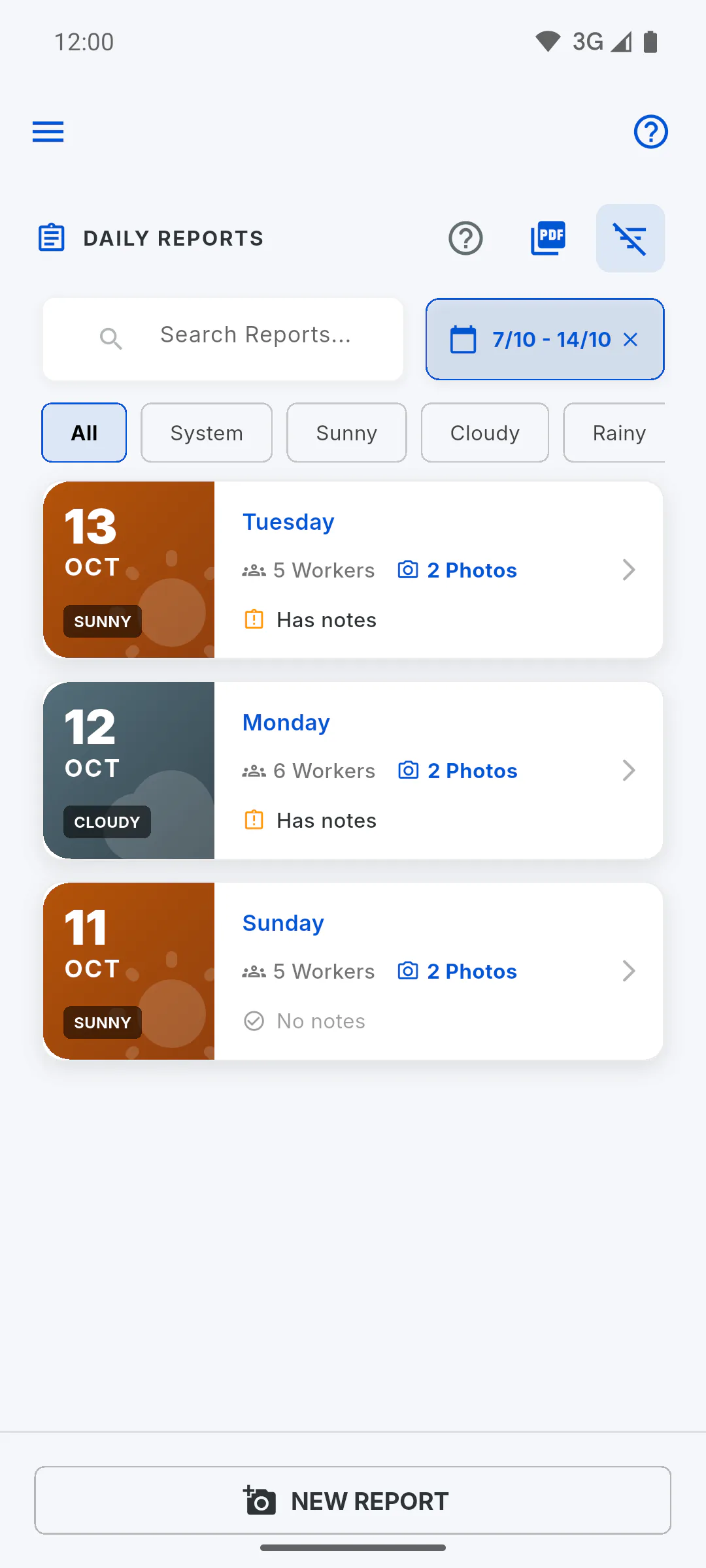
Each card shows the date, the day of the week and the weather, plus Workers (crew present plus extra workforce), Photos, and whether the report Has notes or has No notes.
Step 3: Show the filters
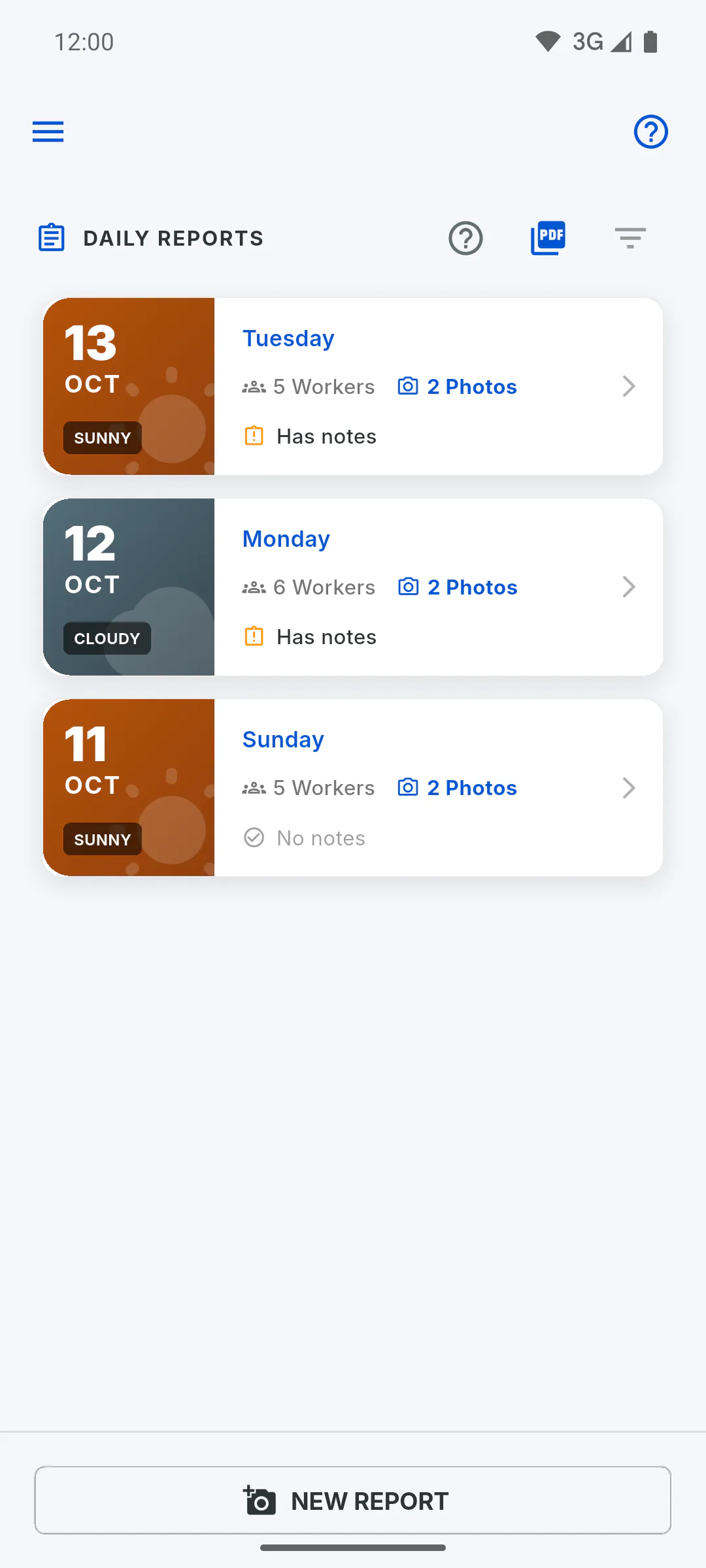
Tap the filter icon at the top, to the right of Daily Reports. The search box, the calendar button and the weather buttons appear.
Step 4: Filter by date range
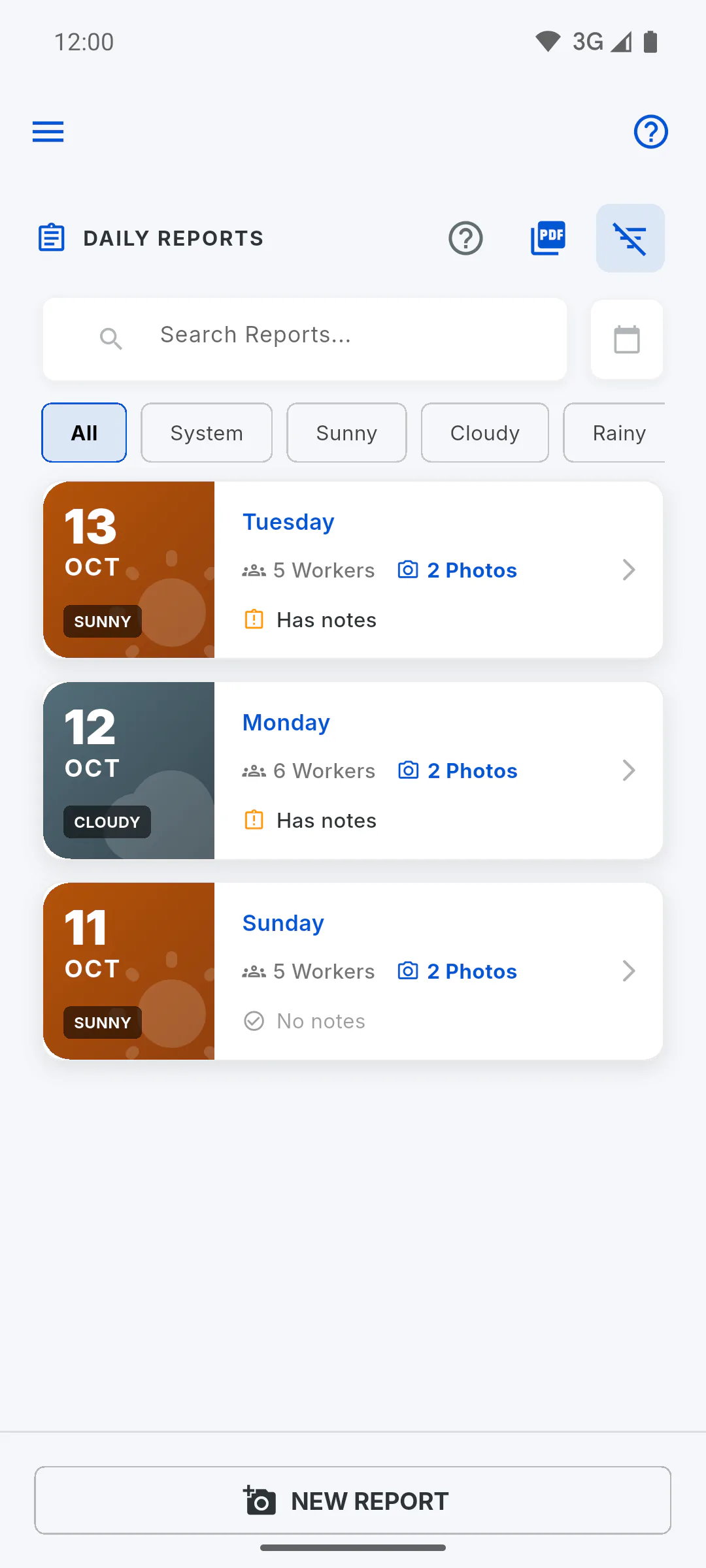
Tap the calendar next to the search box and pick the first and last day. The list then shows only that range, and the dates appear on the button. To clear it, tap the X next to the dates.
Step 5: Filter by weather
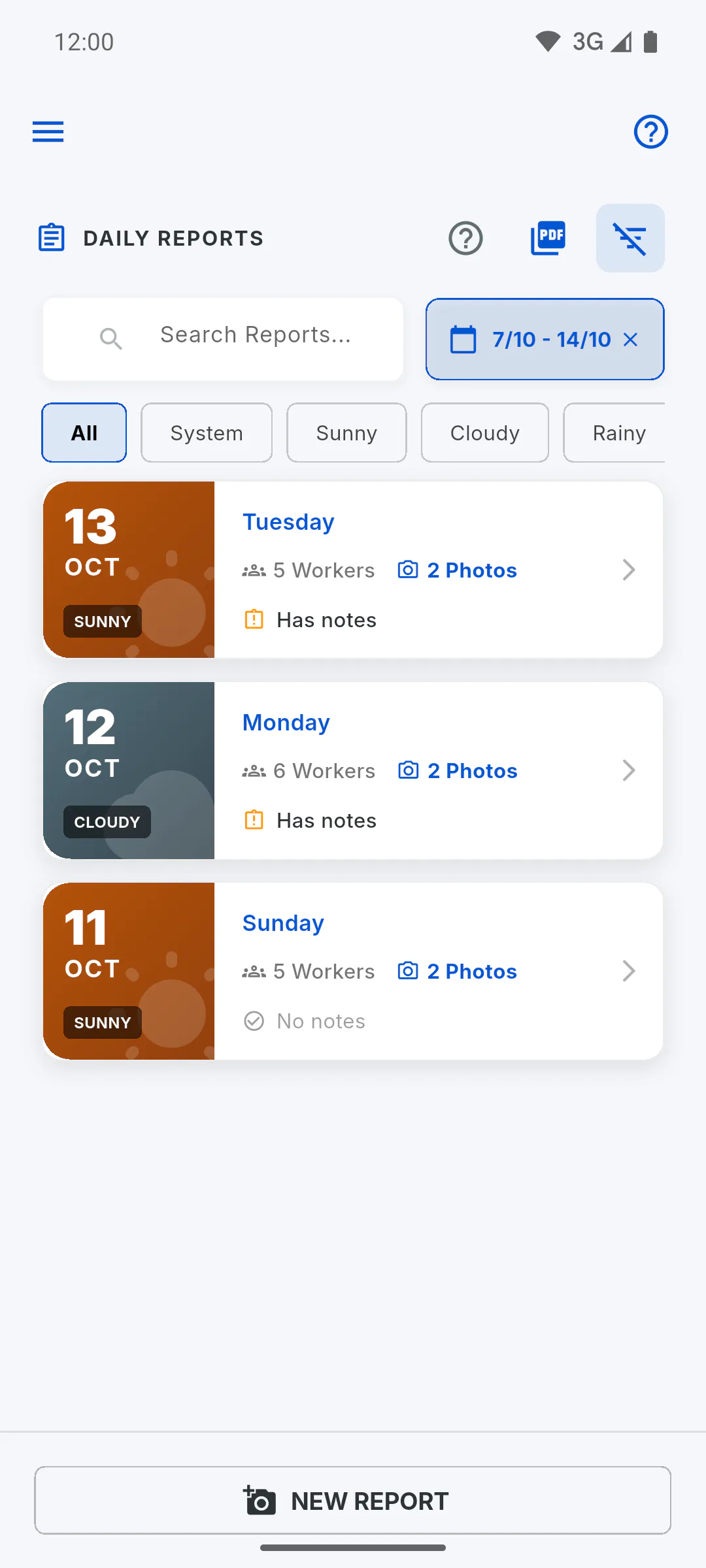
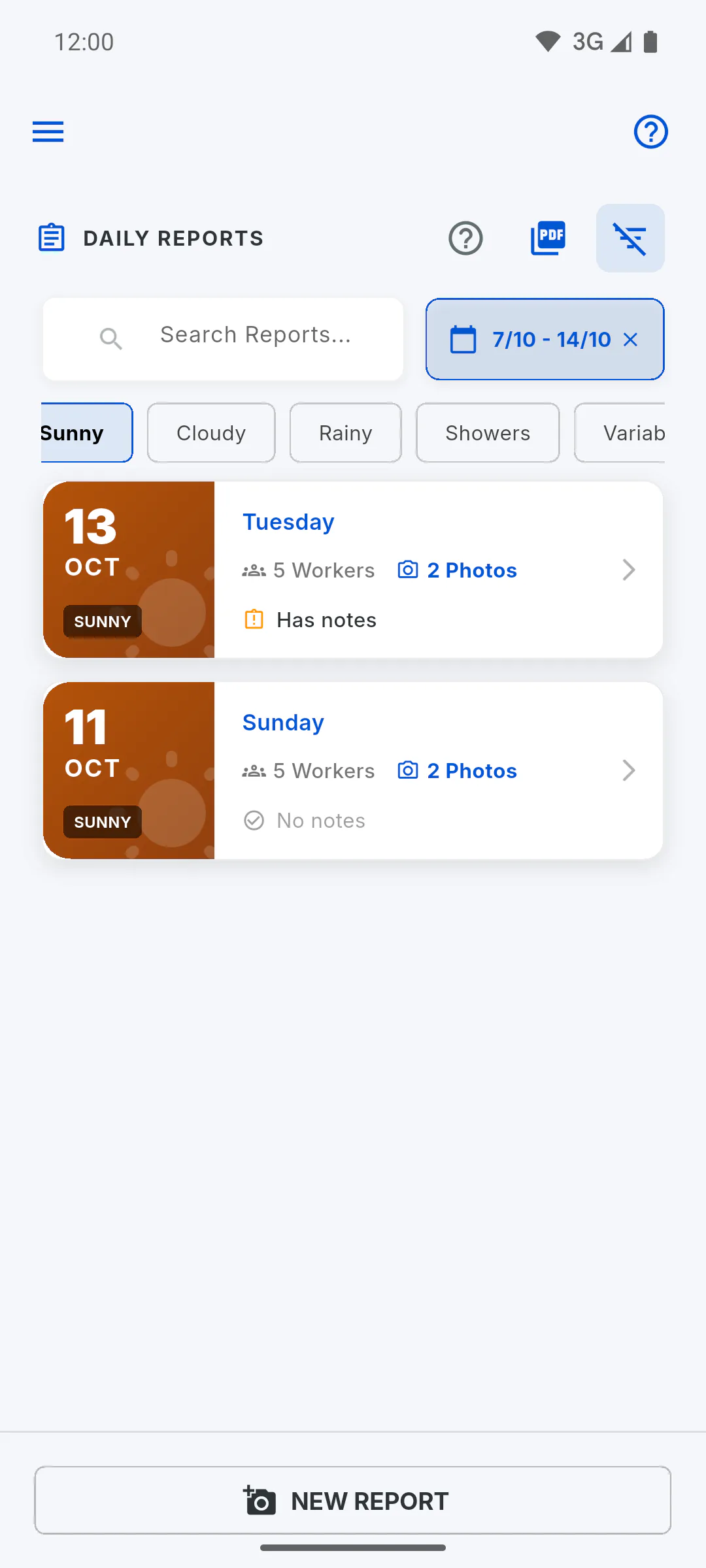
Tap a weather type: Sunny, Cloudy, Rainy, Showers or Variable; All shows everything again. System shows the automatic entries created when project progress goes down. This filter only looks at reports already loaded: scroll the list or filter by date range first.
Step 6: About the search box
The Search Reports... box searches by the report's weather, using its name in the app language (such as Sunny or Rainy): it doesn't look through the activities or observations text. To find a day, use the date range and weather. If the range you picked has no reports, No Reports appears: clear the date filter.
Step 7: Open the report
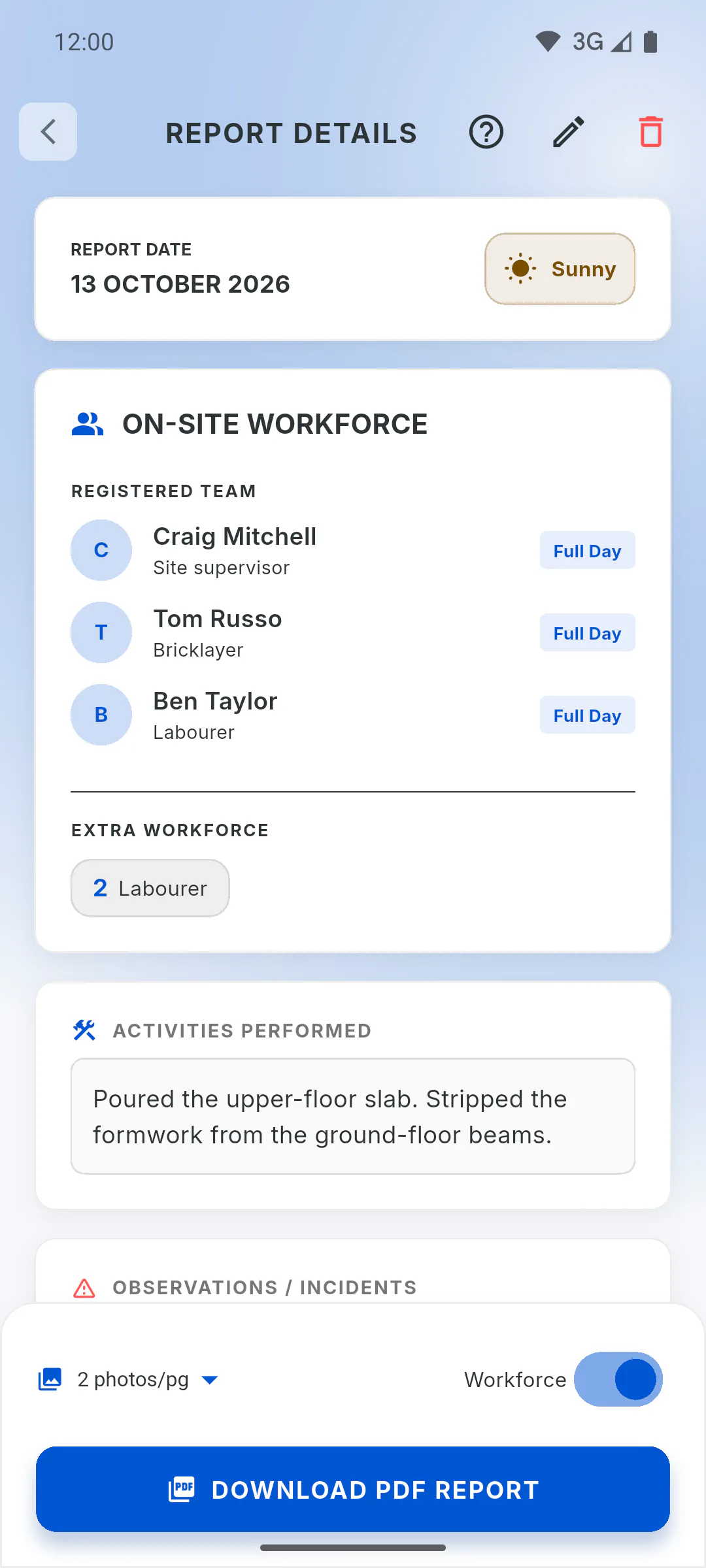
Tap the card to open Report Details. From there you can download the PDF, edit or delete the report.
How to find a daily report (date range and weather filters)
Find an older report in the Daily Reports list: filter by a date range on the calendar and by the weather that day.
For managers and team members7 steps
Didn't find what you were looking for?
Chat with support on WhatsApp or raise a ticket in the app.