
Step 1: The invitation
The person who manages the project sends you the invitation by email or WhatsApp, with a link. Your access is tied to the email address they entered for you in the invitation.
Step 2: Open the link and sign up
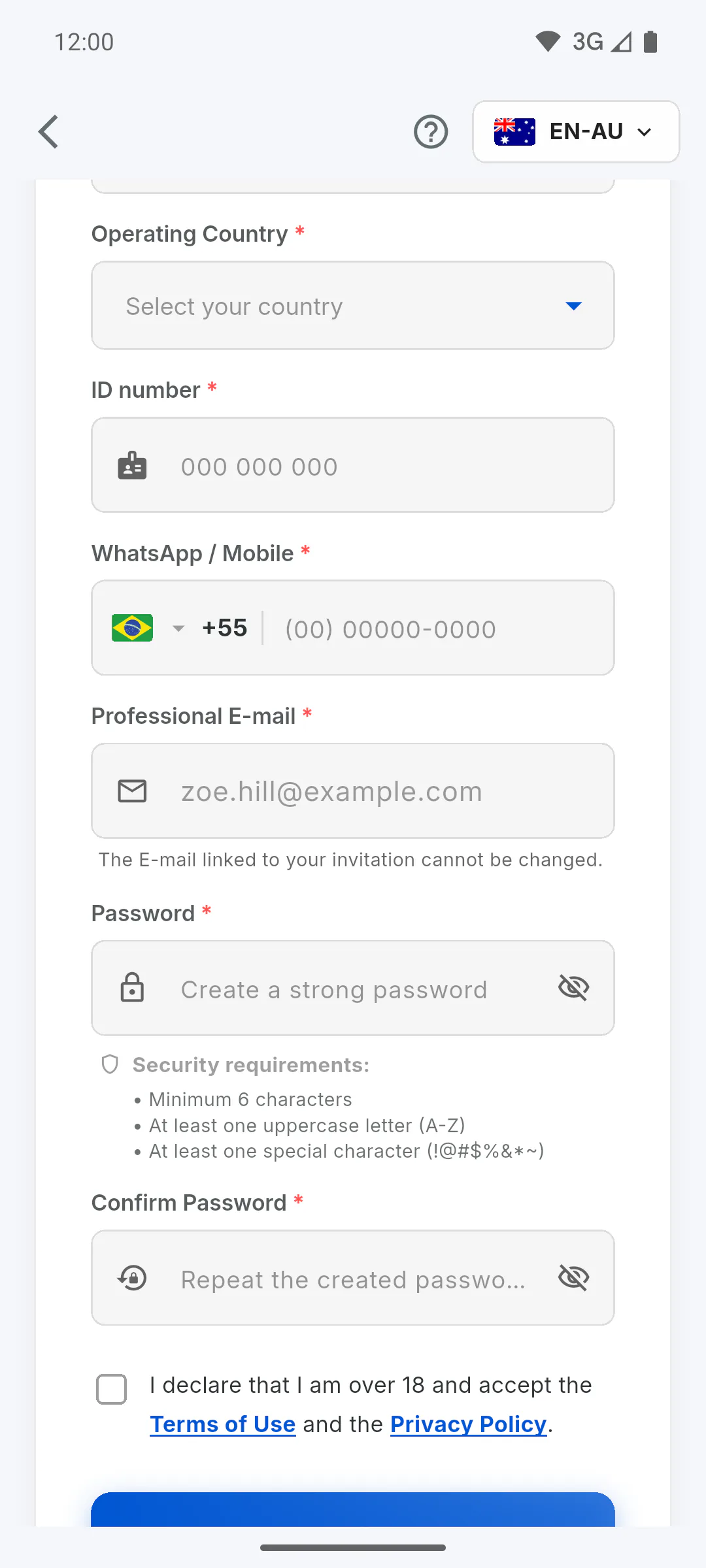
The link opens the ObraFácil Create Account screen in your browser, with your email already filled in and locked, plus the notice The E-mail linked to your invitation cannot be changed. Fill in the rest, create a password and tap Finish Registration: How to create your ObraFácil account. Afterwards you can use the same account in the mobile app.
Step 3: Confirm your email
Accounts created with email and password need to confirm the address before signing in: I didn't get the confirmation email: what to do
Step 4: Always use the same email
The project only shows up on the account with the invited email. You can also sign in with Google or Apple, as long as that account uses the same email; with Apple, choose to share your email rather than hide it. If you signed up with a different address, ask the person who invited you to send an invitation to it.
Step 5: Already have an account?
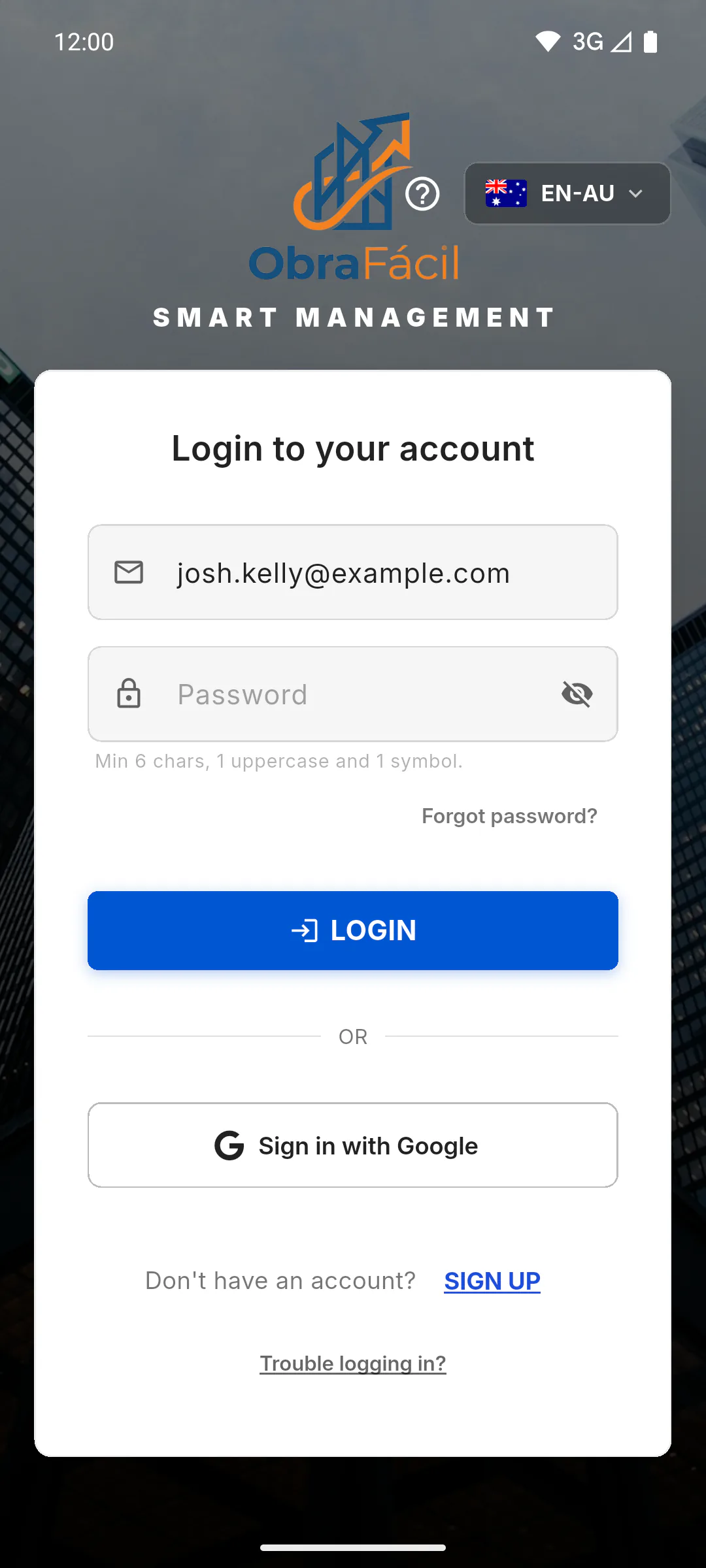
No need to create another one. Just sign in to the app with that email: the project from the invitation shows up on its own when you sign in.
Step 6: Where the project shows up
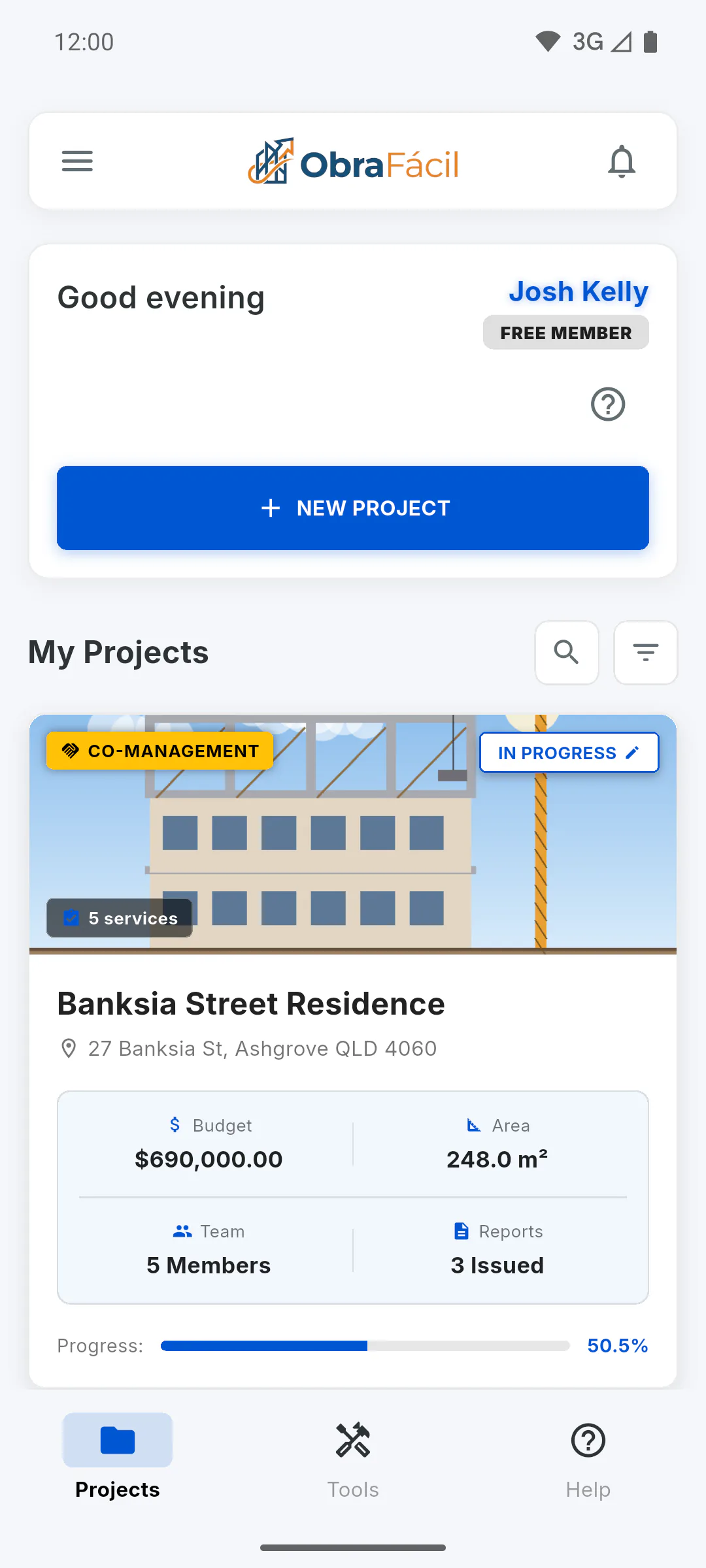
If you were invited to the team or as an engineer, you go to the dashboard, where the project appears in the list with the Co-Management label. If you were invited as a client, you go to the Client Portal. If you're also an owner, engineer or team member on another project, the app opens the dashboard instead, and the project you were invited to shows the You're the Client badge: its card opens that project's Client Portal.
I got an invitation: how to create an account and join the project
Invited to someone's project as team, engineer or client? Create your account with the same email the invitation went to, or sign in if you already have one, and the project shows up for you.
For team members and clients6 steps
Didn't find what you were looking for?
Chat with support on WhatsApp or raise a ticket in the app.