
Step 1: Open the sign-up screen
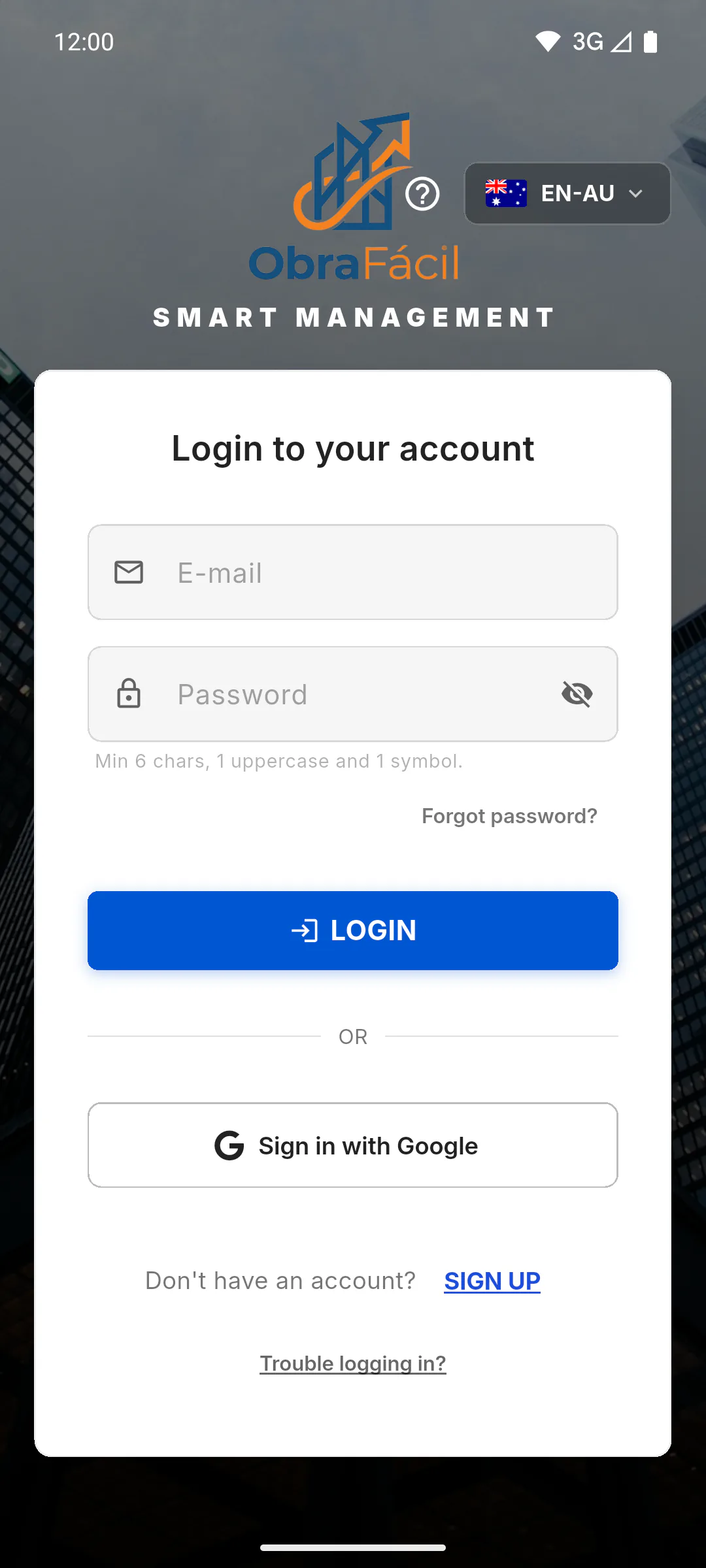
On the login screen, tap Sign Up, next to Don't have an account?. The Create Account screen opens. The button at the top showing the current language code (such as EN-AU) changes the app language.
- Rather use your Google or Apple account? How to sign in with Google or Apple
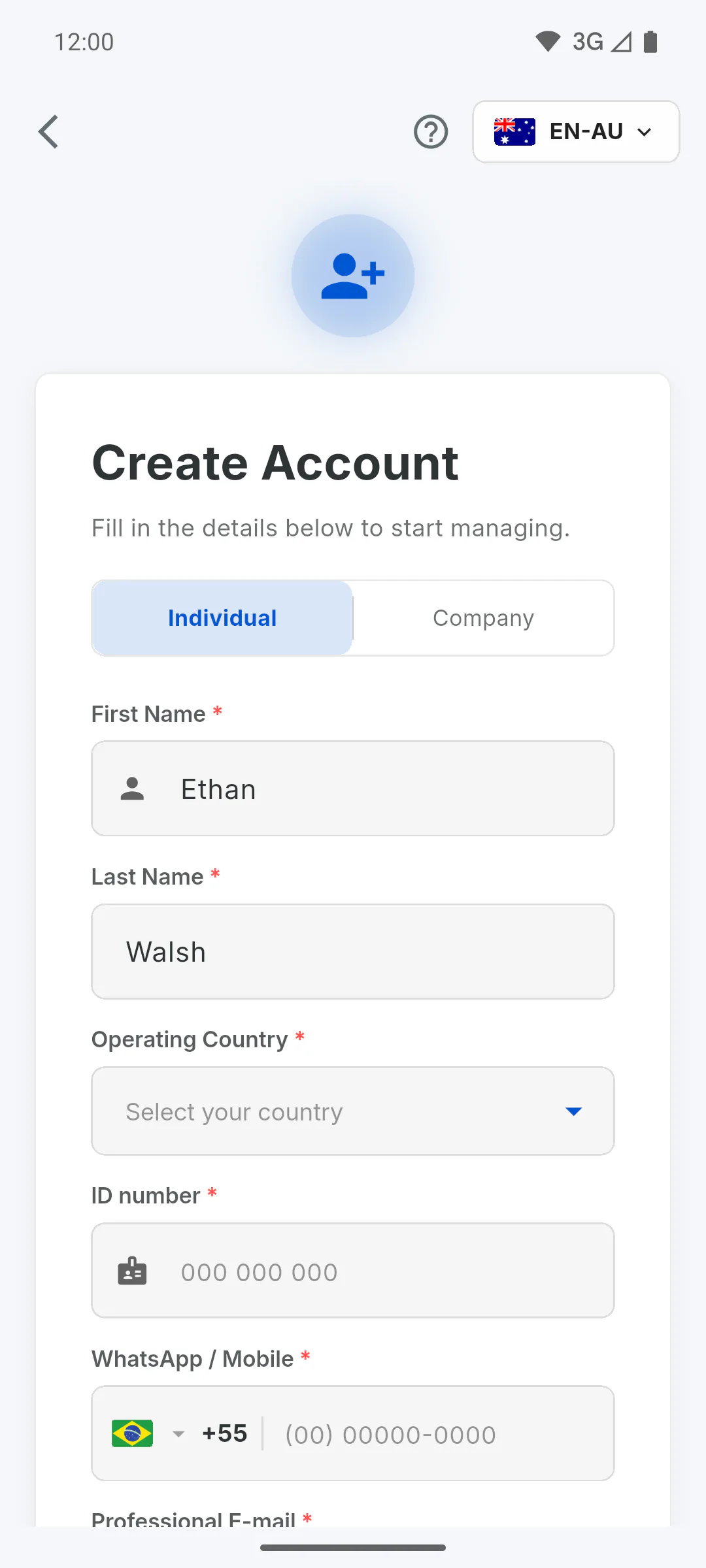
Step 2: Account type and name
At the top, choose Individual or Company. Then fill in First Name and Last Name. Fields marked * are required.
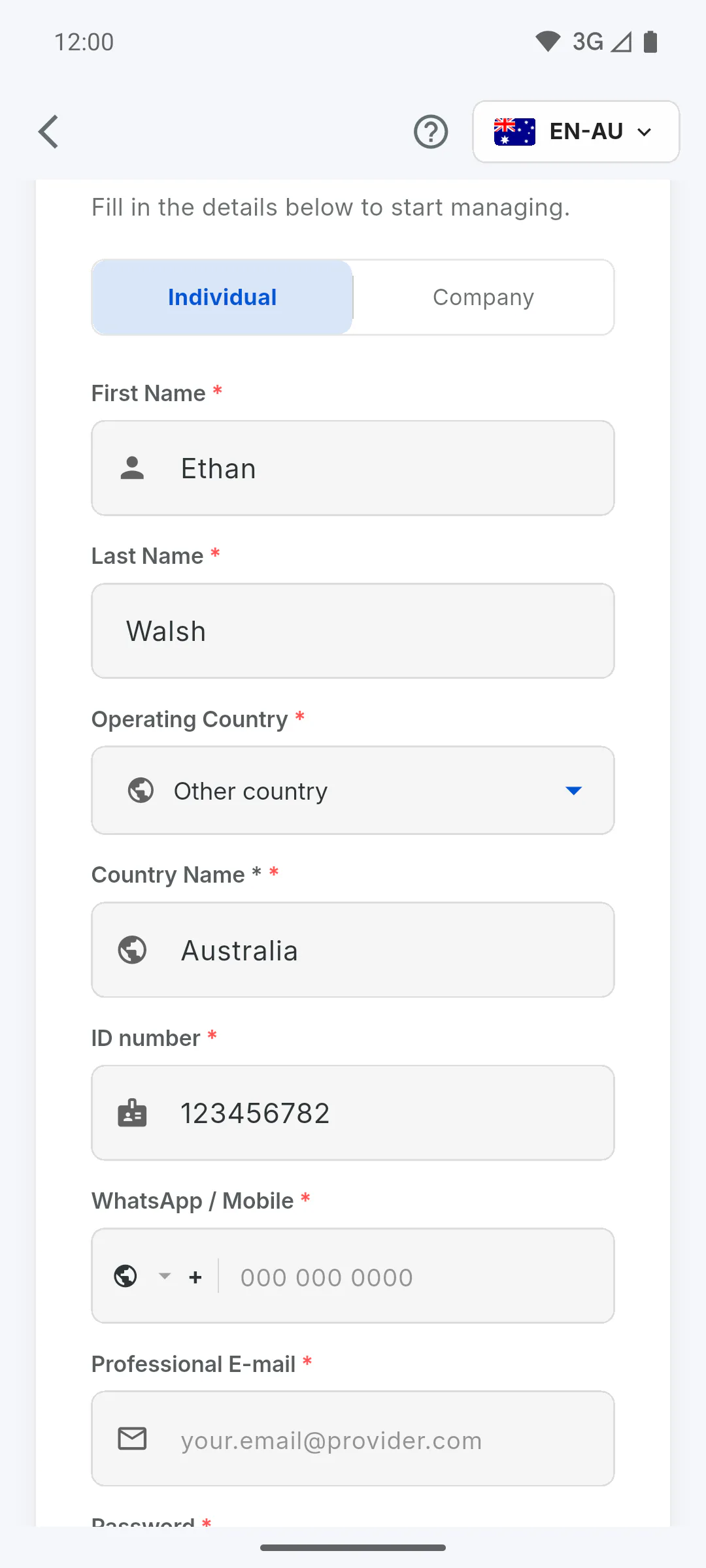
Step 3: Country and ID
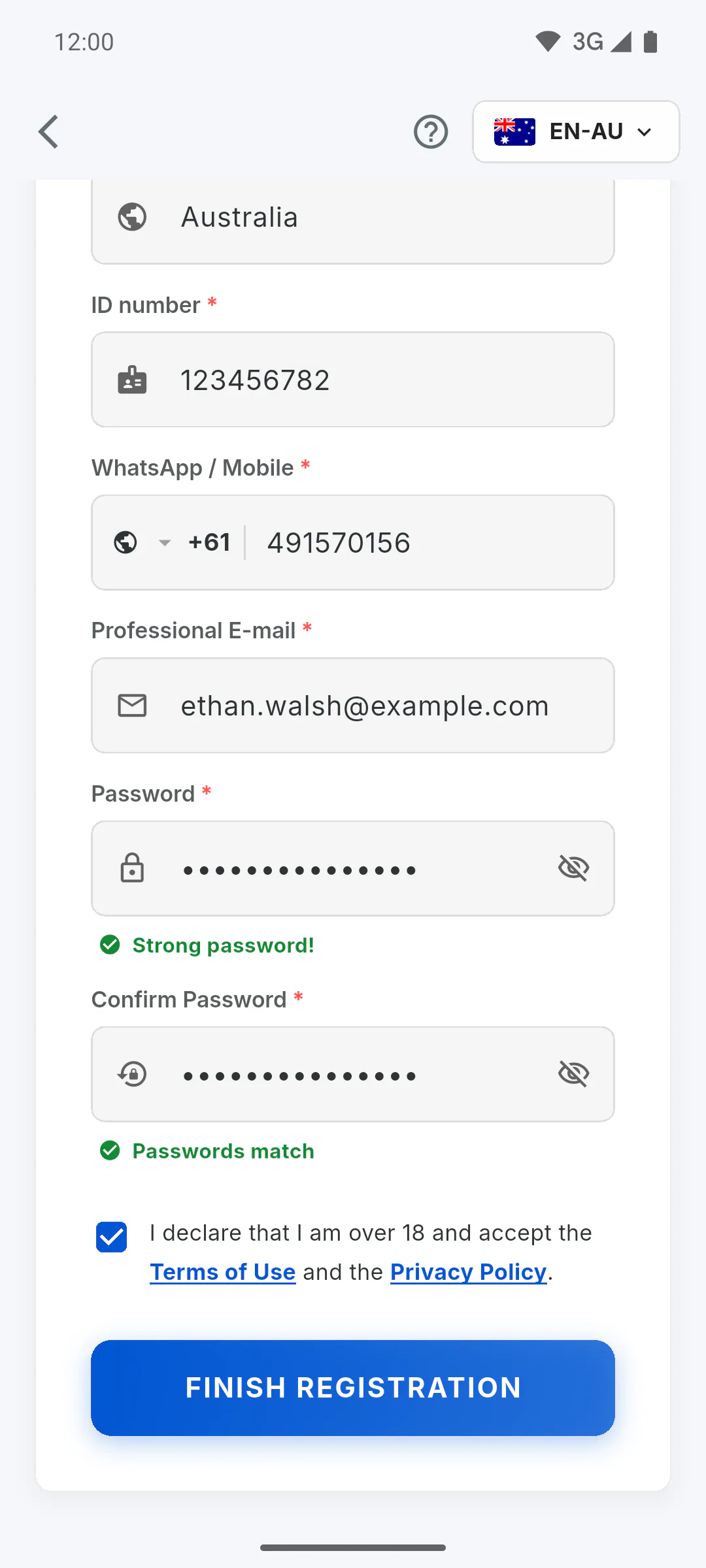
Under Operating Country, pick your country. If it isn't listed, choose Other country and type it under Country Name. Australia isn't on the list, so choose Other country, type the name and fill in ID number (or Company registration number for a business). With Other country, the mobile number has no country code yet: tap the globe in WhatsApp / Mobile, choose Custom DDI at the end of the list and type +61.
Step 4: Phone, email and password
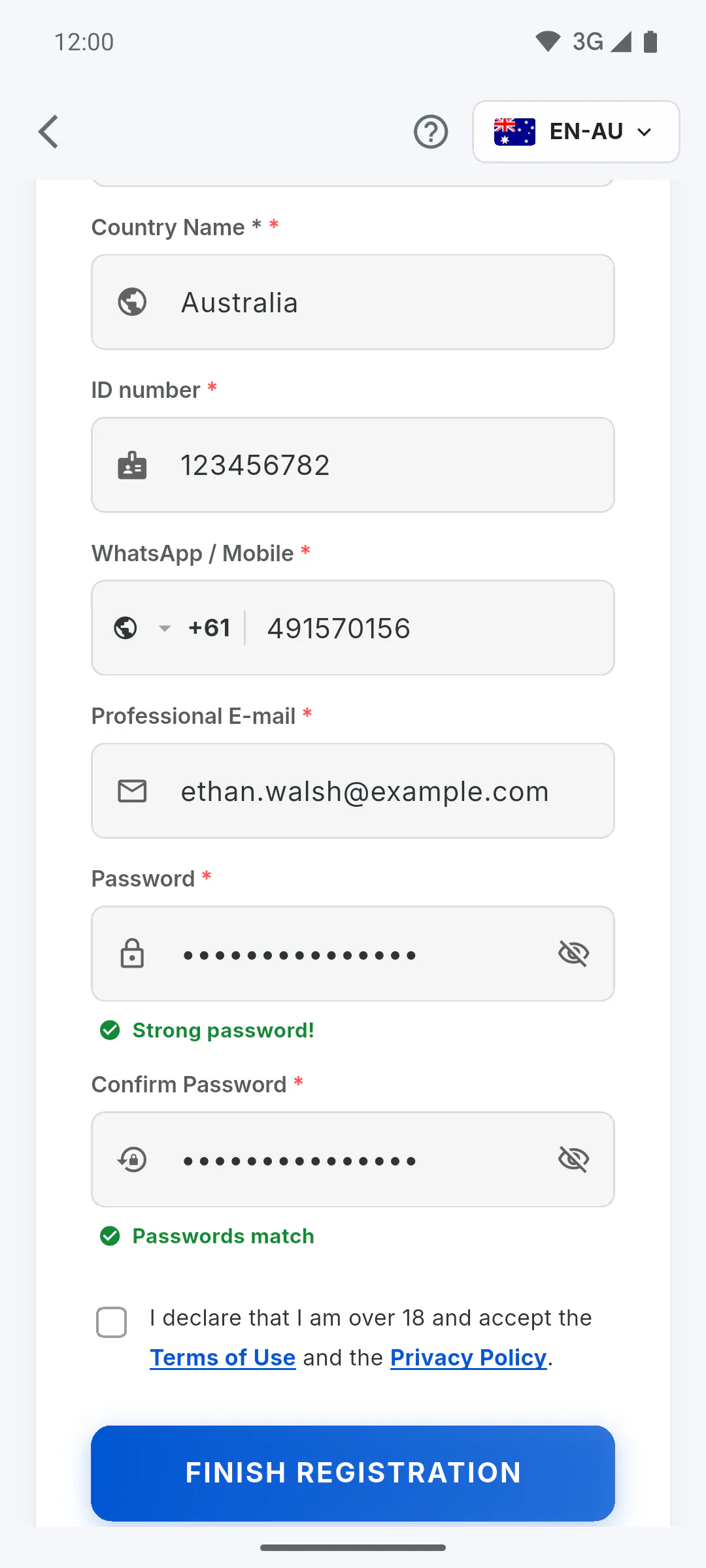
Fill in WhatsApp / Mobile; to change the country code, tap the flag in the field. Then fill in Professional E-mail, Password and Confirm Password. The password must have:
- at least 6 characters
- one uppercase letter (A-Z)
- one of these special characters: ! @ # $ % & * ~
It also can't start or end with a space. When it meets the rules, Strong password! appears.
Step 5: Accept the terms and finish
Tick I declare that I am over 18, accept the Terms of Use and acknowledge the Privacy Policy.; both names open the documents. Just below, the I want to receive ObraFácil news and offers by email. I can turn this off at any time in Profile. box is optional and starts unticked: tick it only if you want these emails. You can change this later in Profile, with the News and offers by email switch. Tap Finish Registration while online. If you see This email is already registered., you already have an account: How to recover your password
Step 6: Confirm your email
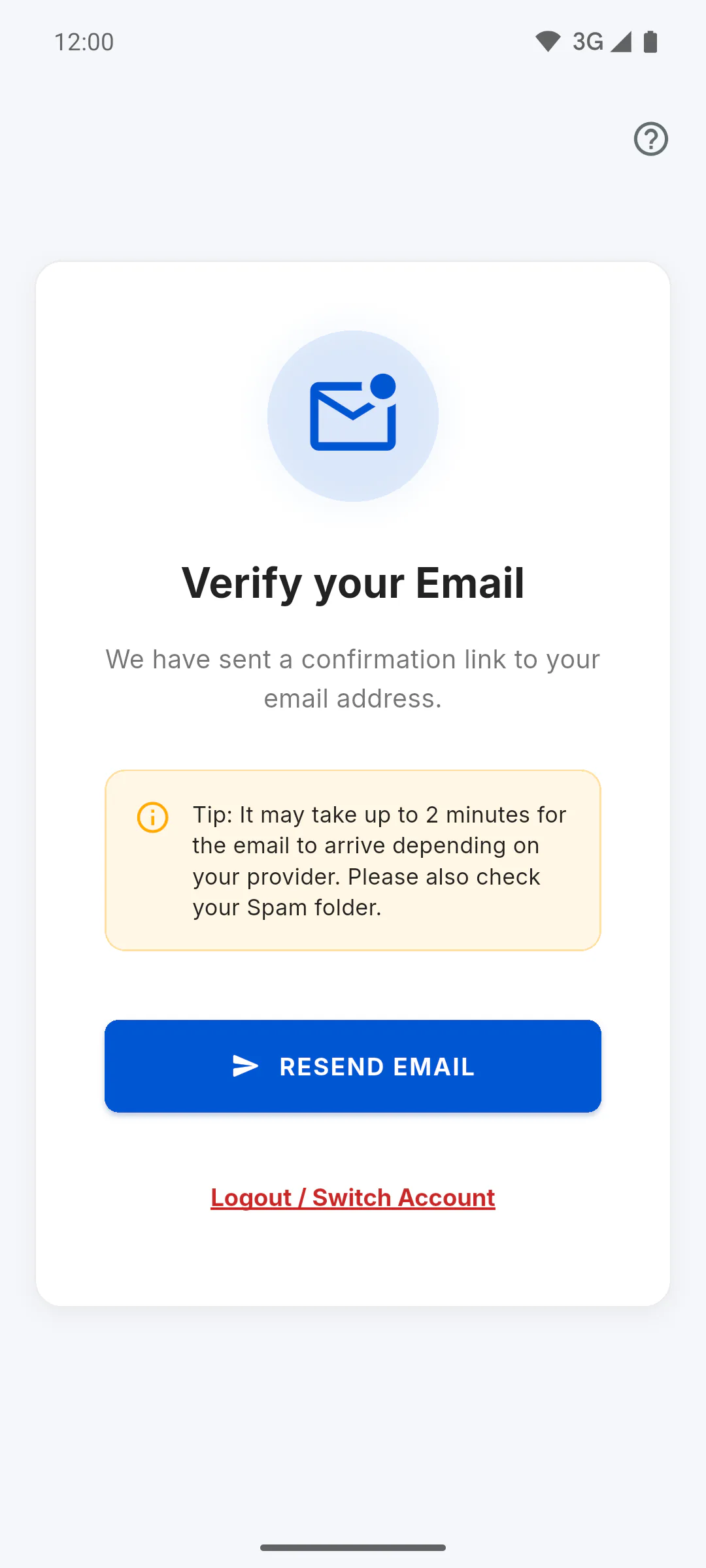
The app opens Verify your Email and sends a link to the address you entered. Open the email and tap the button: the app moves on by itself. I didn't get the confirmation email: what to do
Step 7: First steps
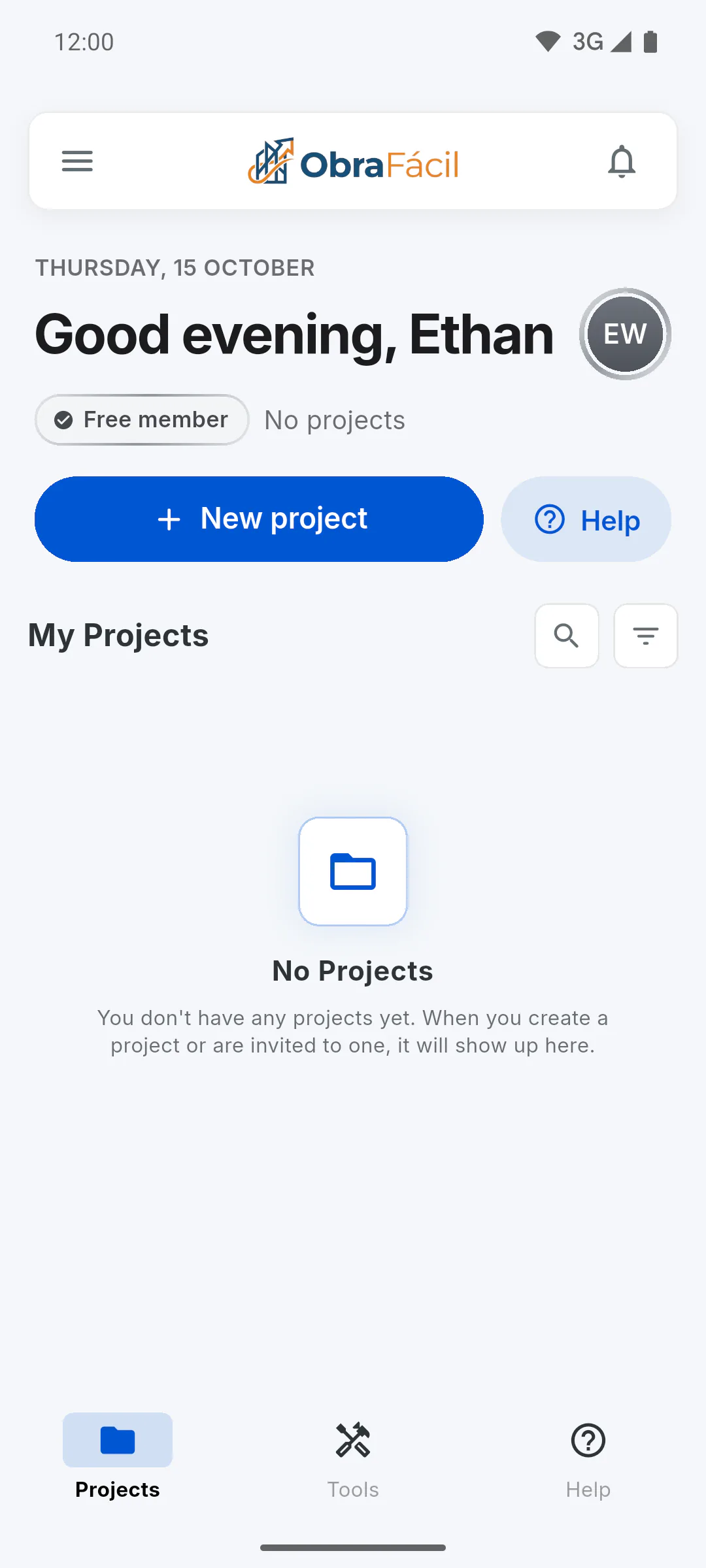
On a mobile, the app asks for a few permissions: Why the app asks for camera, gallery and notification access. Then the dashboard opens. Your account starts on the free plan. Create your first project: How to create your first project
How to create your ObraFácil account
Create your account with email and password in a few minutes: personal details, country, ID, phone, password and accepting the Terms. Then confirm your email and start with your first project.
For managers7 steps
Didn't find what you were looking for?
Chat with support on WhatsApp or raise a ticket in the app.