
Step 1: Open the section in the report
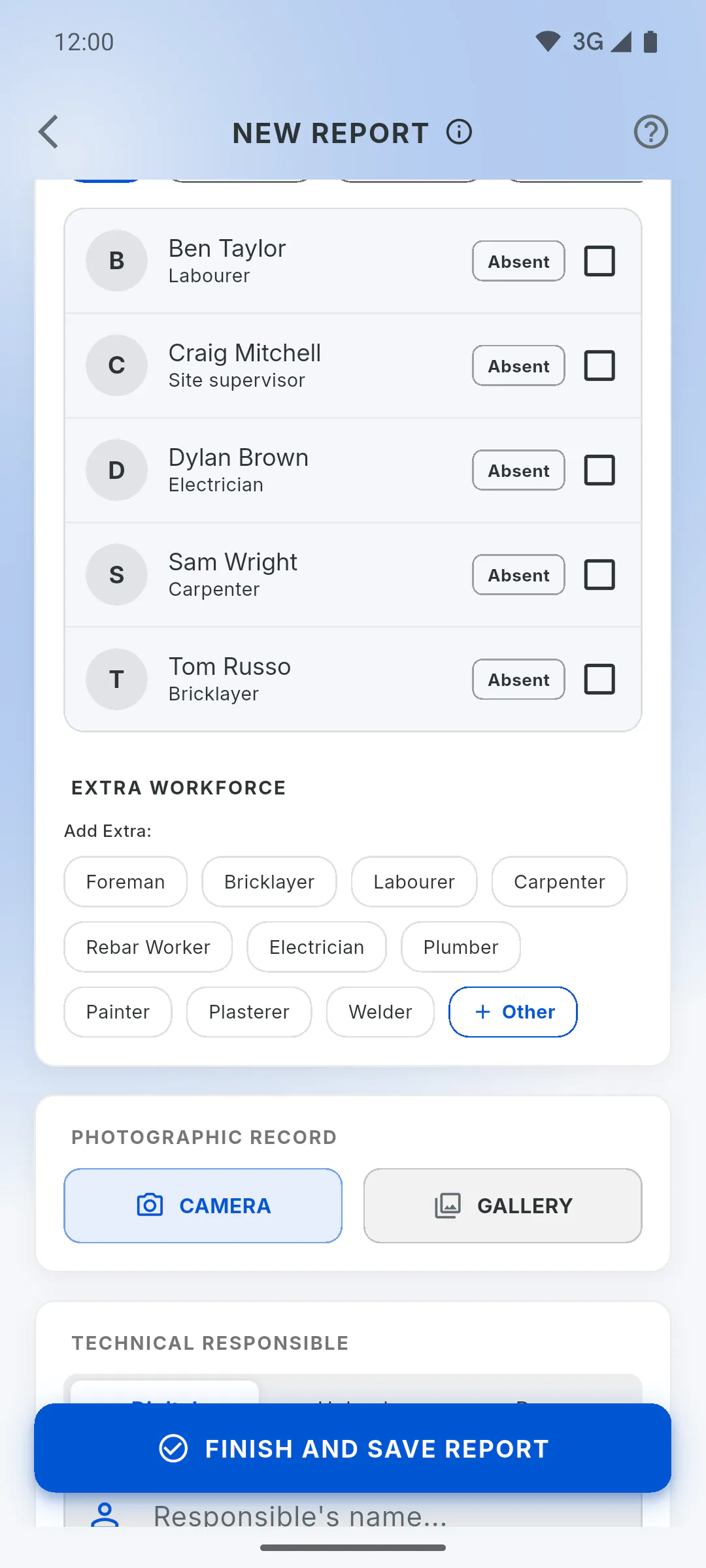
In New Report, scroll down to Extra Workforce, right below Project Team. Use it for people who worked that day but aren't on your team list: here you count people by role, without names.
Step 2: Add people by role
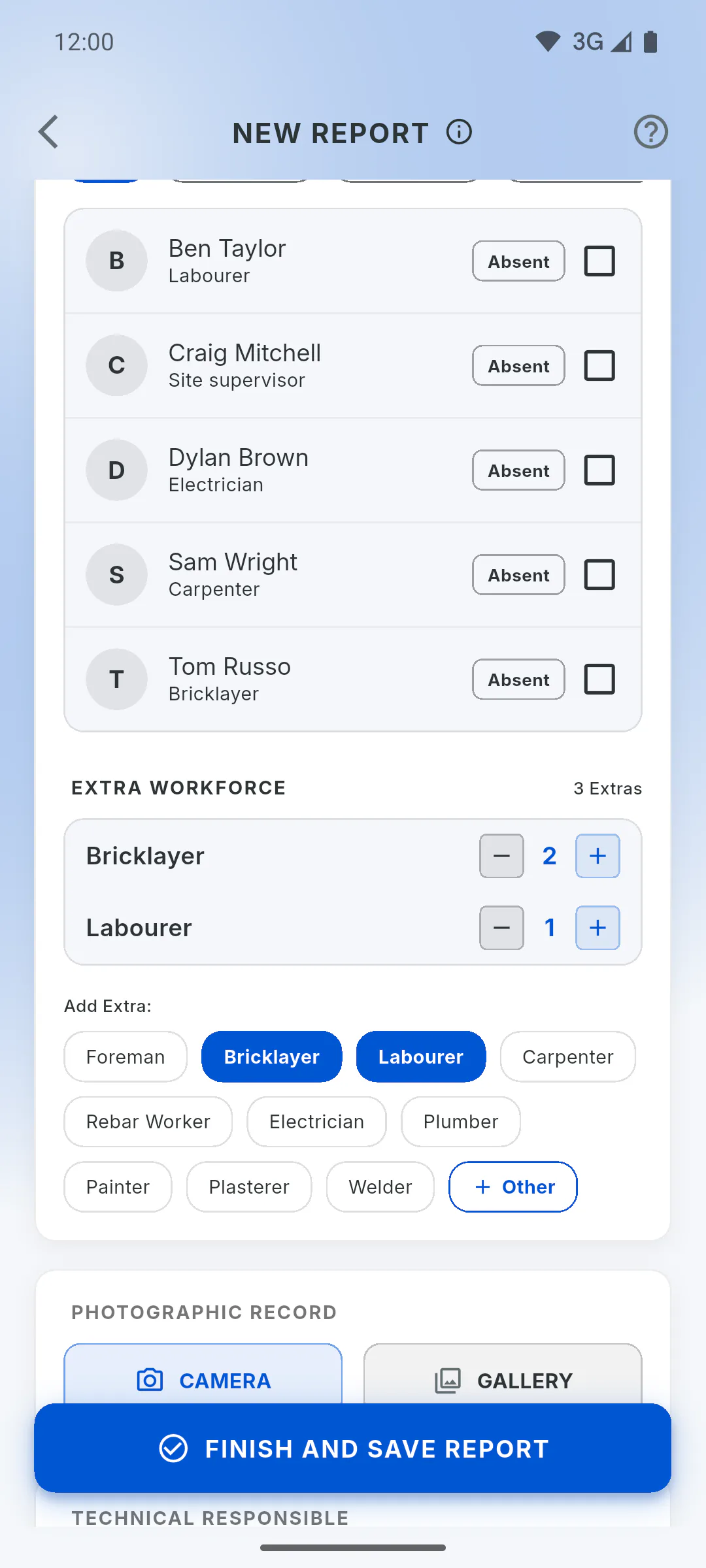
Under Add Extra:, tap a role: Foreman, Bricklayer, Labourer, Carpenter, Rebar Worker, Electrician, Plumber, Painter, Plasterer or Welder. Each tap adds one person. The role shows up in the list above, and the total appears next to the title, for example 3 Extras.
Step 3: Adjust the count
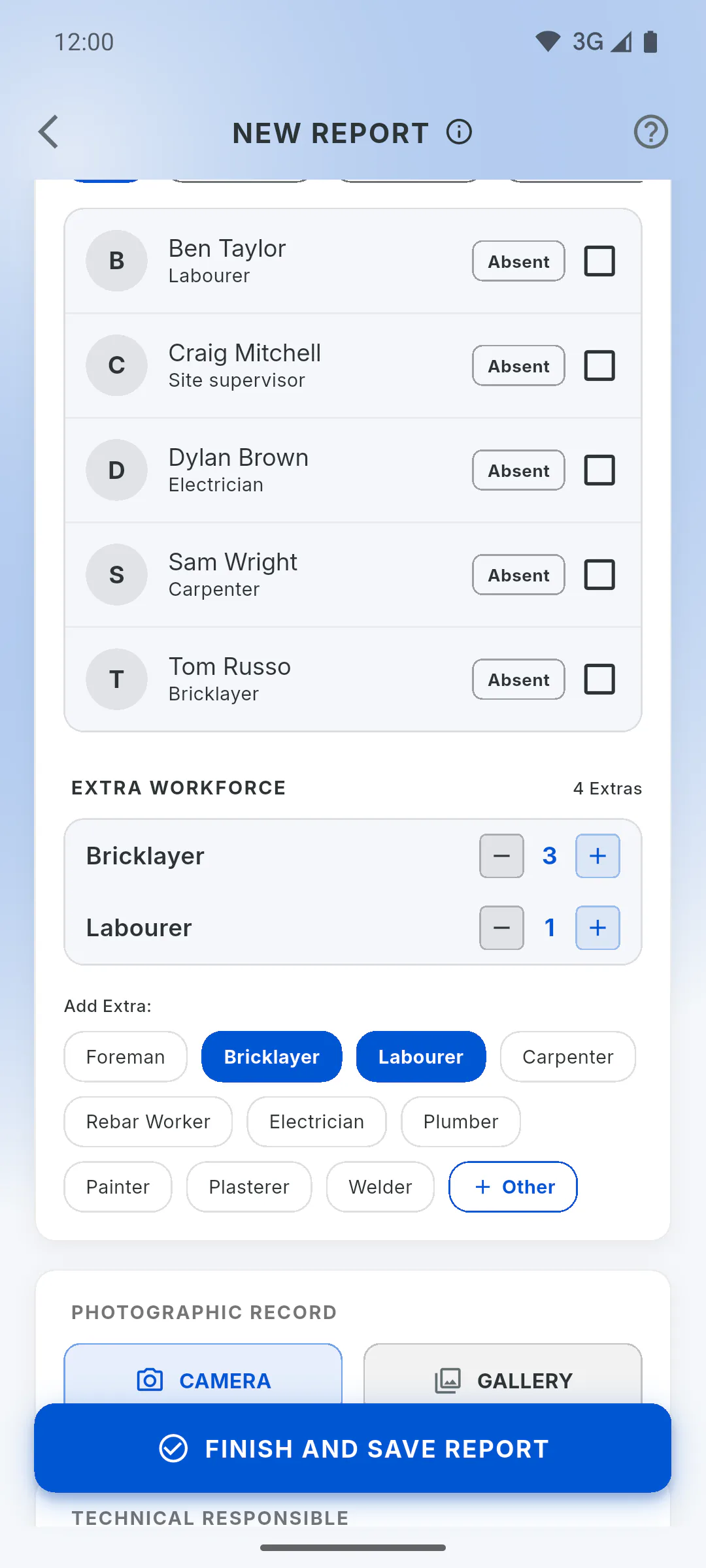
In the list, use the minus and plus buttons next to each role. When the count reaches zero, the role leaves the list.
Step 4: Type another role
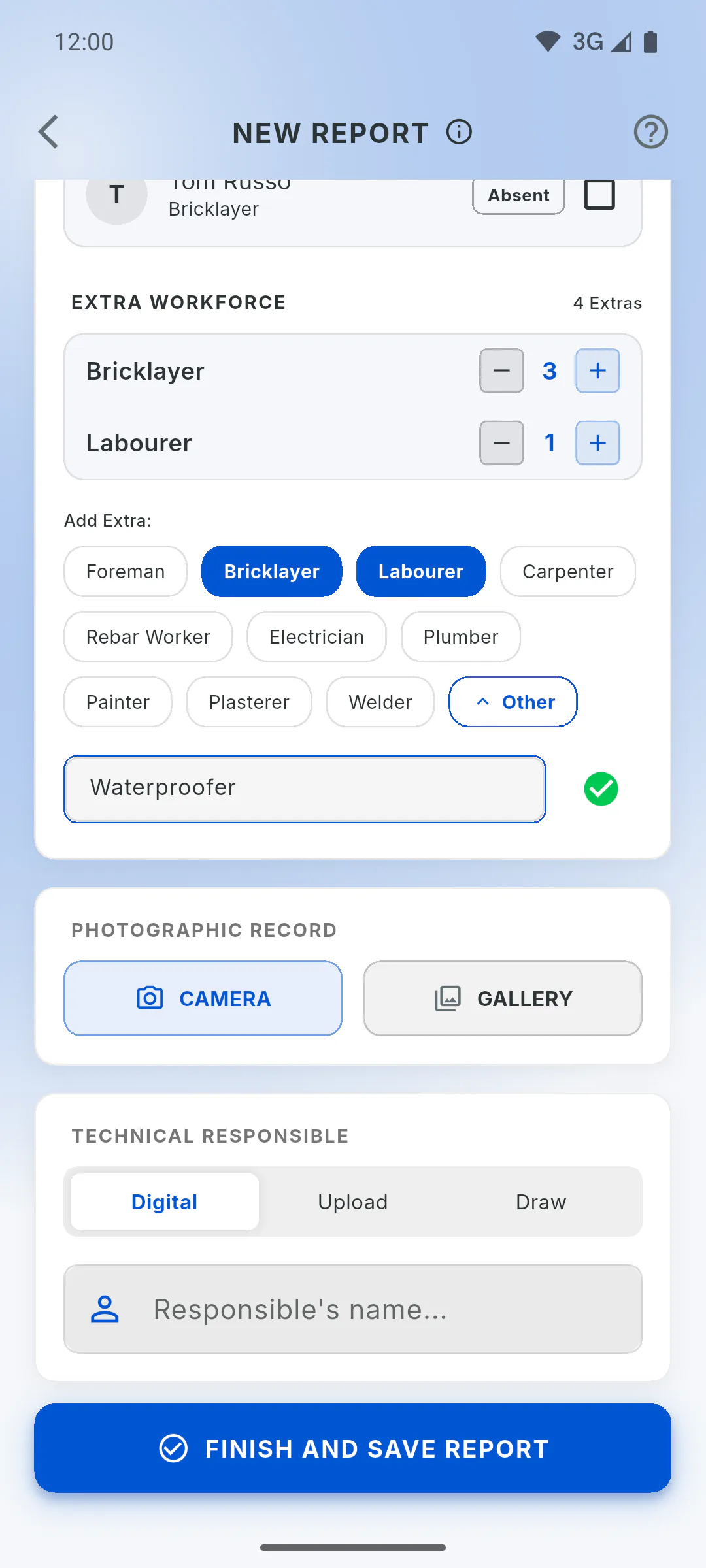
If the role isn't one of the buttons, tap Other, type the role or name in the Professional's name or role... field and tap the green tick. It's added with one person; use plus to add more.
Step 5: After saving
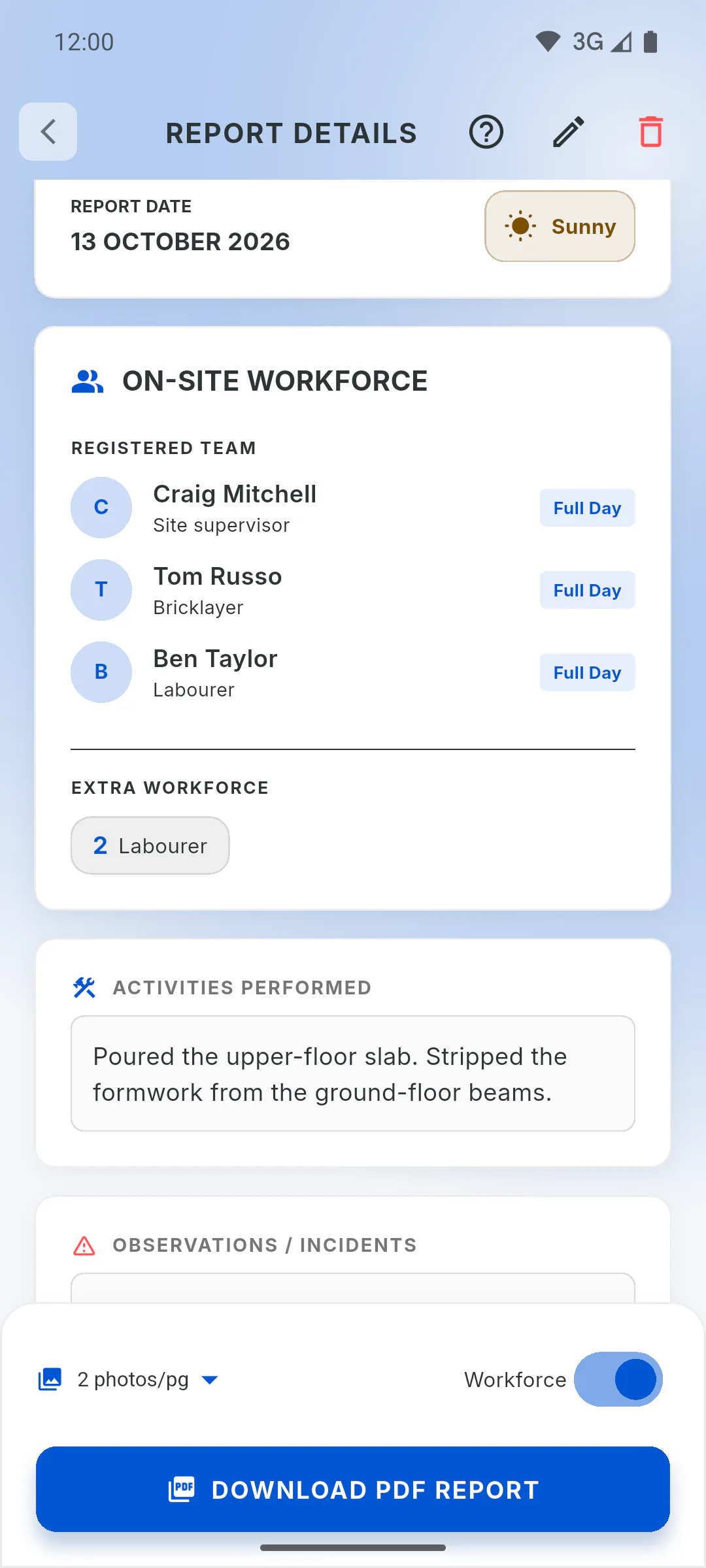
Tap Finish and Save Report. In the saved report, extra workers show under On-Site Workforce, in Extra Workforce, and count towards Workers on the list card. In the PDF, they appear in the workforce table. Extra workforce isn't included in payroll and can't be changed once saved: if you made a mistake, delete the report and create a new one.
How to log extra workforce in a daily report
Count the people who worked that day without being on your team list, by role: bricklayers, labourers, electricians or a role you type in.
For managers and team members5 steps
Didn't find what you were looking for?
Chat with support on WhatsApp or raise a ticket in the app.