
Step 1: Where to choose it
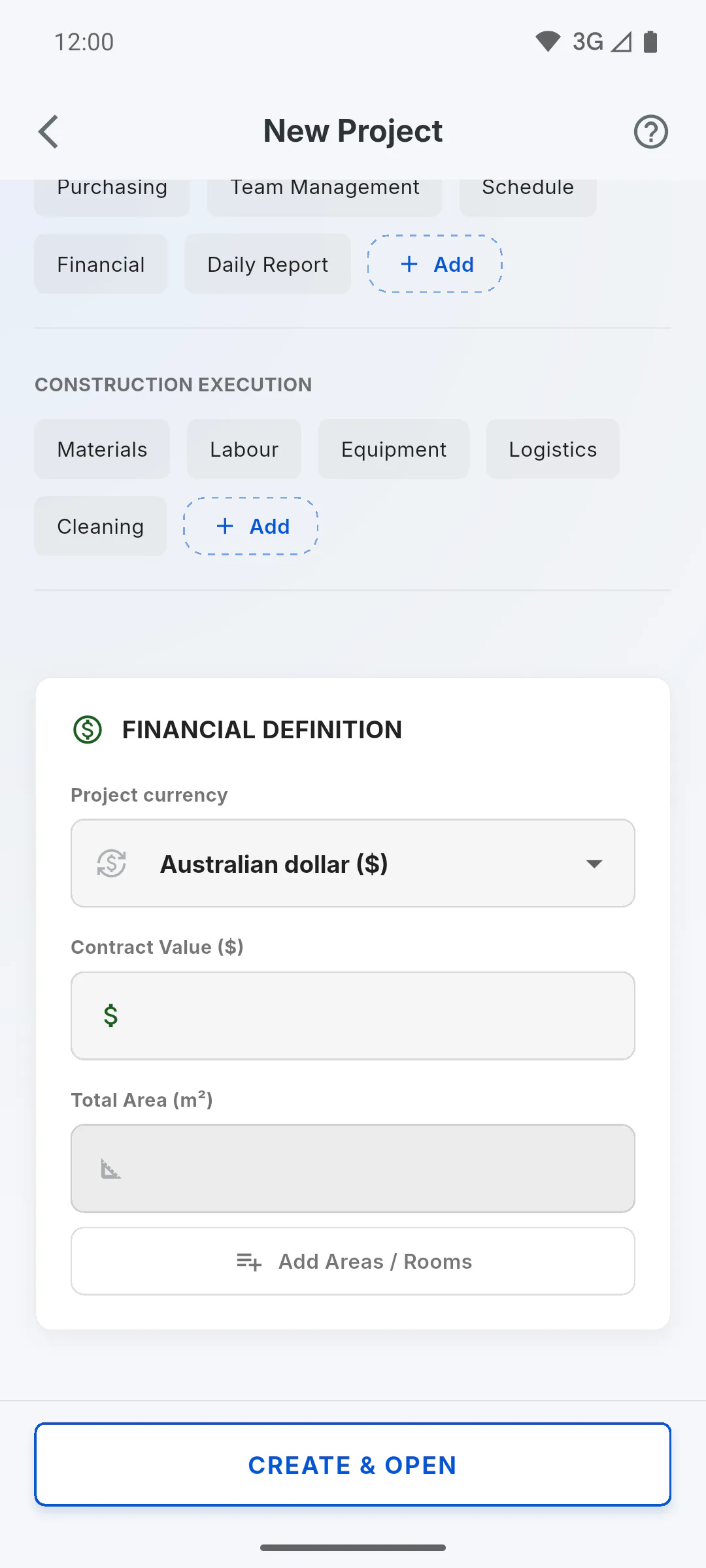
When you create a project or in Edit Project, Project currency is the first field under Financial Definition. Pick the currency from the list. The Contract Value label then shows the symbol of the currency you chose.
Step 2: Which currency is preselected
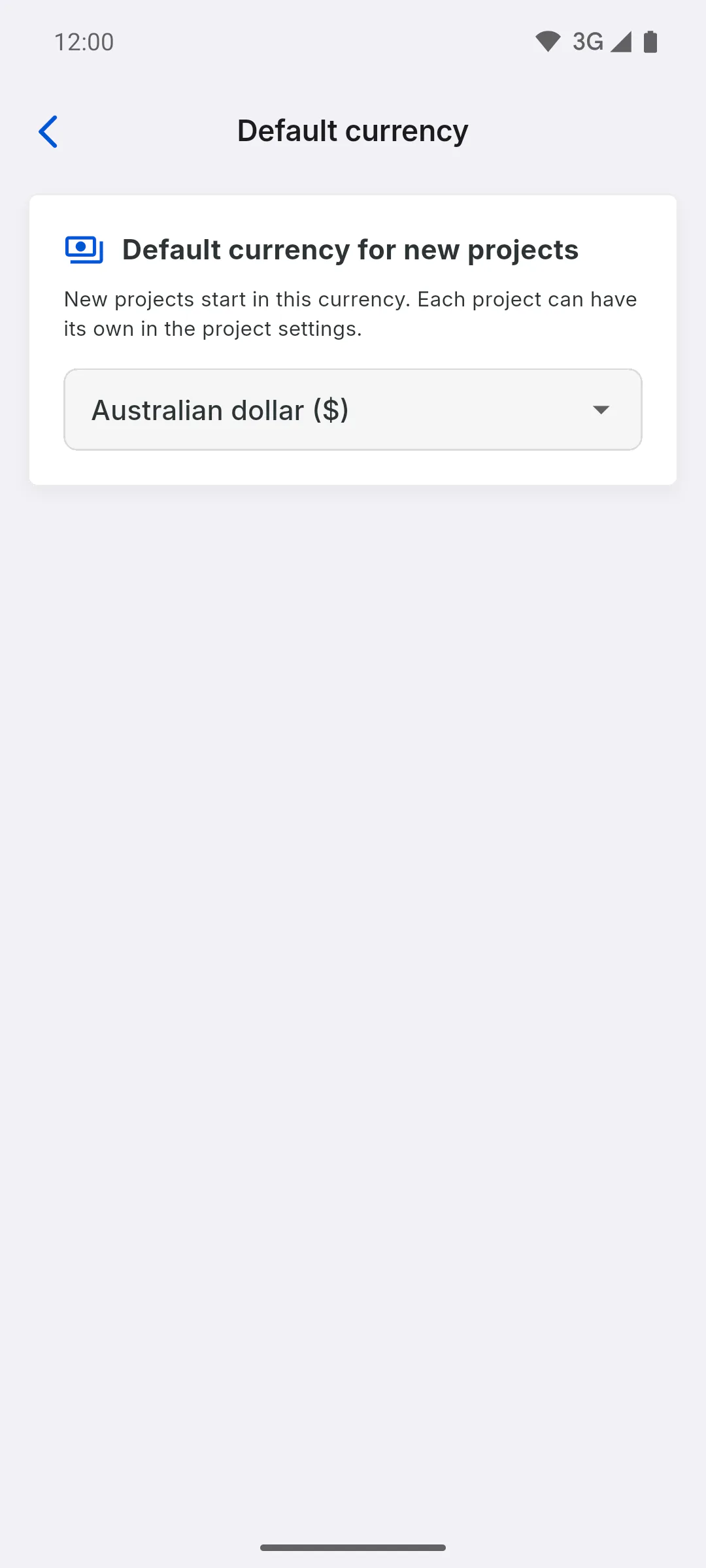
A new project starts in your default currency, which you set in your profile: How to change the default currency for new projects
Step 3: Where the currency shows
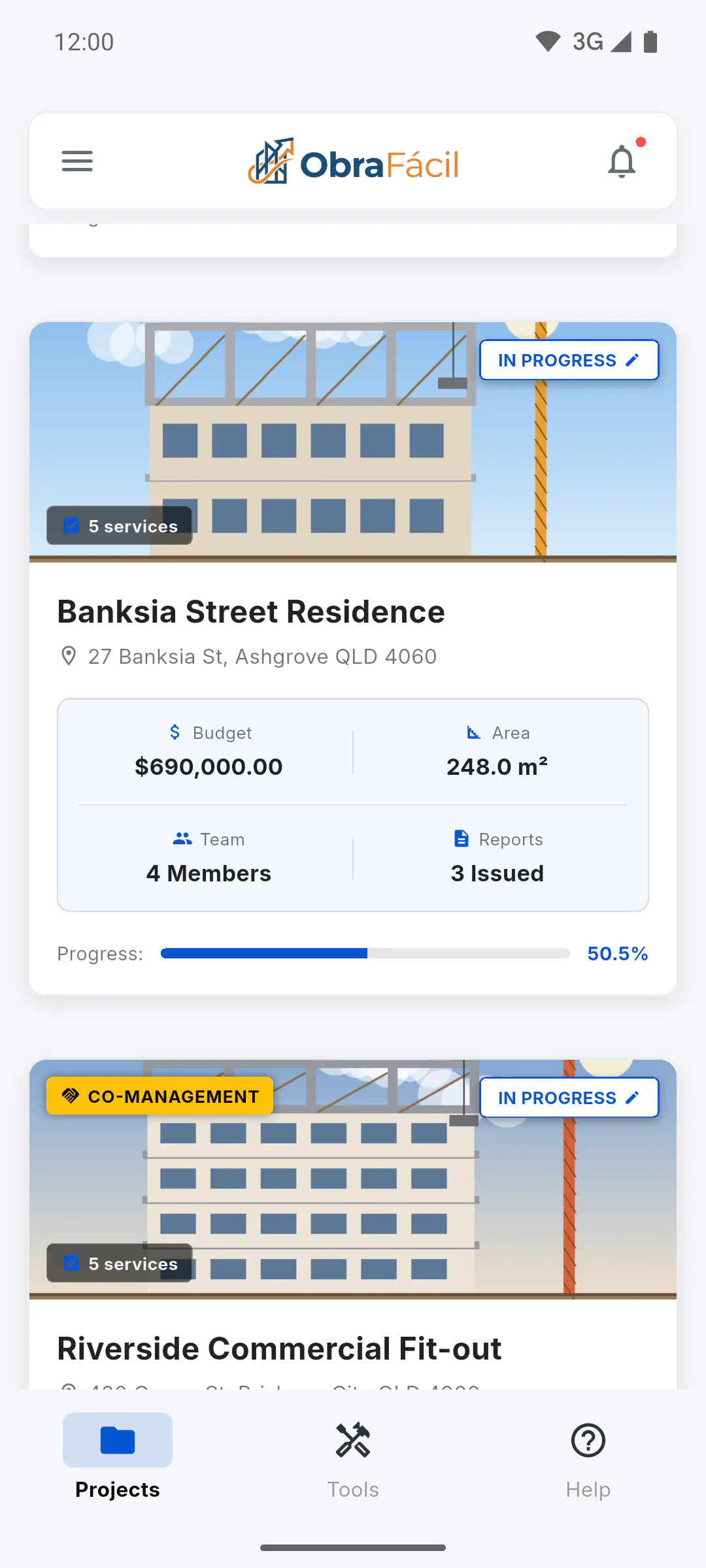
Inside the project, amounts are shown in its currency. On the dashboard, each card shows the project value in that project's currency, so projects in different currencies can sit side by side. Thousands and decimal separators follow the app language.
Step 4: Changing it later doesn't convert
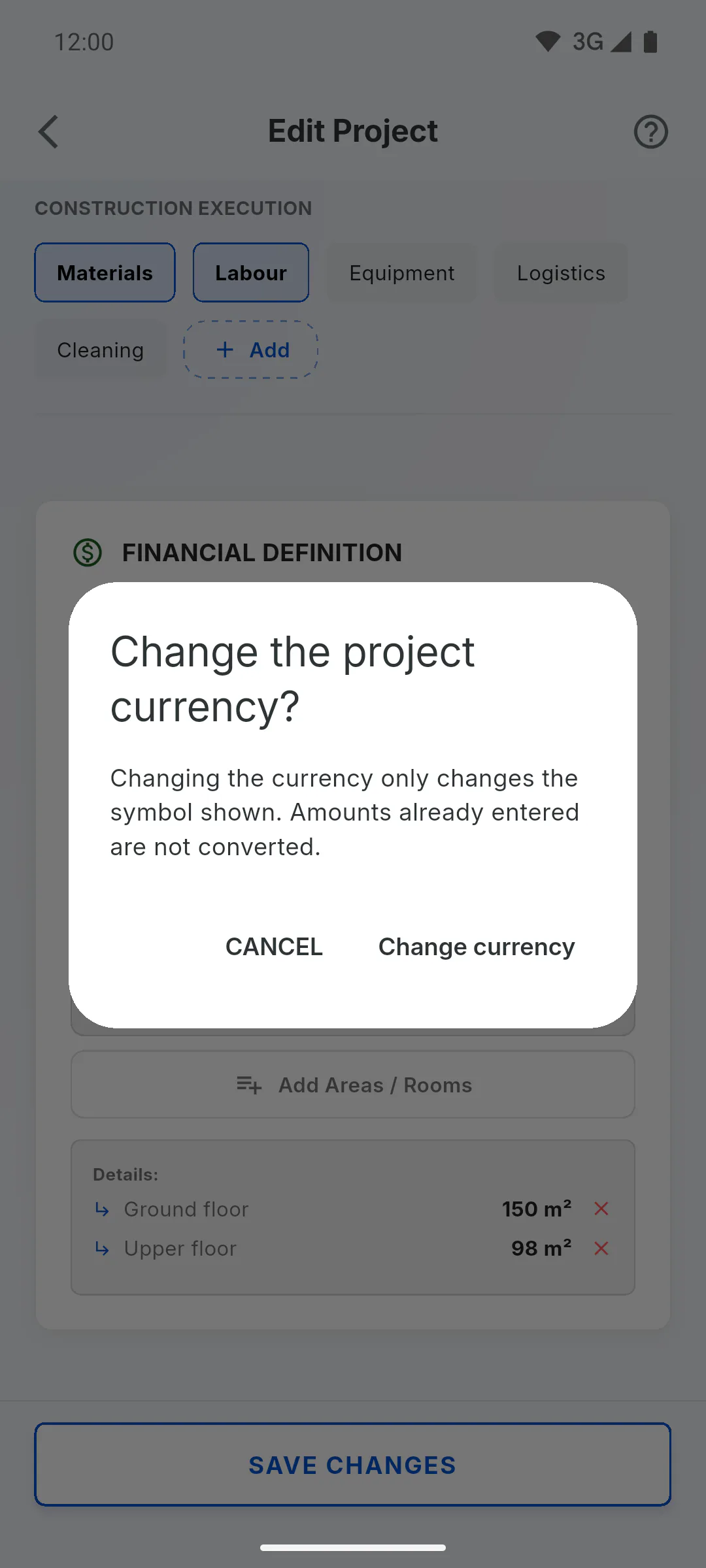
In Edit Project, pick another currency and tap Save Changes. You'll see Change the project currency?: only the symbol changes, and amounts already entered are not converted. Confirm with Change currency or go back with Cancel.
- If the amounts were in another currency, update them by hand after the change.
How to choose the project currency (and what happens if you change it)
Each project has its own currency. See where to choose it, which one is preselected and why changing it later doesn't convert amounts already entered.
For managers4 steps
Didn't find what you were looking for?
Chat with support on WhatsApp or raise a ticket in the app.