
Step 1: Open the edit screen
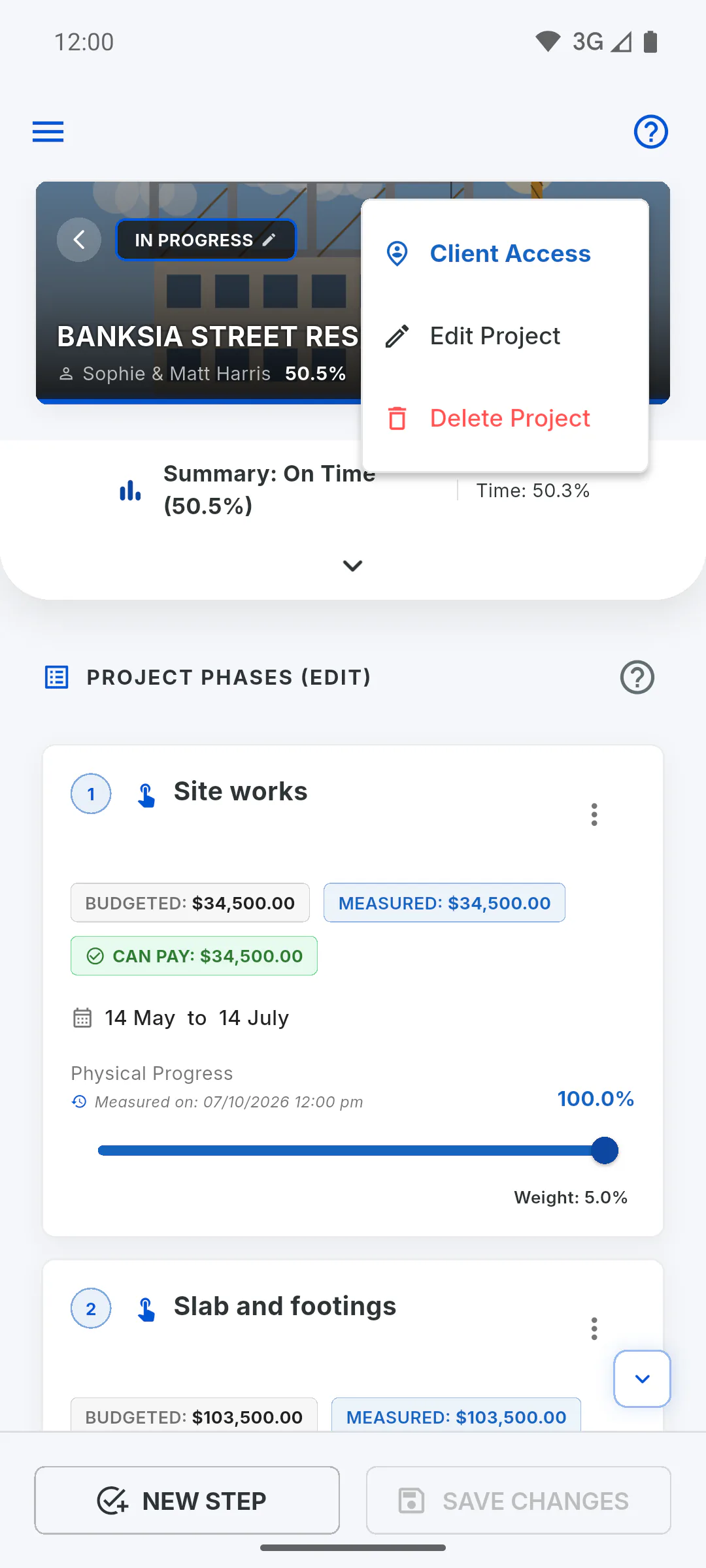
Open the project, go to the Overview tab, tap the three-dot menu, then Edit Project. The same screen you used to create it opens, titled Edit Project, with the details filled in.
Step 2: Change what you need
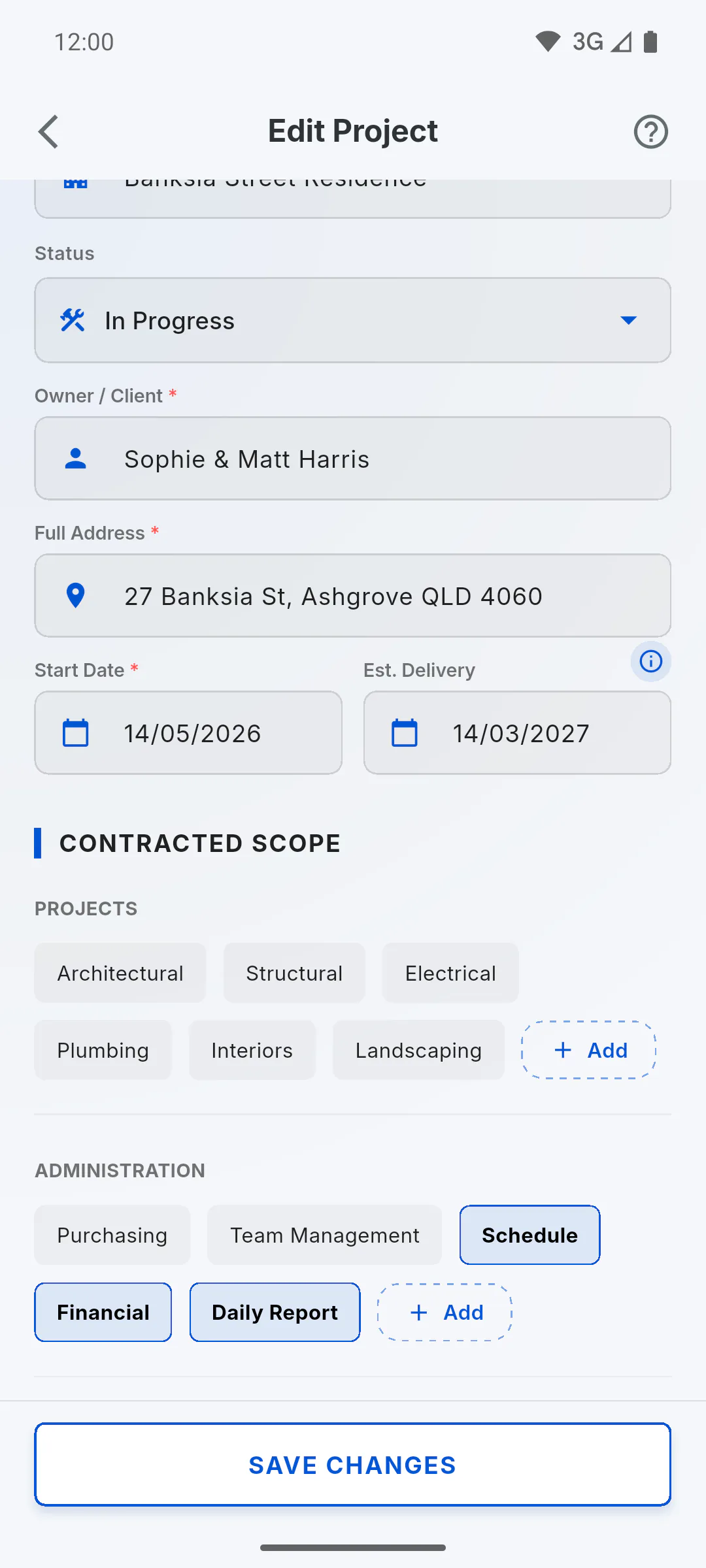
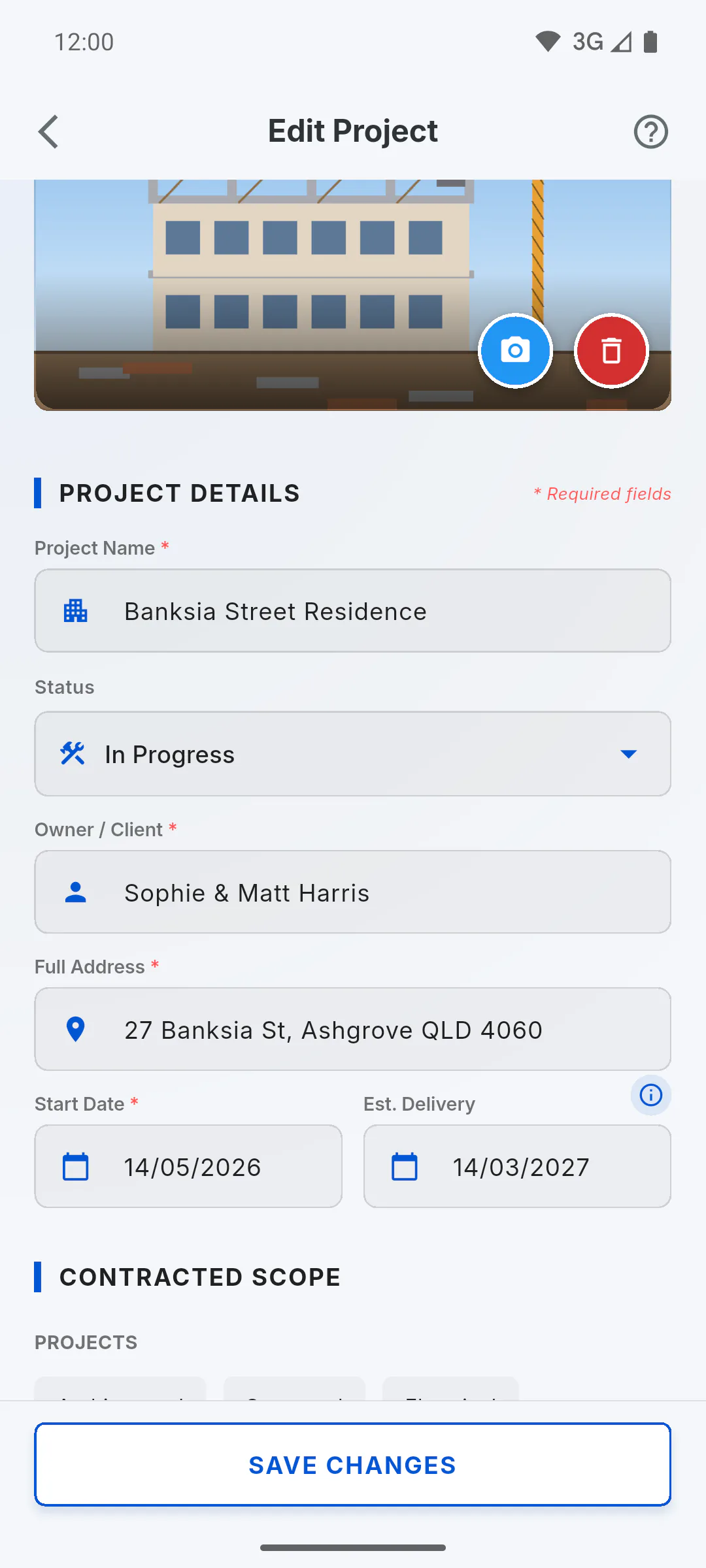
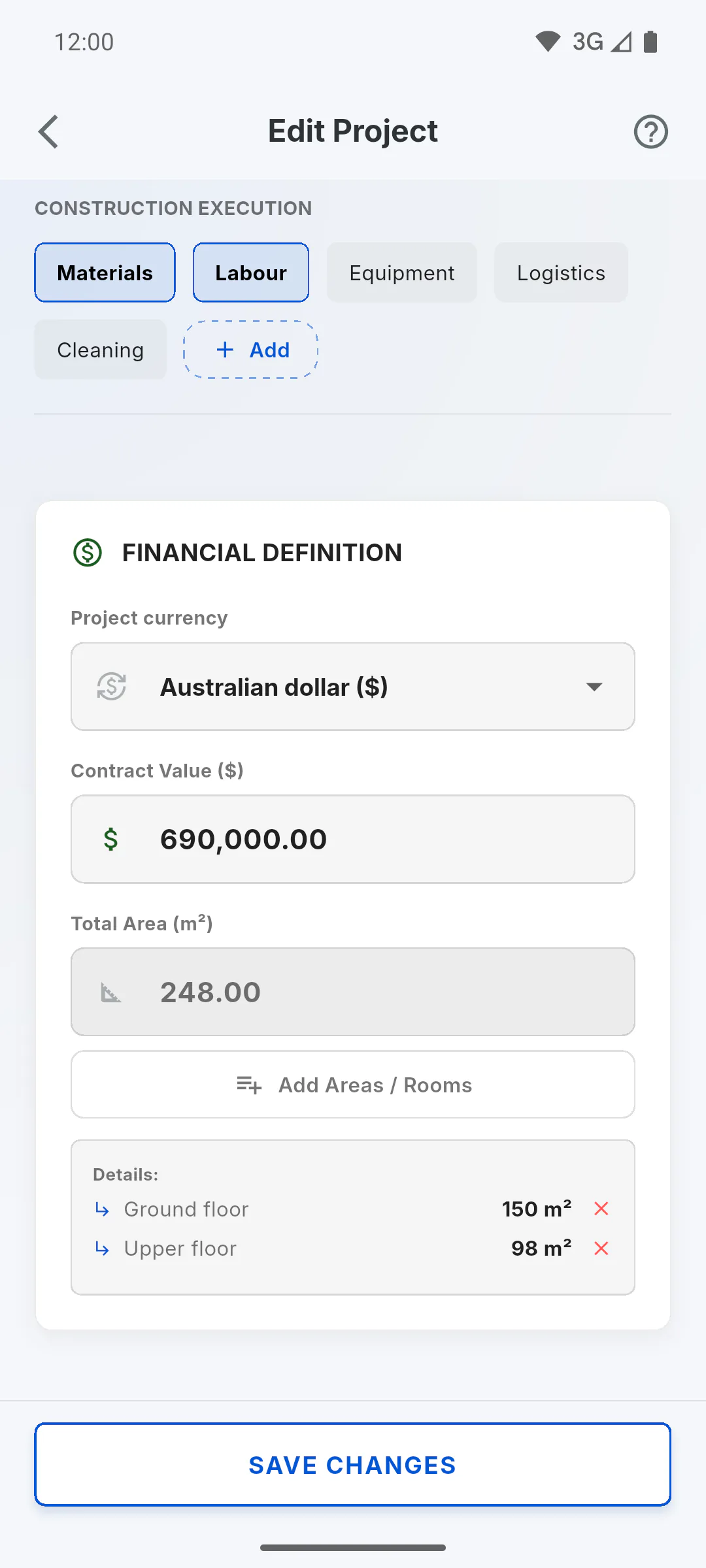
You can change the cover, Project Details, Contracted Scope, Project currency, Contract Value and areas.
- Dates: use the Pick a Date icon; the date shows as day/month/year.
Step 3: Status
The Status field shows the project's current status. Whatever you choose there replaces the status when you save: Project status: what each one means
Step 4: Contract value and stages
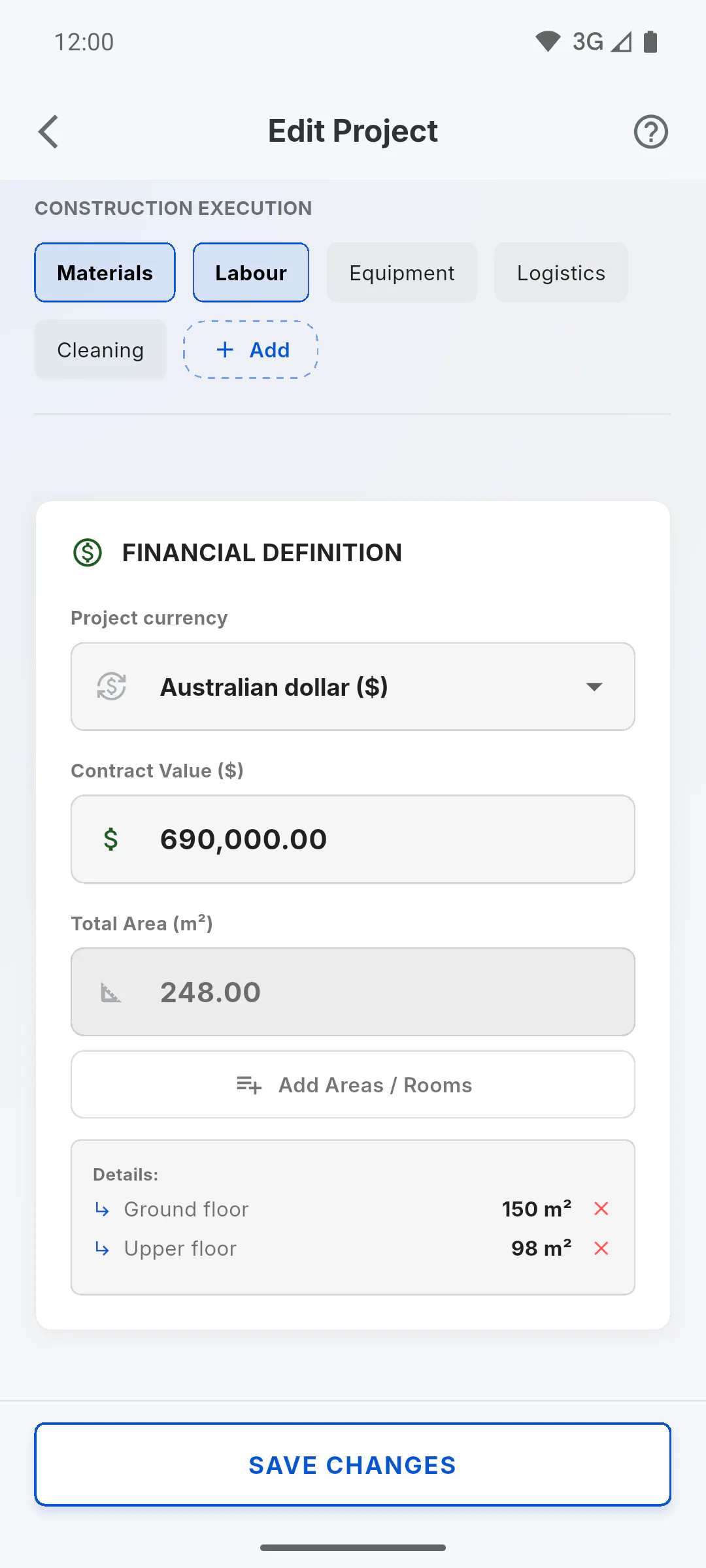
If you change the Contract Value and the project already has stages, the app spreads the new value across the stages, keeping each one's share. After that, the stages add up to the new value, there's no balance left and available no longer shows in the Contract value box on the Overview tab: Why I can't create a stage
Step 5: Currency
If you change the Project currency, you'll see Change the project currency? when you save. Only the symbol changes; amounts aren't converted: How to choose the project currency
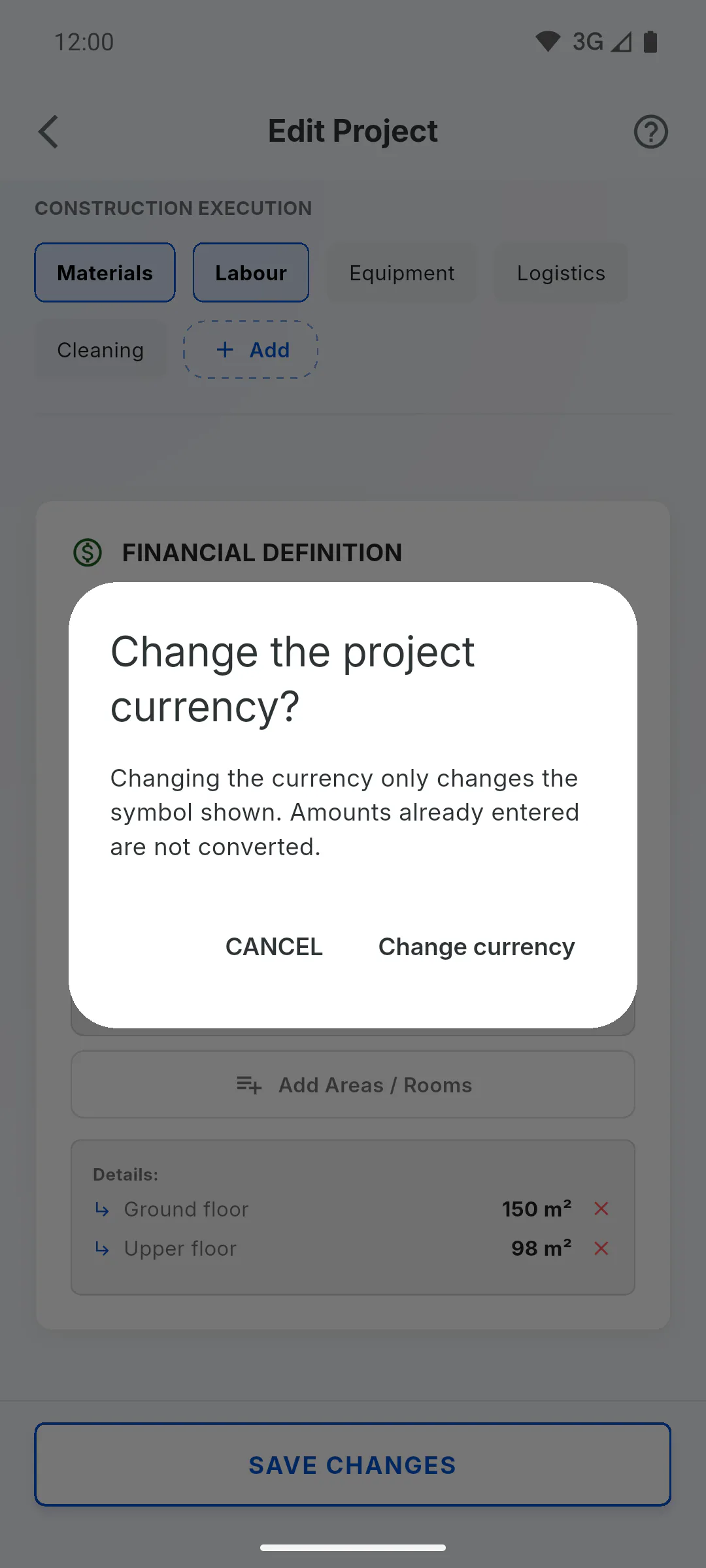
Step 6: Save
Tap Save Changes. You'll see Project saved successfully! and go back to the project. If you see Error saving. Check your connection., check your internet and try again.
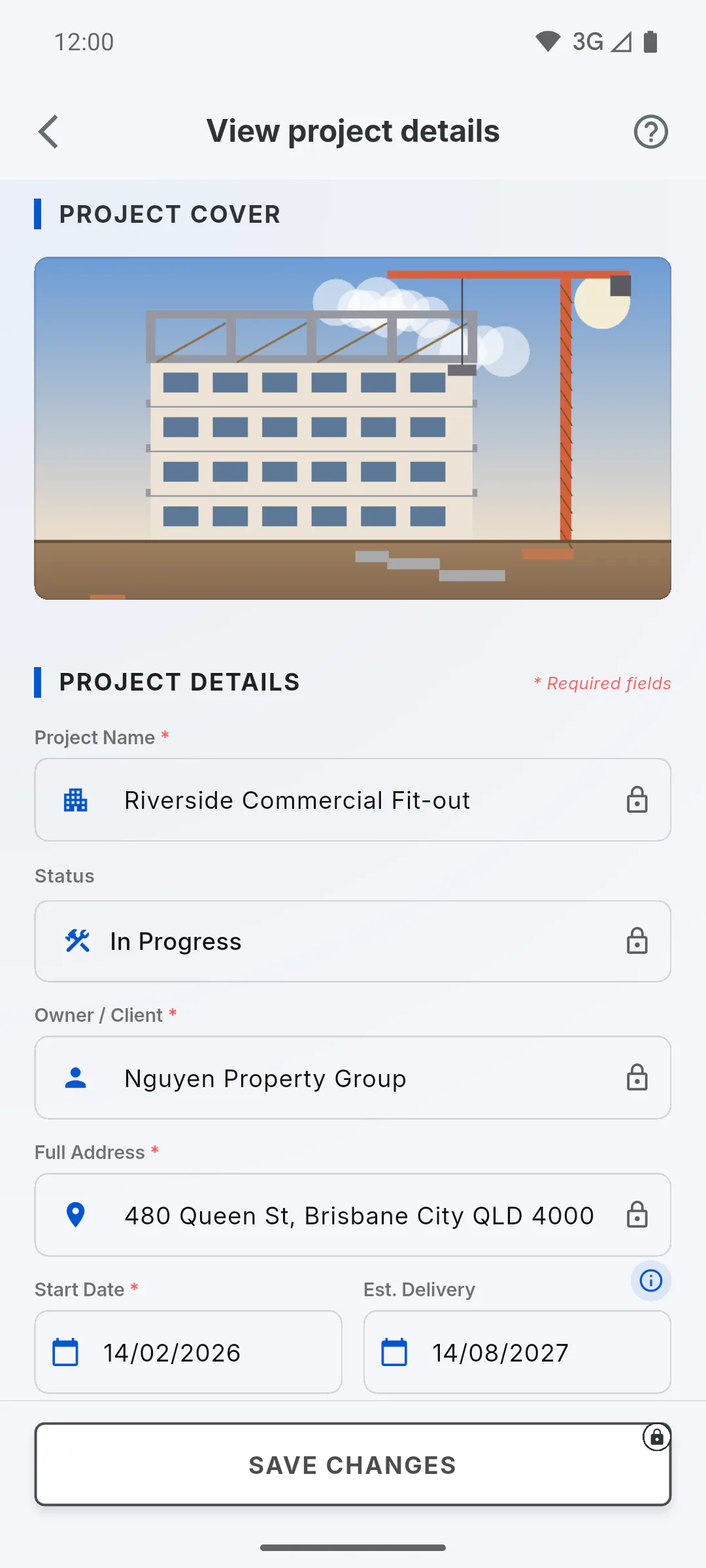
Step 7: If you're not the owner
Only the project owner can save changes. For an invited engineer, the three-dot menu shows View project details instead of Edit Project: the screen opens view-only, with the fields locked and Save Changes greyed out with a padlock. For Team members, Edit Project shows a padlock and doesn't open: Engineer, Team and Client: what each role sees
How to edit a project's details
Change the name, client, dates, status, scope, currency, contract value, areas and cover of an existing project, and see what changes along with them.
For managers7 steps
Didn't find what you were looking for?
Chat with support on WhatsApp or raise a ticket in the app.