
Step 1: Open the Album
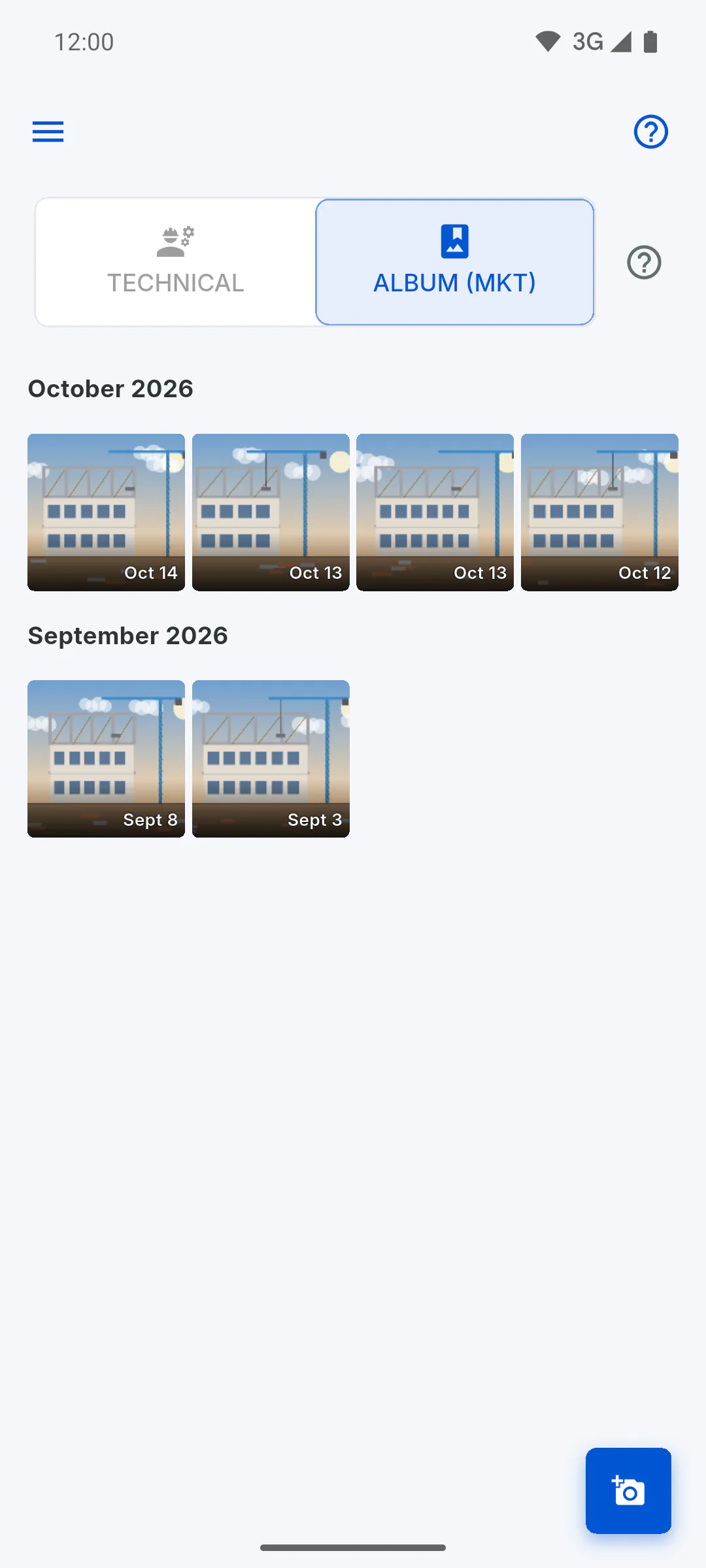
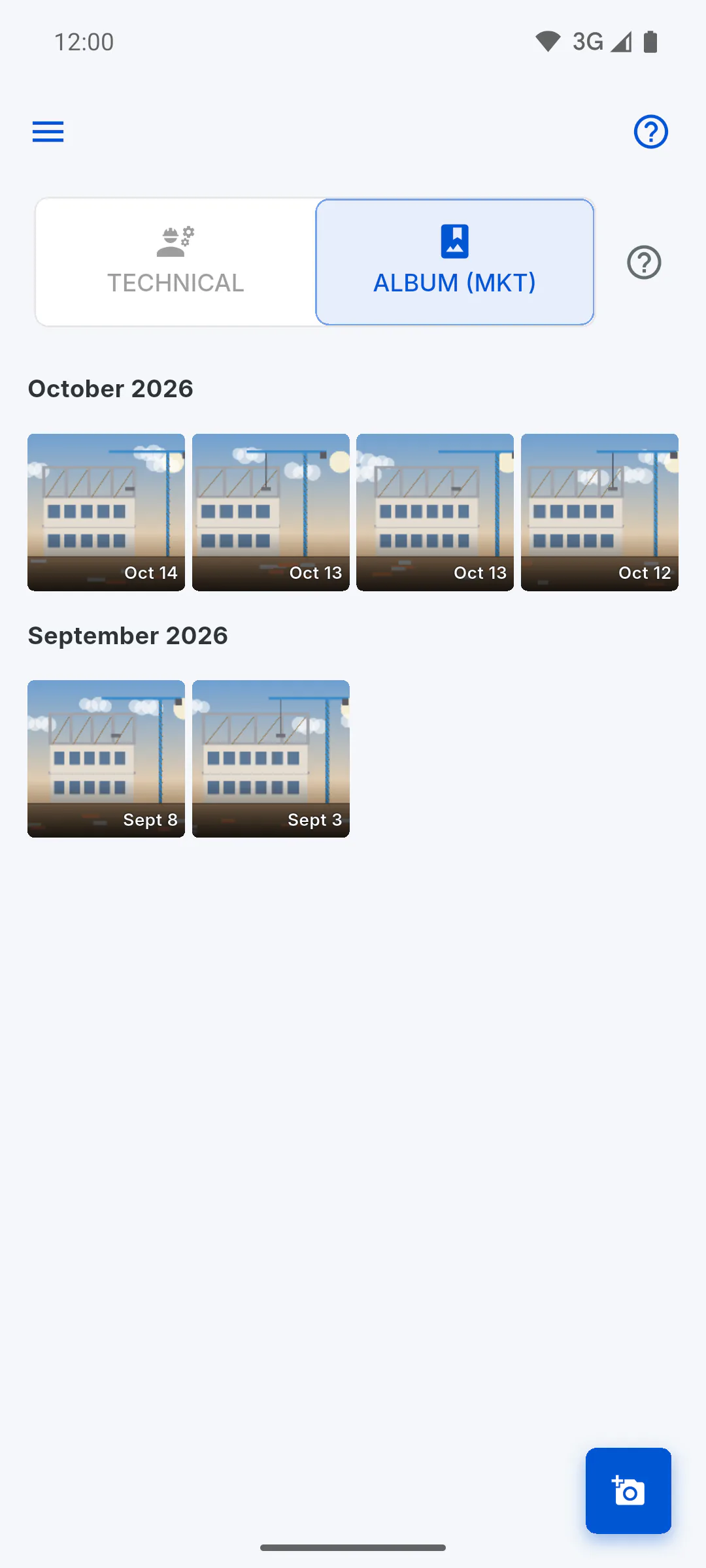
Open the project, tap Gallery and then the Album (MKT) tab. Tap the camera icon button in the bottom right corner to open the Add Photos screen. Team members can add photos too.
Step 2: Pick your photos
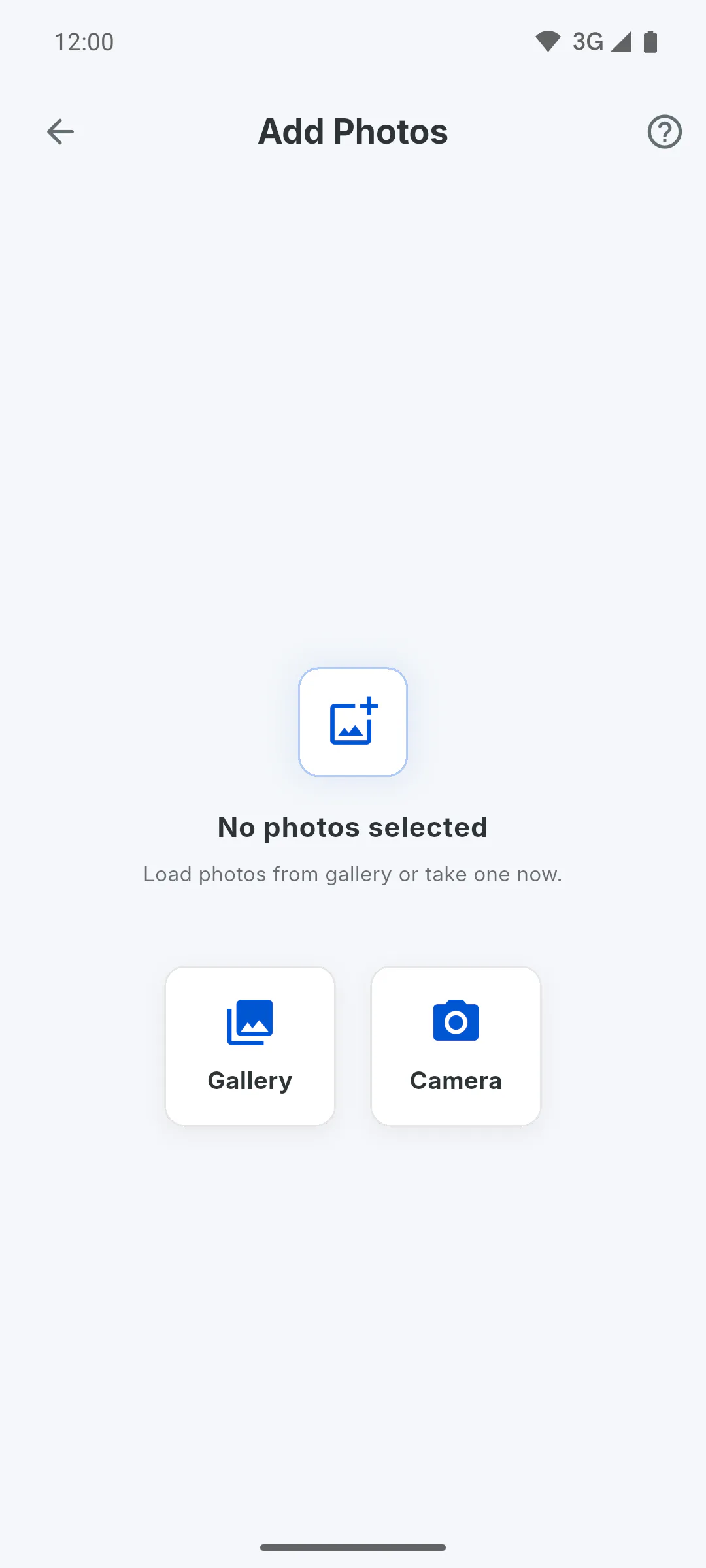
Tap Gallery to pick several photos at once, or Camera to take one now. If your phone asks for permission to use your photos or camera, allow it.
- On a computer, use Gallery to choose the image files.
- Why the app asks for camera, gallery and notification access
Step 3: Check before sending
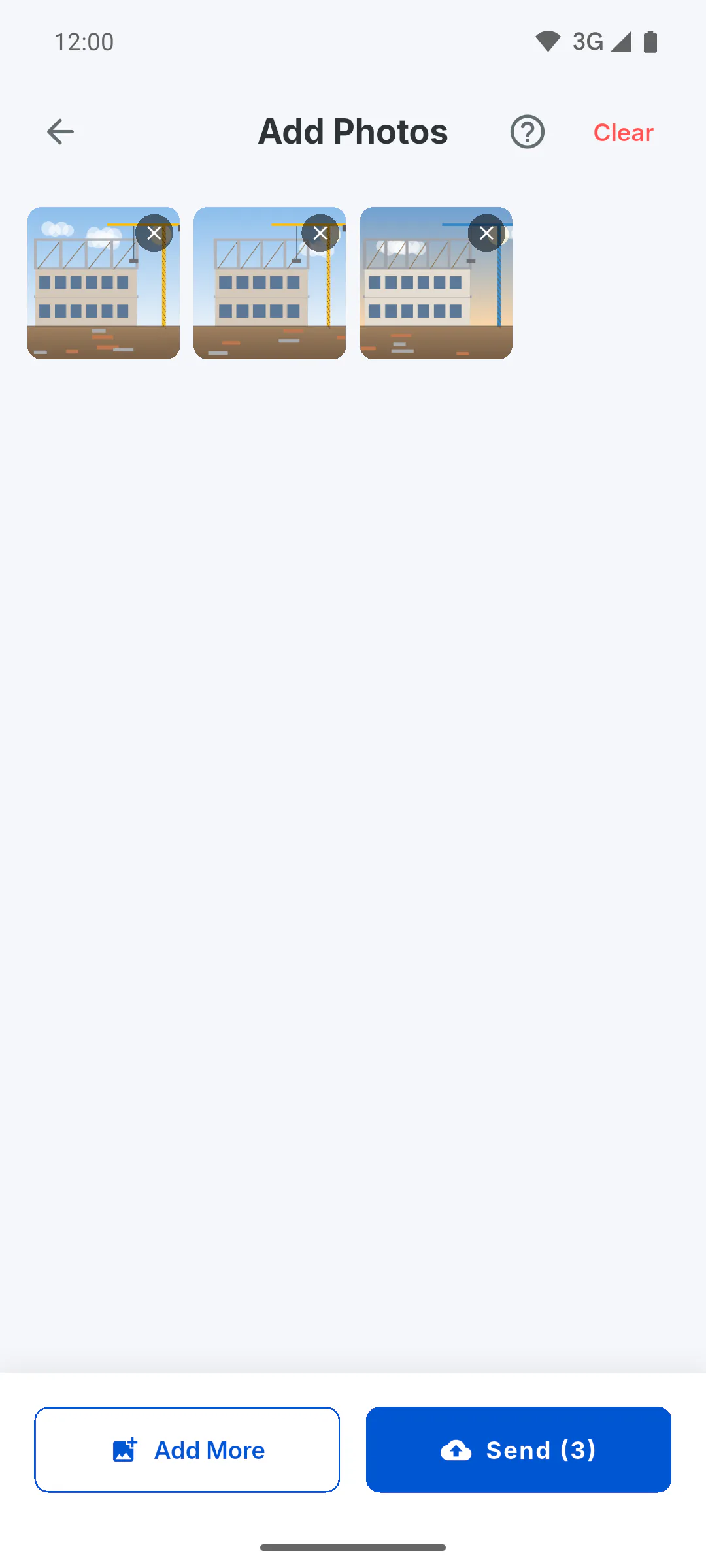
The photos you picked show up in a grid. Tap the X on a photo to remove it, Add More to bring in others from your gallery, or Clear at the top to start over. The app doesn't limit how many photos you send at once.
Step 4: Send them
Tap Send, which shows the number of photos in parentheses. On a phone, the screen closes right away, Upload started. appears and the photos upload in the background while you keep using the app.
Step 5: On a computer
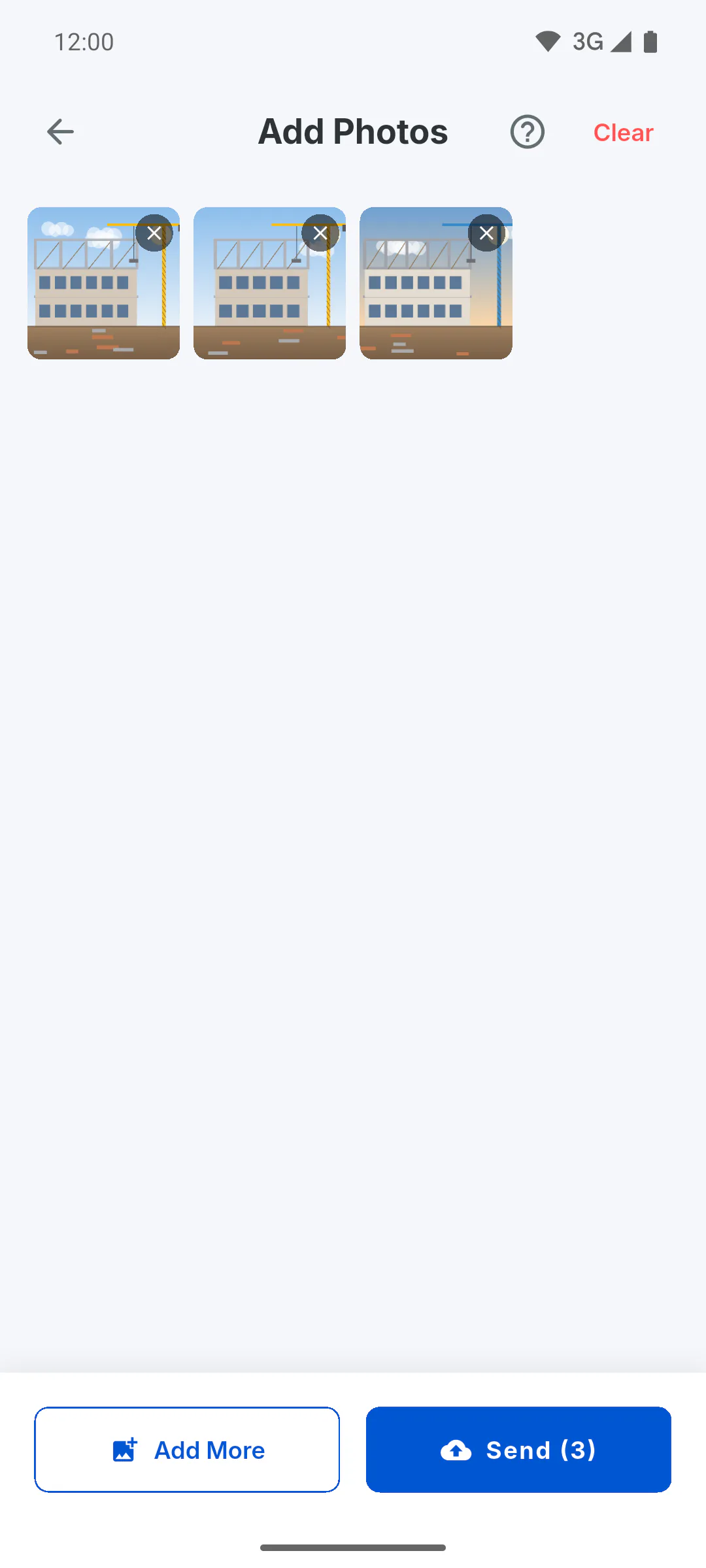
In a web browser and in the Windows app, the upload happens with the screen open: Sending photo 1 of 5... appears and the back arrow is locked. When it's done, 5 photos uploaded successfully! appears and you go back to the Album.
Step 6: Internet and storage
Uploading needs internet: the app doesn't keep Album photos to send later. Photos use your account's storage; if it has run out, Storage Full appears when you tap Gallery or Camera. On a phone and in the Windows app, photos are reduced in size before upload; in a web browser, they go at full size.
Step 7: Where the photos show up
The photos go into the Album, under the month they were uploaded, and appear for your client in the Feed and the Project Gallery of the Portal. If they still aren't in the Album after the upload has finished, leave the Gallery and open it again.
How to add photos to the project Album
Upload several photos at once from your phone gallery, or take them on the spot. They go into the project Album and show up for your client in the Portal.
For managers and team members7 steps
Didn't find what you were looking for?
Chat with support on WhatsApp or raise a ticket in the app.