
Step 1: What it is
On Android and iPhone, when you upload photos to the Album or save a daily report with photos while online, the screen closes right away and the photos upload one at a time while you keep using the app. Occurrences with photos work this way on any device, computers included.
Step 2: Album photos
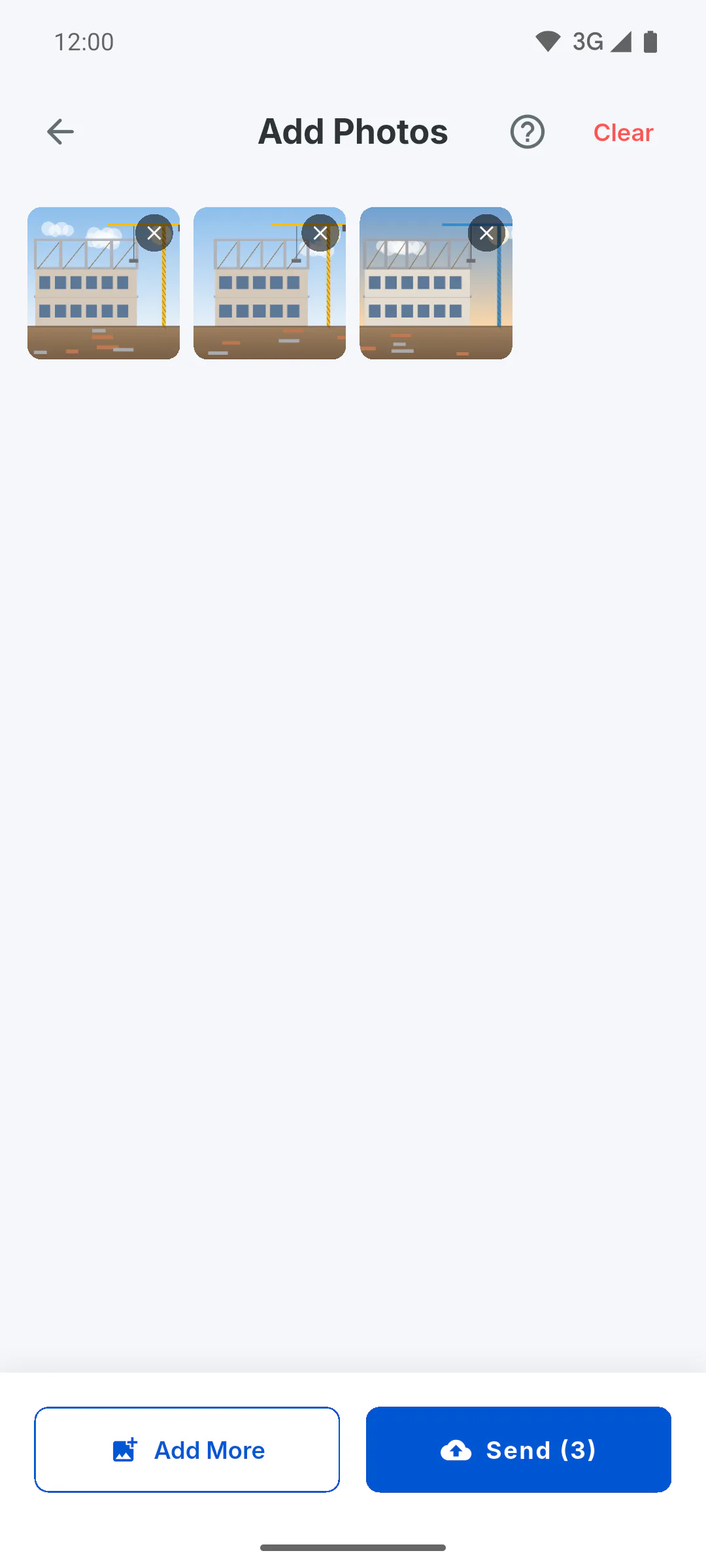
When you tap Send, Upload started. appears. With notifications allowed, your phone shows Uploading to Gallery... with a photo count and, at the end, Gallery Updated. The photos appear in the Album once the upload is done: if they don't, leave the Gallery and open it again.
Step 3: If an Album upload fails
You get an Upload Error notification with the reason. Photos sent before the error stay in the Album; the rest are not retried automatically. Open the Album, see what's missing and send those again.
- If you ran out of space: Storage full: how to free up space
Step 4: Daily report photos
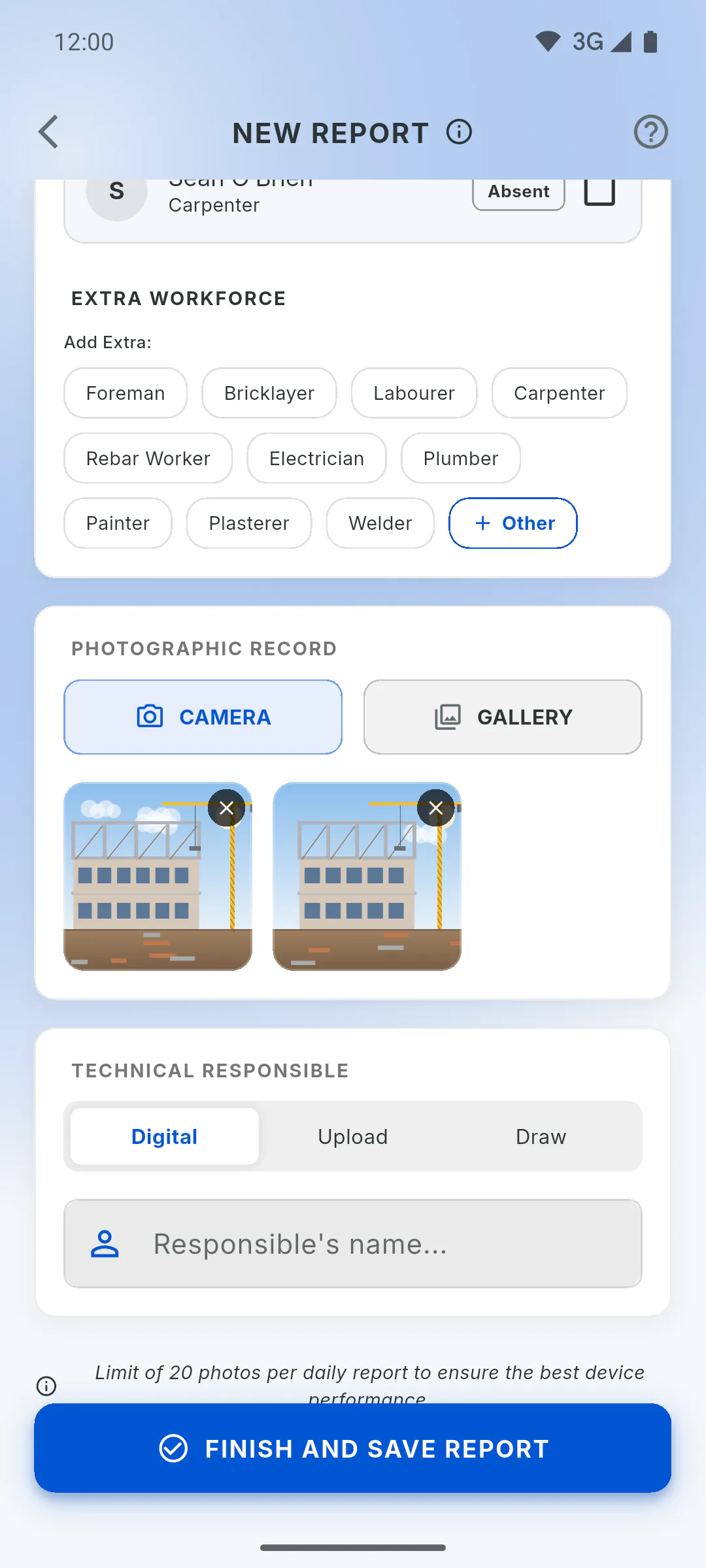
When you save a report while online, Saving the daily report. appears and your phone shows Uploading Daily Report... and, at the end, Daily Report Sent! If the signal drops, Attention shows how many files went up, such as 3 of 5 files uploaded. The rest will upload automatically when the connection improves. (or Upload paused. The system will try again.): what's missing stays on the phone and the app sends it later: How what you did offline gets sent later
Step 5: Occurrence photos
When you log an occurrence with photos, Registration started. appears. The occurrence only shows up in the list after all its photos have uploaded: My occurrence didn't show up: internet, uploads and storage
Step 6: Let the upload finish
Uploads run while the app is running. Until you see the upload is done, don't force-close the app or sign out, and avoid leaving it in the background for long: the upload can stop halfway.
Step 7: Notifications
Progress notices only appear if the app's notifications are allowed. Without them, the upload still happens, just without notices: check the Album or the report afterwards.
Step 8: On a computer
In a web browser and in the Windows app, Album and daily report photos upload with the screen open. In the Album you see Sending photo 1 of 5...; for a daily report, Synchronizing... Wait for it to finish before leaving the screen. For a report, if a photo fails, it isn't saved and the screen stays filled in: check your internet and save again, without re-sending what already went up.
Background photo uploads: what happens after you send
Photos for the Album, daily reports and occurrences can upload while you keep using the app. Here are the notices you'll see, what to do if it fails and what changes on a computer.
For managers and team members8 steps
Didn't find what you were looking for?
Chat with support on WhatsApp or raise a ticket in the app.