
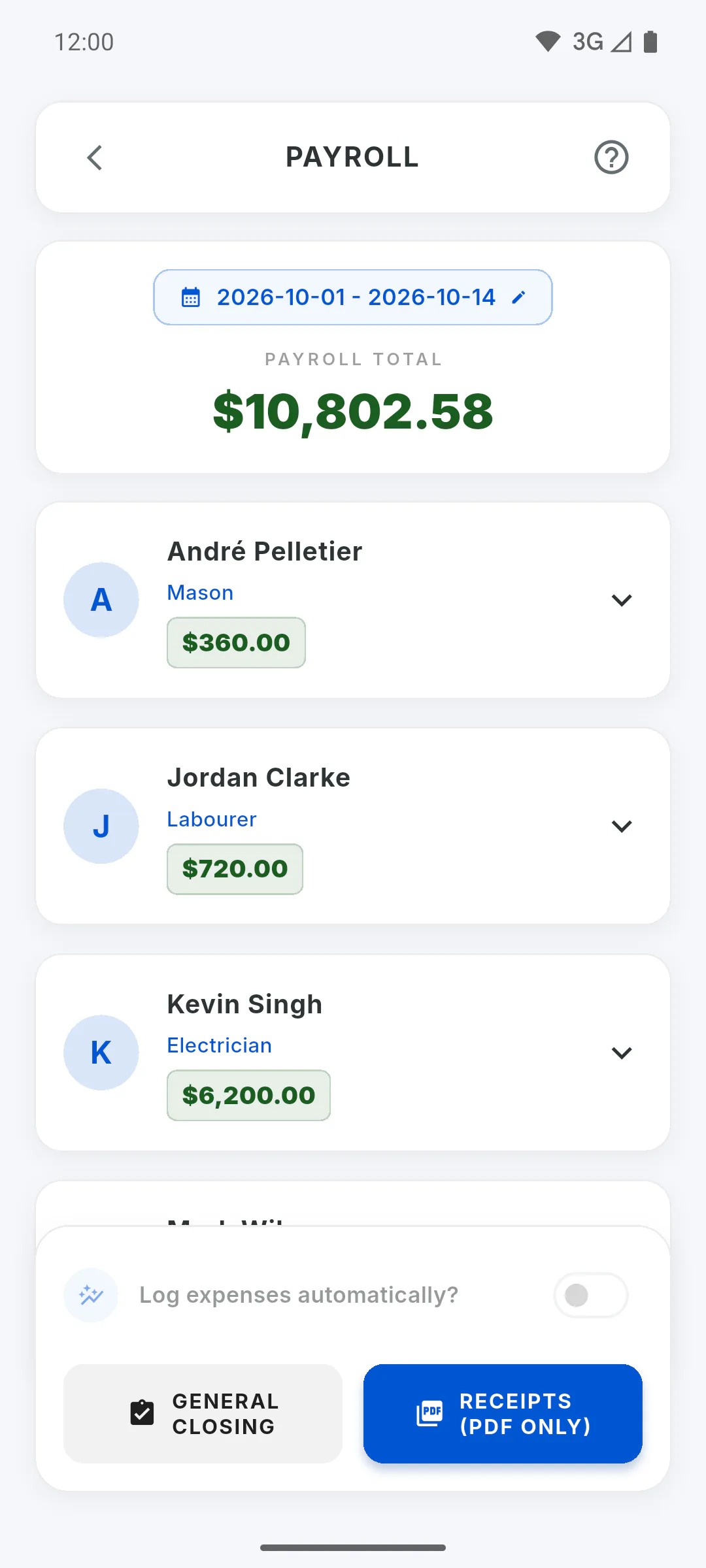
Step 1: Open the team member's card
On the project payroll, tap the team member's card to open the math. Advances and the bonus are below the numbers. Team members whose rate is in another currency don't have these options.
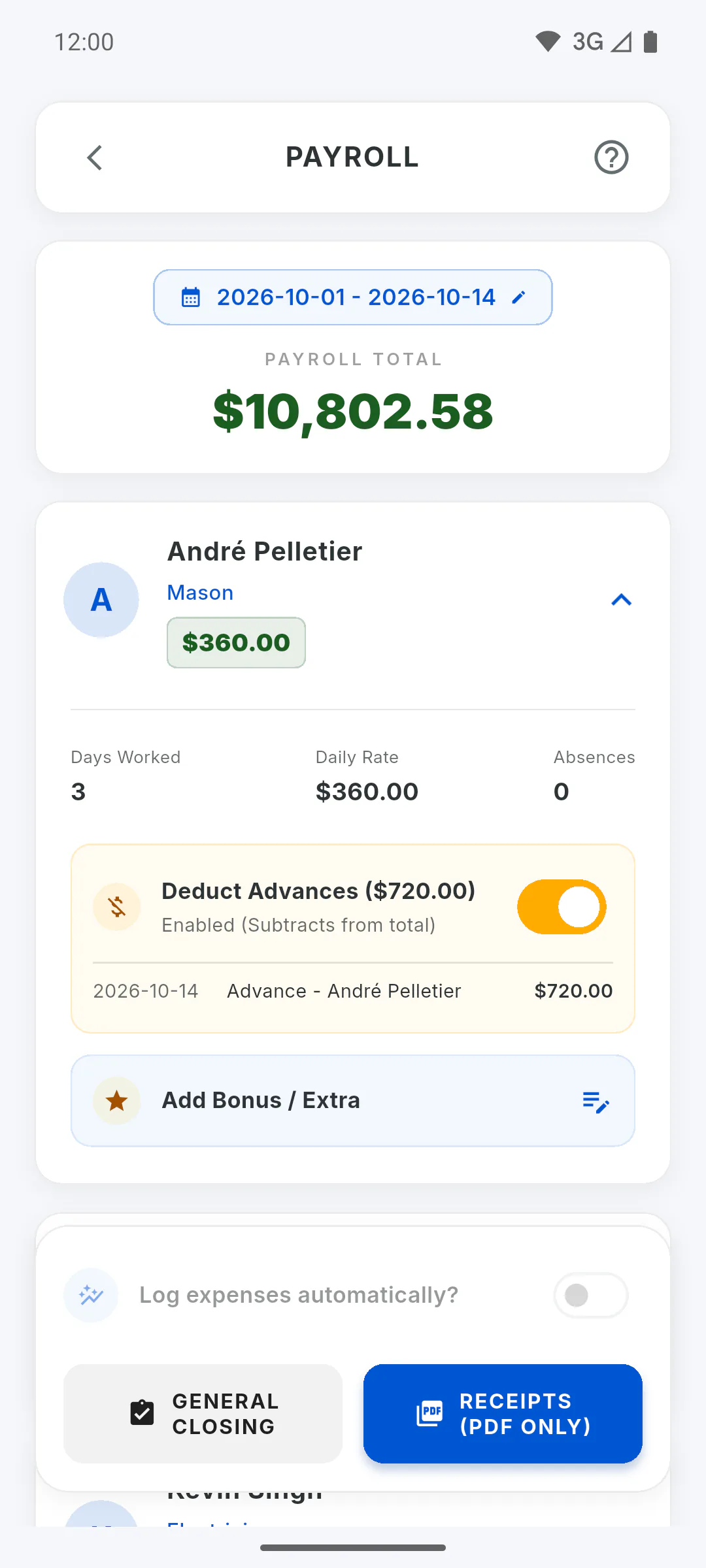
Step 2: See the advances for the period
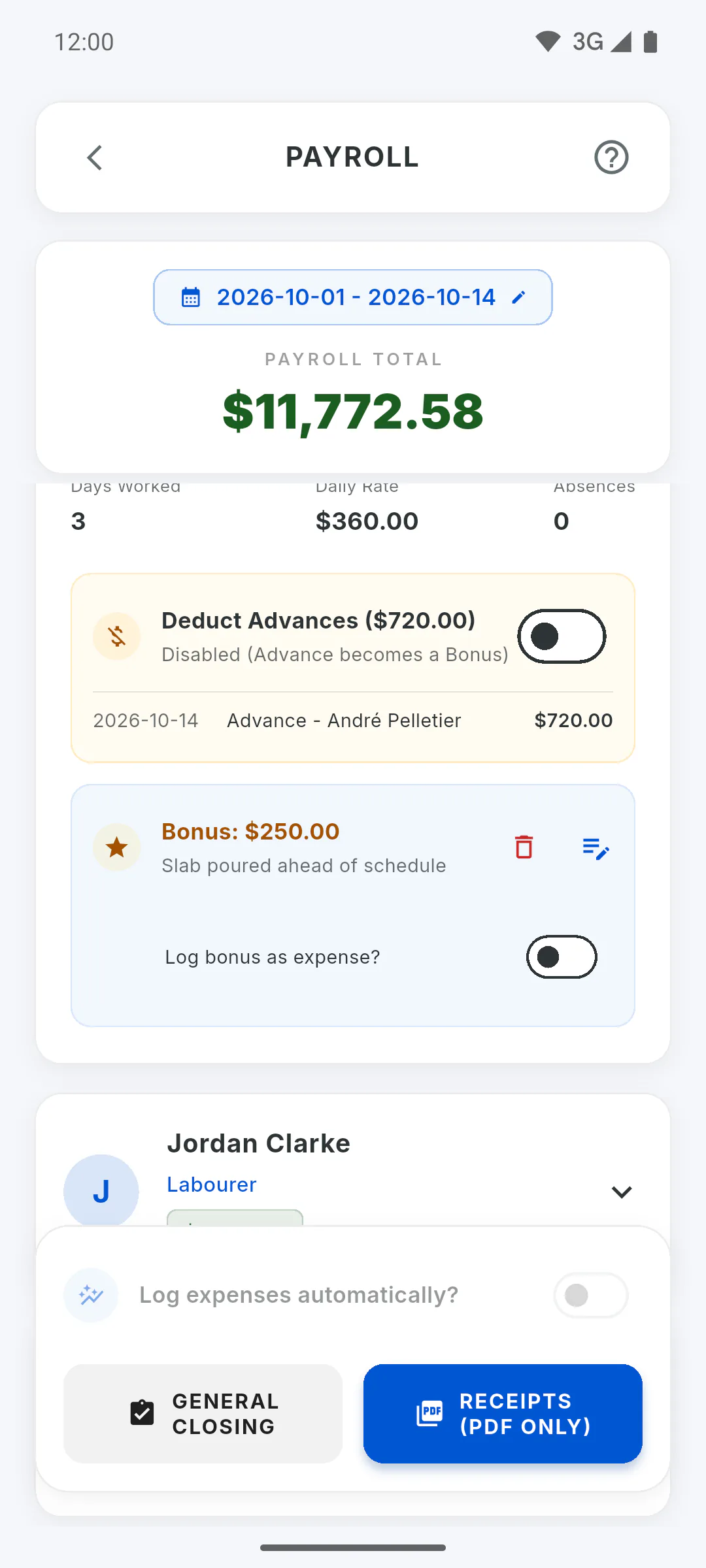
If they got an advance, you'll see the Deduct Advances block, with the total in brackets and, below it, each advance with date, description and amount. It includes this project's Financial expenses linked to them, dated within the period. For by-task work the block is called Payments already made and lists everything paid to them on this project up to the end of the period.
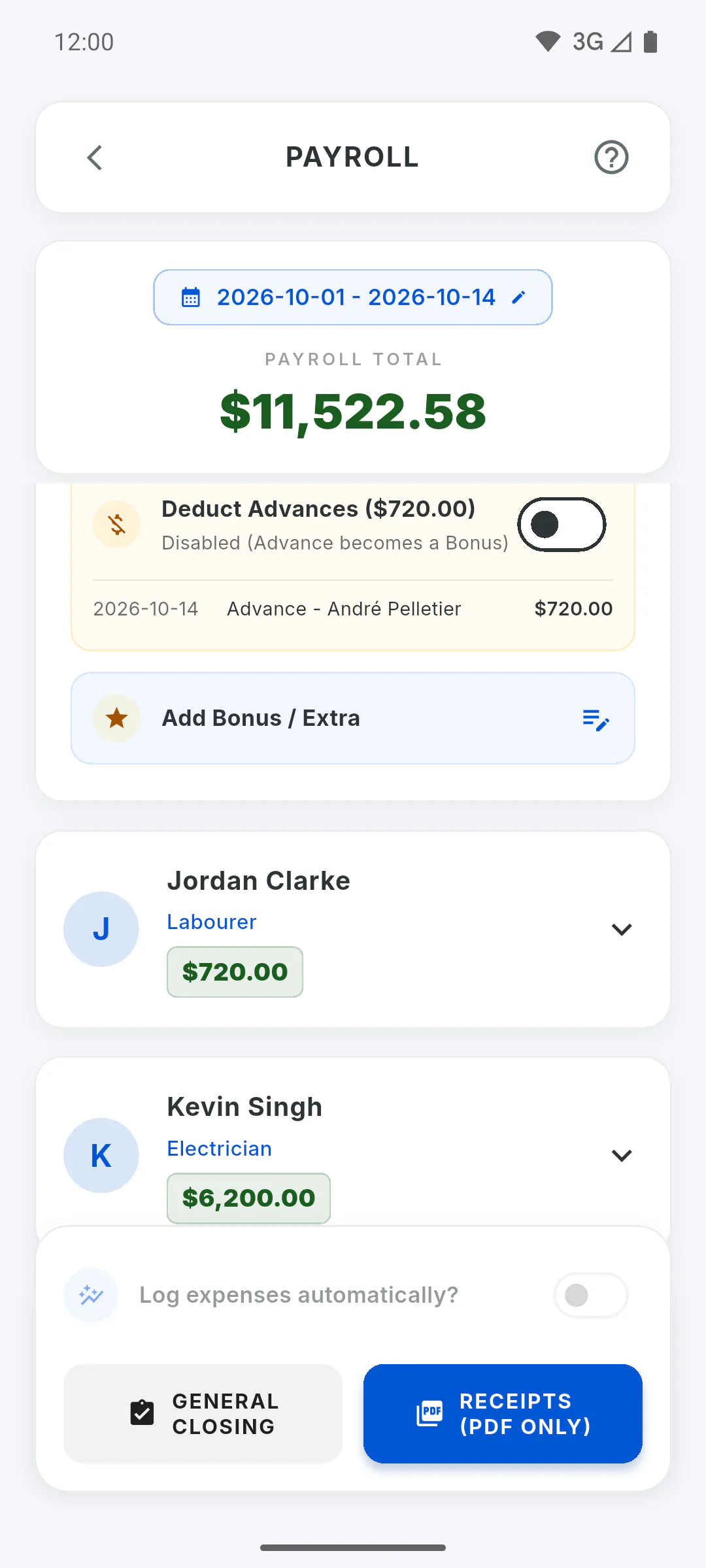
Step 3: Deduct or not
The block's switch starts on: Enabled (Subtracts from total). Turn it off to skip the deduction: you'll see Disabled (Advance becomes a Bonus) and the amount goes back into the total. On the pay slip, a deducted advance shows as (-) Advances and one that isn't deducted as (Info) Forgiven Advances. For by-task work, with the switch off, the balance goes back to the full agreed amount.
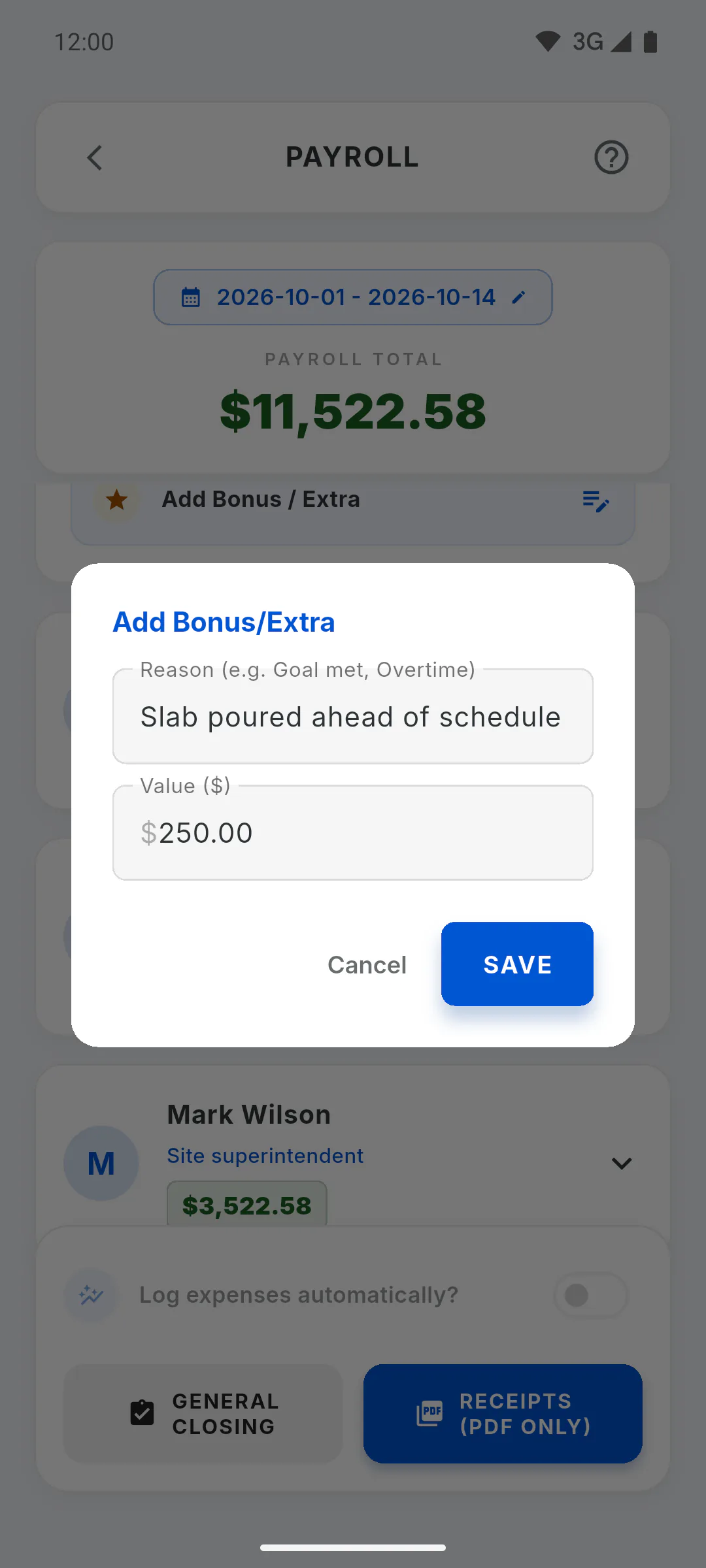
Step 4: Add a bonus
Tap Add Bonus / Extra. Fill in Reason (e.g. Goal met, Overtime) and Value and tap Save. The bonus is added to what they're owed and shows as Bonus: with the amount. To change it, tap it again; to remove it, tap the trash icon next to it. Each team member can have one bonus at a time.
Step 5: Log the bonus as an expense
Once there's a bonus, Log bonus as expense? appears. Turn it on so the bonus becomes an expense in Financial when you generate pay slips with Log expenses automatically? on: How to generate pay slips and log them as expenses
- For an invited engineer, the switch is greyed out with a lock icon: only the project owner can log entries in Financial.
Step 6: None of this is saved
Advance choices and bonuses only apply to the payroll you have open: when you leave or change the period, everything goes back to the default, with advances deducted and no bonuses. Generate the pay slips before you leave. Only a bonus logged as an expense is kept, as an expense entry.
How to deduct advances and add bonuses on payroll
Choose whether the advances for the period are deducted from each team member, and add a bonus or extra with a reason, before you generate pay slips.
For managers6 steps
Didn't find what you were looking for?
Chat with support on WhatsApp or raise a ticket in the app.