
Step 1: Open the project payroll
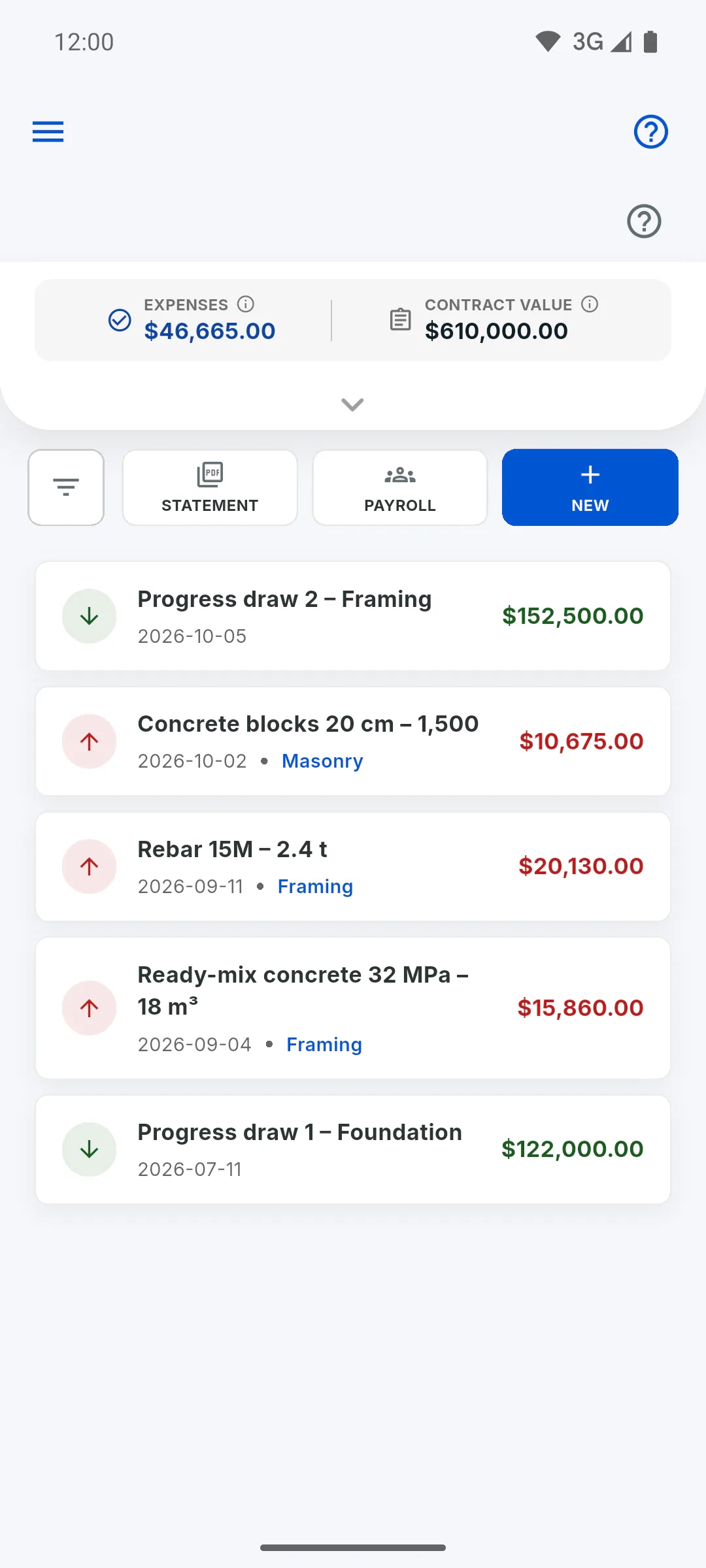
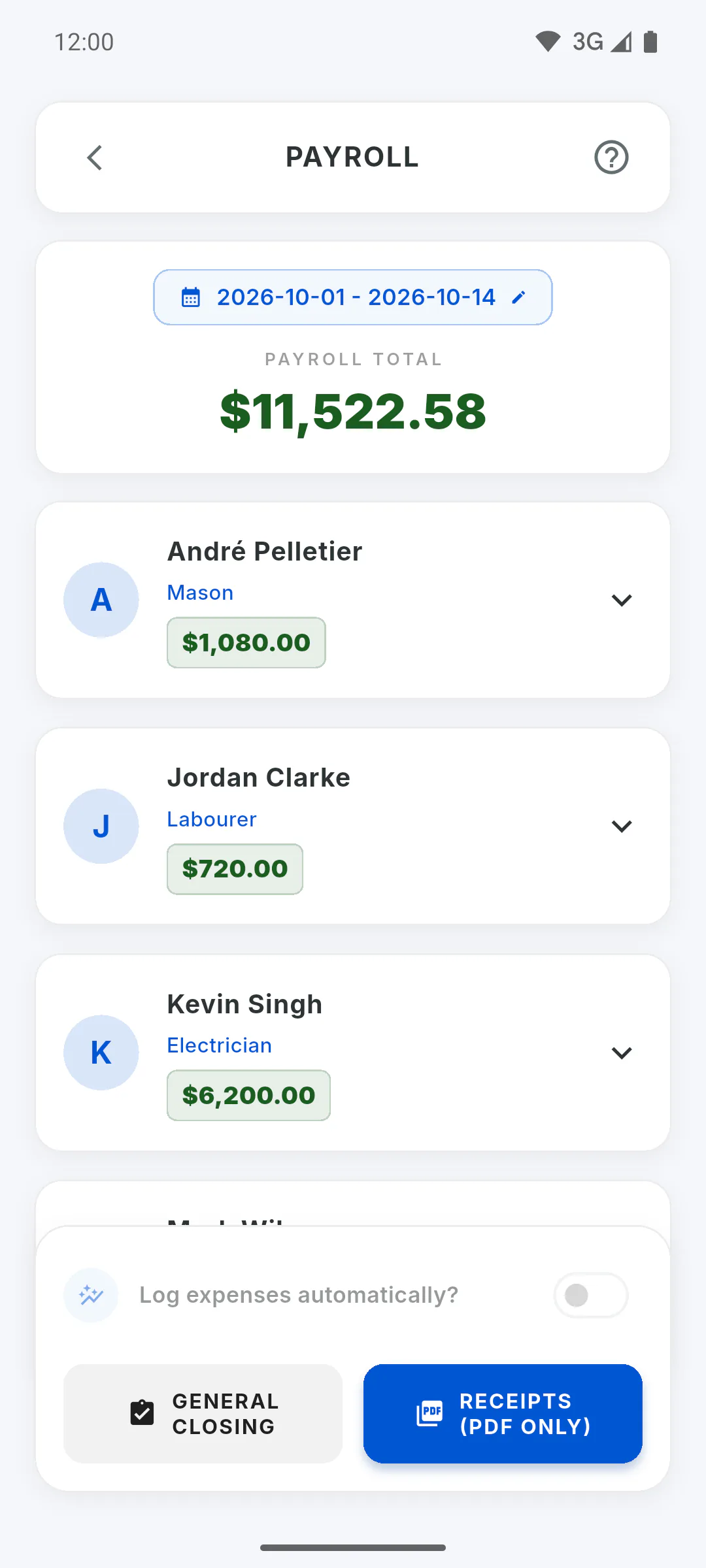
Open the project, tap Financial in the project menu and, on the button bar, tap Payroll. The Payroll screen opens, always for the project you have open. Payroll is built from the attendance marked in that project's daily reports: How to record crew attendance in a daily report
Step 2: Pick the period
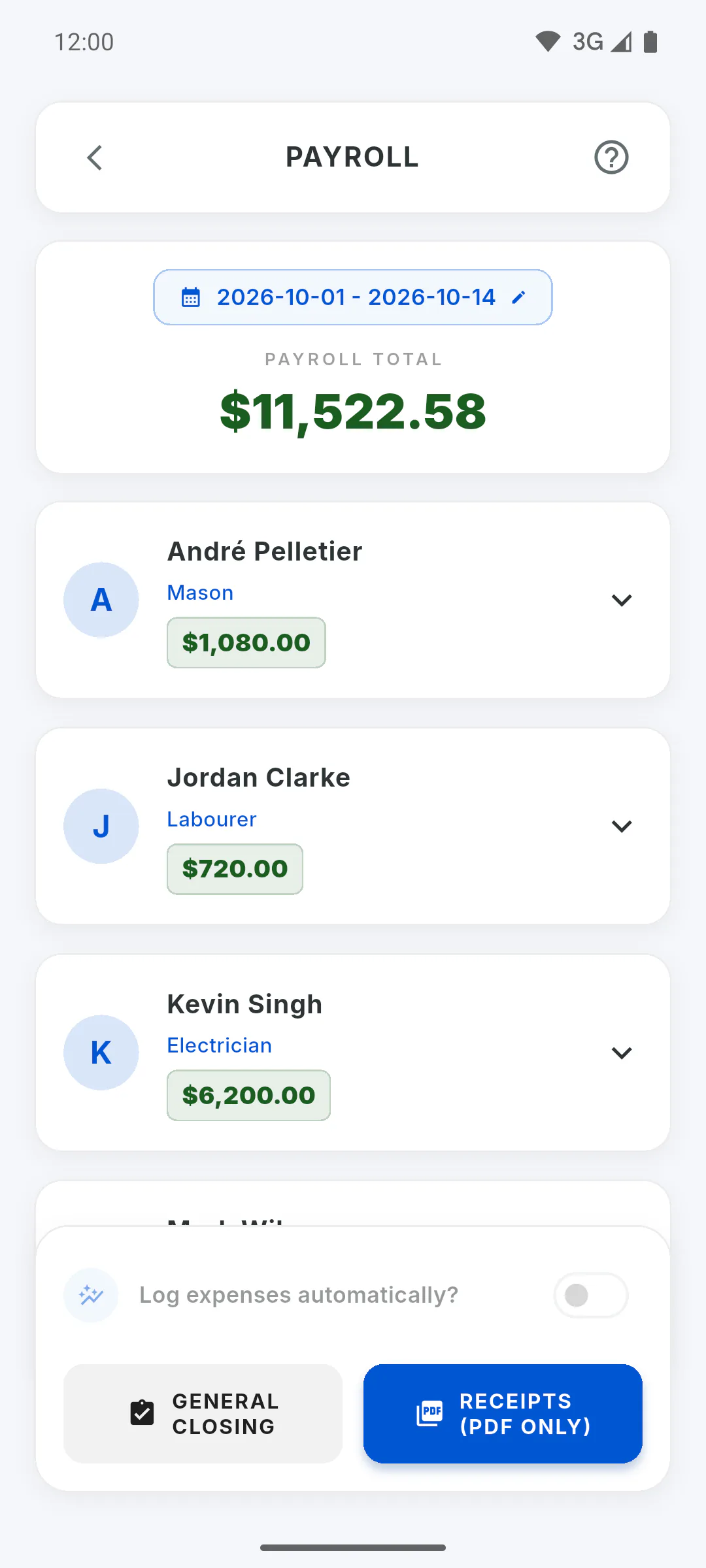
The payroll dates are shown at the top: from the 1st of the current month to today. Tap them, pick the first and last day on the calendar and confirm. Payroll is recalculated right away with the reports in that range. When you leave and open payroll again, the period goes back to the current month.
Step 3: Check the total and the cards
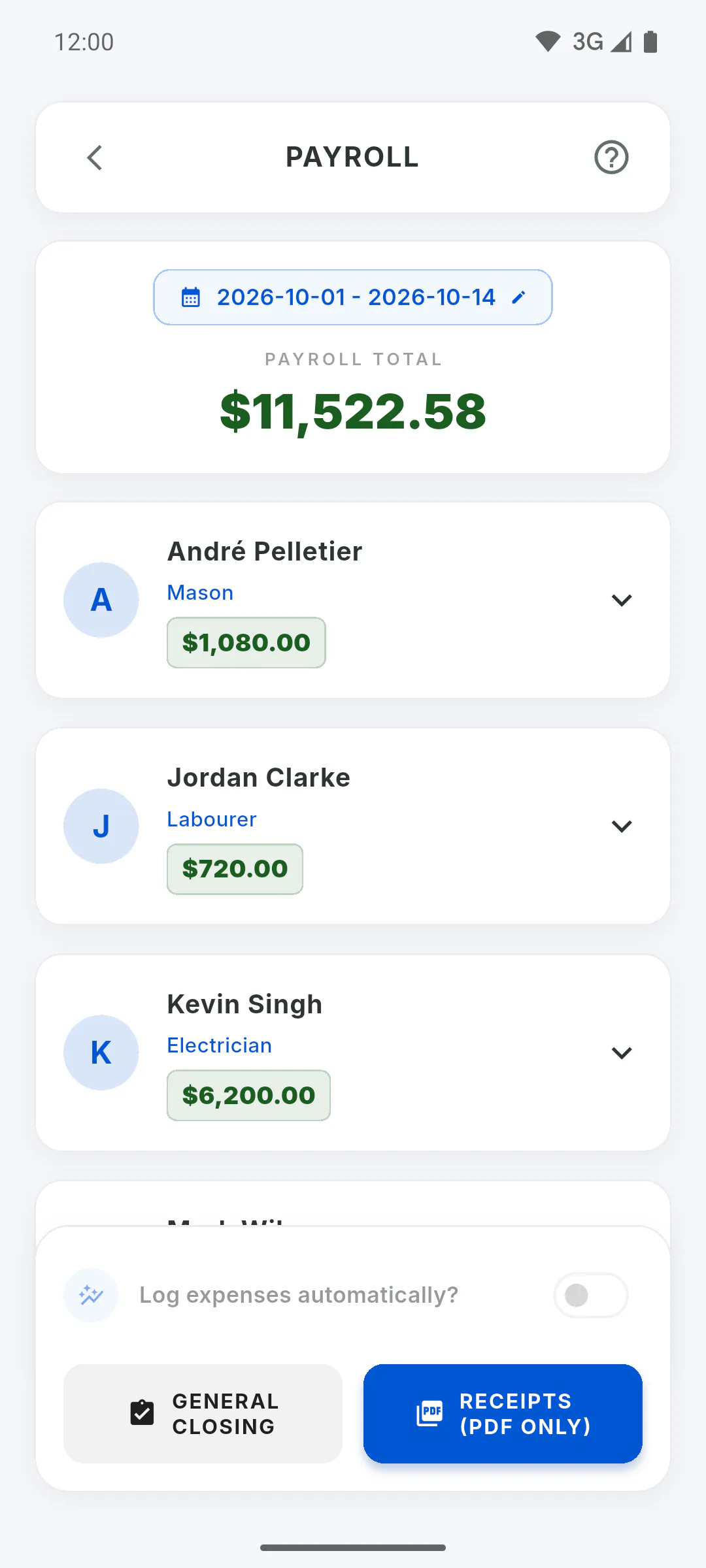
Below the dates is the Payroll Total: the sum of what each team member is owed for the period, with advances and bonuses already applied. Then comes one card per team member, in alphabetical order, with name, role and amount owed. Tap a card to see the math: How payroll is calculated
Step 4: Who shows up on payroll
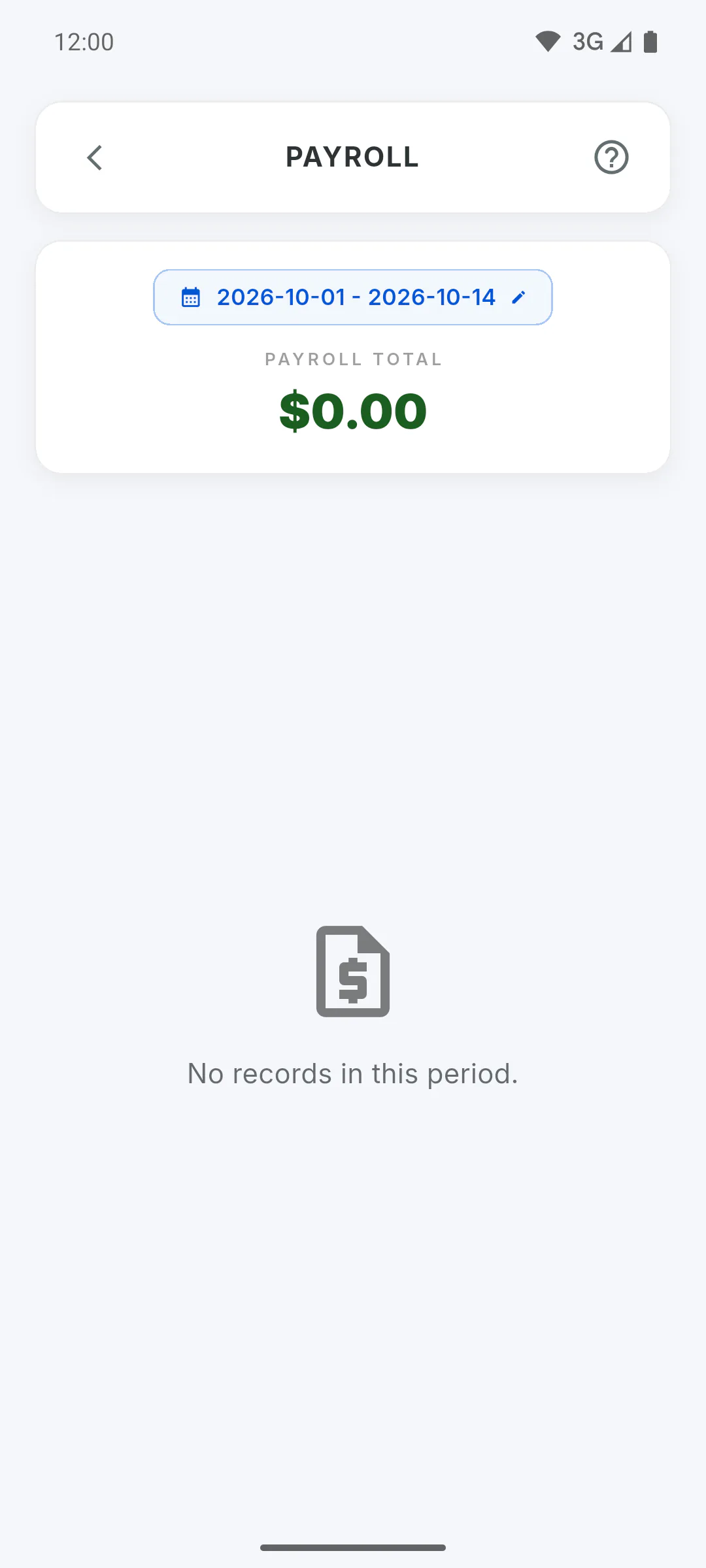
Anyone marked present or absent in a daily report of this project during the period is listed, plus monthly staff with a fixed share in this project, even without a report. If there's no one, you'll see No records in this period. and the bottom bar disappears.
Step 5: Use the bottom bar
With people on payroll, the bottom bar has General Closing, to combine several projects, and Receipts (PDF Only), for this project's pay slips. Changes to advances and bonuses on screen only last while payroll is open.
Step 6: Who can open payroll
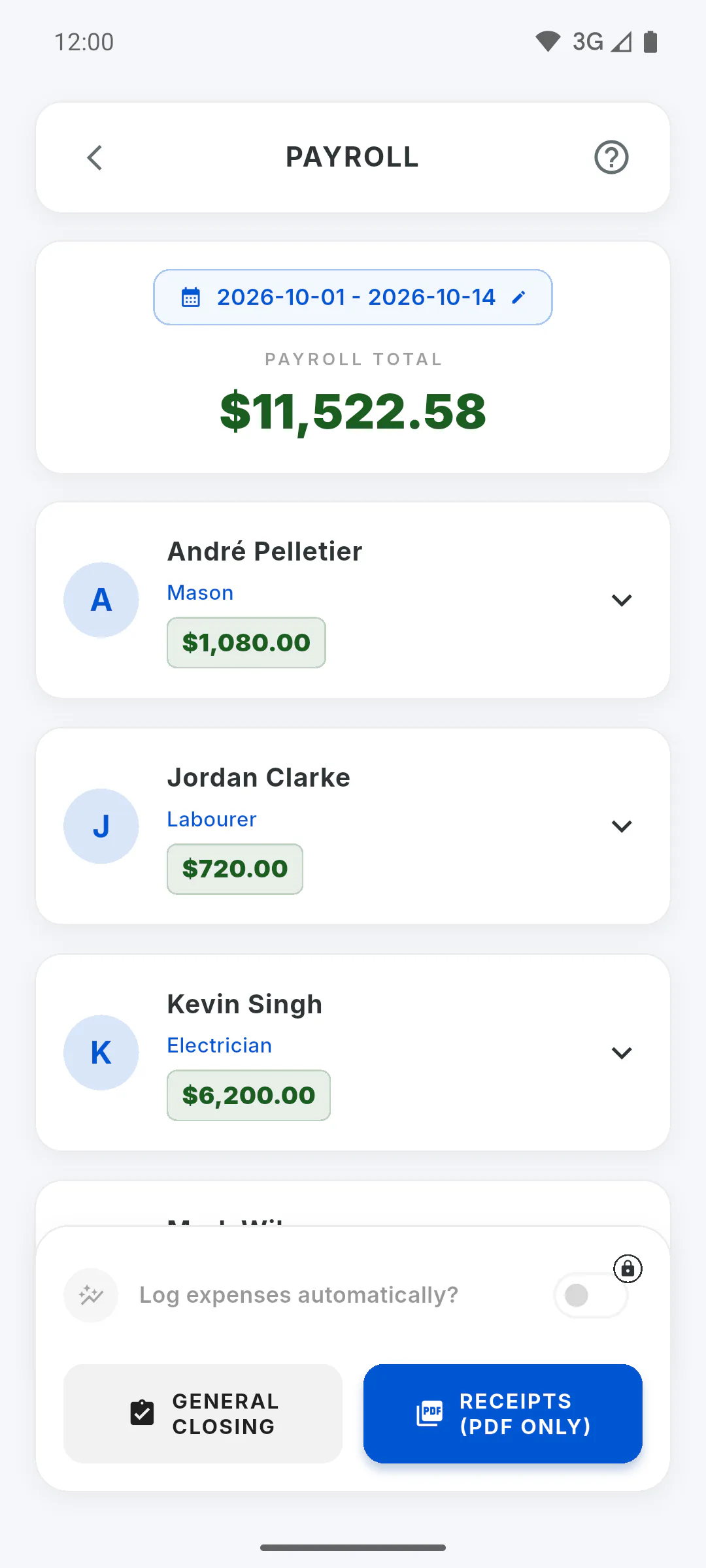
Payroll lives inside Financial, which belongs to project management: the owner and an invited engineer can open it. The engineer sees payroll and generates pay slips, but Log expenses automatically? and Log bonus as expense? are greyed out with a lock icon: only the owner can log entries in Financial. For someone invited as team, Financial shows a lock icon in the project menu. Tapping anything with a lock icon opens a window showing your role on the project and who can use it.
How to open a project payroll and pick the period
Open a project's payroll, pick the dates and see how much each team member is owed, worked out from the daily reports.
For managers6 steps
Didn't find what you were looking for?
Chat with support on WhatsApp or raise a ticket in the app.