
Step 1: Open the setting
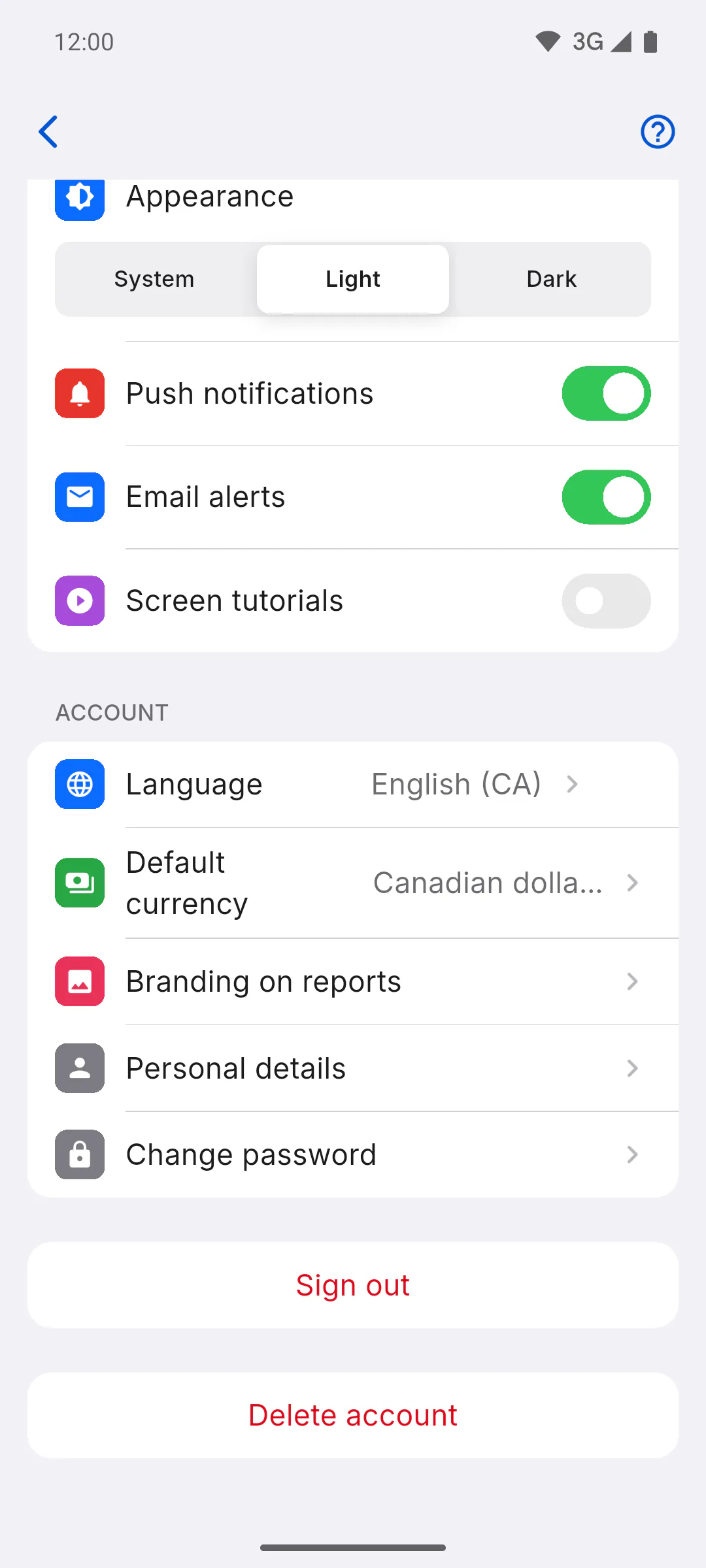
Open Profile and, in the Account section, tap Default currency. Your current choice shows next to it: Automatic or the currency you picked. The screen opens with the Default currency for new projects box.
Step 2: Pick the currency
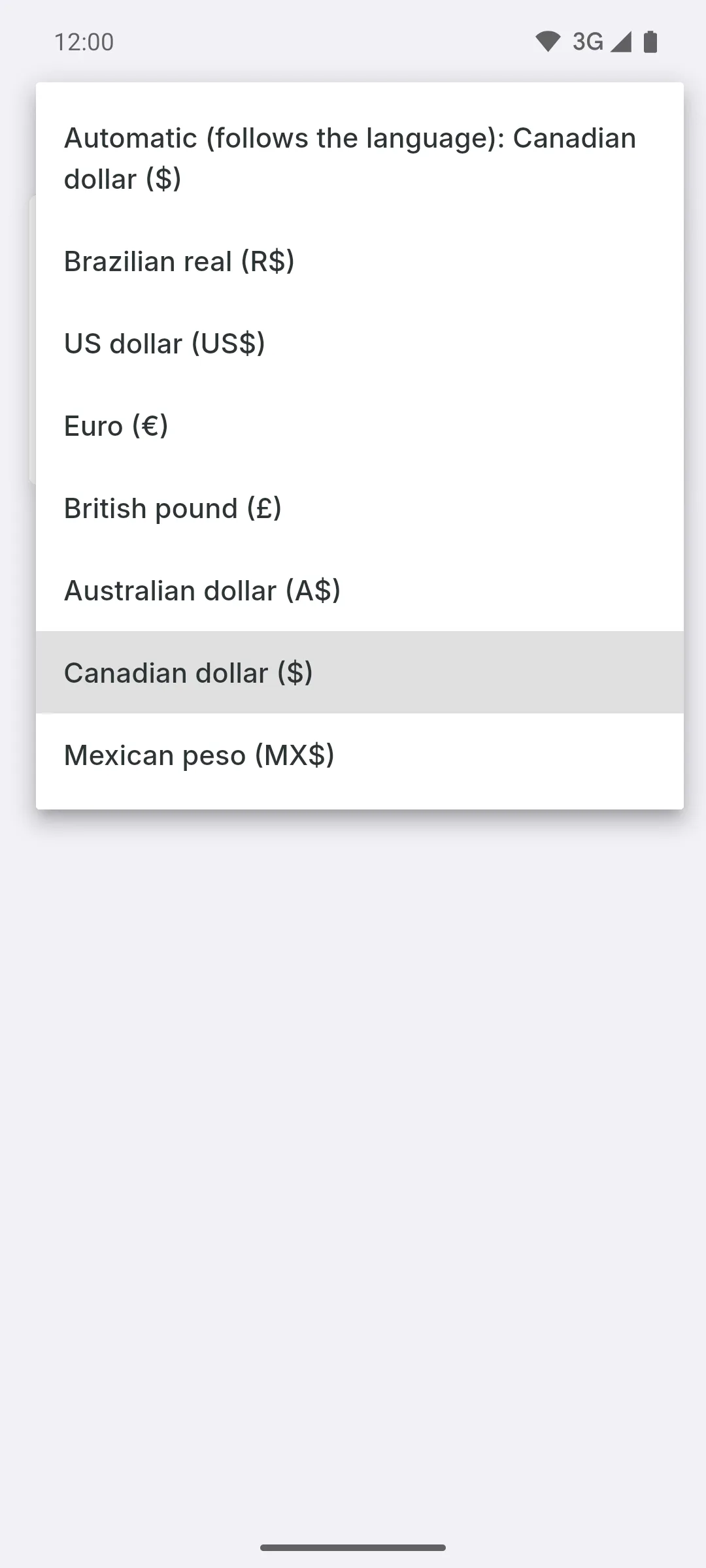
Tap the box and choose:
- Automatic (follows the country in your profile): uses the currency of the country of origin in your profile; in Canada, the Canadian dollar. If your country's currency isn't on the list yet, it uses the US dollar. An account with no country in the profile follows the app language
- or a fixed currency from the list
Your choice applies right away; there's no save button.
Step 3: What changes
Only projects created after the change start in that currency. Existing projects keep their own currency, and each project can have its own: How to choose a project's currency. In Automatic mode, changing the country of origin in your profile also changes the currency for upcoming projects.
Step 4: It applies to your account
Your choice is saved to your account. On another device, it kicks in the next time you open the app with the same account.
How to change the default currency for new projects
Choose which currency your next projects start in: the one for the country in your profile or a fixed currency. Existing projects don't change.
For managers4 steps
Didn't find what you were looking for?
Chat with support on WhatsApp or raise a ticket in the app.