
Step 1: The language button
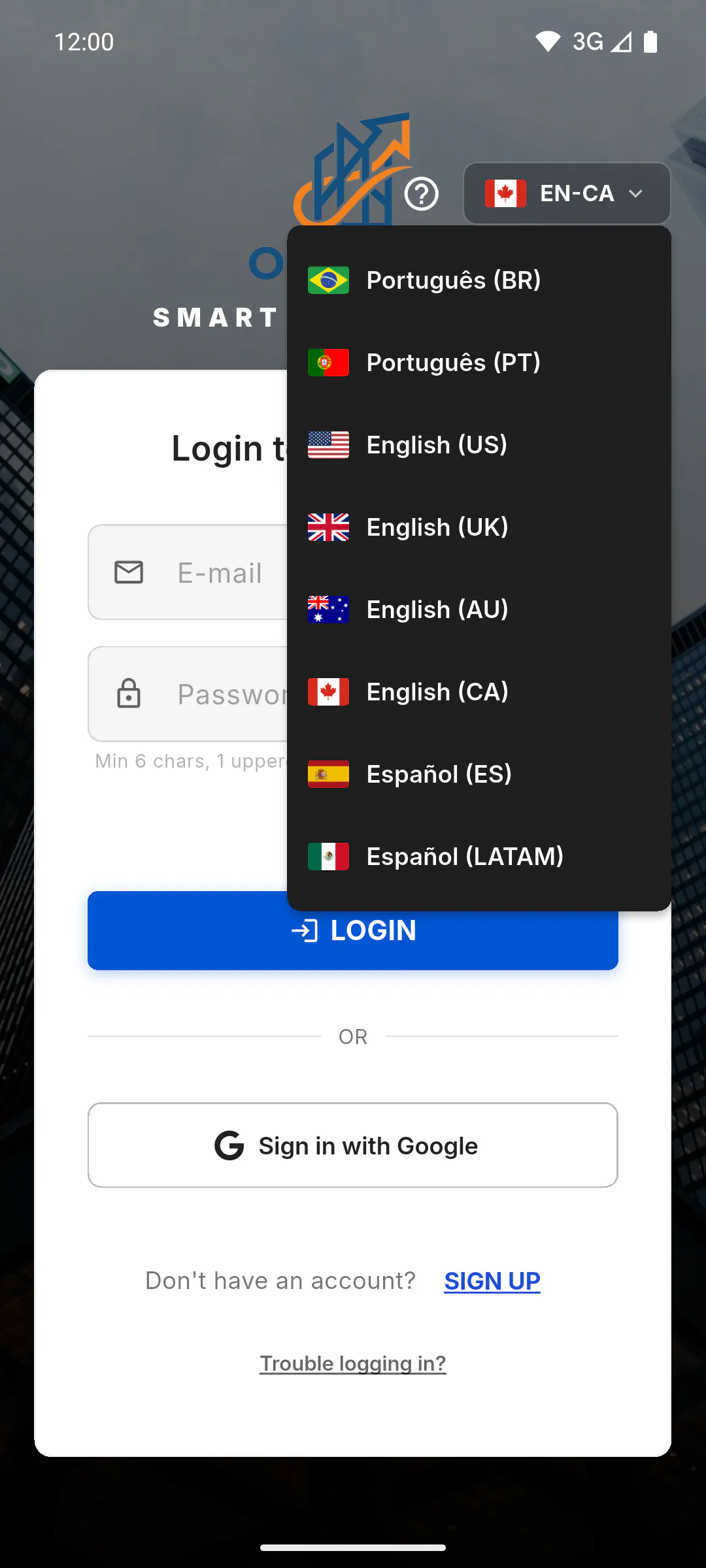
You change the language with a button showing a flag, the current language code, such as EN-CA, and a small arrow. Tap it and pick from the list: Português (BR), Português (PT), English (US), English (UK), English (AU), English (CA), Español (ES), Español (LATAM), Français (FR), Deutsch (DE), العربية (SA), Italiano (IT), Türkçe (TR), Polski (PL), Bahasa Indonesia (ID), 日本語 (JP), हिन्दी (IN), Tiếng Việt (VN), Nederlands (NL), 한국어 (KR), 繁體中文 (TW), Română (RO), ไทย (TH), Українська (UA), Русский (KZ), Čeština (CZ), Ελληνικά (GR), Magyar (HU) or עברית (IL). The names look the same in every language. The flags are built into the app, so they show even without internet.
Step 2: Before you sign in
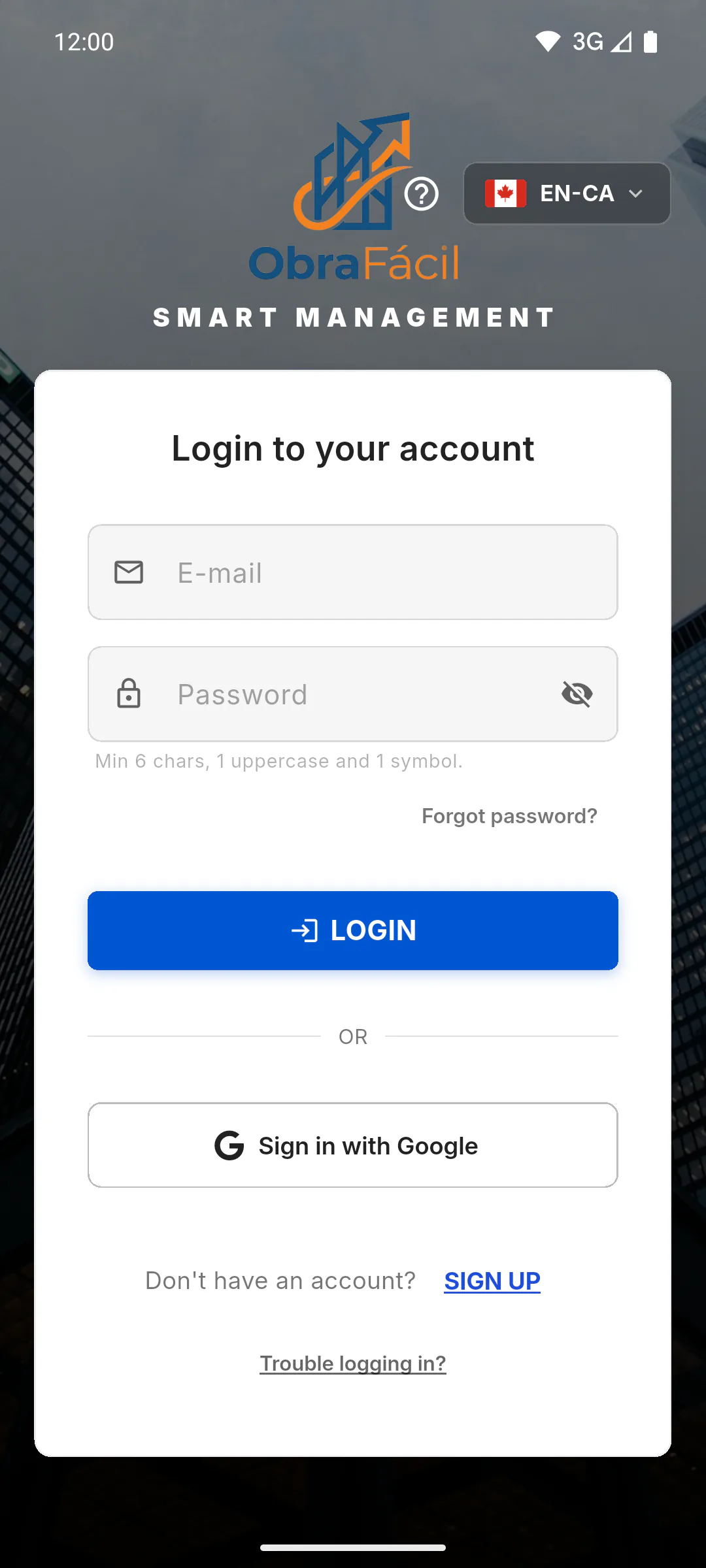
On the Login to your account screen, the button is in the top-right corner; on the Create Account screen, it's also at the top. The first time on a device, the app opens in the device's language (if the app doesn't have that language, in English (US)): change it there, before you sign in.
Step 3: Managers and team
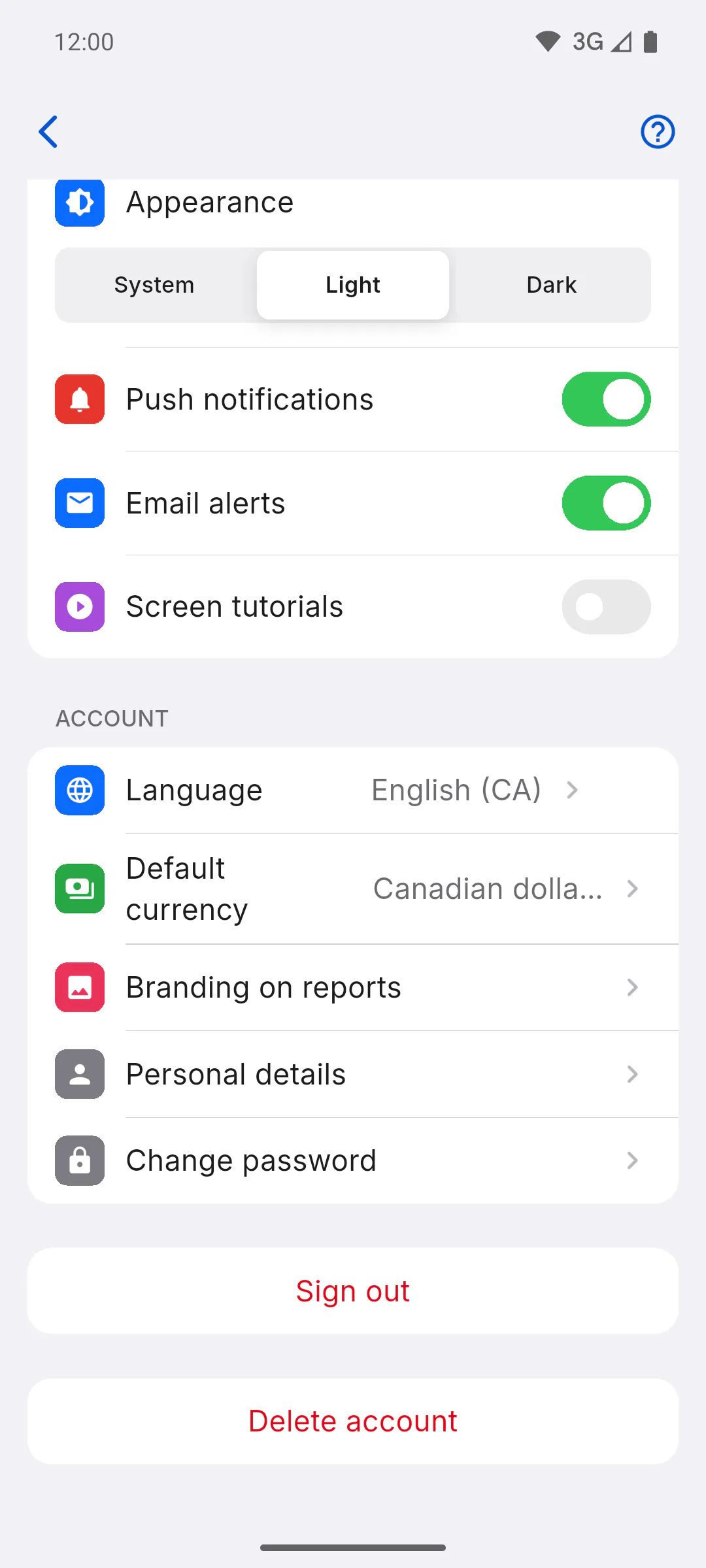
Open Profile and, in the Account section, tap Language: the current language shows next to it. Pick one from the list that opens below, with the flags: the app switches right away, with nothing to save. How to open and use your profile
Step 4: Clients
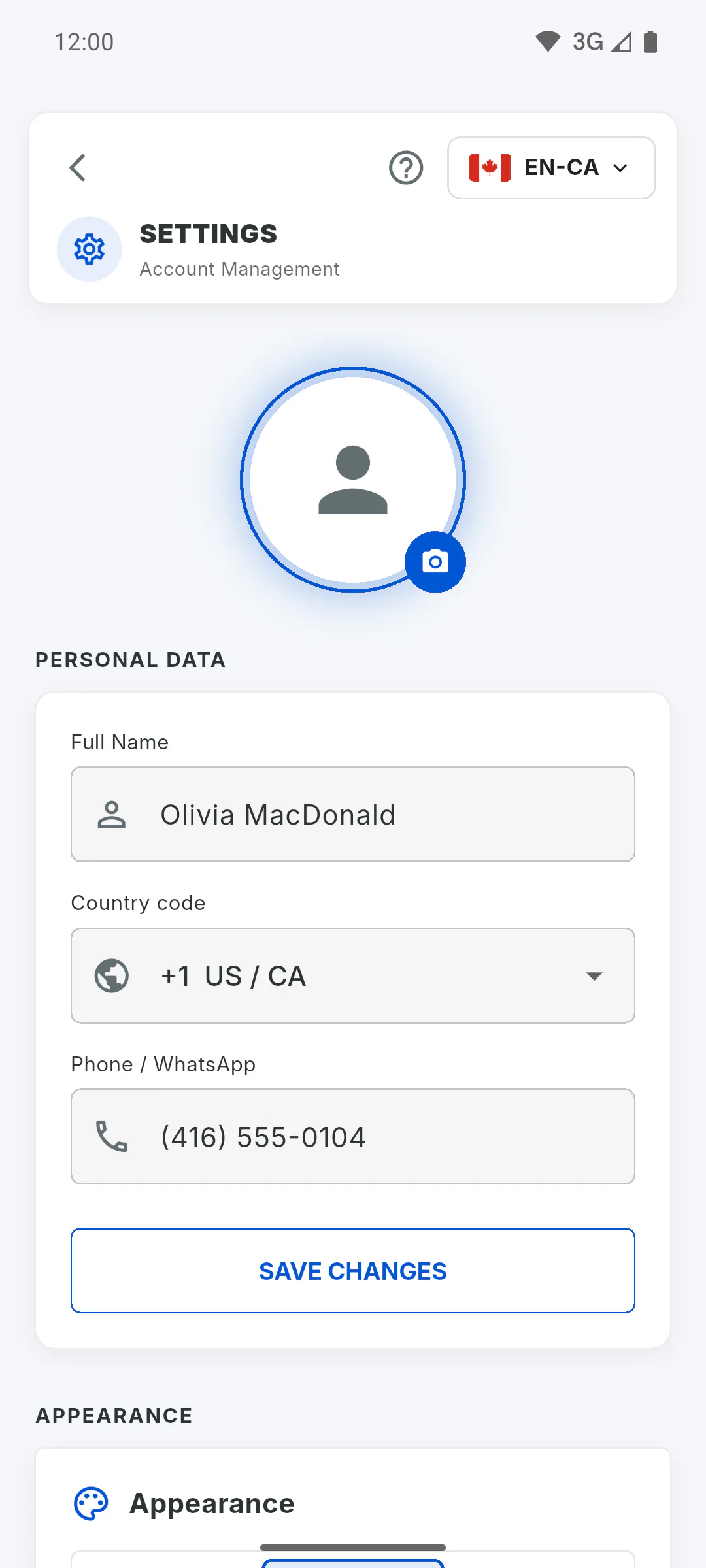
In the Client Portal, the button is at the top of My Projects and of Settings (menu, Settings). While the app is asking for your phone number in Settings, the button disappears from there until you save the number: Why the app asks for my phone number before I leave Settings
Step 5: It applies to this device
The language is saved on the device, even after you log out. On another device, when you sign in, the app uses the language saved to your account. While you're signed in, your choice is also saved to your account.
Step 6: What changes with it
The app's texts, the Terms of Use and the Privacy Policy switch to the chosen language: Where to read the Terms of Use and Privacy Policy. The default currency for new projects doesn't change with the language: in Automatic (follows the country in your profile), it follows the country of origin in your profile: How to change the default currency for new projects
Step 7: Texts that don't change
A few texts don't follow the chosen language:
- invitation and removal emails arrive in the language of the recipient's account (if they don't have an account yet, in the language of whoever invited them)
- what people write (activities, observations, descriptions) stays in the language it was written in
- older bell notifications may be in the language of whoever did the action: How bell notifications work
How to change the app language
ObraFácil comes in 29 languages. See where to change the language before you sign in, in your Profile and in the Client Portal, what changes along with it and which texts stay the same.
For managers, team members and clients7 steps
Didn't find what you were looking for?
Chat with support on WhatsApp or raise a ticket in the app.