
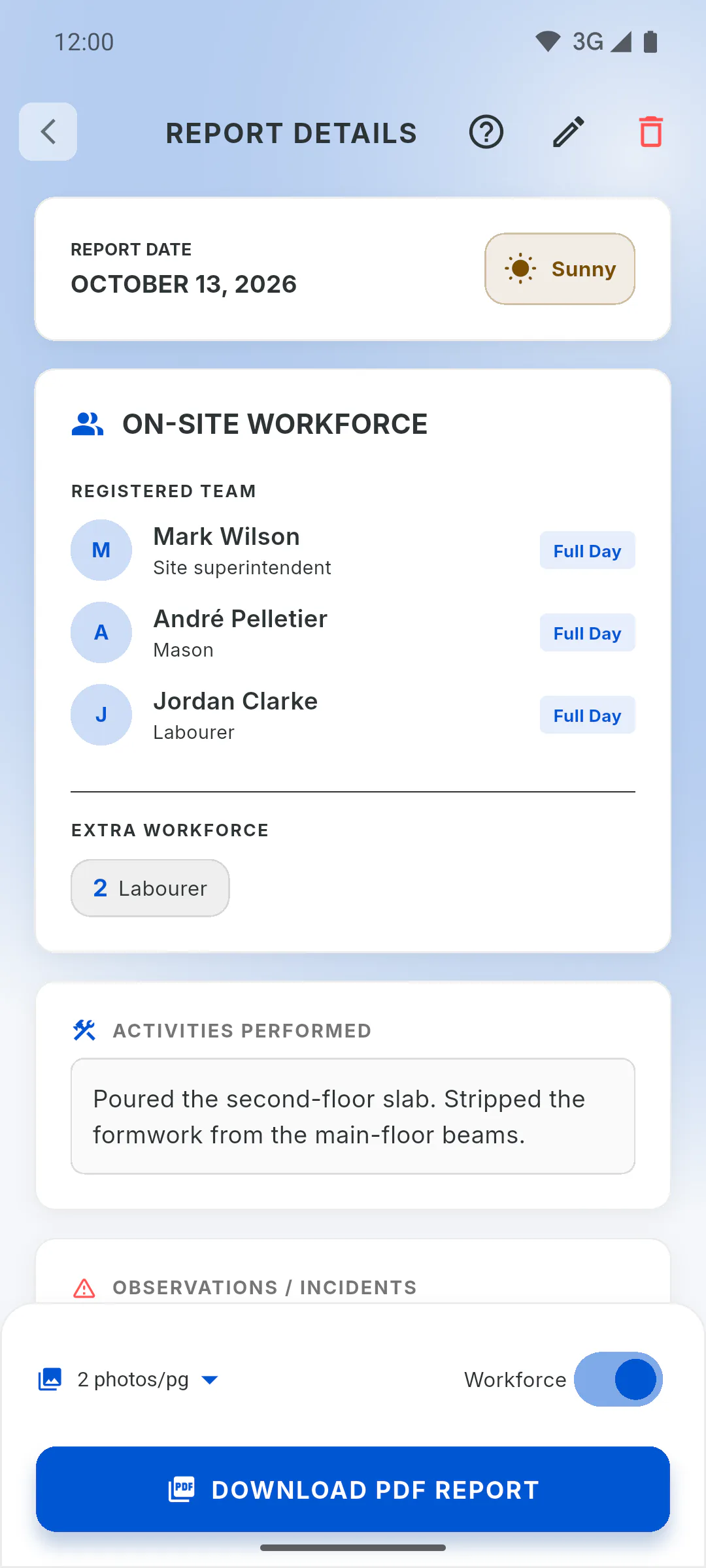
Step 1: Open the editor
Open the report from Daily Reports and tap the pencil at the top of the screen (Edit Report). The Edit Report screen opens. Anyone who works on the project can edit: the owner and invited engineers and crew members.
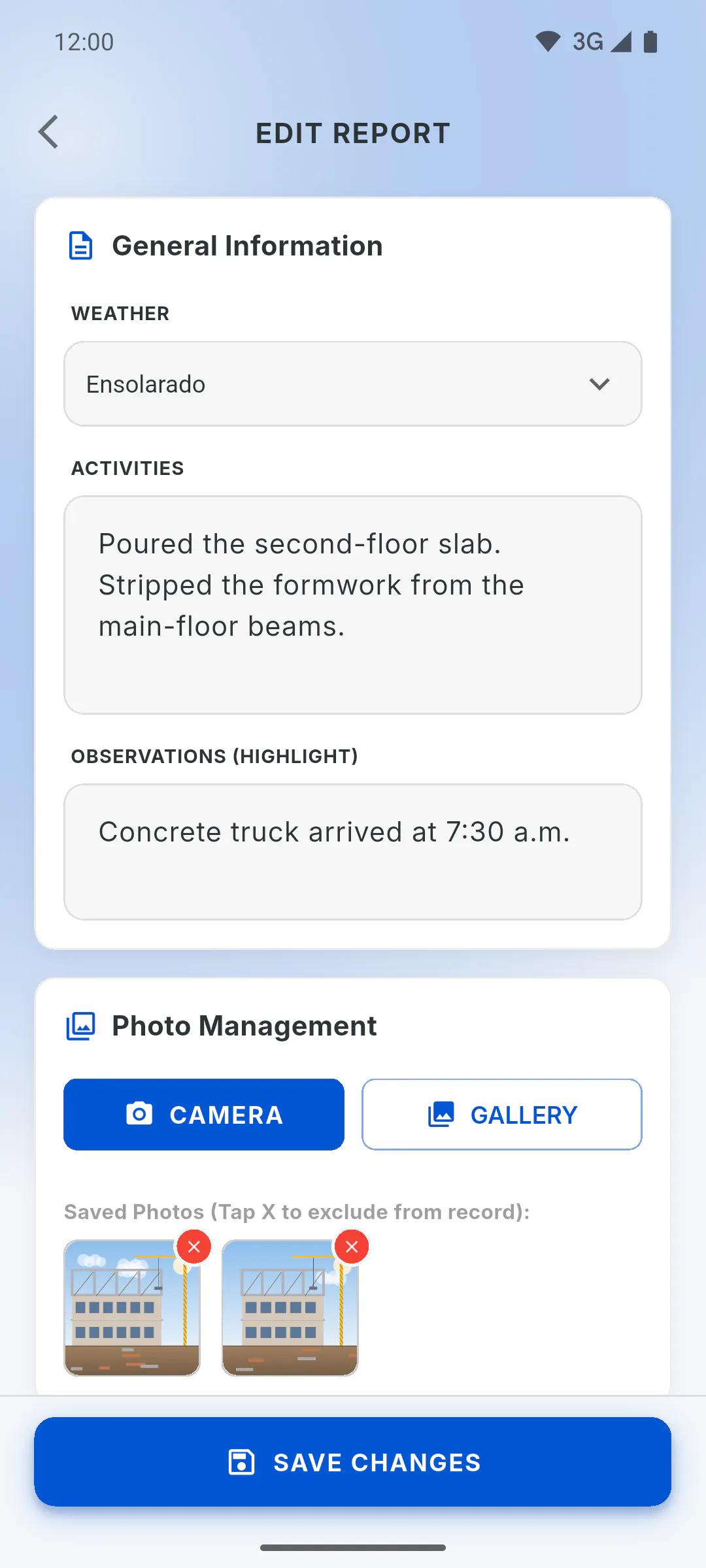
Step 2: Weather, activities and observations
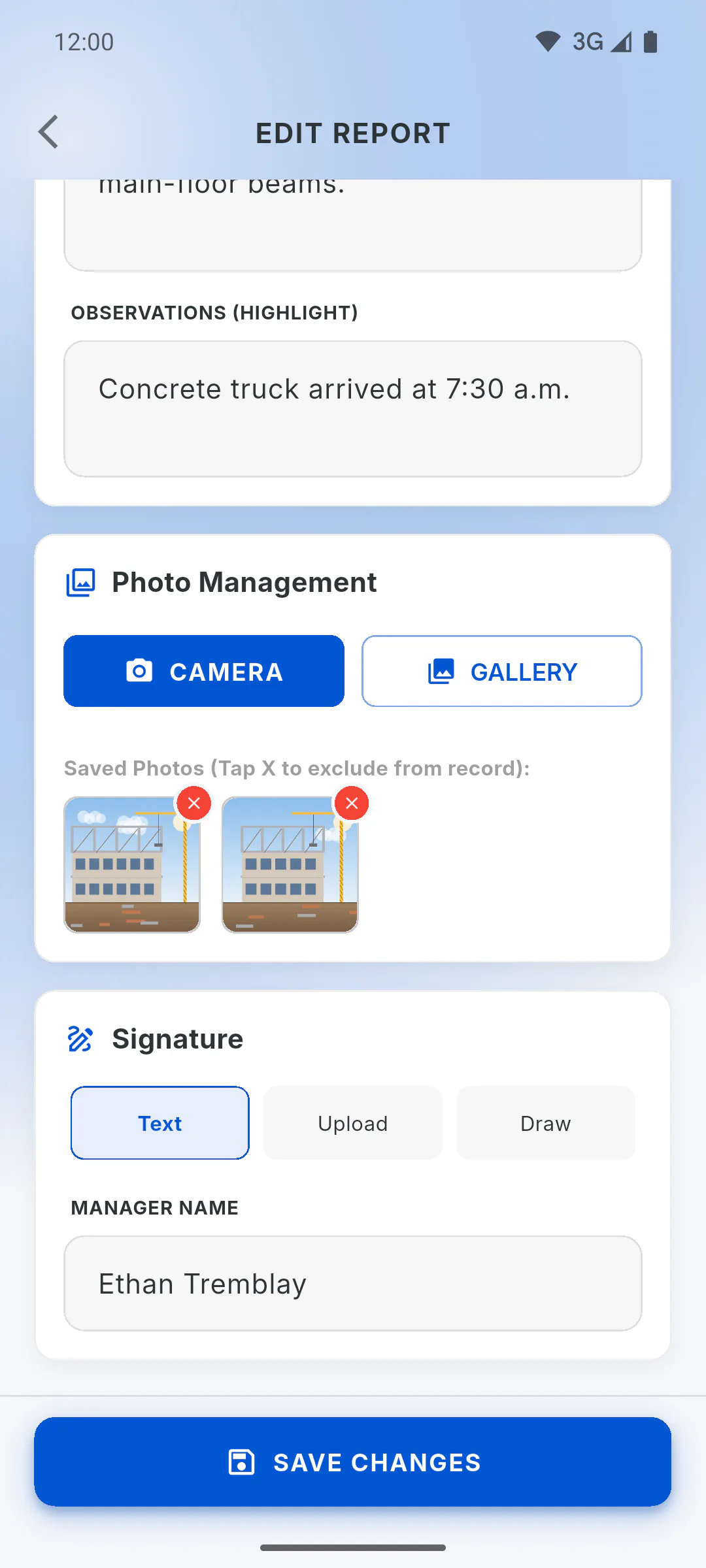
Change the WEATHER, the ACTIVITIES text and the OBSERVATIONS (HIGHLIGHT) text. Activities are required: without them, you'll see Please describe the activities.
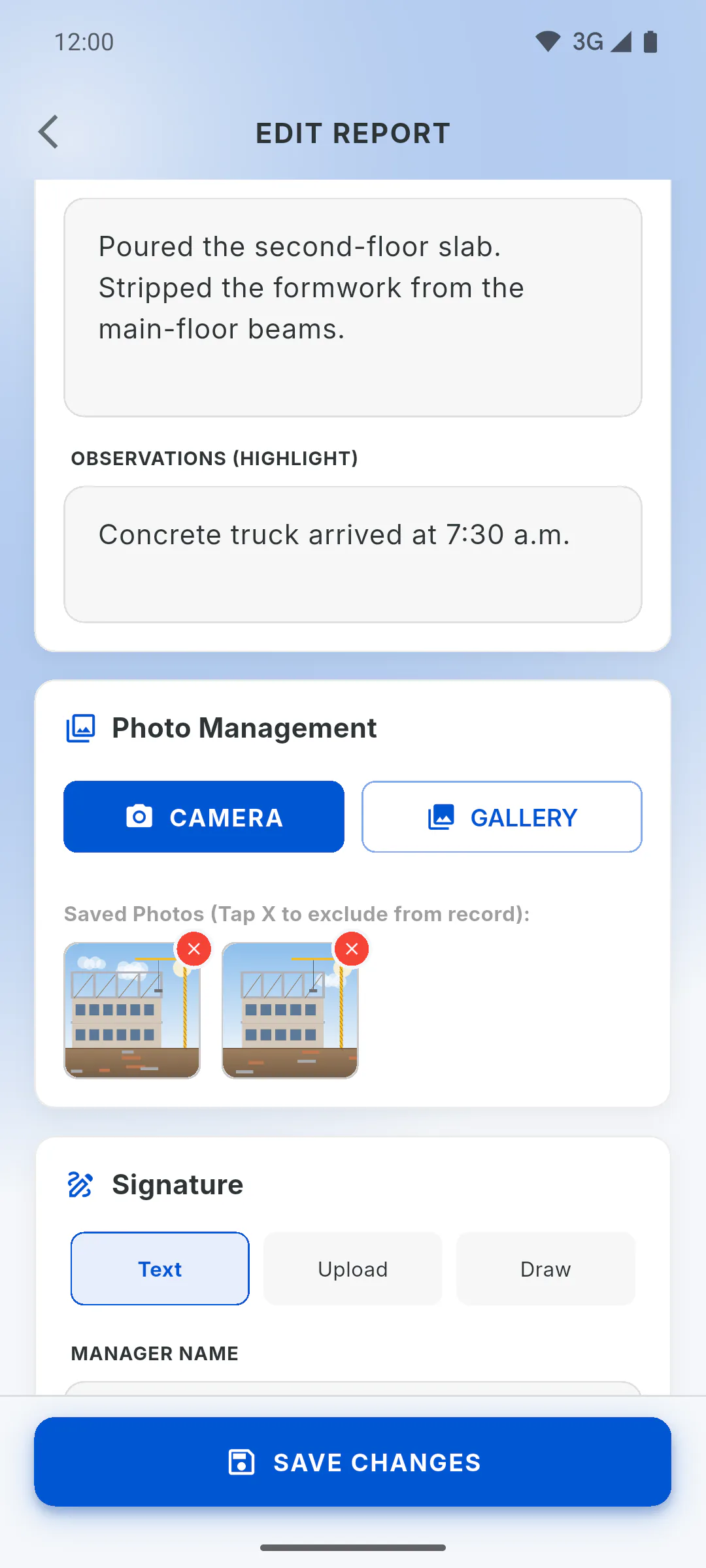
Step 3: Photos
Under Photo Management, tap the X on a saved photo to remove it from the report, or use Camera and Gallery to add new ones. There's no 20-photo limit here, but the report PDF includes 20 photos at most. A removed photo leaves both the report and the project's Gallery.
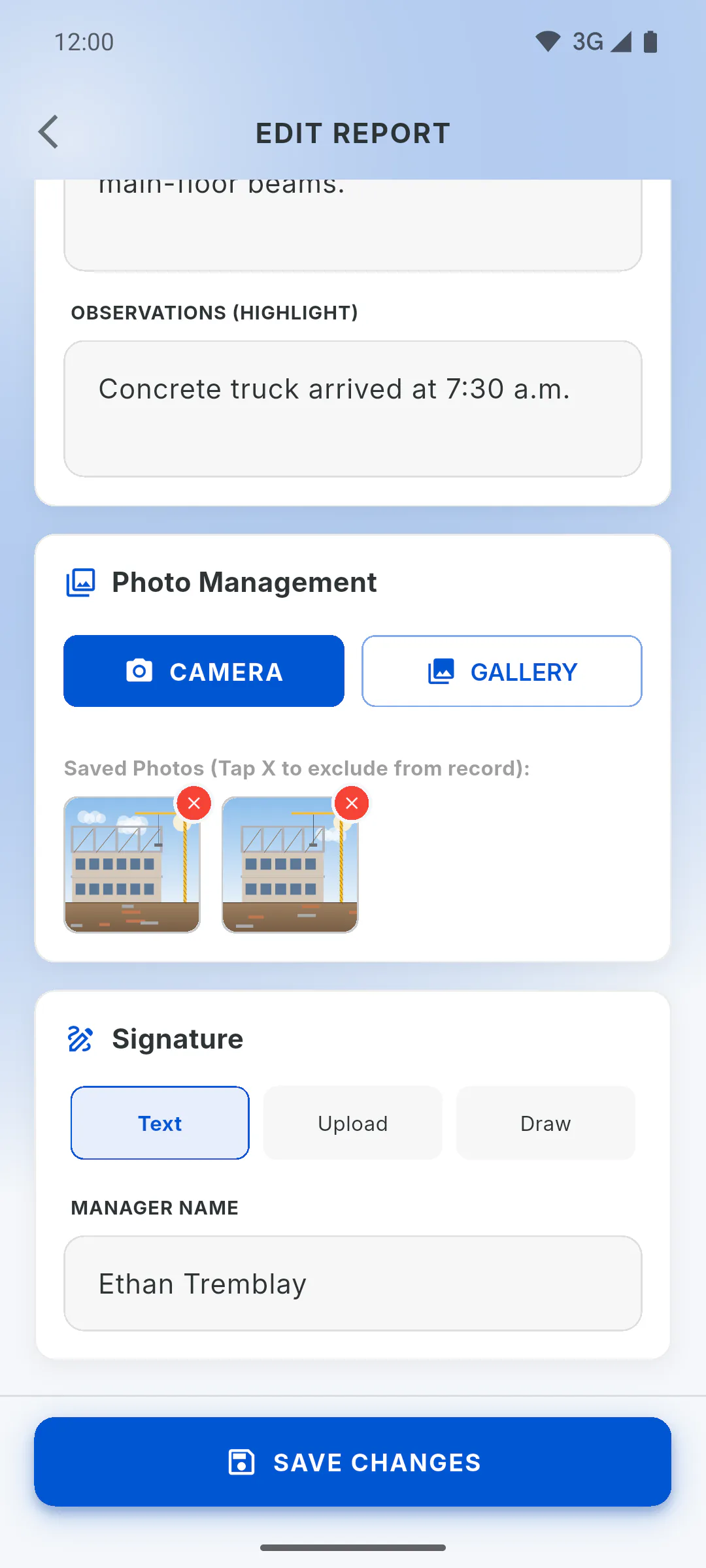
Step 4: Signature
Under Signature, choose Text, Upload or Draw. The editor opens on the type the report was signed with. With Upload, the current image appears: tap it to pick another one. With Draw, the Current Signature appears; draw in the box to replace it.
Step 5: Save
Tap Save Changes. Offline, No Internet appears: tap Save Locally. The screen closes and the changes go up when you're back online; on a phone, new photos and a new signature are also kept and sent on their own. In a web browser or on Windows, you can only save offline if there's no new photo or signature.
Step 6: See the new version
After saving, you go back to the report, which still shows the previous version. Go back to the list and open the report again to see the changes, especially before creating the PDF.
Step 7: What you can't change
The date, crew attendance and extra workforce don't appear in the editor. If any of them is wrong, delete the report and create a new one. When you edit an automatic entry with System weather, the weather stays System (unless you pick another) and the entry shows what you write.
How to edit a daily report (and what you can't change)
Fix the weather, activities, observations, photos and signature of a saved report. The date, crew attendance and extra workforce can't be changed.
For managers and team members7 steps
Didn't find what you were looking for?
Chat with support on WhatsApp or raise a ticket in the app.