
Step 1: Who can export
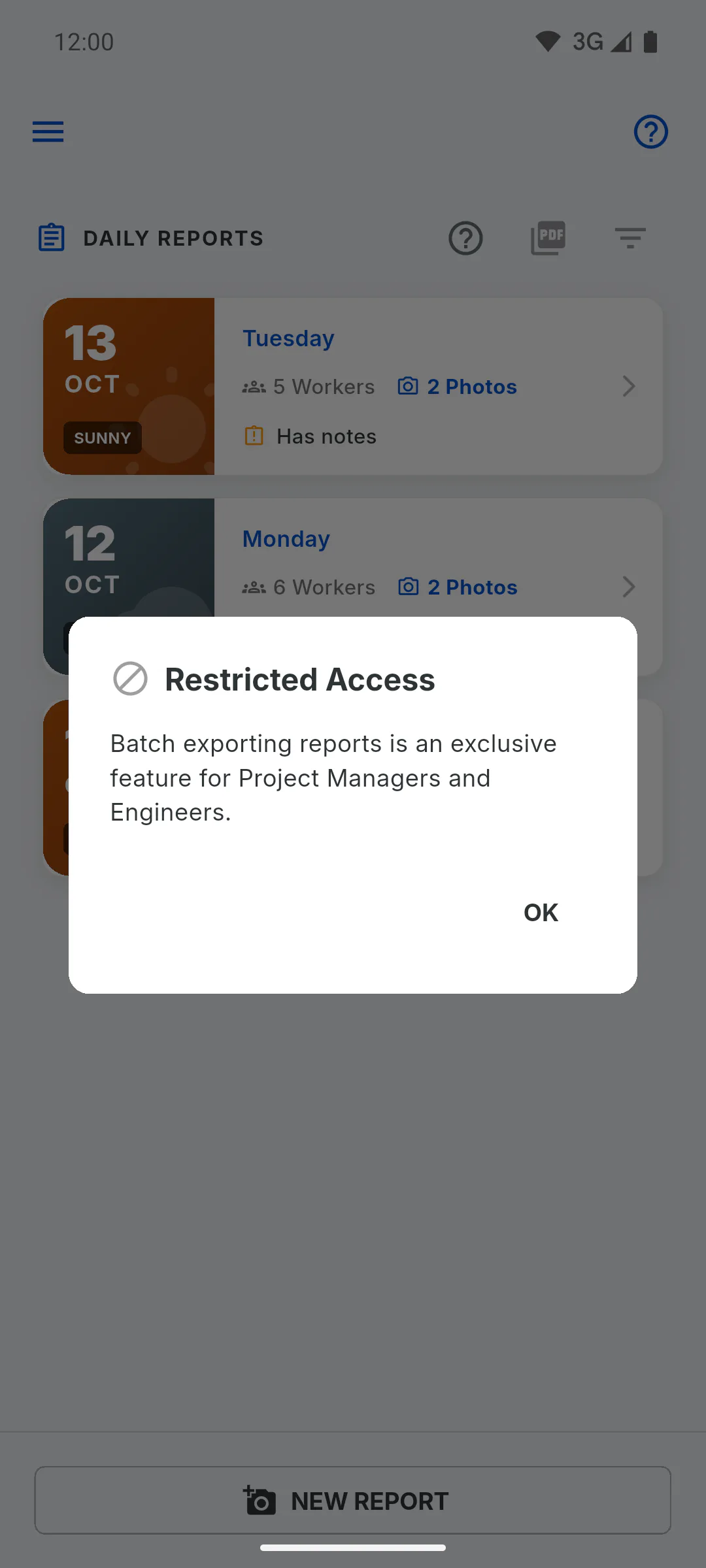
ZIP export is a PRO feature, and what counts is the plan of the person exporting. On the free plan, Batch Export (ZIP) appears with an invitation to go PRO. The project owner can export. An invited engineer can export too; for anyone else, Restricted Access appears. You need to be online.
Step 2: Enter selection mode
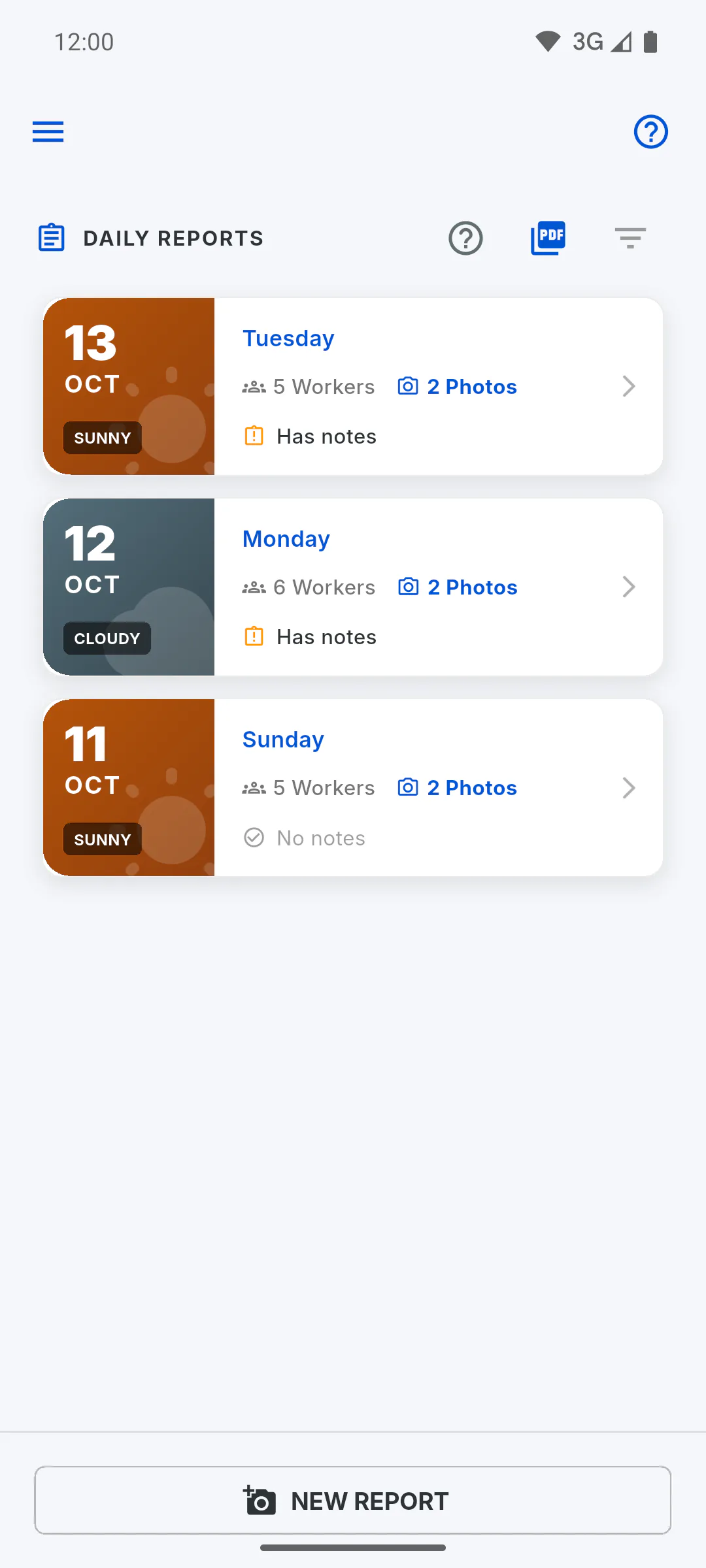
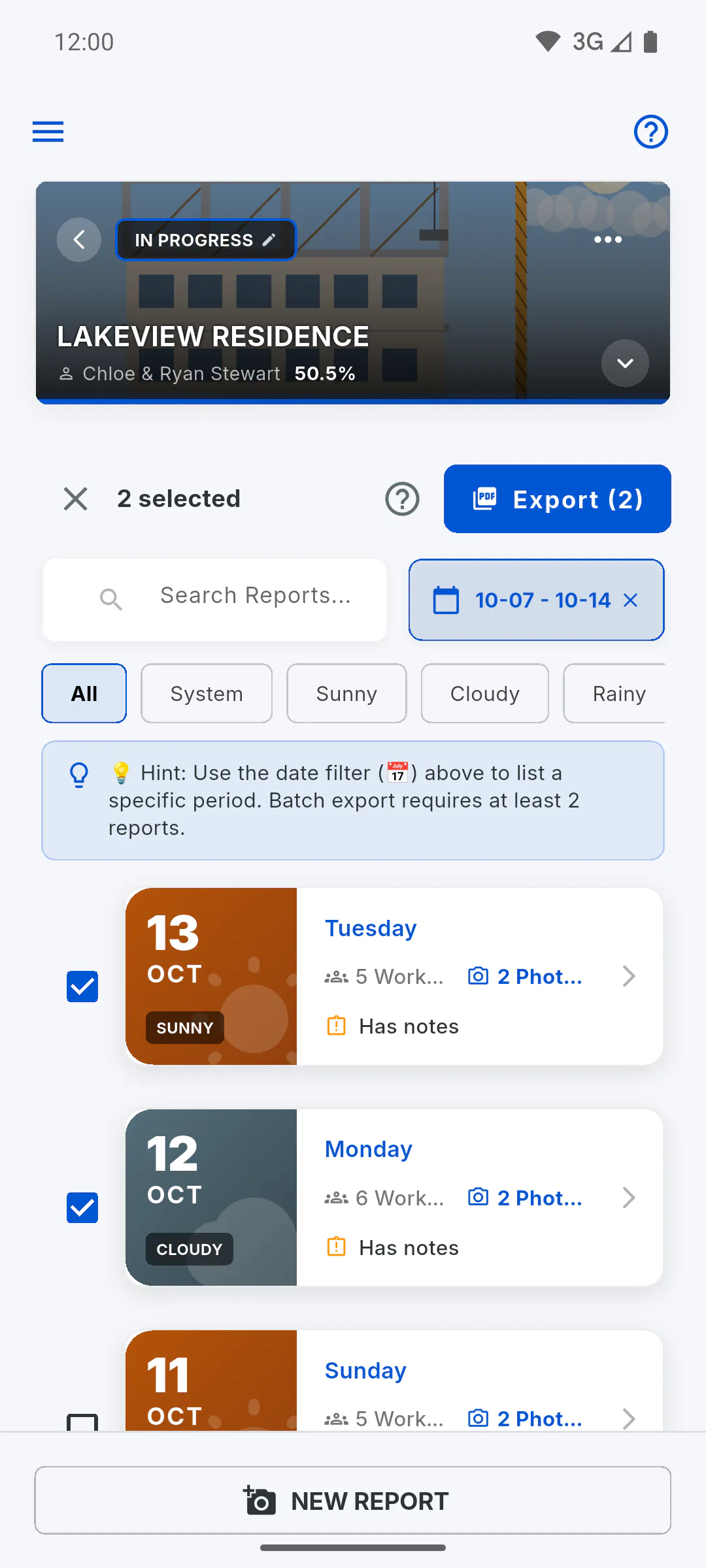
In Daily Reports, tap the PDF icon at the top of the list, next to the filter. The filters open and a tip about the date filter appears.
Step 3: Filter the date range
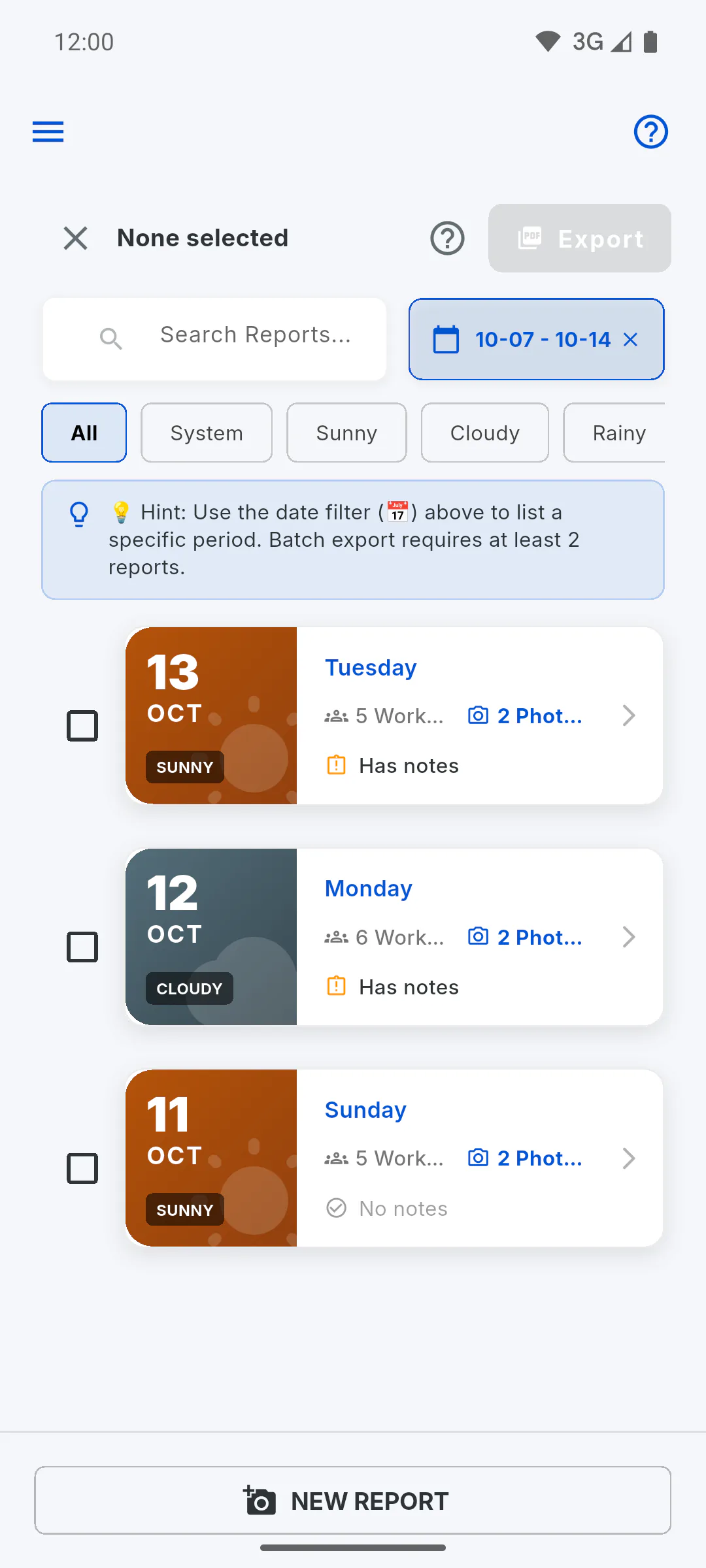
Tap the calendar and pick the first and last day you want to export. The list loads a few at a time: scroll to the end to see every report in the range.
Step 4: Select the reports
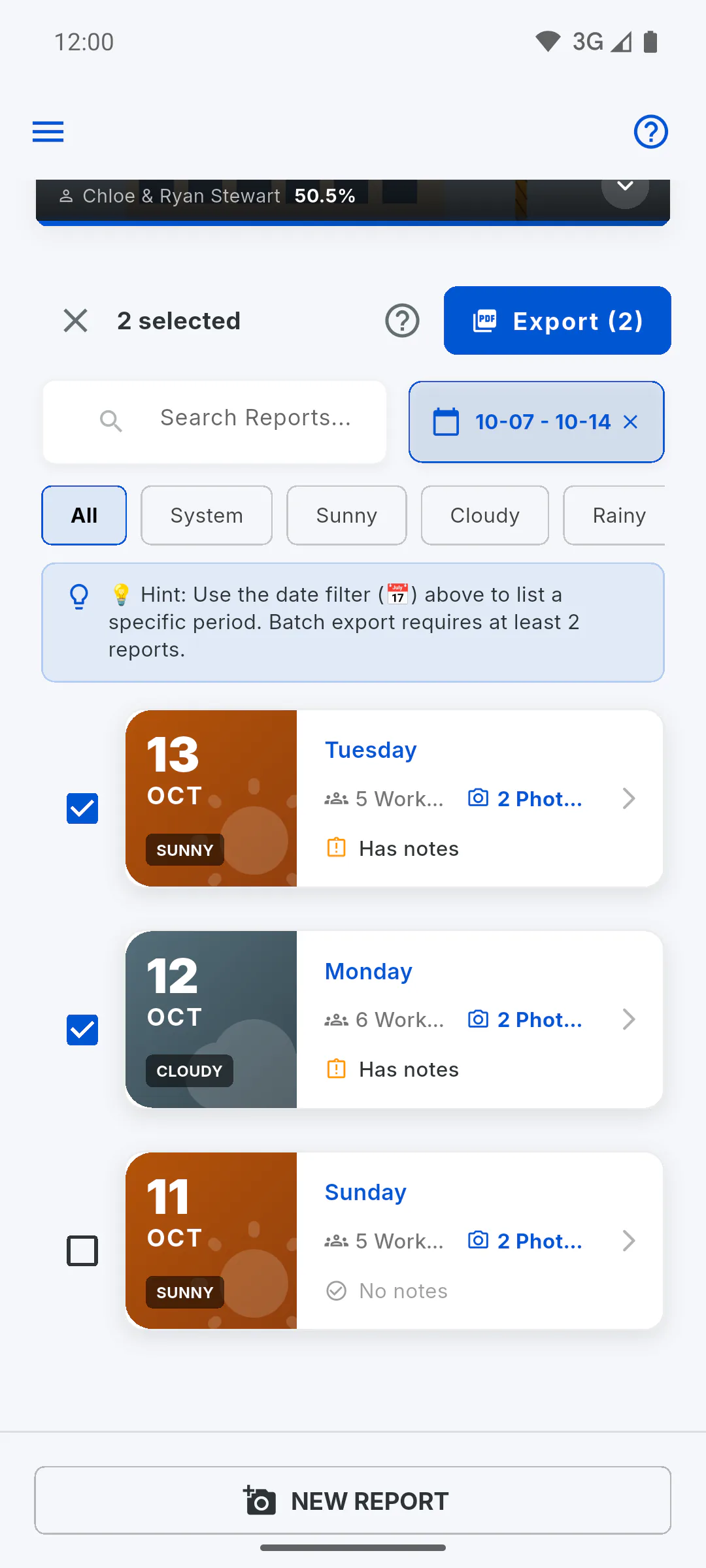
Tap the cards or the boxes next to them. You need at least 2: with only one, the button shows Min. 2 reports. To leave without exporting, tap the X at the top.
Step 5: Export
Tap Export, which shows how many are selected. Exporting Batch appears: wait, because the file is built right then and, with many reports, it can take a while. Then the ZIP download opens in your browser and a window confirms the request.
Step 6: Download from the bell
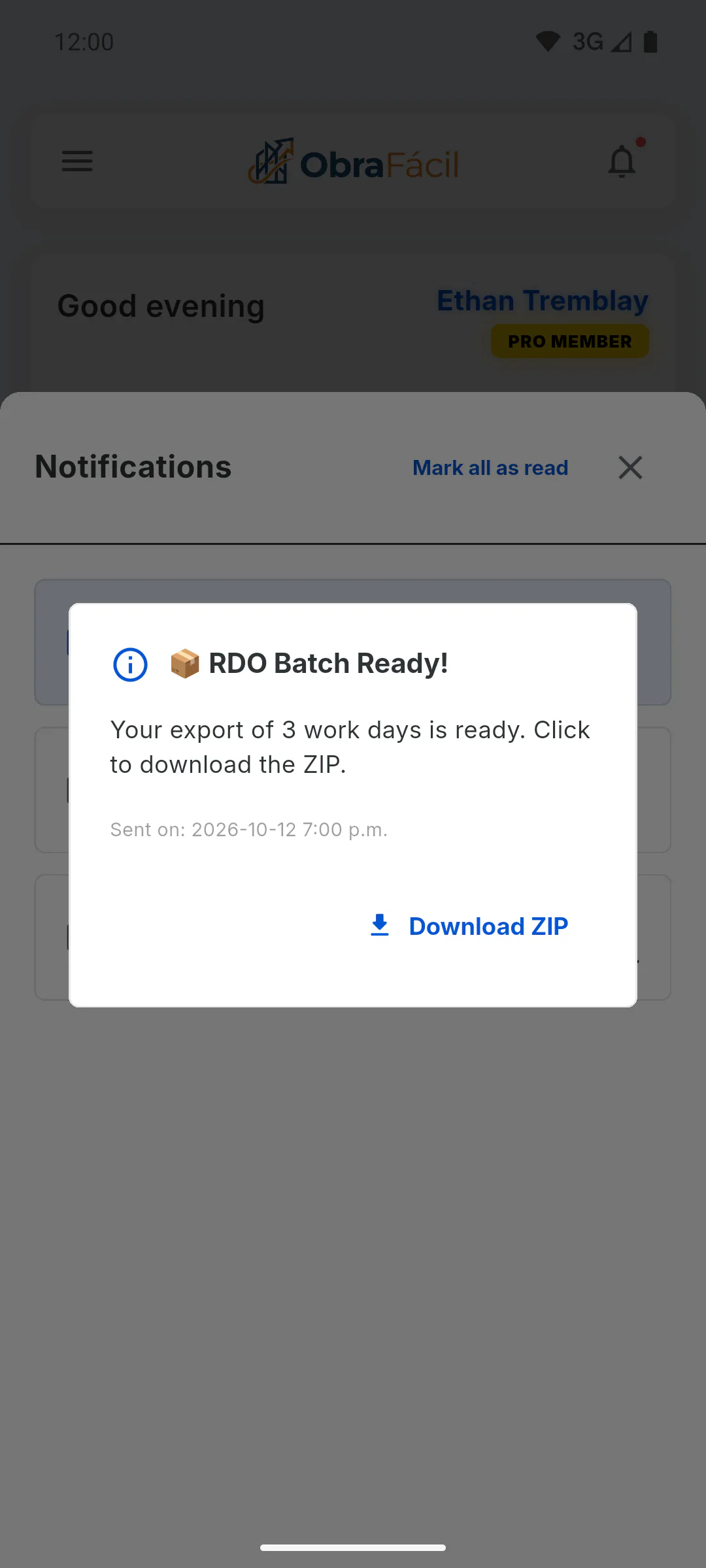
If the download didn't start, tap the bell on the dashboard and the batch-ready notice. In the window, tap Download ZIP. This button only works once: after you use it, it disappears. The ZIP is available for 7 days; after that it's deleted and the button disappears from the notice.
Step 7: What's in the ZIP
One PDF for each selected report, in date order, with a sequence number and the date in the file name. The PDFs carry the project owner's logo.
How to export several daily reports in a ZIP file
On PRO, pick a date range, select the reports and download them all at once in a ZIP file, with one PDF per day.
For managers7 steps
Didn't find what you were looking for?
Chat with support on WhatsApp or raise a ticket in the app.