
Step 1: Find Appearance
Managers and team: open Profile and, in the PREFERENCES section, use Appearance, the first row. Clients: in the Client Portal, open the menu, tap Settings and scroll down to Appearance. How to open and use your profile
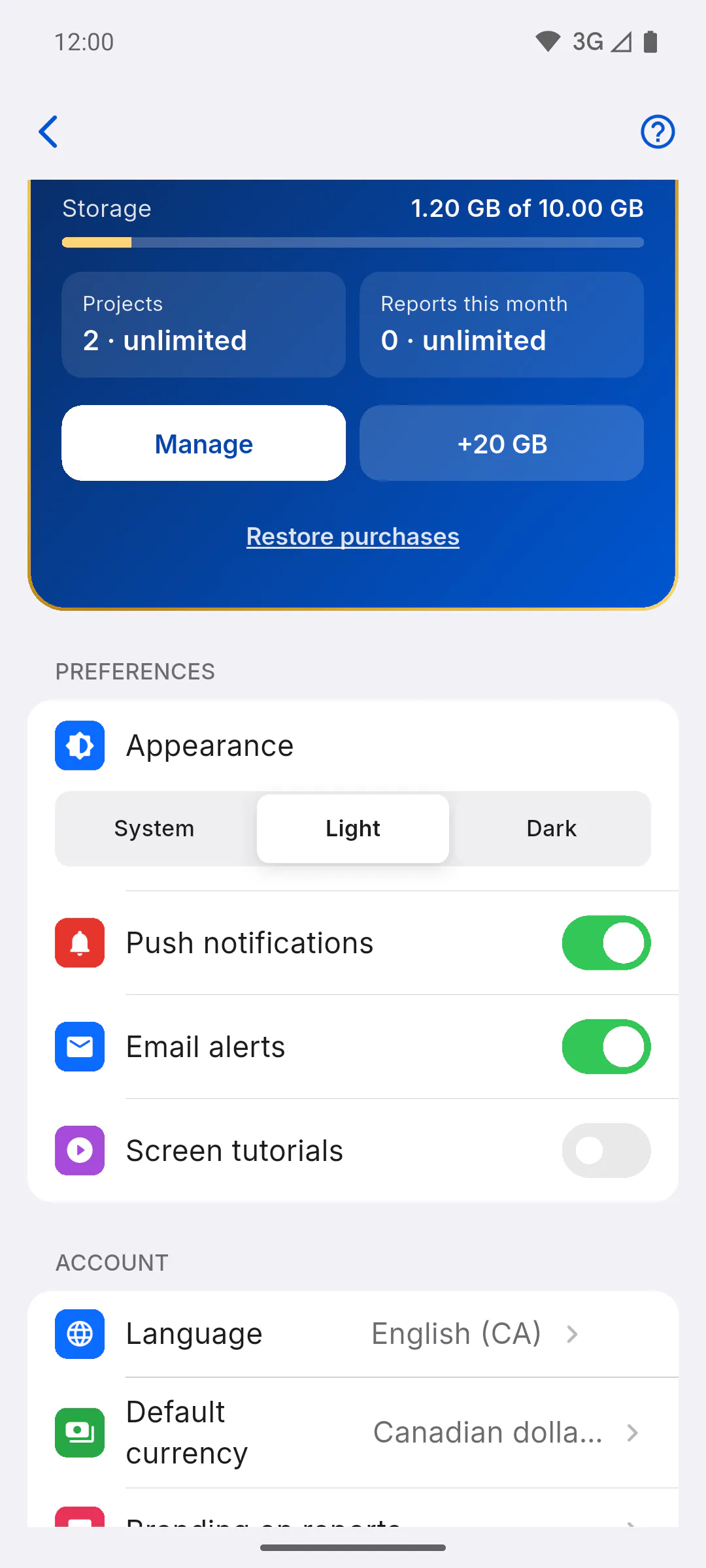
Step 2: Pick a theme
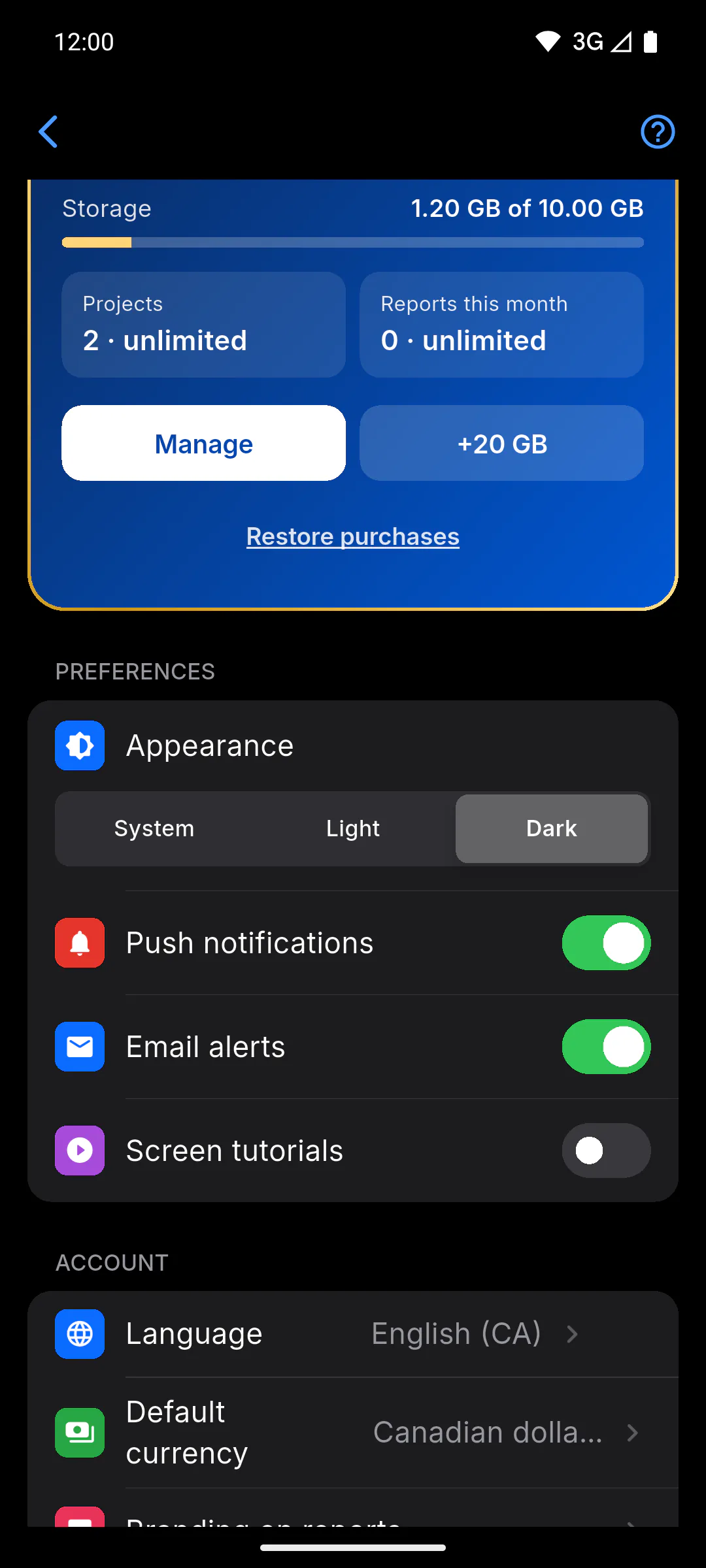
Tap System, Light or Dark. The app switches right away, with nothing to save. In the Client Portal, when you pick Light or Dark, Theme set manually. shows below the options.
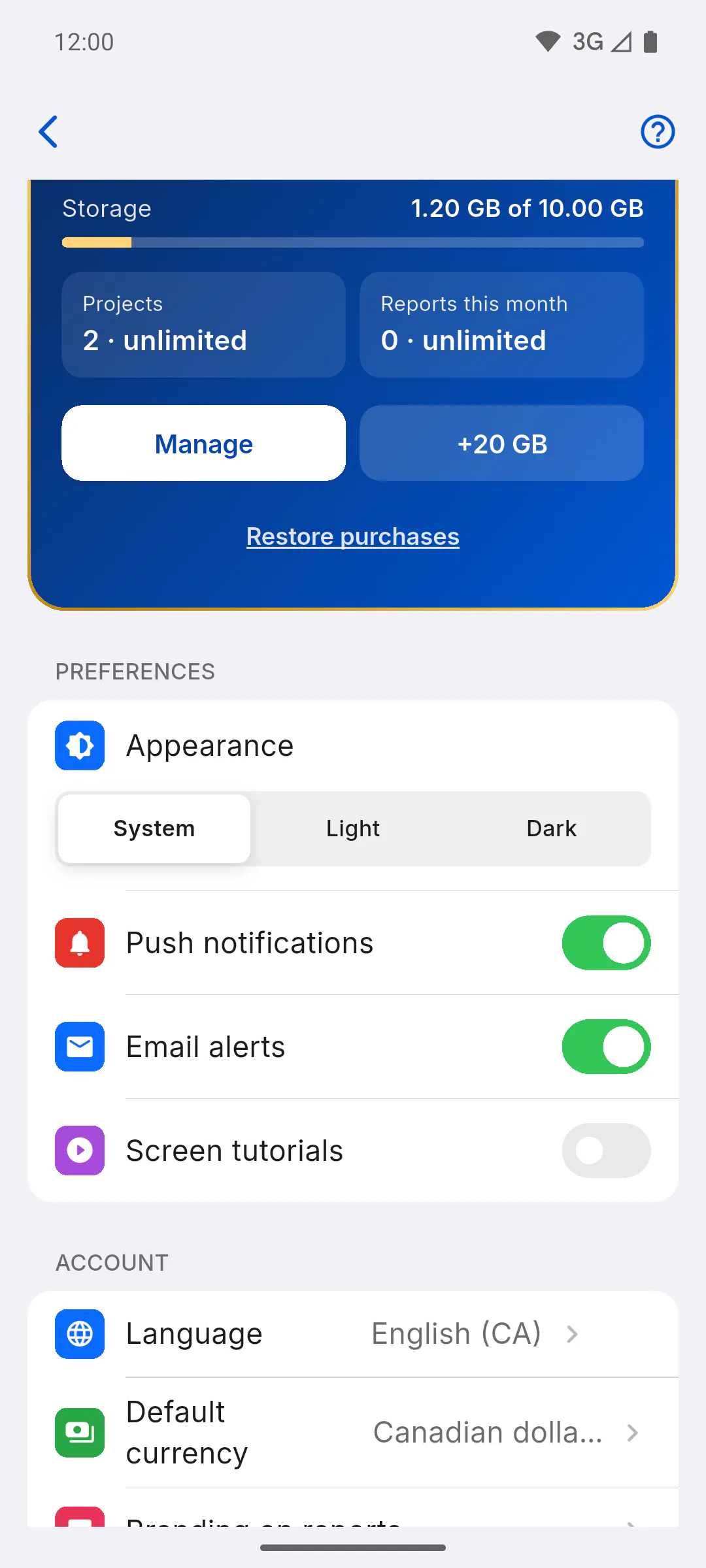
Step 3: The System option
System is the default: the app follows your device's light or dark mode and changes along with it. In the Client Portal, below the options you'll see The app will follow your device's default theme.
Step 4: It only applies to this device
The theme is saved on the device, not on your account: on another phone, computer or browser, pick it again. Logging out doesn't change the theme.
How to switch between light and dark theme
Choose between the light theme, the dark theme or following your device. See where the Appearance option is for managers, team members and clients, and why the choice is per device.
For managers, team members and clients4 steps
Didn't find what you were looking for?
Chat with support on WhatsApp or raise a ticket in the app.