
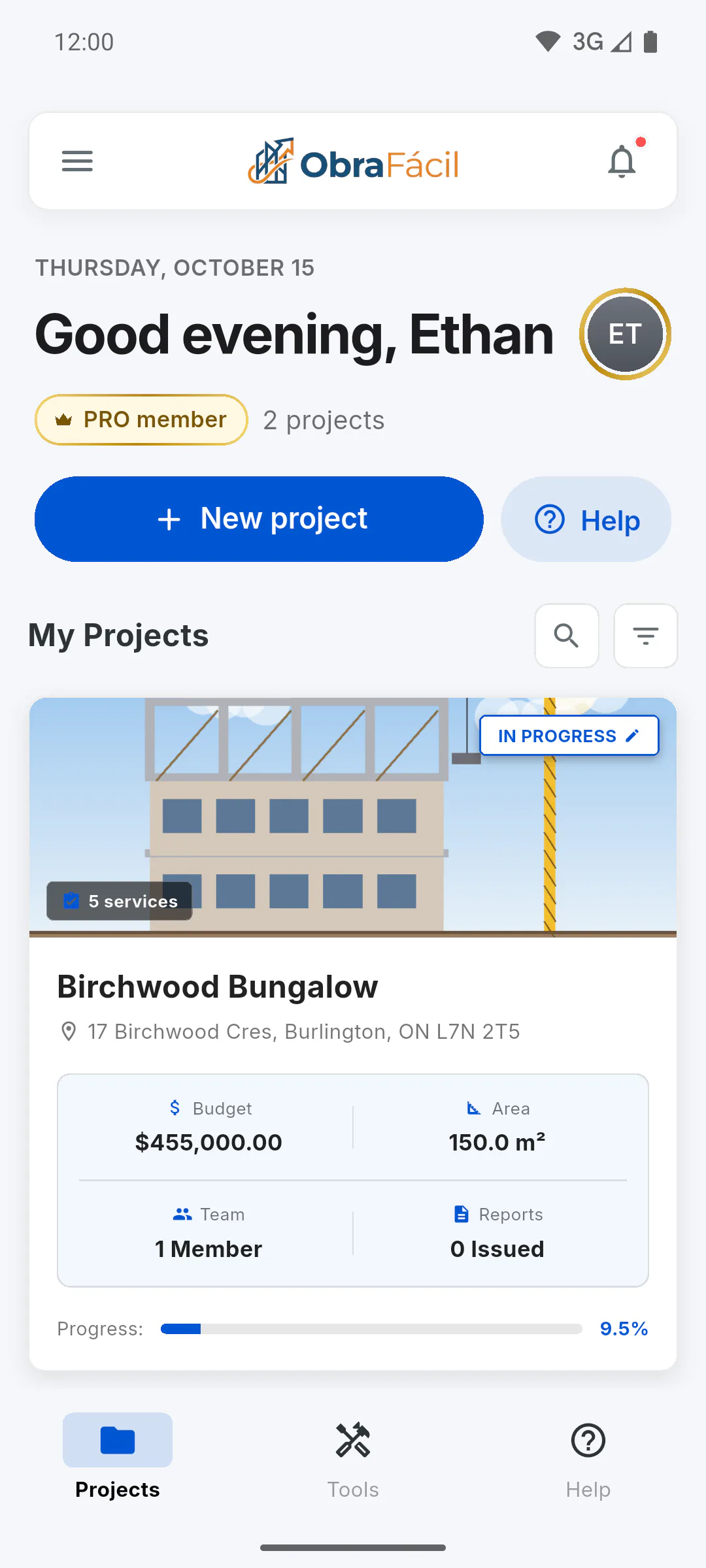
Step 1: Open the menu
On a phone, tap the menu icon (three lines) in the top-left corner of the dashboard. The menu slides over the screen; tap outside it to close it. On wide screens, like a computer, the menu stays open on the left side.
Step 2: Your profile card
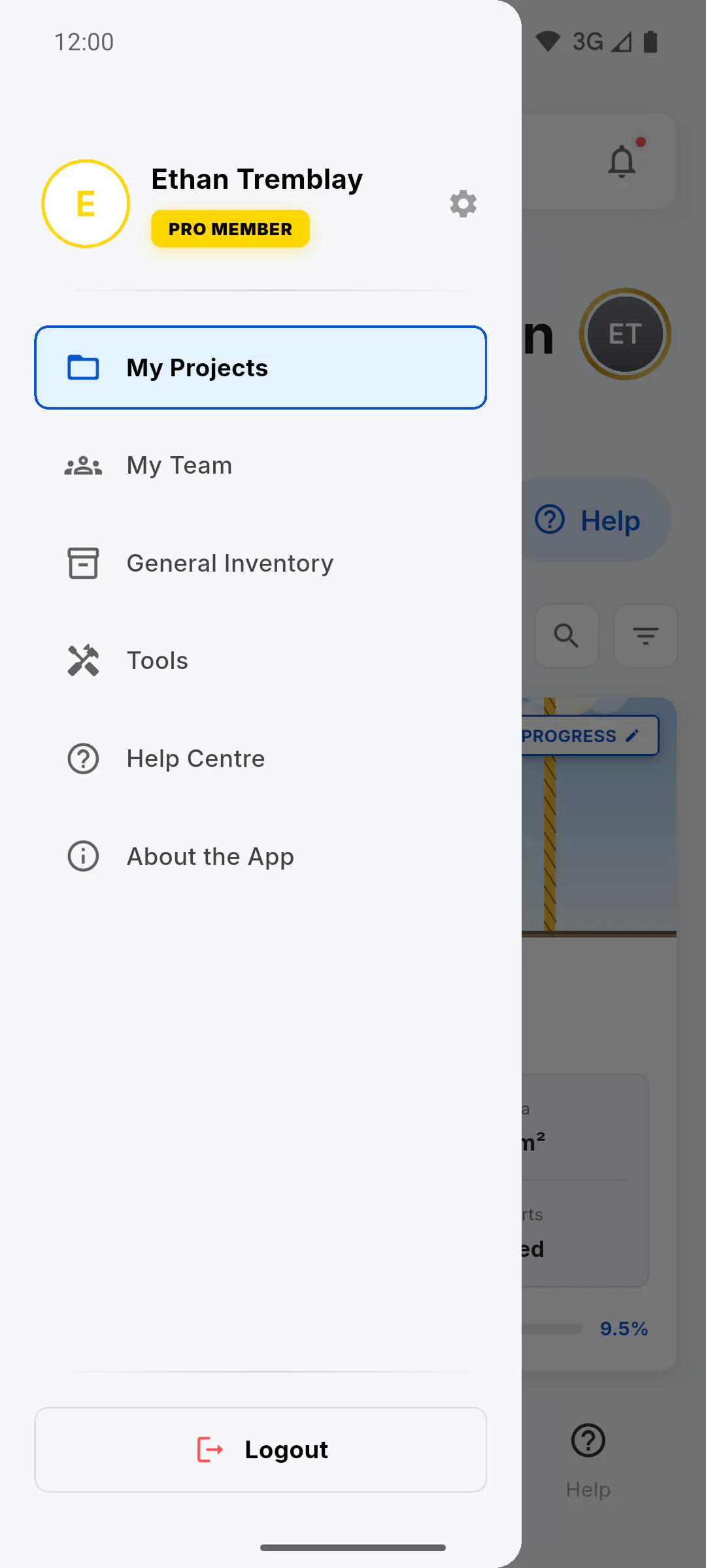
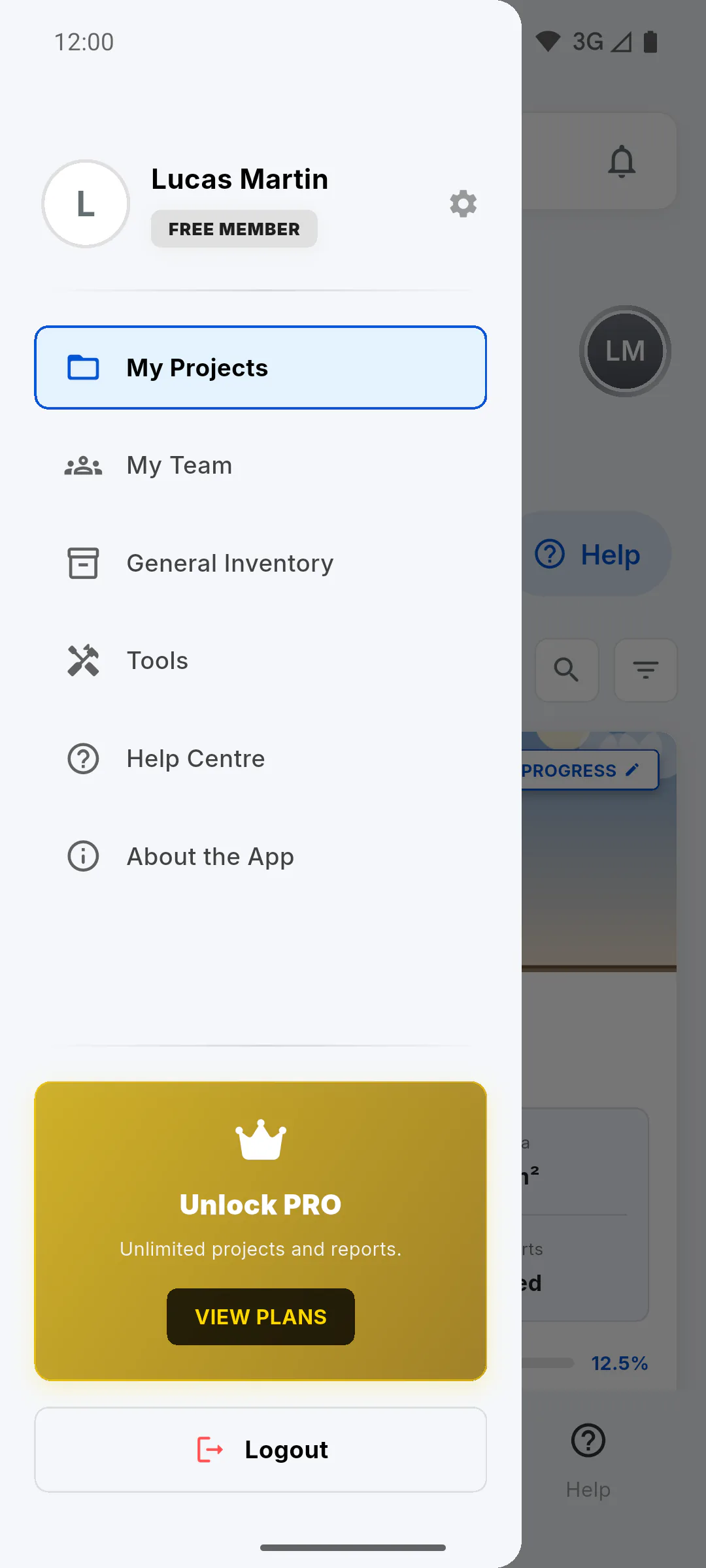
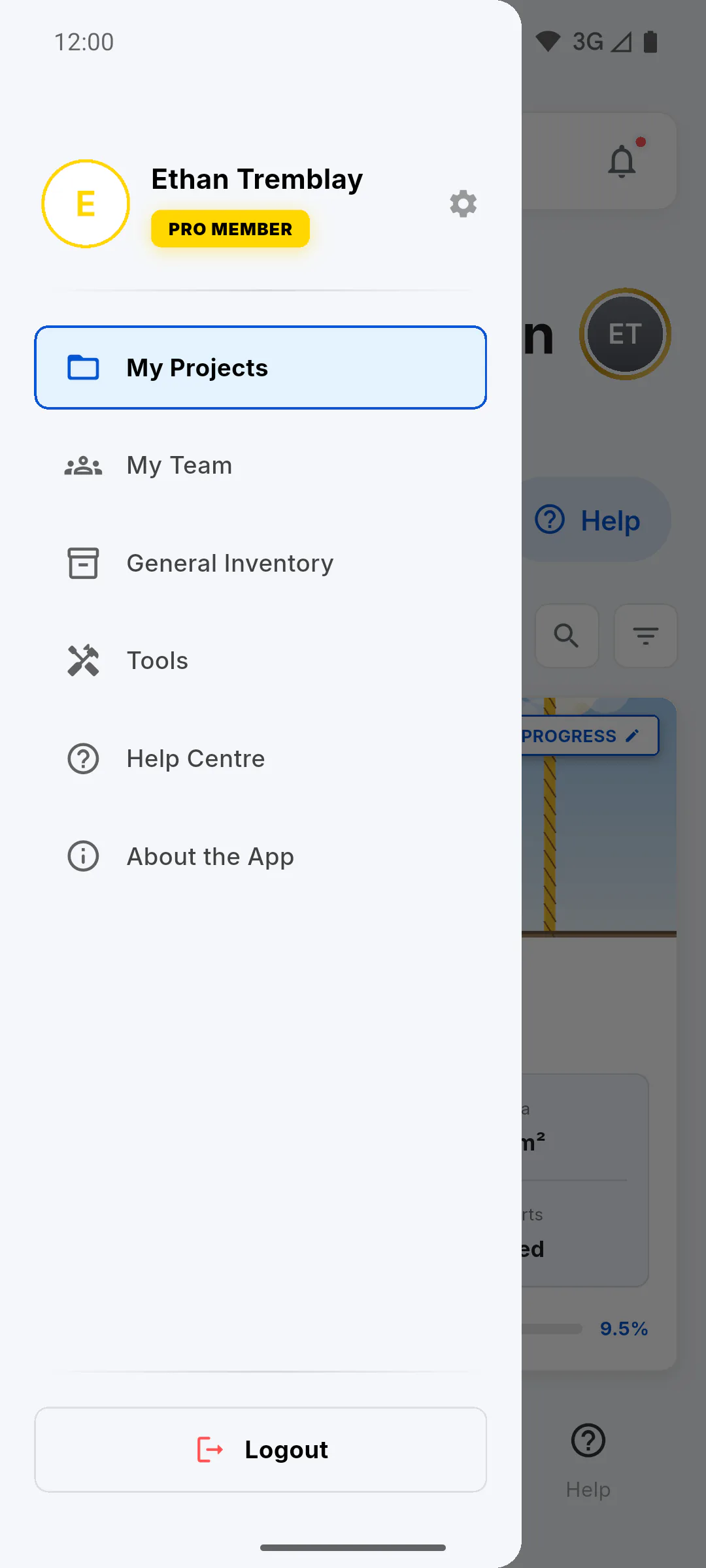
At the top of the menu is your profile card with your photo (with a gold ring on PRO or silver on the free plan), your name and your plan badge: PRO member or Free member. Tap the card to open Profile, where you'll find appearance, notifications, language and your account details: How to open and use your profile
Step 3: First group: projects, tools and help
The menu items are arranged in groups. The first group contains:
- My Projects: goes back to your project list on the dashboard.
- Tools: opens Quick Tools, with calculators, issues and reminders: Quick tools: what each shortcut does
- Help Centre: opens the dashboard's Help tab, with help and support.
Step 4: Second group: team, inventory and app info
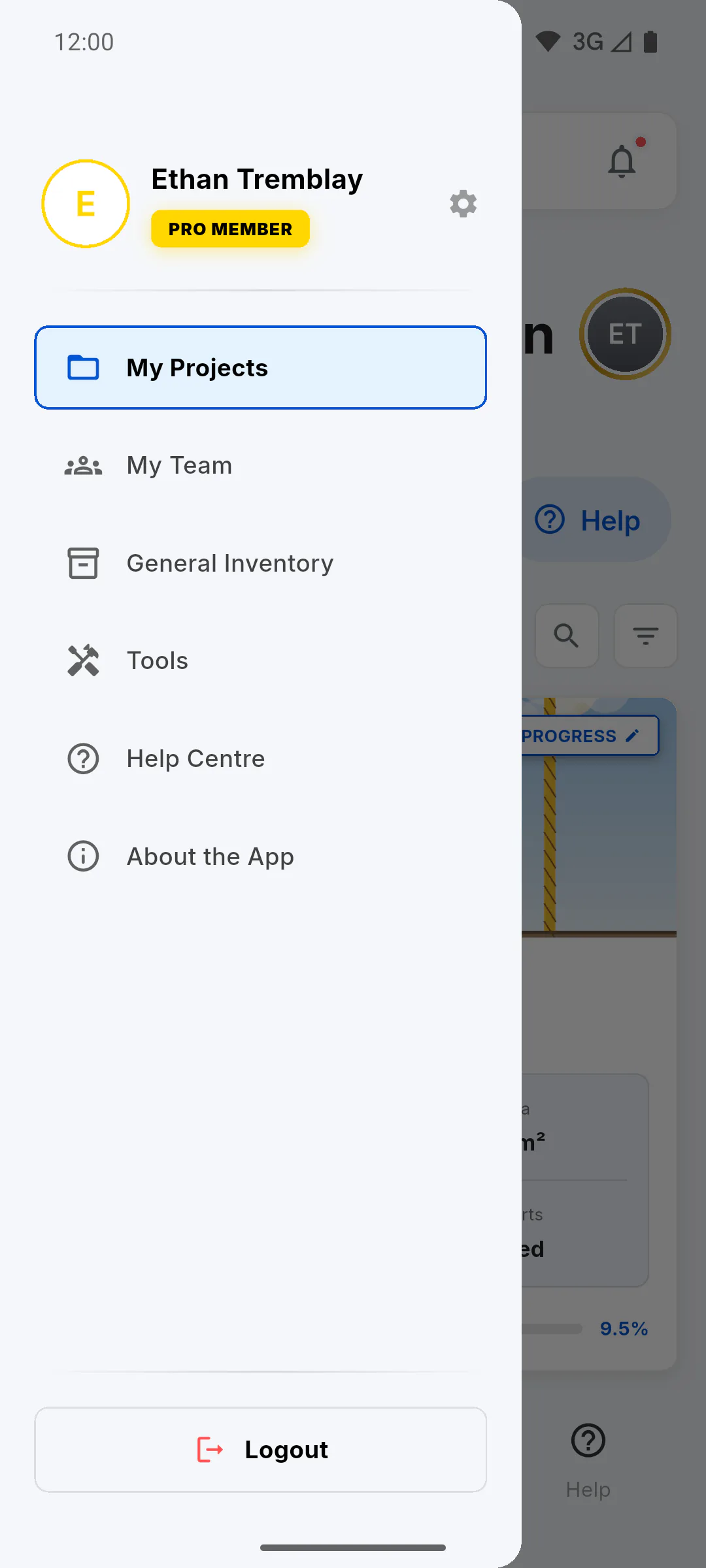
The second group contains:
- My Team: opens the team members saved in your account: How to add a member to your team
- General Inventory: opens your account's tools and equipment: How to add tools to the General Inventory
- About the App: shows the app version, key features and contacts: About the App: version, features and contacts
Step 5: On a computer
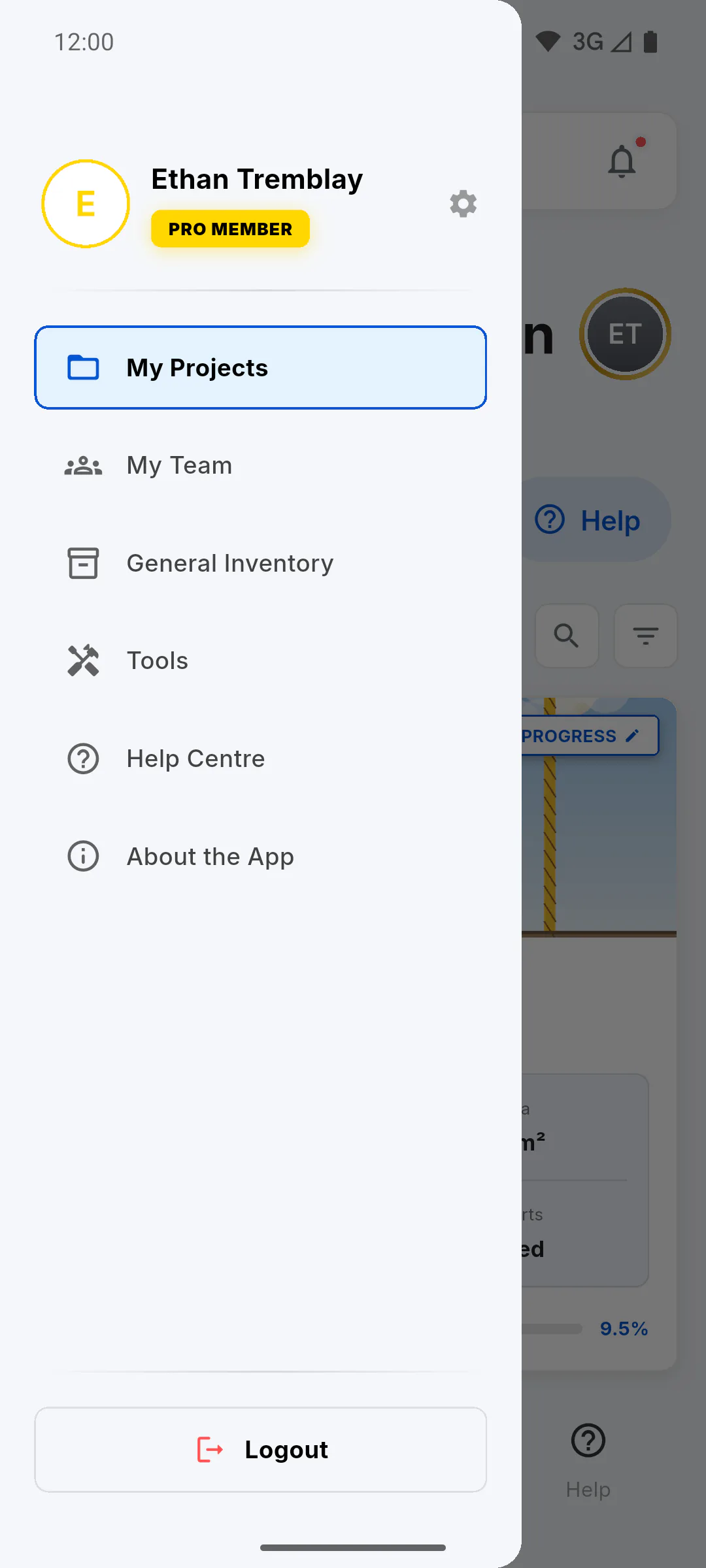
In the fixed menu on wide screens, both groups appear in the same order on the left side. My Projects shows only the project list, while Tools shows the project list with Quick Tools below it (and is the screen you land on when you sign in).
Step 6: Unlock PRO
At the bottom of the menu, if you're on the free plan, you'll see the Unlock PRO card (Unlimited projects and reports.) with a View Plans button, which opens the plans screen. PRO accounts don't see this card. Free vs PRO: what changes
Step 7: Log out
The last item at the bottom is Logout, in red, which ends your session and takes you back to the login screen. Without internet, the app won't let you log out and shows No Connection: How to log out (and why you can't do it offline)
How to use the side menu
The side menu features your profile card at the top, items organized in groups, the PRO invite at the bottom for free accounts and the red Logout button.
For managers and team members7 steps
Didn't find what you were looking for?
Chat with support on WhatsApp or raise a ticket in the app.