
Step 1: Why it appears
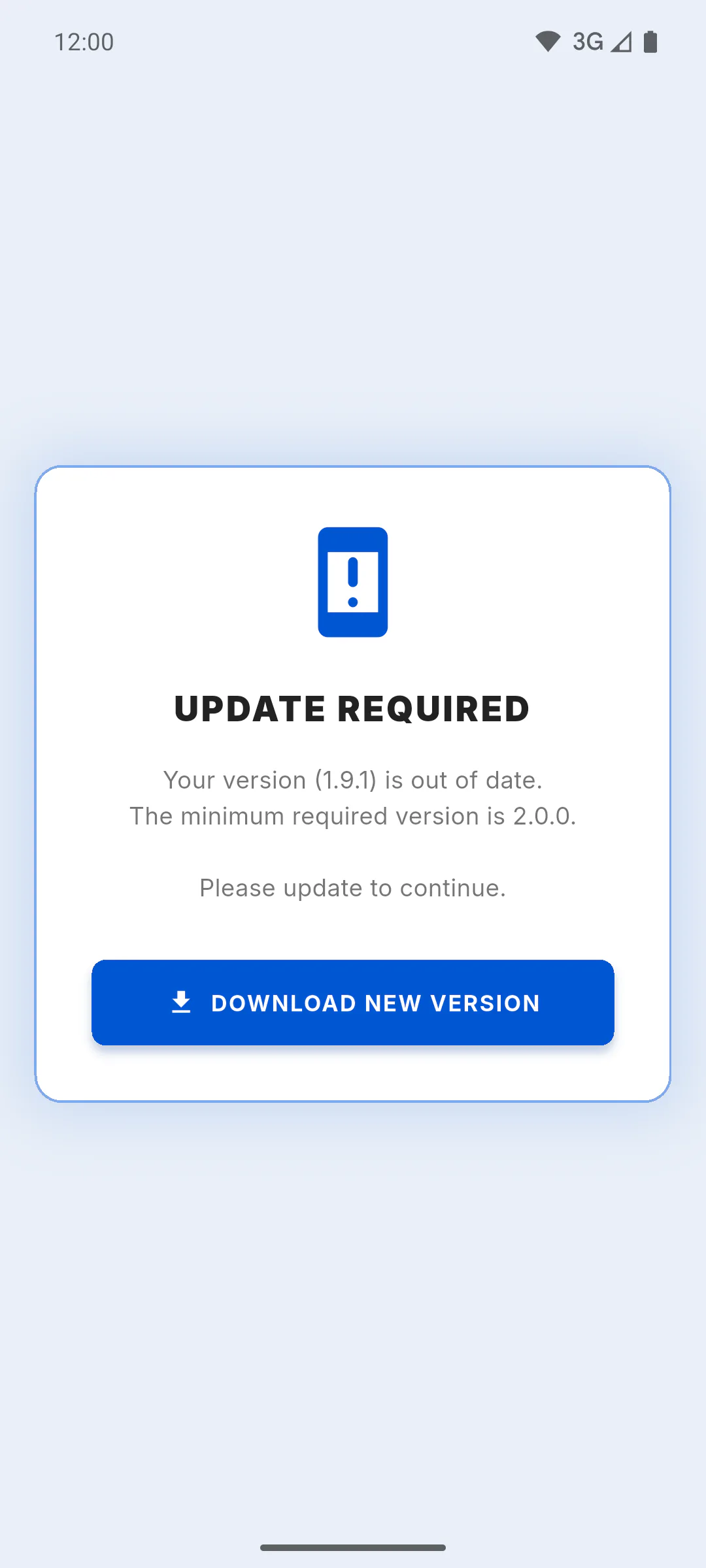
When the installed version is below the minimum accepted version, the app shows Update Required, with your version and the minimum version, and won't let you continue until you update.
Step 2: On a phone
Tap Download New Version: it opens the link to download the new version. Update the app and open it again. If the link doesn't open, update ObraFácil directly in your phone's app store.
Step 3: On Windows
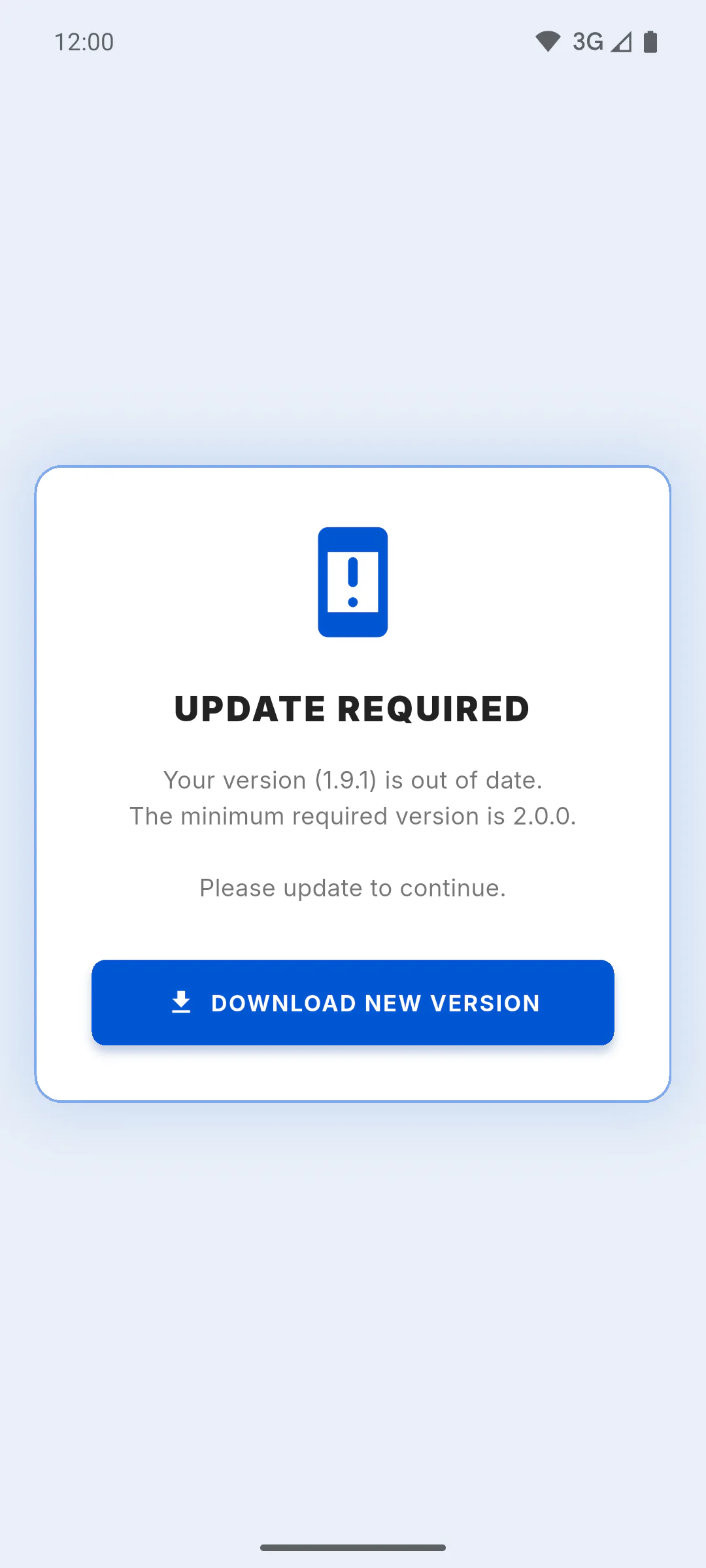
The same Download New Version button opens the link to download the new Windows version. Install it and open the app again.
Step 4: In a web browser
Tap Reload Page: the page loads again, now on the new version.
Step 5: Language of this screen
This screen appears in the language chosen in the app, like every other screen, in any of the app's languages.
Step 6: Without internet
The check only happens with an internet connection. Offline, the app opens as usual; the next time you open it online, the screen comes back until you update. To see the installed version: About the App: version, features and contacts
Seeing "Update required": how to update the app
When your version of the app is older than the minimum accepted, ObraFácil blocks the screen until you update. See what to do on a phone, on Windows and in a web browser.
For managers, team members and clients6 steps
Didn't find what you were looking for?
Chat with support on WhatsApp or raise a ticket in the app.