
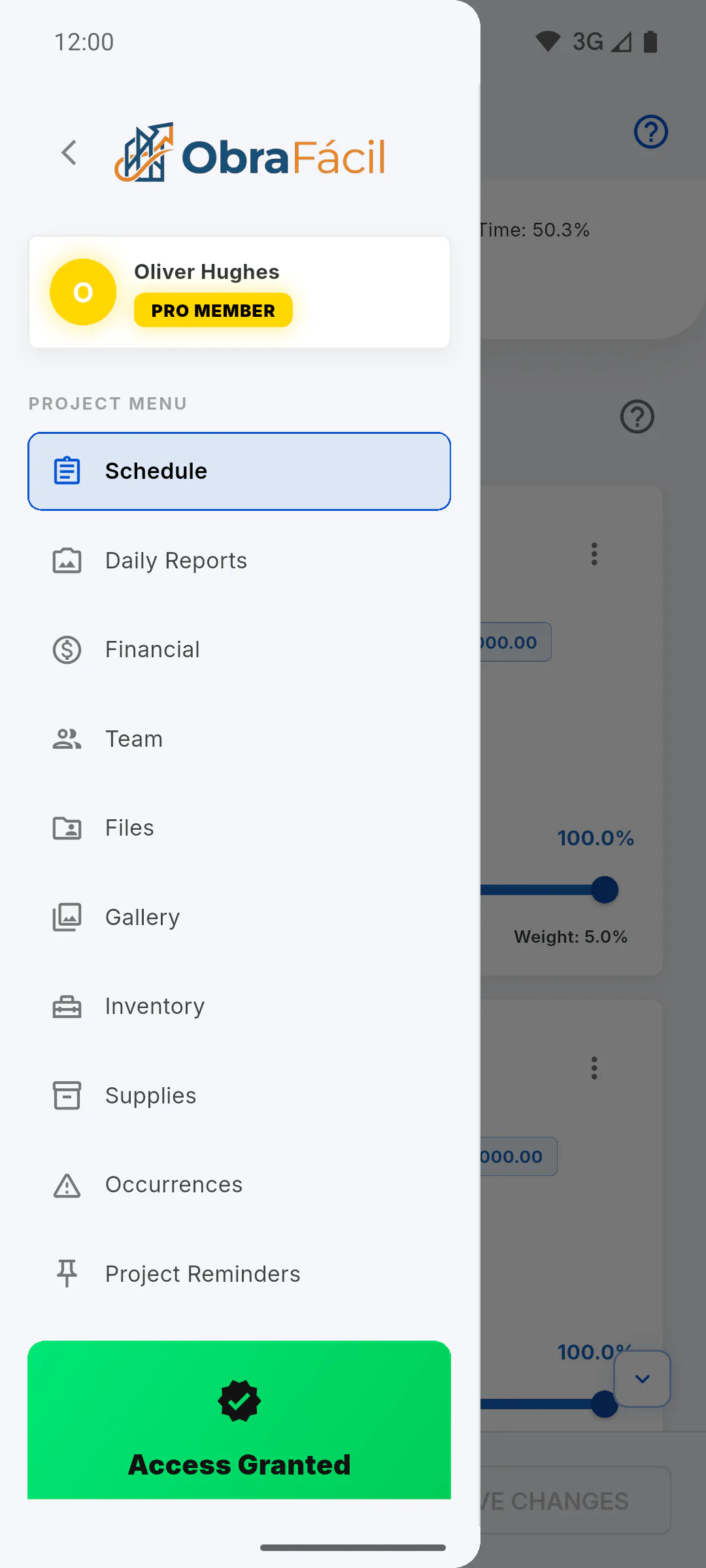
Step 1: Open the project's Team
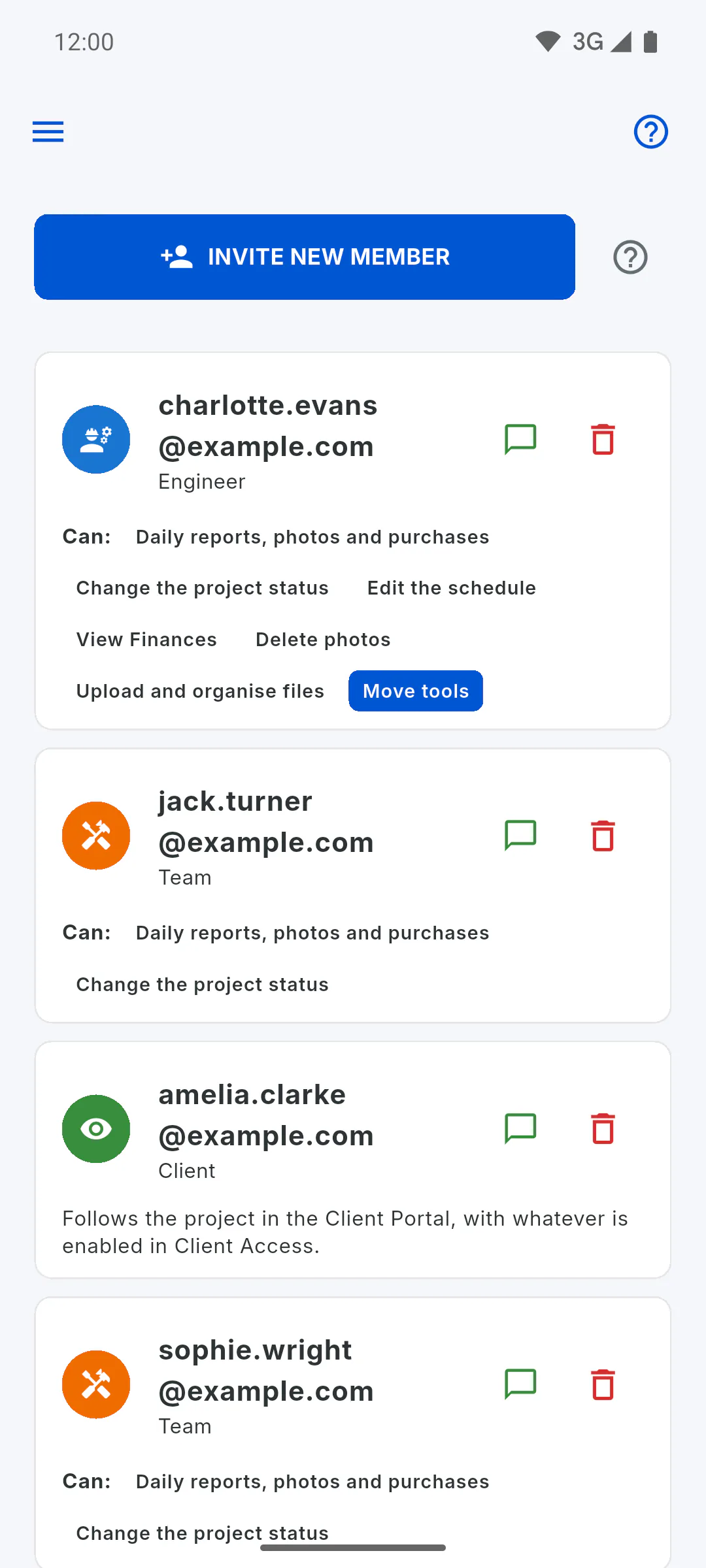
Open the project and, in the project menu, tap Team. It lists everyone with access to the project, with their email and role. Only the project owner can invite: for invited engineers and team members, Team appears in the project menu greyed out with a padlock, and tapping it opens the Locked feature window, which shows their role on the project and who can use it.
Step 2: Enter the email
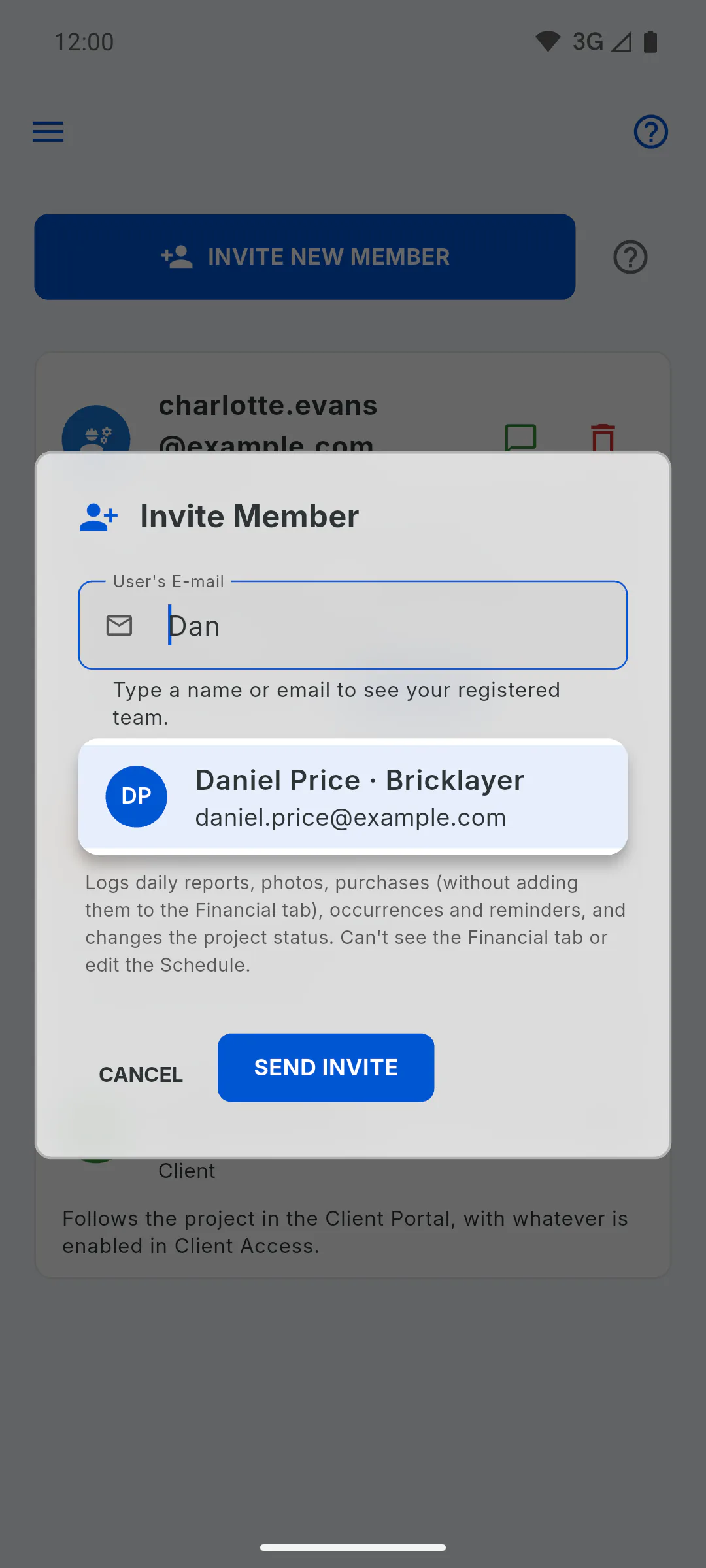
Tap Invite New Member. In Invite Member, type the User's E-mail. If you've saved the email of someone who works with you in My Team, start typing their name, role or email: the list shows who matches, and one tap fills in the field. For anyone not on your team, type the full email. If the address isn't in a valid format, the app won't send it and shows This email address isn't valid. Check it and type it again (e.g. name@company.com). The app can't tell whether the address exists: if the invitation went to the wrong email, remove it and invite again.
Step 3: Pick the role
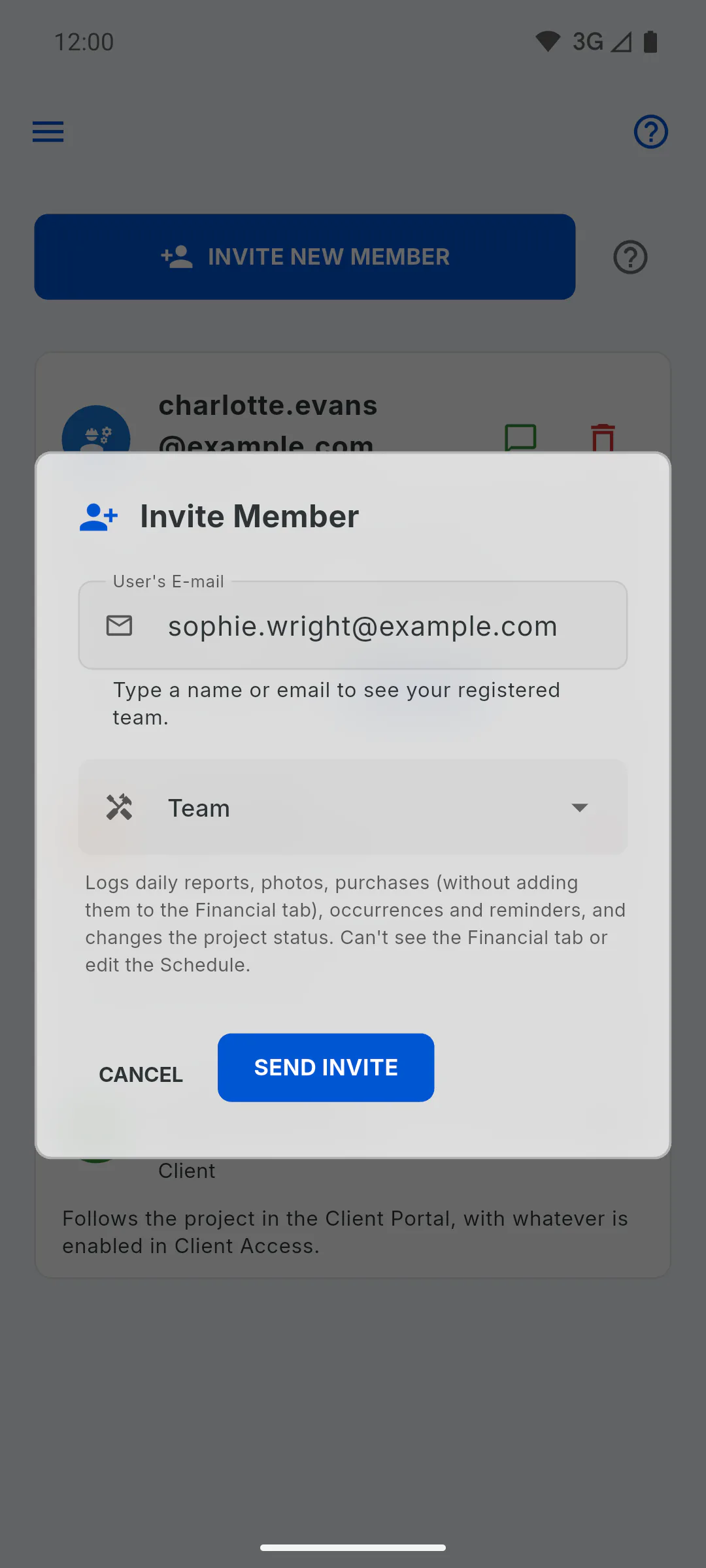
In the drop-down, choose Engineer, Client or Team; Team is selected by default. A description of the role appears below it. The person joins with the role you pick: Engineer, Team and Client: what each role sees and does on a project
Step 4: Send the invitation
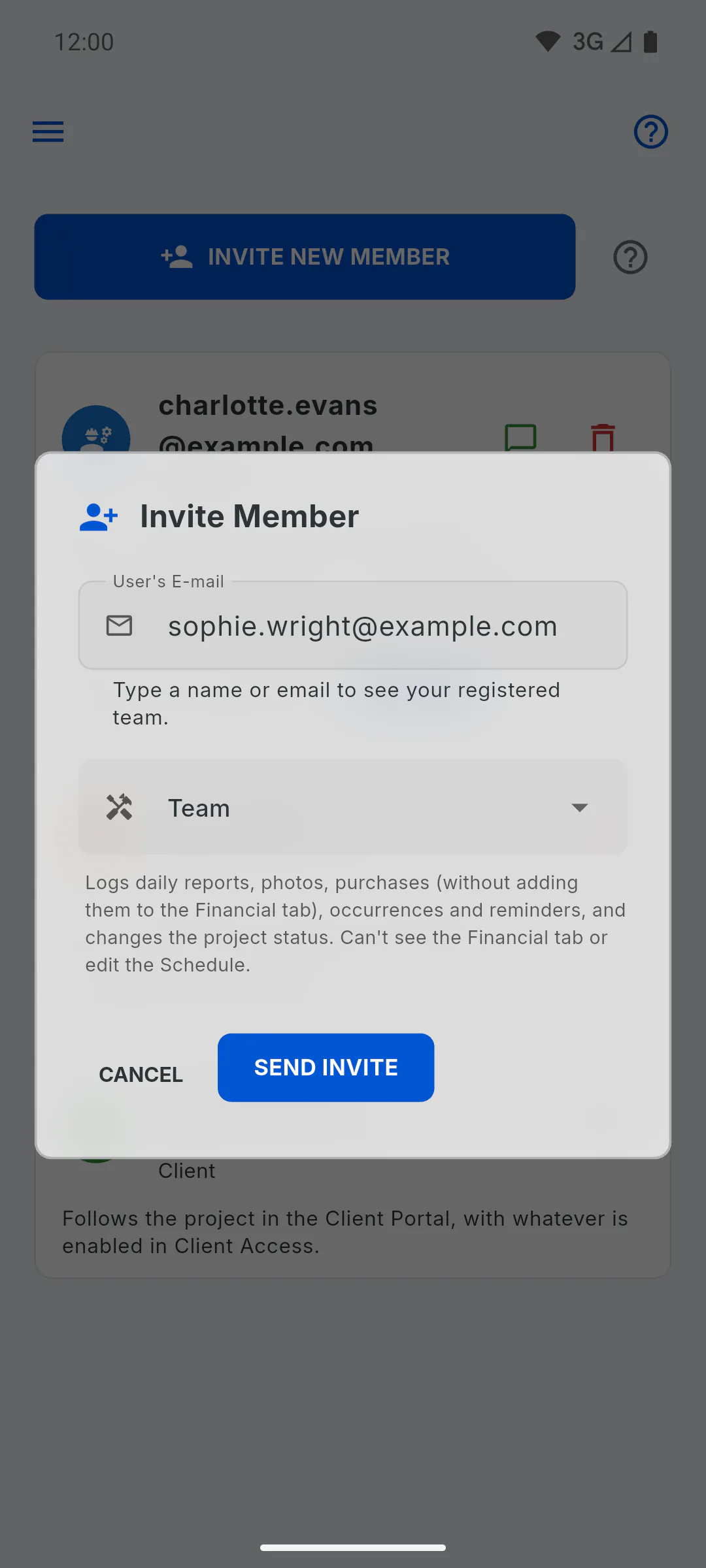
Tap Send Invite. You see Invite sent successfully! and the person gets an automatic email with a link to create their account. On the free plan, each project takes one guest per role: How many invitations can I send on the free plan
- If the email can't be sent, you see Access granted, email not sent, with the reason. The person already has access to the project: let them know on WhatsApp.
Step 5: Let them know on WhatsApp
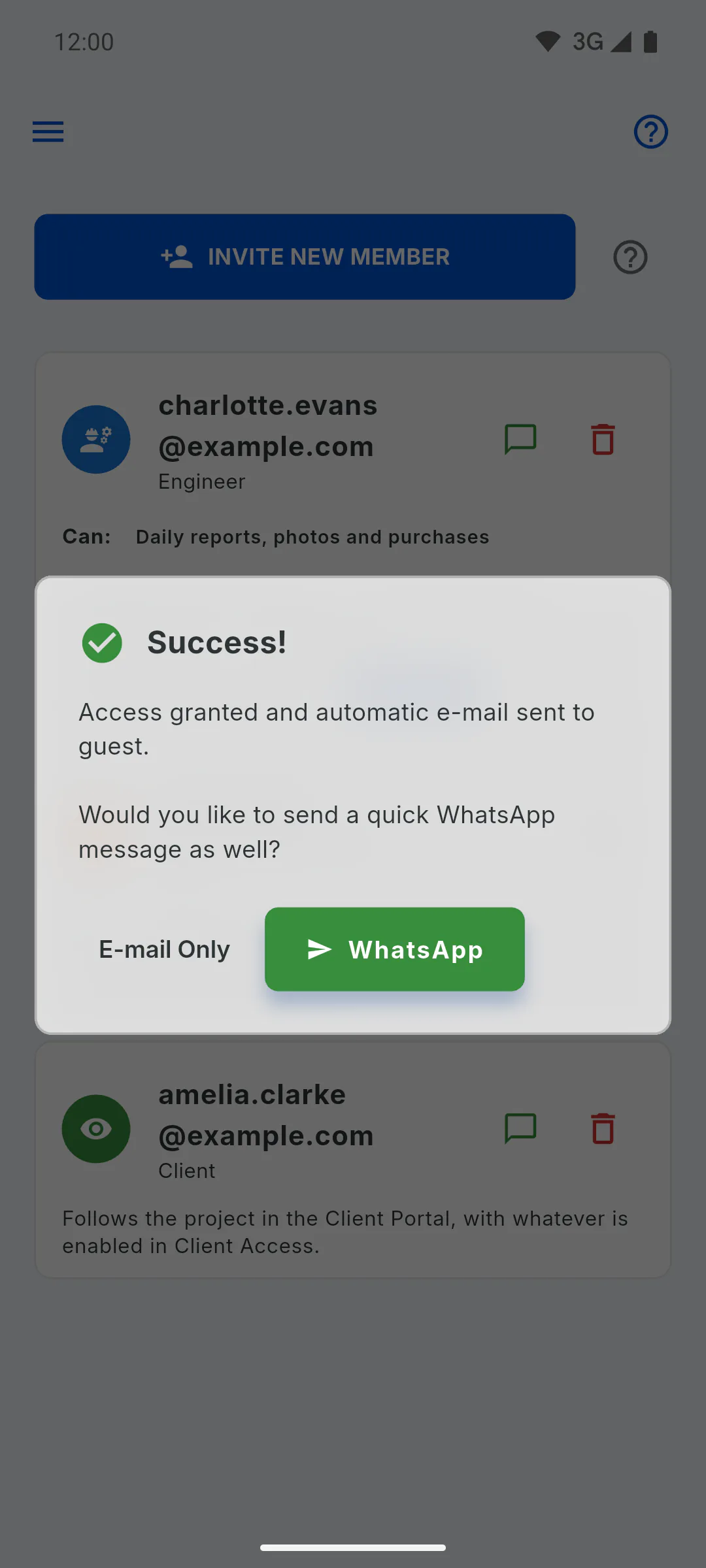
In the Success! window, tap WhatsApp to open a ready-made message with the invitation link and pick the contact, or tap E-mail Only to close. The message comes out in your app's language, and you can edit it in WhatsApp before sending. To send it again later, tap the green speech bubble next to their email (Notify via WhatsApp).
Step 6: The person joins
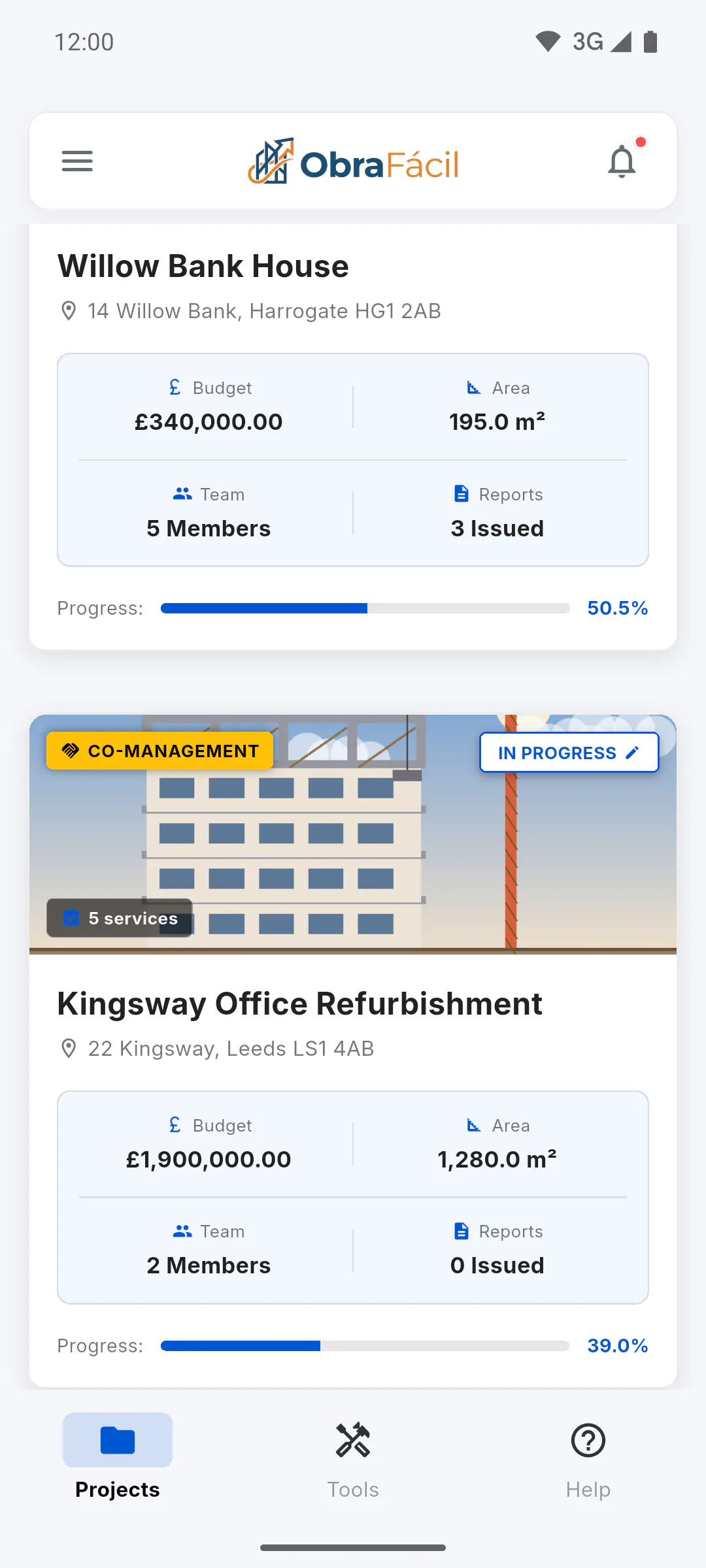
Using the link, they create an account with the same email as the invitation; if they already have one, they just sign in. Engineers and crew see the project on their dashboard tagged Co-Management; the client goes to the Client Portal. If that person also works on other projects in the app, your project appears on their dashboard with the You're the Client badge and opens the Client Portal.
Step 7: After the invitation
- Let someone manage your team members: How to let a guest edit your team
- Take someone's access away: How to remove a member's access
How to invite someone to your project (email and WhatsApp)
Invite an engineer, crew member or client to your project: the invitation goes by email, and you can also send the sign-up link over WhatsApp.
For managers7 steps
Didn't find what you were looking for?
Chat with support on WhatsApp or raise a ticket in the app.