
Step 1: What happens first
When you open the app, it checks, in this order:
- whether your email is confirmed, for email and password accounts: I didn't get the confirmation email: what to do
- whether your account has accepted the Terms of Use: Why you need to accept the Terms of Use
- on a phone, the first time on that device, the permissions: Why the app asks for camera, gallery and notification access
Then it picks your home screen.
Step 2: Account scheduled for deletion
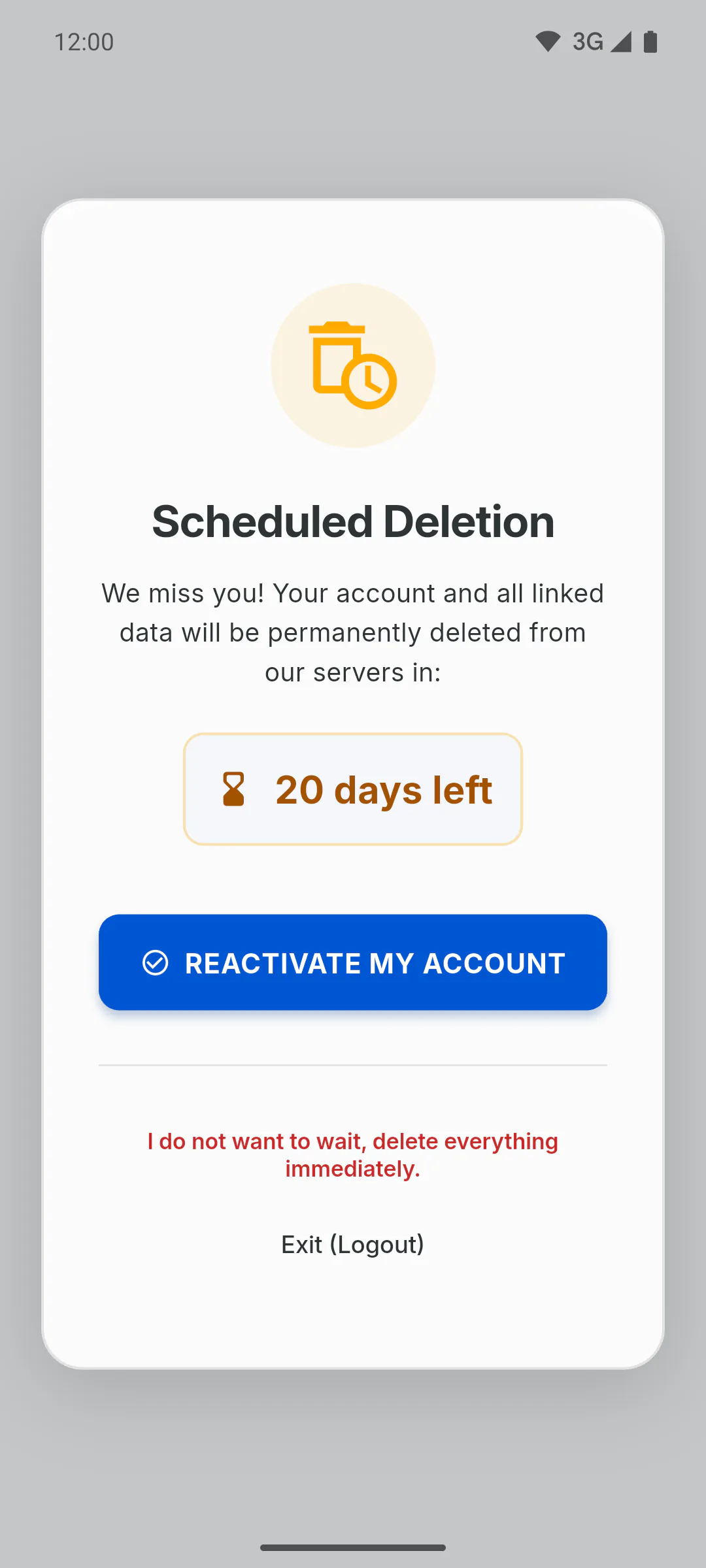
This comes first when the app picks the screen: if you asked to delete your account and it's still within the deadline, the app opens Scheduled Deletion, with the Reactivate My Account button. How to reactivate an account scheduled for deletion
Step 3: Project owners: the dashboard
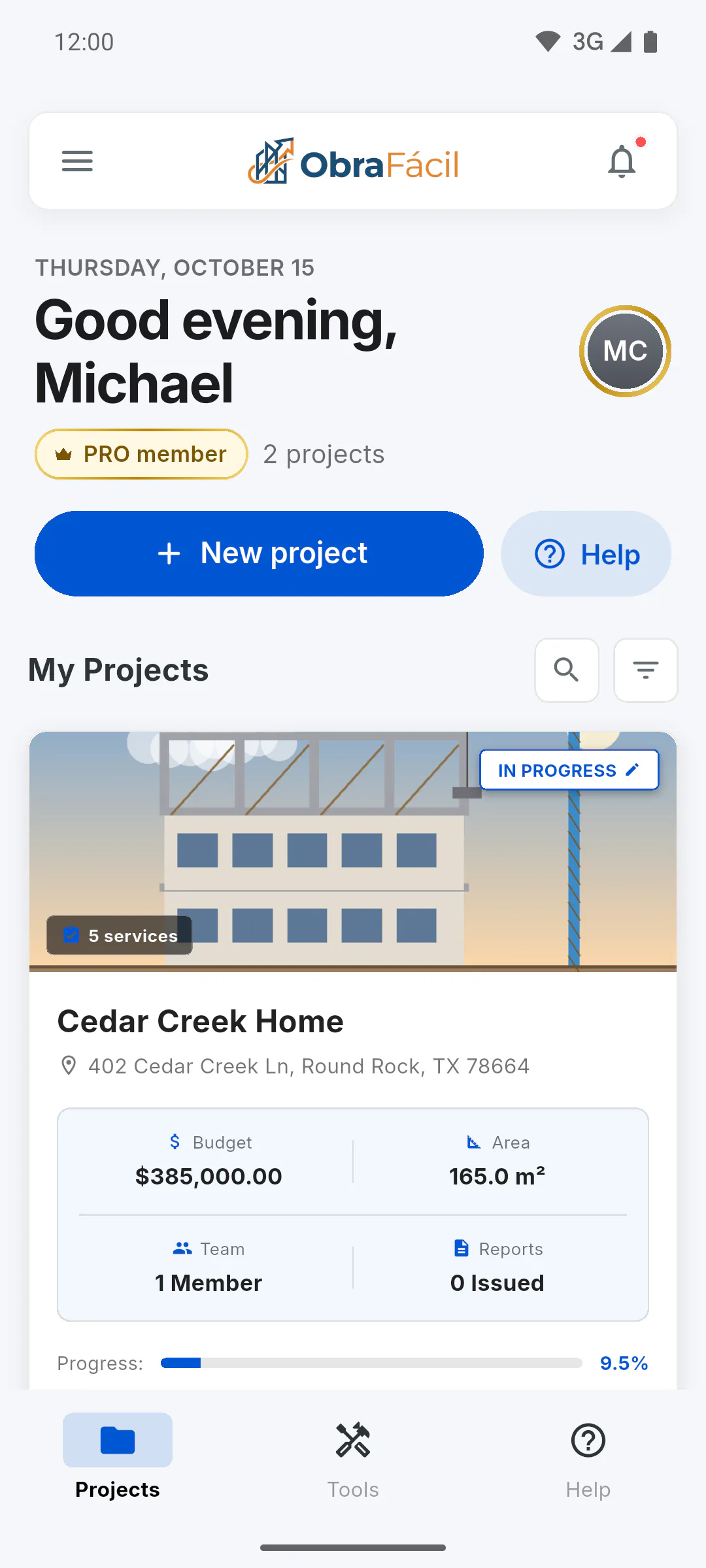
If you own a project, the app opens the dashboard. A new account, with no projects or invitations yet, also starts on the dashboard. Getting to know the dashboard
Step 4: Engineers and team: the same dashboard
If you were invited to a project as an engineer or team member, you also go to the dashboard. Other people's projects show the Co-Management label, and anything your role can't use appears grayed out with a lock: Engineer, Team and Client: what each role sees and does on a project
Step 5: Clients: the Client Portal
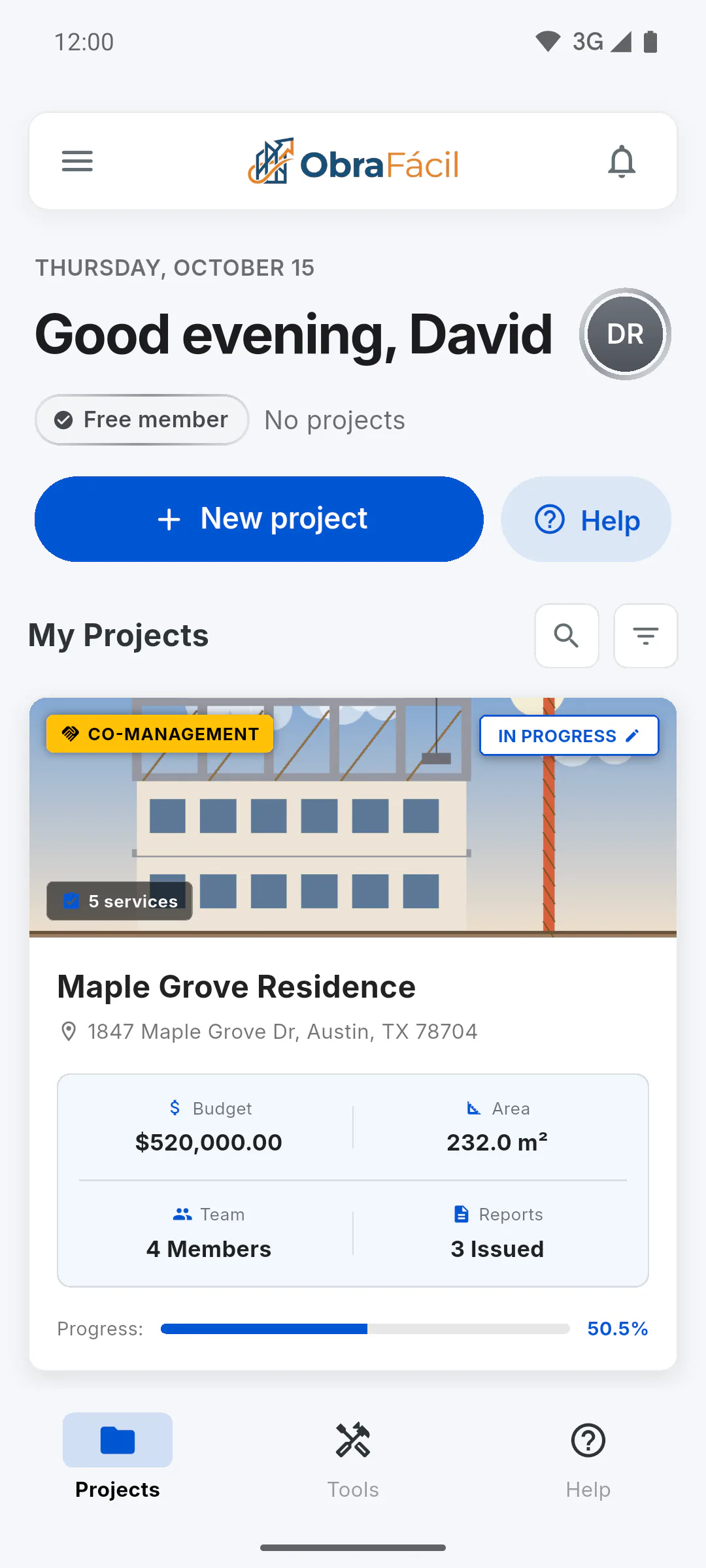
If you were invited as a client, you go to My Projects in the Client Portal. If there's only one project, it opens straight away. First time in the Client Portal: choosing the project and finding your way
Step 6: More than one role
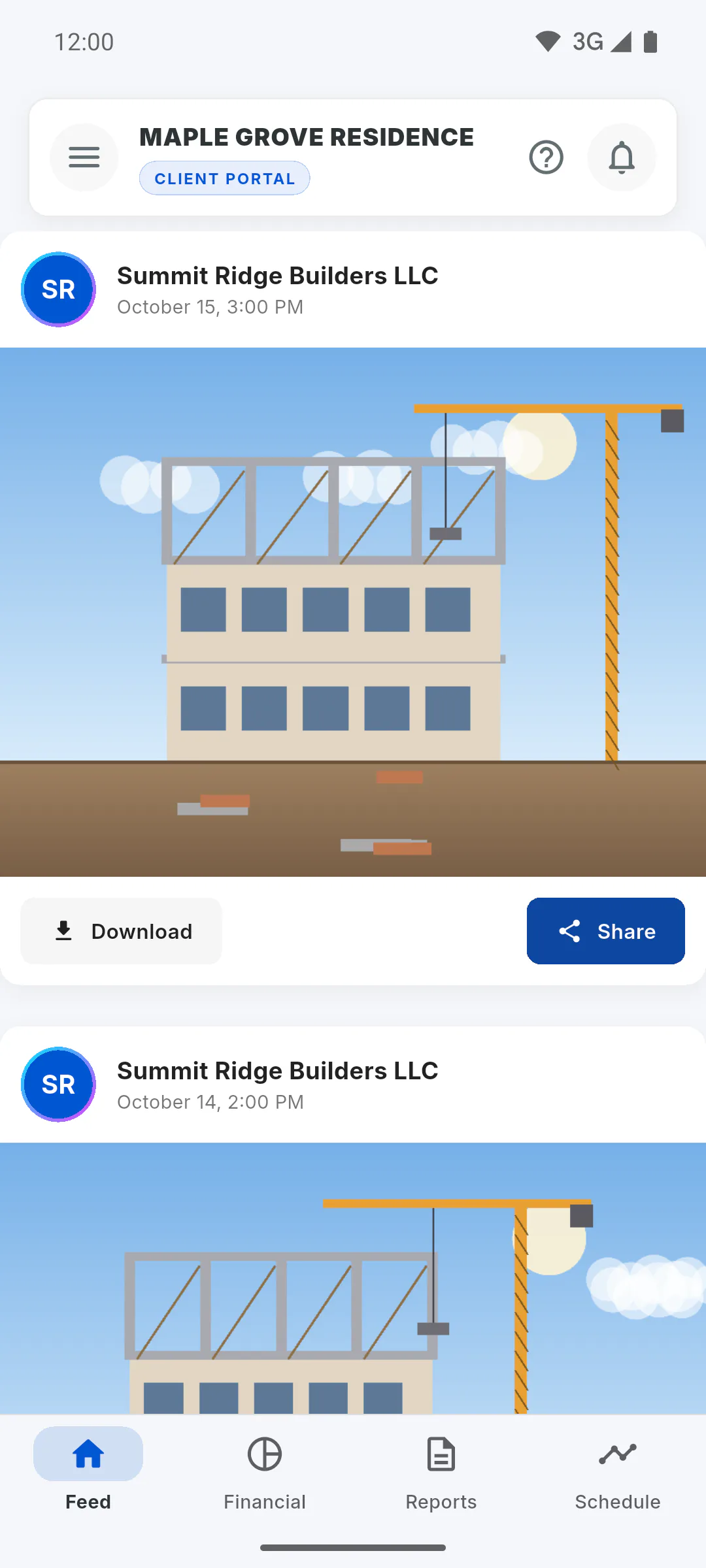
If you own a project, or are an engineer or team member on any project, the app opens the dashboard, even if you're also a client on another project. That project shows up on the dashboard with the You're the Client badge: its card opens that project's Client Portal, never the management screen. To go back to the dashboard, tap the arrow at the top of the screen or Back to management dashboard in the Portal menu.
Step 7: Without internet
If you've signed in on that device before, the app opens even offline, using what was saved on it, and picks the screen from that data. It may take a few seconds. Using the app offline: what works without internet
Which screen the app opens for each profile when you sign in
Managers and team members land on the dashboard; clients go to the Client Portal. See what the app checks first and what happens if you have more than one role.
For managers, team members and clients7 steps
Didn't find what you were looking for?
Chat with support on WhatsApp or open a ticket right in the app.