
Step 1: The roles
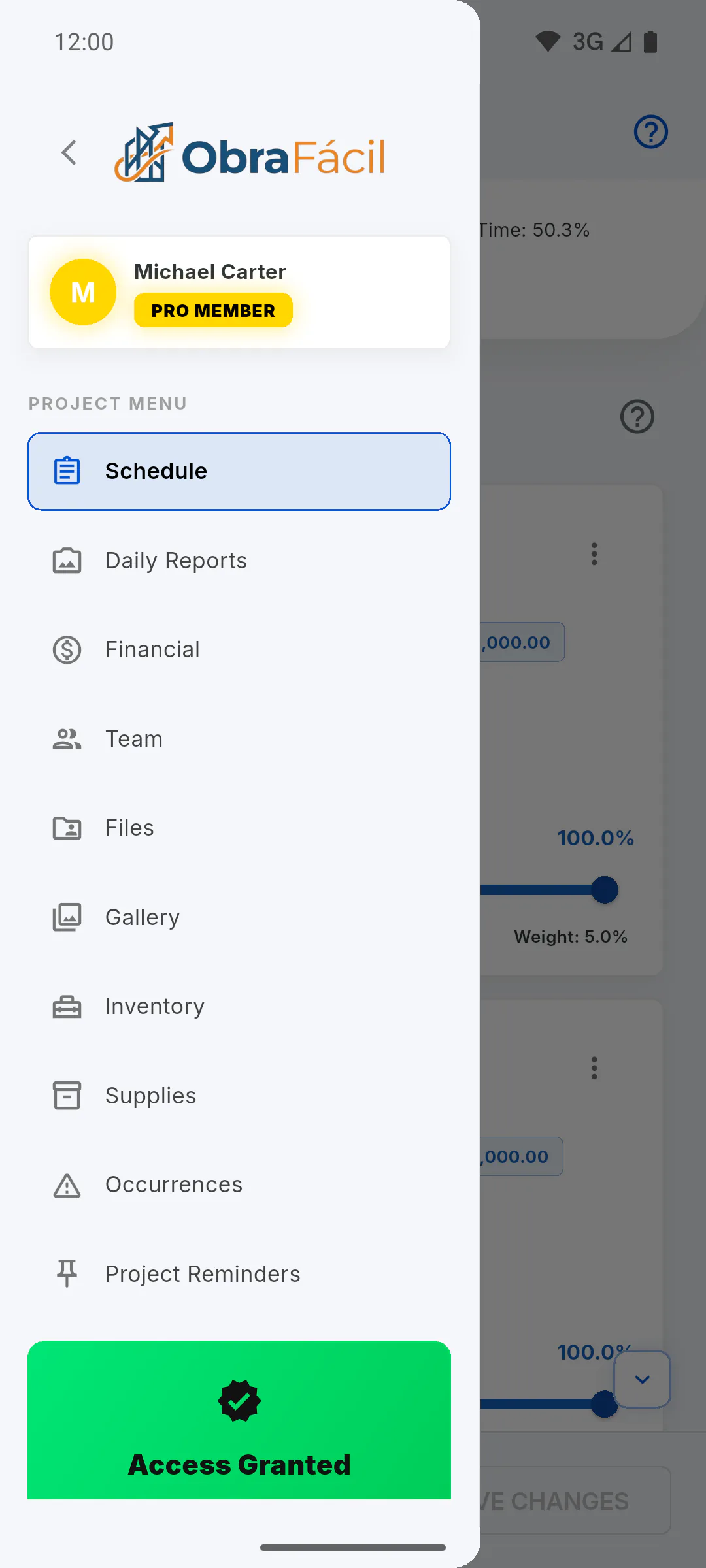
The project owner invites people under Team, in the project menu, and picks each person's role: Engineer, Team or Client: How to invite someone to your project
- Anything your role doesn't allow stays on screen, grayed out with a lock icon. Tap it to open a window showing your role on the project and who can use it.
Step 2: Project owner
Whoever created the project can do everything on it. Only the owner invites and removes people, sets up Client Access, edits the project details and deletes the project.
- Only the owner can lock Files folders for the Team: How to create, rename and delete file folders
Step 3: Engineer
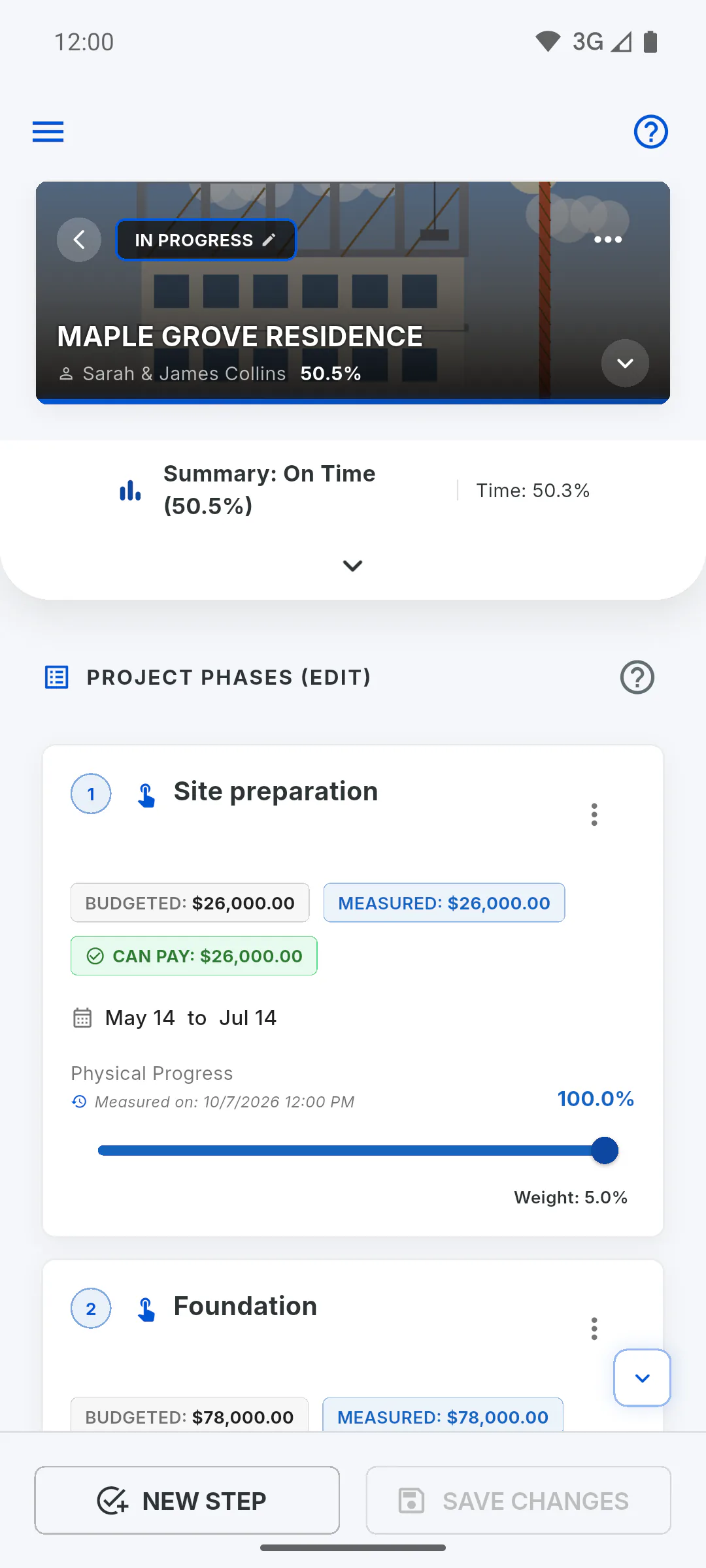
Gets in through the dashboard, where the project shows the Co-Management tag. Sees the Overview tab with the contract value, runs the Schedule (creates and edits stages, updates progress and saves) and follows Financial and Daily Reports.
- Team, in the project menu, and Client Access and Delete Project, in the three-dot menu on the Overview tab, show a lock icon. In the same menu, View project details opens the project details view-only, and entering Financial records stays with the owner.
- In Files, sees every folder, including the ones the owner locked for the Team (with the Locked for Team tag), but can't lock or unlock folders.
Step 4: Team
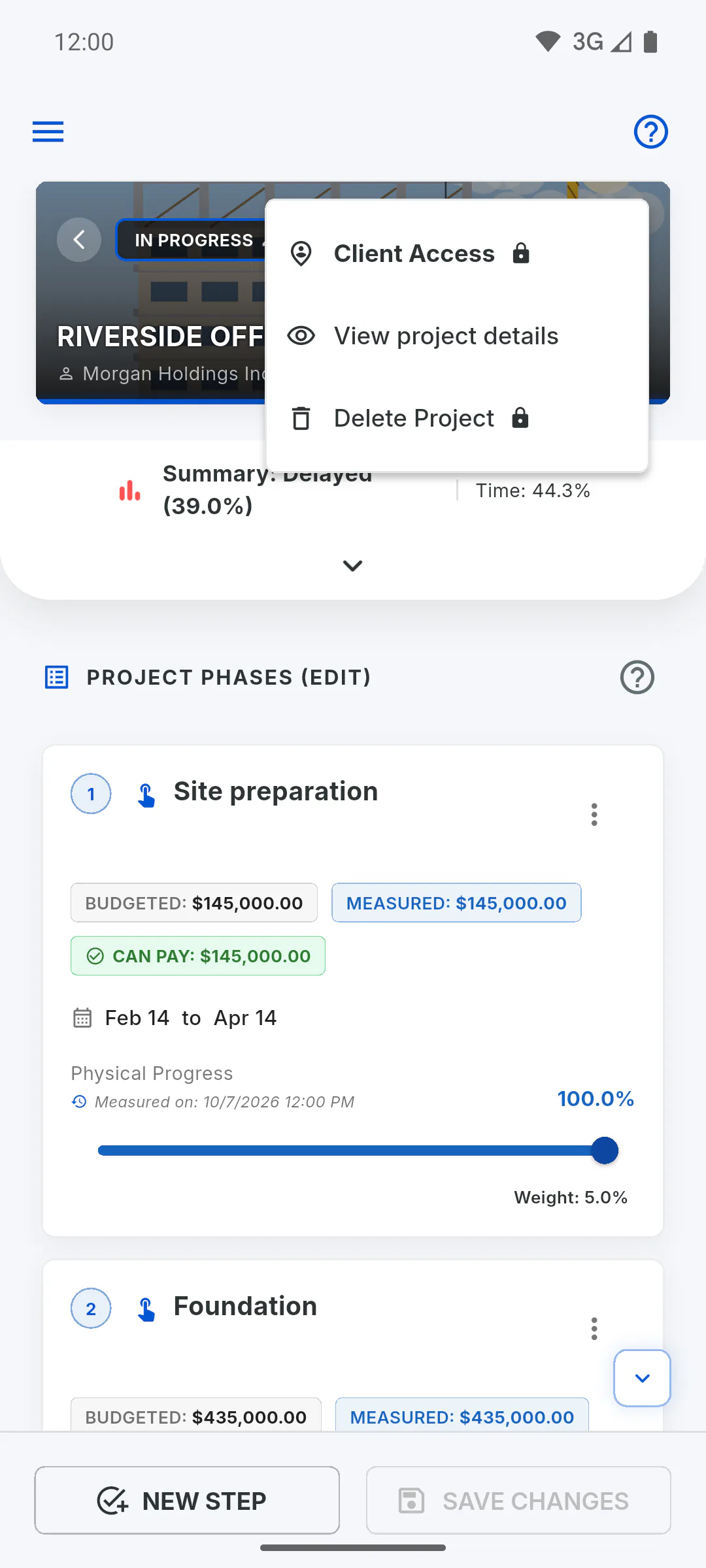
Gets in through the dashboard, with the project tagged Co-Management, and the project opens straight on Daily Reports to create reports with New Report. Can also use the other areas of the menu, such as Gallery and Occurrences.
- Schedule, Financial and Team show a lock icon in the project menu.
- The Budget on the project card in the dashboard and the Contract value on the Overview tab show a lock icon instead of the number. Tap one to see who can view it. Progress (%) stays visible.
- In Supplies, sees the amount only on purchases they logged; the others show the lock icon. Workers' wages, opened from Manage in a daily report, are locked too.
- In Files, folders the owner locked show only their name and a lock icon.
Step 5: Client
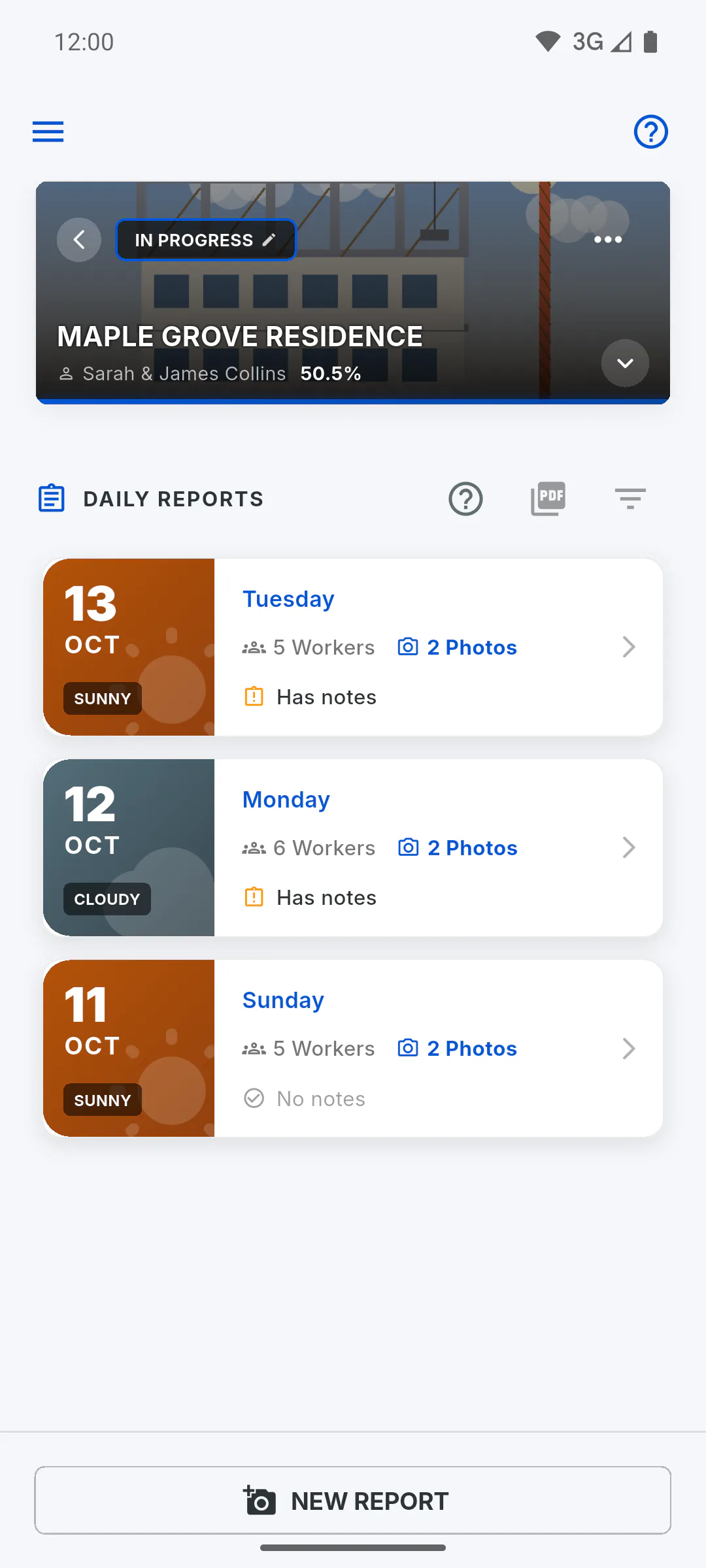
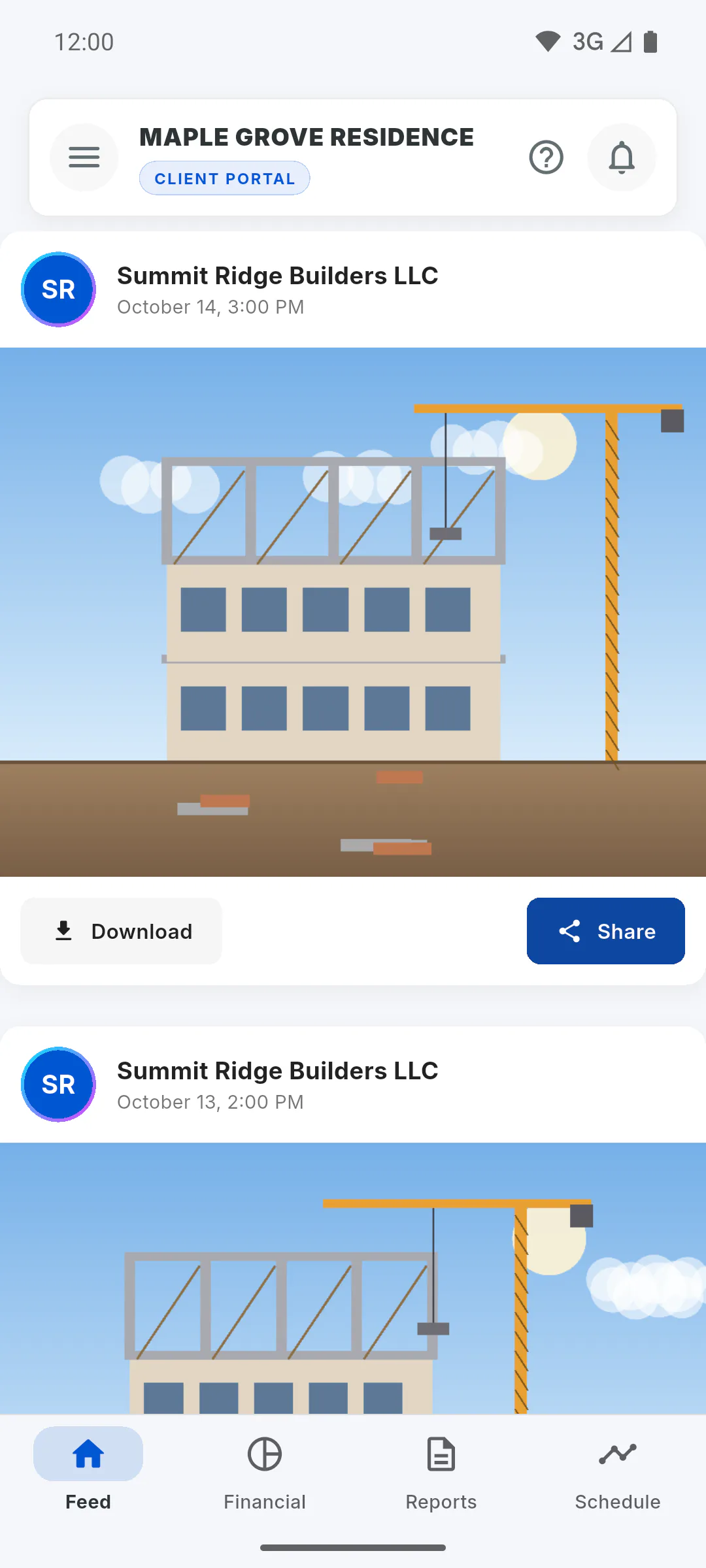
Gets in through the Client Portal, not the dashboard, and only follows the project: sees what the owner has made available and can't edit anything.
- First access: First access to the Client Portal
- What the client sees: What the client sees with and without Client Access
- If you also use the app's dashboard, because you have your own projects or work on others, this project shows there with the You're the Client badge. Tap it to open its Client Portal, with an arrow to go back.
Engineer, Team and Client: what each role sees and does on a project
People invited to a project join with a role chosen by the owner: Engineer, Team or Client. See what each one can see and do.
For managers, team members and clients5 steps
Didn't find what you were looking for?
Chat with support on WhatsApp or open a ticket right in the app.