
Step 1: Tap the status tag
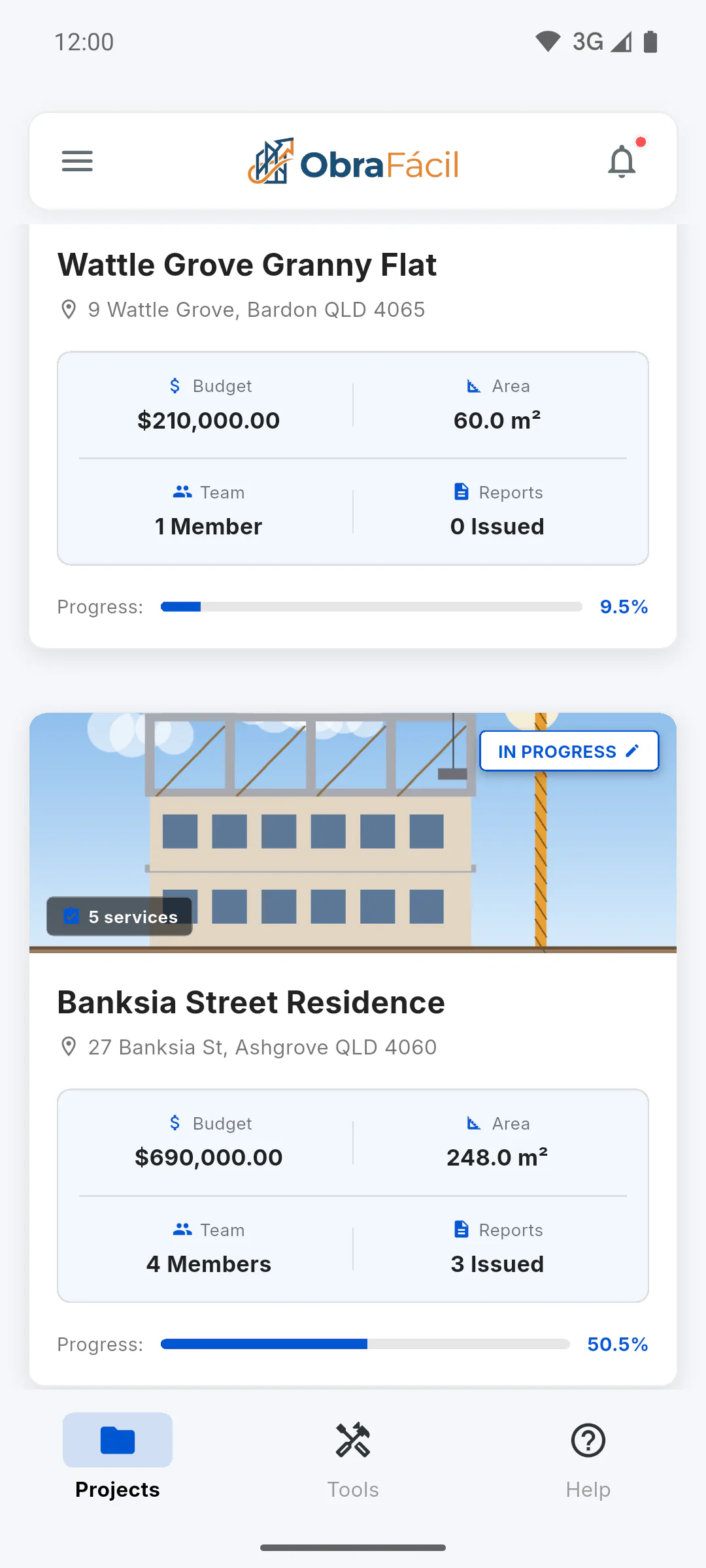
On the dashboard, find the project card and tap its status tag, such as In Progress. Tapping anywhere else on the card opens the project instead.
Step 2: Choose and save
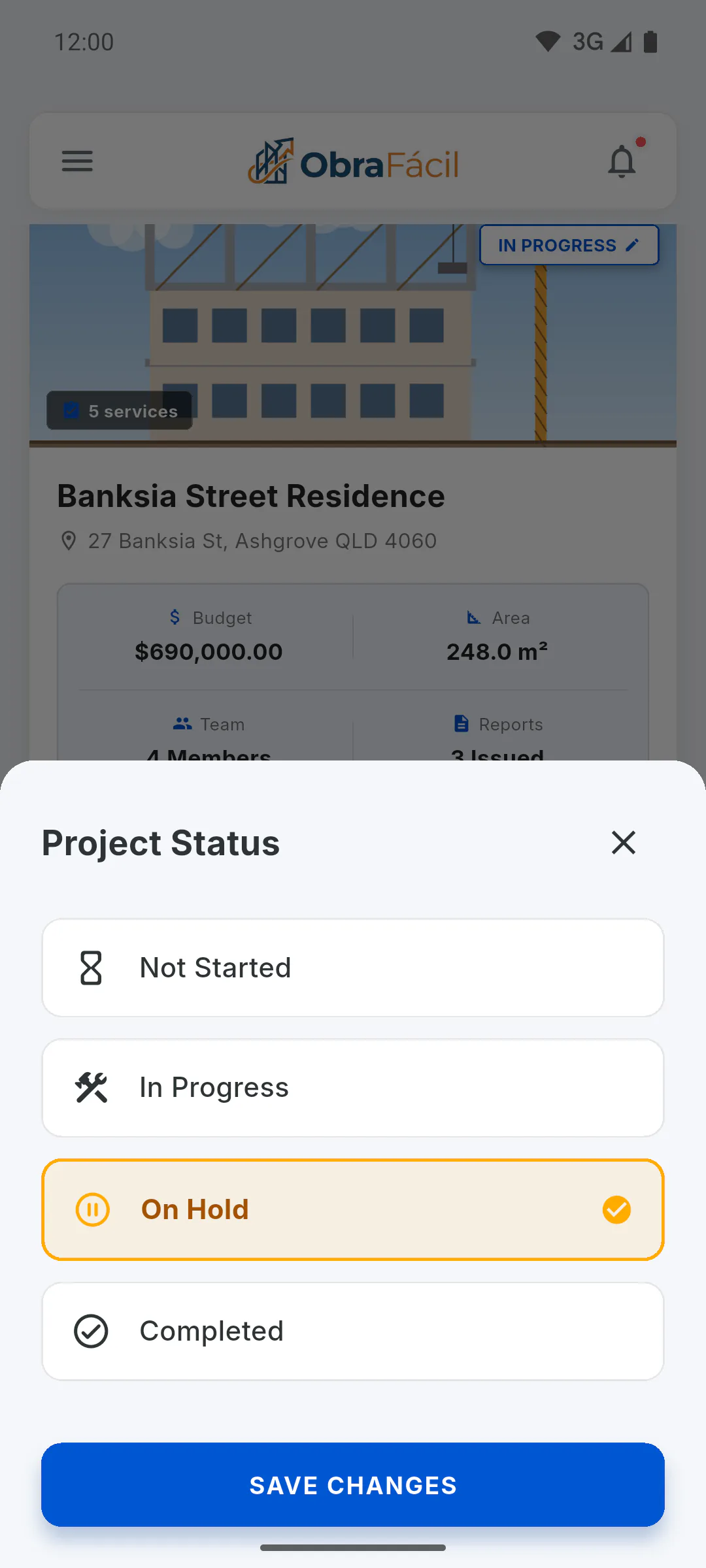
In the Project Status window, tap the new status (Not Started, In Progress, On Hold or Completed), then Save Changes. The window closes and the card tag updates.
Step 3: Inside the project too
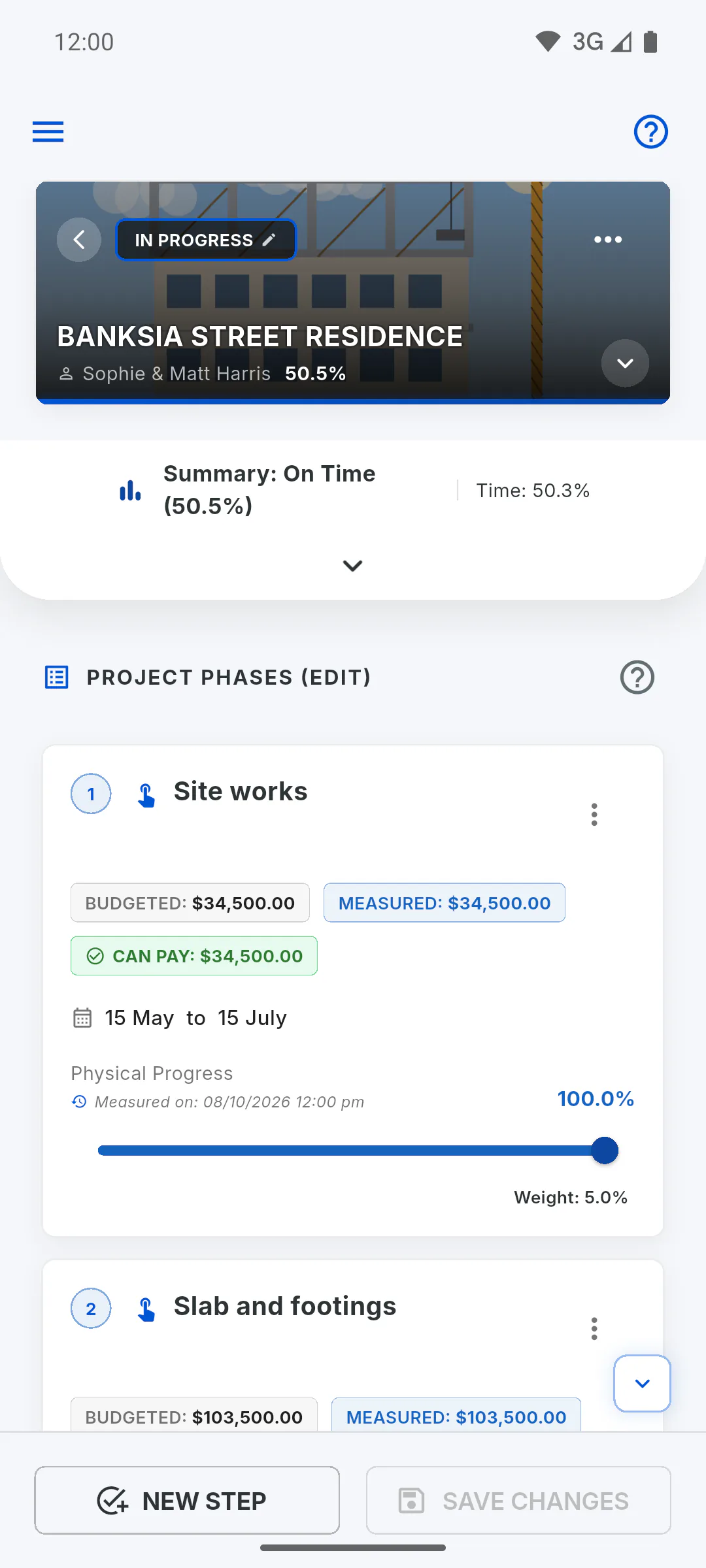
With the project open, go to the Overview tab and tap the status badge at the top of the tab (next to the three-dot button). The same Project Status window opens.
Step 4: The status can change on its own
When you save the schedule, the app adjusts the status based on physical progress. For example, a project marked Completed with progress below 100% goes back to In Progress. On Hold only changes on its own when the project reaches 100%: Project status: when it changes on its own
How to change a project's status from the dashboard
Mark a project as Not Started, In Progress, On Hold or Completed straight from its dashboard card or on the project Overview tab.
For managers4 steps
Didn't find what you were looking for?
Chat with support on WhatsApp or raise a ticket in the app.